Film grain can give a clean image a more tactile finish, but it cannot repair a broken hand, inconsistent product or unstable video. Start with an accepted image, choose the delivery size, and compare a restrained texture with the untouched source. The free tool above lets you do that locally with a repeatable seed.
What is film grain
Photographic film grain belongs to the film image-forming process. Synthetic grain is an added texture. Digital sensor noise, compression blocks and scanned-film texture have different origins even when they look similar at a glance. Adobe describes these distinctions in its Noise and Grain reference.
For practical creative work, ask what the texture does to the subject. It may soften the impression of an overly smooth background, connect neighboring shots stylistically or suggest a rougher visual treatment. It also adds detail that can compete with faces, lettering and fine product edges. Treat those as creative choices to inspect rather than automatic improvements.
Compare a clean source with a seeded grain look
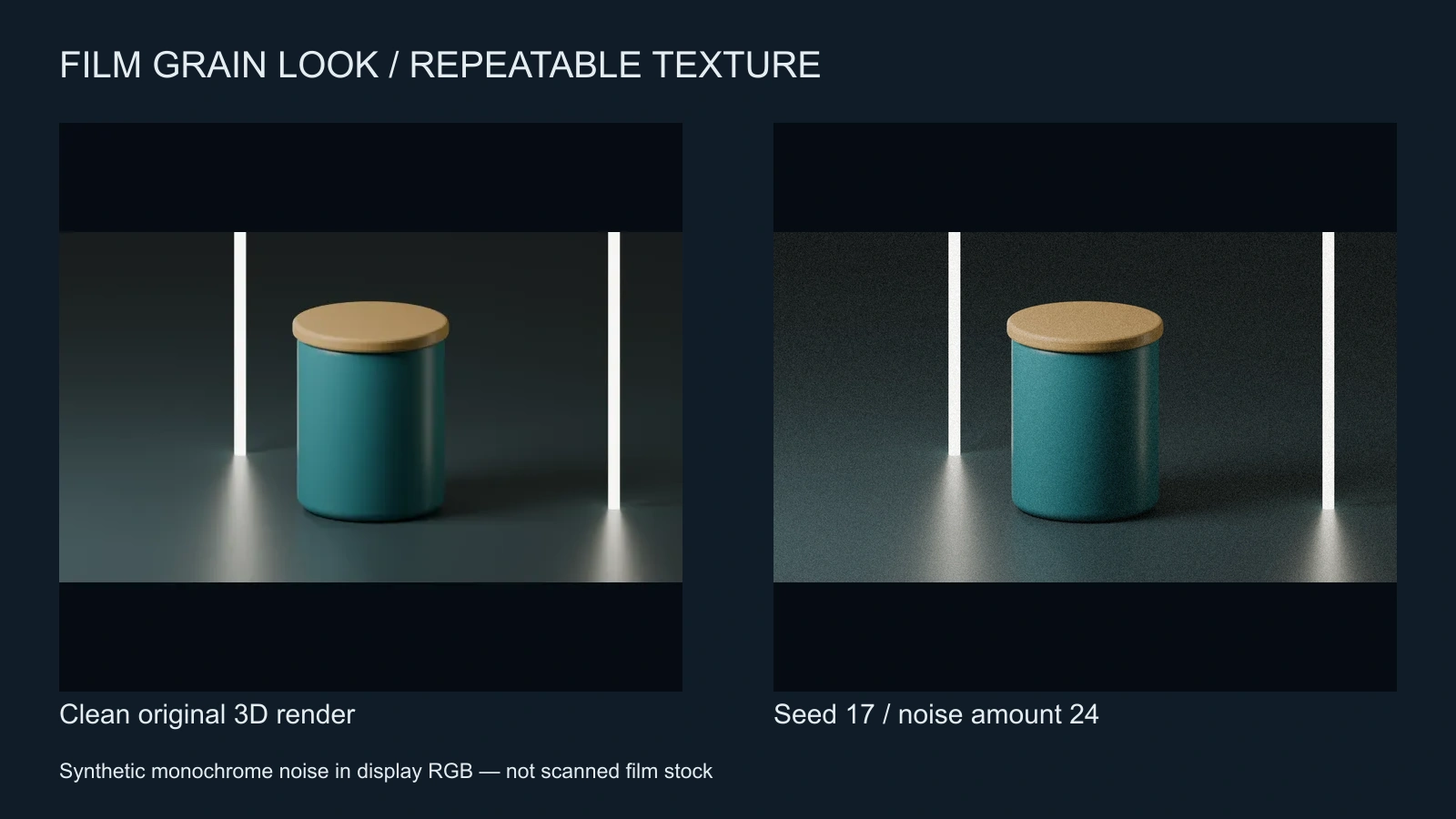
The comparison uses an authored Blender studio render, not a camera test or a model-generated result. Our tool adds the same signed random offset to the red, green and blue channels of each visible pixel, preserves alpha and clamps the result to the channel range. A seed makes the pattern repeatable. It does not model an emulsion, scanning process, exposure response or film-stock grain structure.
Inspect the pale background first, then the jar rim and fine lettering if your own image contains any. Compare at the actual output scale. A texture that looks attractive when enlarged can become a muddy surface after a social platform resizes and compresses it.
Download the free film grain look overlay
Download the original 1600 by 900 synthetic grain PNG. It is an opaque neutral-gray texture with monochrome noise, not a transparent image or a scan of film. In an editor, put it above your image, try an Overlay blend and lower opacity until the texture supports the subject. Different color management and blending implementations can produce different results.
This asset is a single still. Holding it across an entire video creates a fixed pattern. A moving grain treatment requires a changing pattern or sequence; this page does not export a video overlay. Use the PNG as a look-development sample, and inspect temporal behavior in your finishing application before delivery. You may use this Clout-authored texture in personal or commercial creative projects.
Add film grain to your image in the browser
- Use the original studio example or choose your own PNG, JPG or WebP up to 10 MB.
- Start with grain amount 0 to inspect the clean source. Increase it slowly while watching the face, gradients and product edges.
- Change the seed to compare patterns at the same amount. Keep the seed fixed when comparing other image edits.
- Toggle Show original image, then download the current flattened PNG.
The tool preserves aspect ratio and caps the long edge at 1280 pixels. That makes it a preview and small-image export workflow, not a full-resolution master finishing service. Selected files stay in your browser; the default image is served from Clout. Repeated exports with the same image, dimensions, amount and seed use the same pixel transform.
Use grain in an AI image and video workflow
Create and approve the subject first in Clout Image and Video. Check anatomy, object count, edges and the action you intend to animate. Save a clean master before adding a texture. If the image is going to move, establish a consistent shot look before applying final grain in the video edit.
For a fictional desk-product ad, make one clean hero image, one detail shot and one demonstration. Keep the material and color consistent across all three. Compare a clean export and a textured export at the intended phone size. If the texture hides the feature the ad is meant to show, reduce it or remove it.
Separate this choice from halation and highlight glow, which concern bright regions, and chromatic aberration and RGB offset, which affect color alignment. Stacking all three at high strength makes it difficult to identify which change helped the image.
Review the compressed result before publishing
Compare the exported file and a representative compressed preview. Look for crawling texture, darkened shadow detail, lost text and changing grain scale between shots. For dialogue, judge the face at normal playback as well as on a paused frame. Save the source, chosen seed, amount, output dimensions and final export together so another editor can reproduce the decision.
For the lighting underneath the texture, use our chiaroscuro study and volumetric lighting comparison. Grain is a finishing choice; a coherent scene still needs a readable subject and believable light.