

What is a contact sheet in photography
A contact sheet places a set of images into a shared review layout. It helps you scan the sequence, compare options and identify which original deserves a closer look. A modern digital sheet can contain camera photographs, authored illustrations or AI-generated candidates. The layout itself does not prove how the images were made or whether they satisfy a brief.
Use the free contact sheet maker when your immediate task is arranging existing raster images. This guide focuses on review decisions: what to include, how to label a set and how to preserve the selected original after approval. The maker handles grid layout and PNG export locally; you still make the creative decision.
Choose a set that answers one review question
Start with the decision you want someone to make. For a product campaign, compare approved product views or alternative compositions. For a character series, compare identity and wardrobe across scenes. For an editorial feature, compare framing and the space available for copy. Mixing unrelated jobs into one sheet makes the selection harder to explain.
Keep the set small enough to discuss. Group a second round separately when the visual brief changes. Use stable project IDs in your own notes so a later reordering does not erase the relationship between a candidate and its source file.
Keep the complete frame before comparing crops
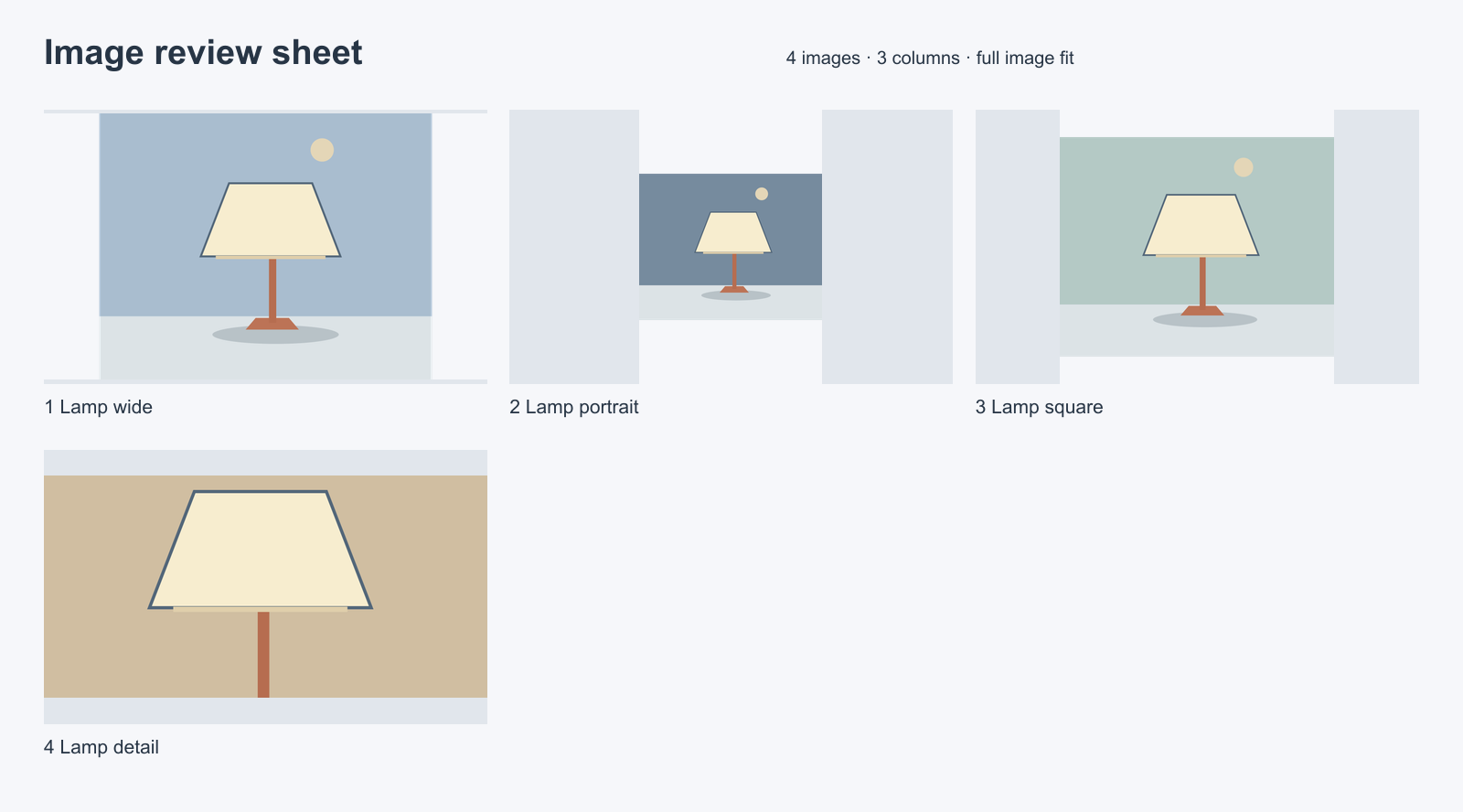
The maker proportionally fits every image inside its slot. A tall image keeps its full height; a wide image keeps its full width. Empty space is useful evidence about differing aspect ratios. Cropping everything to fill a uniform tile can hide a missing hand, a cut-off product or a composition that does not fit the actual destination.
The original lamp example contains four different image shapes. Load it in the maker and switch column counts to see the layout change without changing the source composition. The sheet is always 1600 pixels wide; its height follows the number of rows. It is a flattened review PNG, not a layered file or a print document with a guaranteed physical size.
Label candidates so feedback names the right image
Use a caption that identifies the take or project role. For example, “lamp wide base” and “lamp shade detail” communicate more than a repeated generic filename. The maker retains visible sequence numbers even when captions are hidden, so a reviewer can still name a slot. Numbers describe the current sheet order; preserve the source filename separately if you expect multiple review rounds.
Move an image earlier or later to place related candidates beside one another. Remove irrelevant frames rather than asking a reviewer to ignore them. If you change the order after receiving feedback, save the older sheet alongside the new one or update the review notes with stable asset IDs.
Use the blank review ledger to record project ID, asset ID, actual filename, observed issue and acceptance decision. It is a manual worksheet, not a face matcher or automated quality score.
Use a contact sheet to review AI-image candidates
Compare each image with the actual task and source references. Ask whether identity anchors remain stable, whether the product is correct and whether the requested change is visible. A polished overall aesthetic can still conceal an incorrect variant, invented label or changed silhouette.
| Review job | Scan on the sheet | Inspect in the original |
|---|---|---|
| Character series | Face, silhouette, wardrobe and scene continuity | Eyes, hands, accessories and local distortions |
| Product campaign | Variant, view and composition | Label text, shape and approved product facts |
| Editorial layout | Subject placement and negative space | Final crop, edge detail and intended dimensions |
| Reference-led edit | Preserved anchors and requested change | Unintended changes outside the edit |
For a recurring character, prepare your sources with the character reference-sheet guide. A reference sheet defines the intended subject; a contact sheet collects candidates for review. They can look similar while serving different decisions.
Make a contact sheet in Photoshop when you need that workflow
Adobe’s official tutorial uses File, Automate, Contact Sheet II. Select the source folder, set document dimensions and resolution, arrange thumbnails and optionally use filenames as captions. That route is useful when your production is already in Photoshop and needs its document controls. Follow the current tutorial for the installed application.
Our browser maker offers a narrower raster-layout workflow: select PNG, JPEG or WebP files, choose columns, edit order and captions, then export one PNG. It does not read Photoshop projects, accept SVG or generate a PDF. Select the workflow from the actual deliverable you need rather than assuming all contact-sheet tools have the same export contract.
Preserve sources after choosing a frame
Save the selected original, the sheet used for discussion and the review decision together. The sheet is not a replacement for the source file. If you later need another crop or a higher-resolution deliverable, returning to the original avoids enlarging a small thumbnail from the review image.
For projects moving away from a discontinued service, the Reve migration guide separates generated outputs from original uploaded references. For an API-based image workflow, the Muse Image limits guide separates returned images from accepted creative. A review sheet helps you see the candidates, but does not change that distinction.
Turn review notes into one focused next request
Choose a specific correction from the observed defects. “Preserve the lamp shape and shade, soften only the surrounding light” is easier to evaluate than asking for everything to look better. Keep the accepted base and required reference roles together when selecting another supported operation.
Open Clout Image and Video for the current creative workflows and check their supported inputs and quotes. Generating another image is separate from arranging existing files in the free maker. Review the returned candidate at full size before replacing an accepted source.


