PixelLab AI is a pixel-game asset toolset with generation, editing, animation and directional-view workflows. Start with the official PixelLab website for the product. This independent guide focuses on one practical problem: keeping direction labels, references and exported cells understandable.
A front sprite, a side sprite and a rear sprite are different views of the same intended subject. They are not automatically consecutive moments in time. Our original mailbox pack makes that distinction inspectable with known geometry, eight 64-pixel views and an explicit grid map.
Choose the documented PixelLab rotation route
The non-Pro Rotate documentation lists square canvas sizes of 16, 32, 64 and 128 pixels and describes input and destination views. The Pro eight-direction tool is a different pipeline: its documentation describes eight directions plus a center reference in a three-by-three grid, with up to 168 pixels per output frame.
Check the selected method, reference requirements and current plan access in that route’s documentation. Do not carry one tool’s size limits into another. We did not connect a PixelLab account or test either route.
| Question | What to decide | Evidence to retain |
|---|---|---|
| What input do you have | A concept, style reference or accepted single-direction image | The selected input and its role |
| Which view is it | Front, side, rear and intended camera elevation | A direction label beside the source |
| What comes back | Directions, a reference cell or time frames | The actual returned grid and cell meanings |
| Where will it be used | Direction selection or an animation for each direction | Destination import and playback review |
Label the reference before generating another view
Use one accepted subject and name the features that should carry across. Our fictional mailbox has a fern-green case, cream front door, plum post and coral side flag. The front door belongs to the front; it should not magically appear on the back simply because a result shares the same colors.
The south-facing reference PNG shows the cream door and slot. The north-facing PNG shows the rear. These files were rendered from our native Blender object, not generated by PixelLab. Their geometry is known by construction.
Use the approved mailbox reference with a fern-green case, cream front door, plum post and coral side flag. Prepare the intended directional views for a low elevated game camera. Keep the front door on the front and retain the flag’s attachment side. Identify the selected route, input direction, per-frame size and returned cell labels. Show the actual result for review before treating the grid as an imported game asset.
This is a proposed reference brief, not a PixelLab API body or an executed request. A source image cannot directly reveal every hidden surface. Our native fixture provides those surfaces so a reader can compare the views; it does not establish how well a model reconstructs them.
Inspect eight directions and a repeated reference
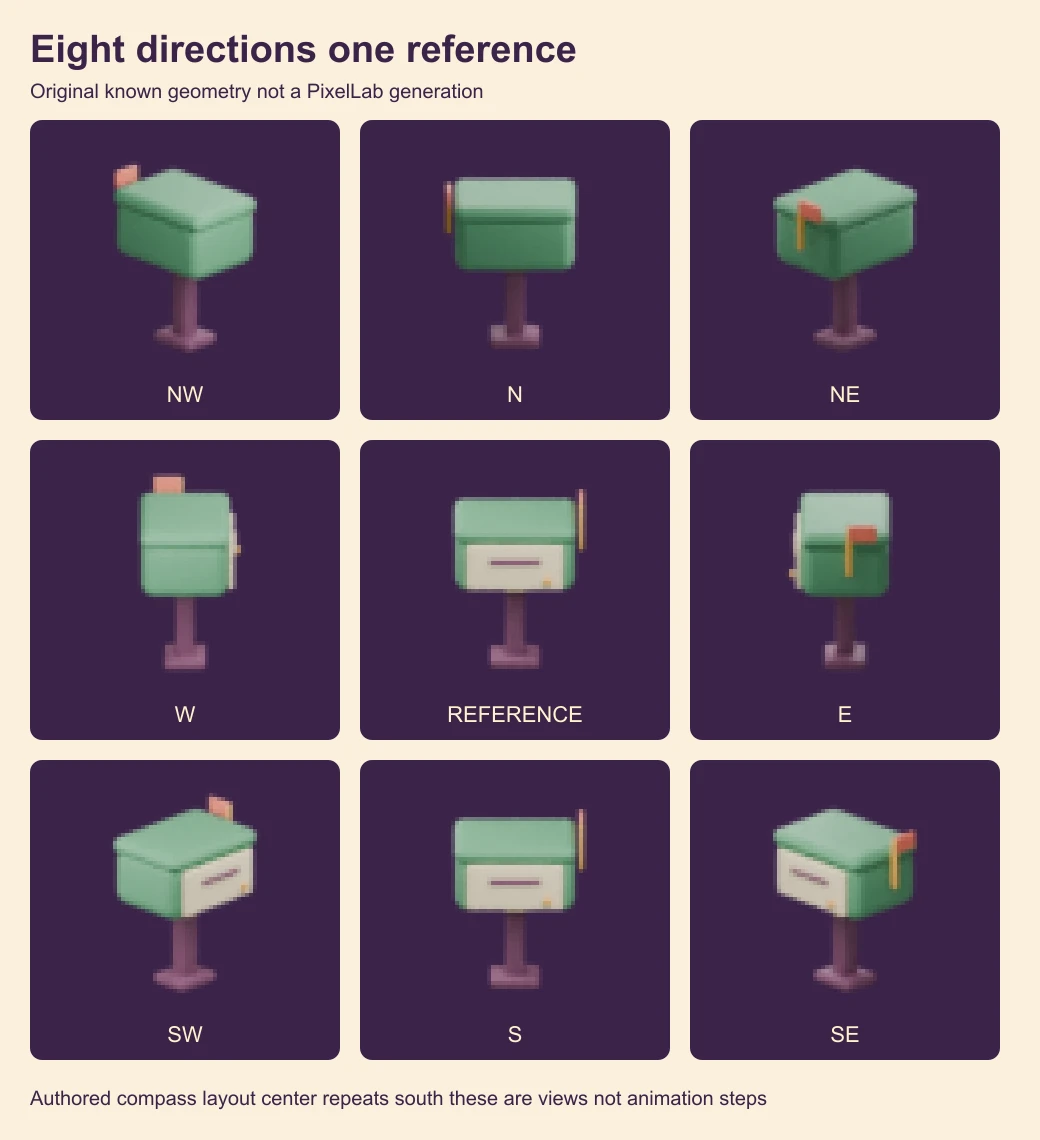
The grid is our own labeled layout: north-west, north and north-east across the top; west, reference and east across the middle; south-west, south and south-east across the bottom. The center repeats the south image. This map does not assert PixelLab’s exact exported cell order.
Look at the cream door in the south views, then at its absence in the north views. The flag also changes visibility as the camera moves. A mirrored front image would still show the door, so it would not substitute for the actual rear view. That is a concrete detail to review in a generated direction set.
The camera uses the same orthographic scale and elevation around one object. Lighting response changes with viewpoint. The 64-square images are rendered raster references, not a demonstration of hand-placed pixels or a fixed game palette.
Do not play direction cells as an animation by accident
A direction map tells the game which view to select. An animation tells it which time frame comes next. A walking character can need several time frames for each direction, while a static mailbox may only need one image for each view.
Our three-by-three sheet contains eight views plus a repeated reference. Reading all nine cells as a loop would rotate through an arbitrary order and repeat one view. It would not create a walk cycle or prove that the object moves naturally.
Keep the direction names with the crop rectangles. If a tool returns additional reference or empty cells, identify them before importing. For time-based delivery, use the sprite-sheet workflow and our Ludo export exercise, which records a separate sixteen-frame animation.
Check the native grid and anchor
Download the native 192-square direction grid and cell map. Every cell is 64 square. The nine packed cells match the decoded RGBA pixels of their supplied views exactly, including the center’s deliberate duplication.
The camera and anchor record identifies each view and the projected world-origin point near x32 and y54.283. Small floating-point differences are retained in that record. An anchor is a useful placement reference; it is not proof that every visible bottom pixel has the same height.
Pixels with alpha above 16 stay clear of the native canvas edges in the supplied set. That check does not establish atlas bleeding, filtering or engine behavior. The filled review CSV keeps those limits with the observations.
Use nearest-neighbor previews without inventing detail
The individual previews enlarge each 64-square image to 256 square with nearest-neighbor sampling. They make the original pixels easier to inspect without adding generated detail. Download the front preview, side preview and rear preview.
Compare the native size too. The slot, knob and flag are much smaller there than they appear in an enlarged contact sheet. A feature visible at four times its size may be weak at the final viewport scale. This guide did not test that viewport inside a game engine.
Keep init images and masks scoped to the selected tool
PixelLab’s init-image and inpainting walkthrough describes a particular editor workflow. Follow the mask convention and available controls for the selected route instead of assuming every model uses the same mask meaning.
If a generated view gets one feature wrong, retain the accepted source and identify the local change. Then compare the returned file with the intended direction and fixed details. A good palette match alone cannot verify a hidden surface, and a successful edit description cannot replace inspecting the actual result.
Download and reproduce the original reference pack
The source archive includes all eight native PNG views, the packing script, the Blender authoring script, the camera record and review. Run bun install in the extracted folder, then bun pixellab-direction-pack.ts . .. The pinned native Sharp 0.34.5 environment reproduces the grid, cell map, eight previews and comparison graphics from the supplied PNGs.
You can also download the original Blender scene and comparison SVG. Rebuilding the geometry and re-rendering uses Blender 5.2.3; PNG metadata or results can vary with the render environment. The provenance record identifies the supplied source files and their hashes.
For the broader pixel-art task, continue with the pixel-art generator guide. For your own creative references, explore Clout Image and Video. Clout and PixelLab are separate products; this guide does not claim shared accounts or a PixelLab generation feature in Clout.