Ludo AI is a game-asset platform with sprite-generation and animation workflows. Start at the official Ludo website for its app. This independent guide focuses on the handoff from an accepted still to reviewed frames and export files.
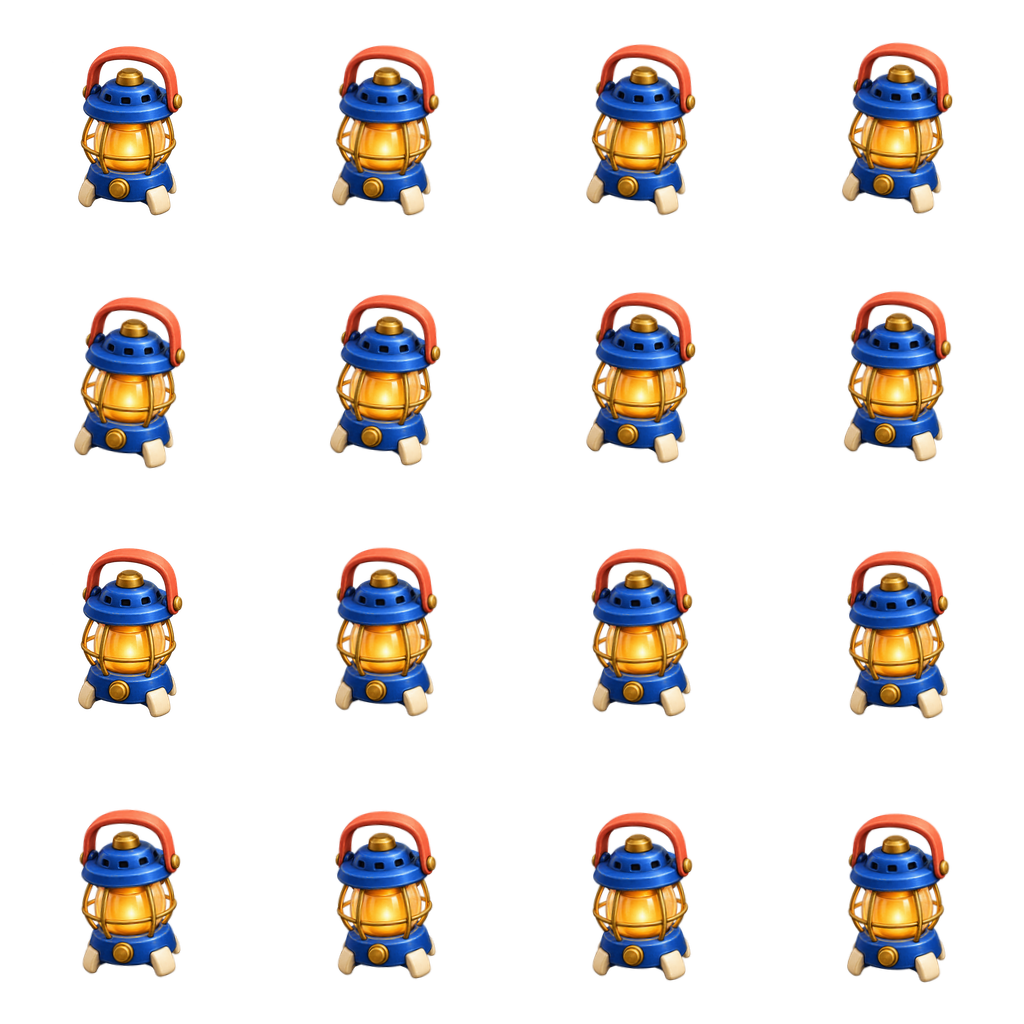
We also ran part of the actual local toolchain. Our original lantern exercise contains sixteen authored 2D frames, a PNG grid and GIF. Ludo’s local Asset Toolbox exported that sheet to a TexturePacker JSON atlas and a Godot SpriteFrames resource. It did not generate the lantern or its movement.
Choose the sprite task before writing motion
The Ludo Sprite Generator documentation distinguishes creating a new sprite, animating an existing image, keyframe animation, new-direction work, motion transfer and editing a sheet. Start with the route that matches the input you actually have. A still-image brief should describe appearance; a motion brief should describe a visible action.
If you already have an accepted character or object, keep that image beside the motion brief. Inspect its orientation, edges and available room. An image facing the viewer does not clearly specify a side-view stride. A tightly cropped handle leaves little room for a broad swing.
| Input | Production question | Evidence to inspect |
|---|---|---|
| Text idea | What does the sprite look like before moving | Selected still image and fixed visual cues |
| Accepted still | What action should occur | Complete returned motion rather than one good frame |
| Key moments | Which poses must the action pass through | Ordered first, middle and final states |
| Finished animation | How will the destination read its frames | Actual grid, frame size, count and duration |
Keep appearance and motion instructions separate
Use the approved cobalt lantern with coral handle, cream feet and amber core as the starting image. Create one gentle idle action with a small whole-object bob and tilt. Keep the full handle and feet inside the frame throughout the movement. Do not add a character or change the item design. Identify the selected sprite type, model, duration and charge before generation, then return the actual animation and export files for review.
This is a proposed brief for a supported animation workflow, not an executed Ludo request. The example below uses a known code-driven transform so its frame order, motion and boundaries can be inspected independently of a model’s behavior.
Our starting image is the original transparent lantern crop from the independent inventory study. That source was generated once with the built-in image tool, not in Scenario or Ludo. The blue body, coral handle and amber light remain the visual anchors.
Inspect the original sixteen-frame exercise

The script reduces the supplied image into a padded 256 by 256 frame. It samples a small sine-wave tilt and cosine vertical offset sixteen times, then packs the frames left to right and top to bottom in a four-by-four grid. This moves the whole image; it does not articulate the handle, generate flame behavior or create a new viewpoint.
All sixteen frames have different file hashes. The alpha bounds for pixels above 16 stay at least two pixels from the canvas edge. The packed sheet preserves the decoded RGBA pixels of each source frame exactly. These checks describe this delivery exercise, not Ludo’s animation quality.
Read the grid and timing from the delivered files
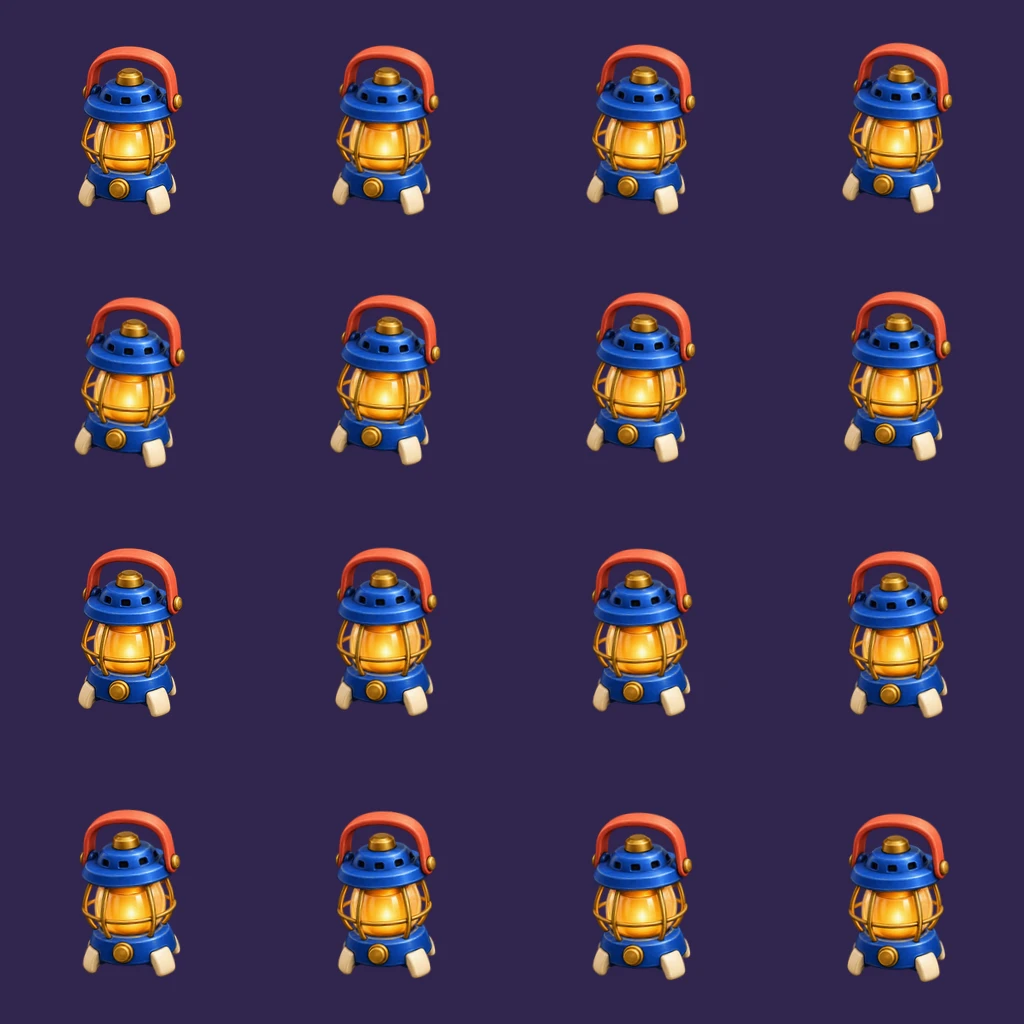
Download the transparent 1024 by 1024 PNG sheet and custom frame-review metadata. Each cell is 256 square, with sixteen frames at 10 FPS. Every frame lasts 100 milliseconds, making the complete sequence 1600 milliseconds.
The final sample is not a duplicate of the first. The periodic formula defines the next phase as the first phase again, avoiding an extra endpoint hold. This does not prove that every generated animation loops cleanly. Review the actual seam and the intended action before accepting a provider output.
The GIF is a palette preview. Its alpha threshold is 128, so it does not preserve every soft alpha value from the PNG frames. We checked its complete decode, sixteen-frame count, 256-square dimensions and 1.6-second duration. Browser playback remains untested.
Review margins without confusing them with export settings
Ludo’s docs distinguish motion framing from later sheet options. Leave enough room for the requested action, then inspect the result before deciding the export size. A larger output cell does not recover a hand, weapon or handle that was already cut off during generation.
For our controlled fixture, we deliberately reserve room around the lantern before rotating it. The contact sheet makes the small scale change from rotation easier to notice. Check every frame, including the most tilted ones, rather than approving the first pose alone.
For a walking character, review contacts and ground line as a separate problem. A floating item bob is not a walk cycle. Continue with the walk-cycle guide when the asset needs believable foot placement.
What we tested with the actual local Ludo toolbox
The official Asset Toolbox page describes local tools separate from paid generation. We installed @ludoai/cli version 0.2.2 in an isolated project and ran only toolbox sprite export commands on our existing sheet. No login or generation command was used.
ludo toolbox sprite export ludo-lantern-sheet.png --engine texturepacker --grid 4x4 --fps 10 --animation lantern-bob
ludo toolbox sprite export ludo-lantern-sheet.png --engine godot --grid 4x4 --fps 10 --animation lantern-bob
The supplied grid is explicit because our sheet has no Ludo generation stamp. Both local runs reported sixteen frames. The filled toolbox review records the version, flags, inspected output and remaining limits.
| Actual output | Checked result | Remaining test |
|---|---|---|
| TexturePacker JSON | Sixteen rectangles keyed 0 through 15, 100 ms each, correct PNG name and animation order | Load and render it in the intended runtime |
| Godot SpriteFrames | Sixteen AtlasTexture regions, speed 10 and looping enabled | Open it in Godot with the sheet beside it |
Use the right export without assuming every layout matches
Ludo’s official engine-export guide distinguishes PNG grids, individual frames and sheet-plus-JSON delivery. It also notes that rows and columns can vary and that some layouts leave empty cells. Read the actual frame count and grid instead of assuming every sheet is square.
Download our actual local JSON atlas and Godot resource. Keep either next to ludo-lantern-sheet.png, which they reference by name. The JSON generated by CLI 0.2.2 uses keys 0 through 15. Inspect your own export rather than assuming the names in a web tutorial match another route.
Our custom ludo-lantern-frames.json is a separate review record. It includes the authored angle, offset and measured bounds; it is not a replacement for the actual atlas. No Godot, Unity or Phaser runtime was opened for this guide.
Reproduce the source and keep a filled review
The source archive includes the accepted image, transform script, local-tool package pins and reproduction commands. Run bun install in the extracted folder, then sh ludo-sprite-reproduce.sh. The script rebuilds the frames and sheet, runs the two local exports and creates the GIF if FFmpeg is available.
The checked environment uses Bun 1.3.11, native Sharp 0.34.5, Ludo CLI 0.2.2 and FFmpeg 9.0.1. Different encoders can change file bytes. The provenance record identifies source hashes, while the filled review CSV separates packing, timing, margins and utility-export checks from untested engine behavior.
For your own frame collection, use the existing sprite-sheet packing workflow. For pixel-specific art and palette decisions, use the pixel-art generator guide. This page’s branded workflow complements those tasks rather than replacing them.
Explore Clout Image and Video for original reference imagery when it fits your project. Clout and Ludo are separate products. A static image workflow does not by itself produce a rigged character, playable game or engine-tested animation.