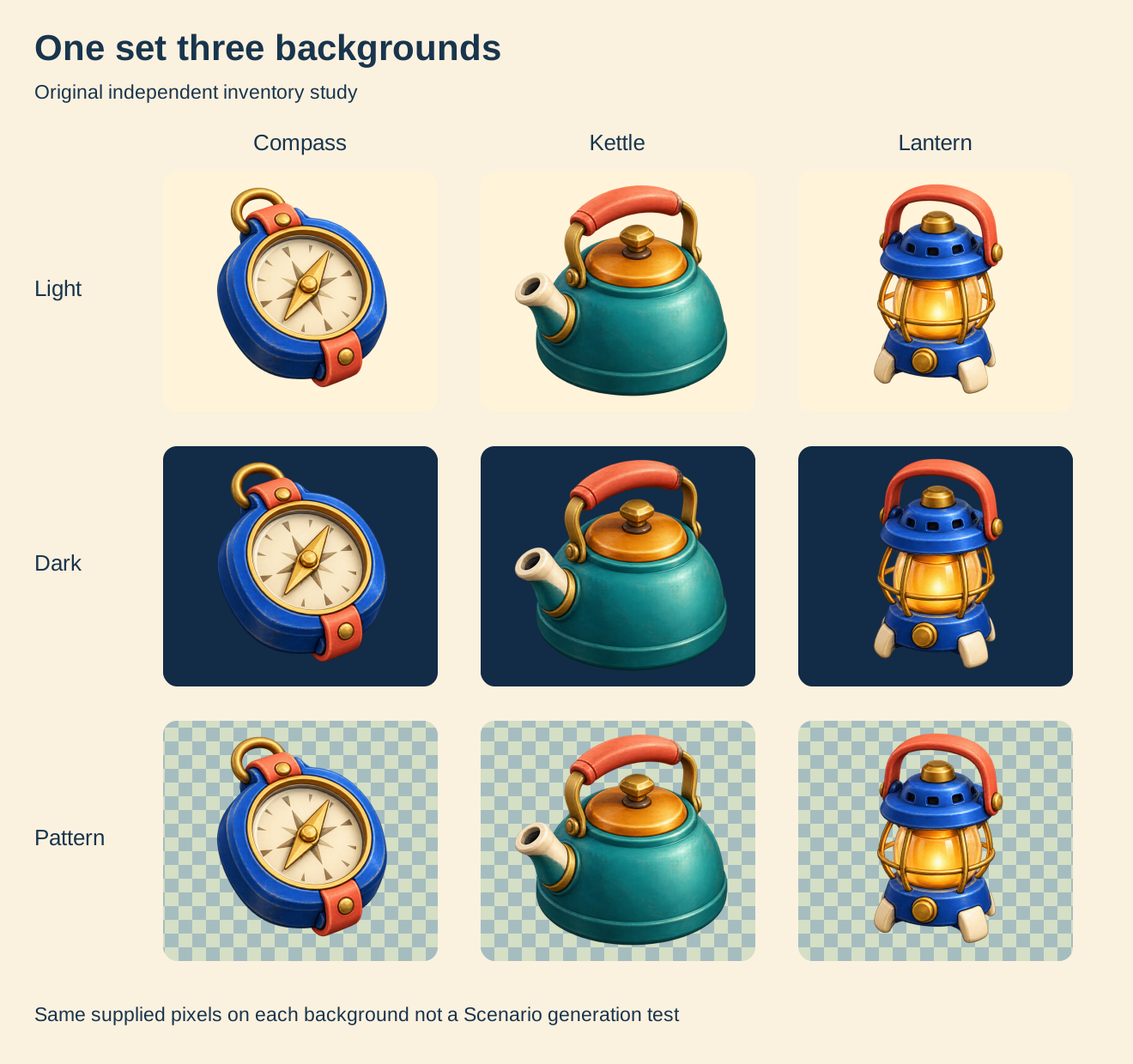
Scenario AI is a creative-production platform rather than a generic scenario-writing prompt. Start with the official Scenario website if you want its app. This independent Clout guide focuses on making a small asset workflow repeatable: specify the set, inspect the returned images and keep the delivery evidence with the files.
A coherent inventory set is a useful test. A compass, kettle and lantern can share a palette while retaining different silhouettes. The work is deciding which details stay fixed, how each item fits its frame and whether the same pixels remain readable over the intended interface.
What Scenario AI currently describes
Scenario’s public site presents image, video, 3D and audio work alongside references and trained models. It also describes saved node workflows, agents and MCP/API access. Its apps page is a separate entry to reusable workflows. Check the selected tool and available controls in your account; this guide did not run them.
Choose the route around the deliverable. A single still image, a coordinated item set and a moving shot have different acceptance criteria. A reusable graph can organize steps, but it still needs accepted inputs and a review of the returned output. A model list alone does not explain how your asset set reaches its destination.
Turn an AI game asset generator brief into a reviewable set
| Stage | Original inventory example | Decision to retain |
|---|---|---|
| Asset list | Compass, kettle and lantern | One clear role and silhouette for each |
| Visual rules | Cobalt, teal, coral, ivory and gold | Which palette and material cues matter |
| Composition | Three equal square cells | Framing, padding and intended display size |
| Export review | Separate PNG crops with alpha measurements | Actual dimensions and visible edge behavior |
| Destination review | Light, dark and patterned background comparison | Readability before a real engine import |
This is our authored workflow plan, not a Scenario node schema. Treat the asset list as data rather than burying it in an expanding paragraph. When an item changes, keep its identifier stable so a reviewer can tell which file replaces it.
Write shared rules and distinct item requirements
Create an original adventure inventory set with three distinct items: a cobalt compass with ivory face and gold pointer, a teal camping kettle with amber lid and coral handle, and a cobalt lantern with coral handle and amber light core. Use a cohesive hand-painted 3D visual treatment, soft upper-left light and transparent background. Keep every item fully visible in its own equal square cell with deliberate padding. No logos, labels or interface elements.
That brief separates shared style from object identity. It does not ask every object to have the same outline or invented functionality. The compass face is decorative artwork, and the kettle and lantern are image concepts rather than physical products or 3D meshes.
Our example came from one generated sheet. A single request can make the palette feel related, but it does not demonstrate that a model will hold that style across future independent requests. If you need that evidence, test another item separately and inspect the result before scaling the set.
Inspect the same images on different backgrounds
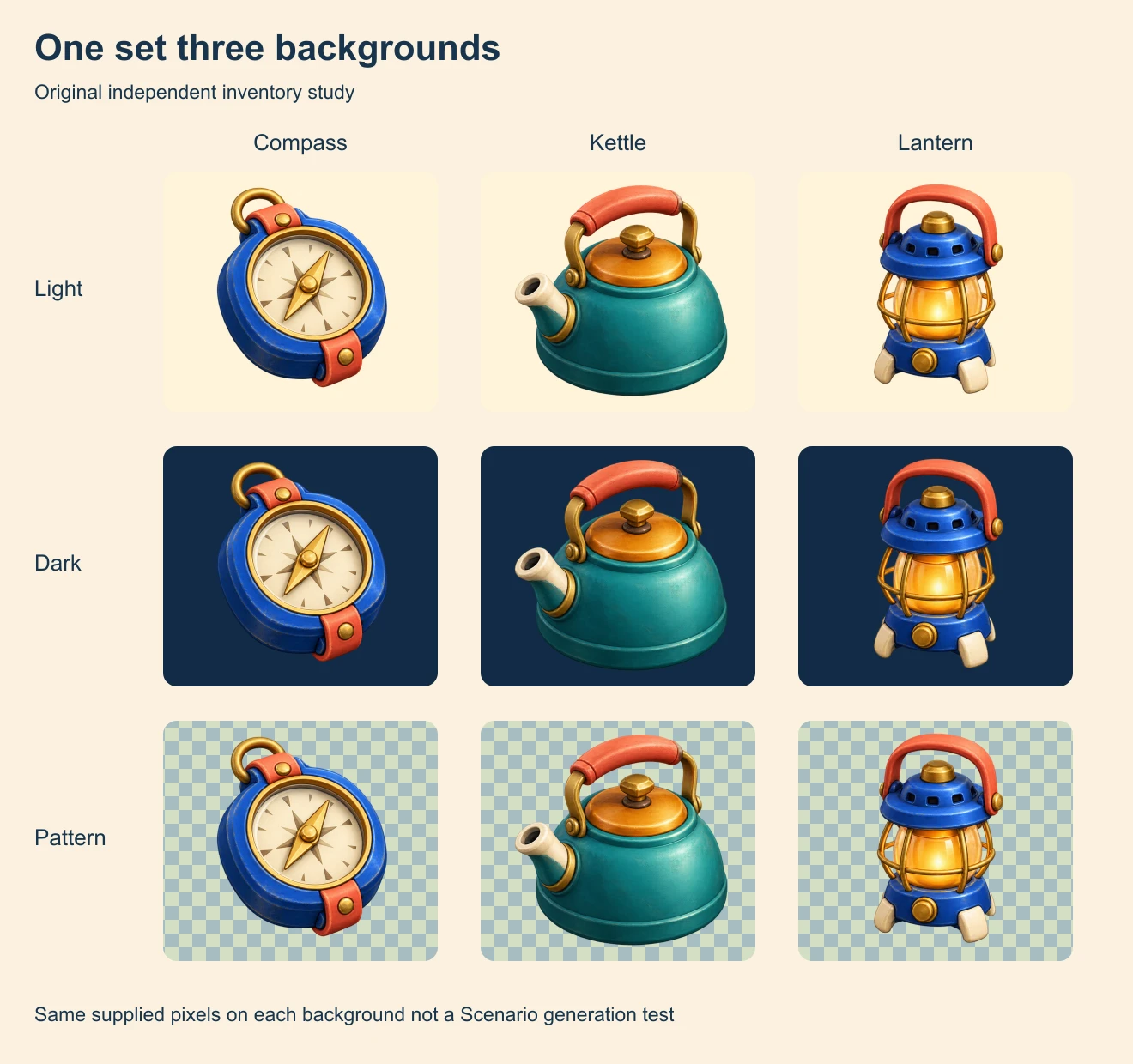
The cobalt, teal, coral and gold cues repeat, but the camera angles are not identical. The compass reads close to frontal, the kettle shows more of its top, and the lantern has a different silhouette. Materials and highlights also vary. Decide whether those differences suit the project rather than calling the set perfectly consistent.
The compass face and lantern core remain bright against the dark preview. The kettle’s dark base has less separation from that background. A patterned card adds another source of contrast competition. Review these differences at the actual interface size; a large contact sheet cannot establish small-screen readability.
Check dimensions and padding from the actual files
The native sheet is 2172 by 724 pixels. The source script extracts three adjacent 724 by 724 PNGs without regenerating the artwork. The manifest records each crop, transparent-pixel counts and bounds for pixels with alpha greater than 16.
For the kettle, those bounds reach x716 in a 724-pixel cell, leaving seven pixels at the right. That is less room than a generous-padding brief suggests. Keep the source crop, then make a deliberate delivery-padding decision before importing into a packed atlas. This guide does not test atlas bleeding or a particular engine’s texture settings.
Partial-alpha counts include nearly opaque pixels as well as softer ones. The center pixel of each crop has alpha 253 out of 255. The count alone does not prove a dirty edge or a clean matte. Inspect the actual light and dark composites and retain the measured threshold with the report. A transparent PNG extension is not a complete visual review.
Download the original inventory resources
Get the native compass PNG, kettle PNG and lantern PNG, or the untouched original three-item sheet. These are raster assets with alpha, not vector paths, rigged objects or provider project files.
The editable comparison SVG embeds the PNGs with separate labels and backgrounds. The filled review CSV, brief and provenance record preserve the observations and source hashes.
Download the source archive to reproduce the three PNG crops, WebP previews, comparison SVG, WebP comparison and manifest. Run bun install in the extracted folder to install the pinned Sharp dependency, then run bun scenario-inventory-source.ts . . in the extracted folder. The script processes the supplied sheet locally. The checked native environment uses Sharp 0.34.5; other rasterizers and fonts can change the comparison output. It does not call Scenario, train a model or generate new artwork.
Separate references custom models and saved workflows
A reference communicates an intended look. Training changes a model using an appropriate dataset. A saved workflow organizes steps and inputs. These are different decisions; do not describe attaching three images as proof that a custom model has been trained.
Our three-item sheet is not a training dataset or a custom-model experiment. It provides a small visual direction and a review method. For a real project, keep the approved references, selected route, settings and output decisions together. Review whether the next independently requested asset fits before committing to a large batch.
For pixel-level character and palette work, continue with the pixel-art generator guide. For actual frame packing and playback, use the existing sprite-sheet workflow. This inventory set is static and does not contain an animation sequence.
Choose a next test that answers one production question
If the silhouettes are unclear, test a simpler object brief. If the palette is coherent but the crop is too tight, review composition and delivery padding. If a new asset drifts in style, compare it with the accepted source and name the visible difference. Changing every condition at once makes the next result harder to evaluate.
For a moving promotional asset, define a separate shot and inspect the whole clip. A good static lantern icon does not prove a usable animation or a finished advertisement. The interactive video guide demonstrates a different delivery task using original clips and branching HTML.
Use Clout Image and Video for your own creative image and video workflow when it fits your project. Clout and Scenario are separate products. This page does not claim shared accounts, models, credits or workflow exports.