For a related production step, see the PNG sequence to MP4 converter.
A usable sprite sheet needs more than several character images on one canvas. Each frame needs the correct rectangle, order and alignment, and your runtime needs to know how to read the result. Use the free packer above to assemble approved PNG frames and inspect those decisions before importing the sheet into a project.
Generate a sprite sheet from your PNG frames
- Choose up to 24 static PNG files, each no larger than 1024 by 1024 pixels and totaling at most 20 MB.
- Choose the number of columns and transparent padding.
- Review the numbered frame list. Use Earlier and Later to change playback order.
- Download the sprite sheet PNG and its frame JSON.
- Import the actual files into your target workflow and inspect the animation there.
The files you choose are decoded and packed in your browser. Your uploads are not sent to a server. Loading the original sample frames downloads small first-party PNG files from this site. This tool accepts existing images; it does not run a generative model or extract frames from a video or GIF.
Try the original transparent walking samples
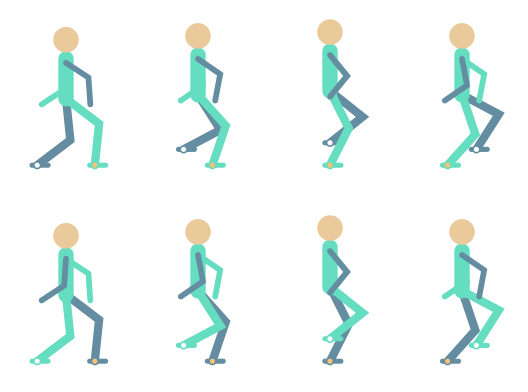
Load original sample frames to pack eight schematic poses from our walk cycle study. Each frame uses a 128 by 192 pixel canvas with transparent space around the character. The default four-column layout with two pixels of padding creates a 528 by 392 pixel sheet.
Download the authored sample sprite sheet PNG and sample frame JSON for an inspectable reference. These sample drawings are original procedural artwork, not AI results, a licensed game character or a claim of realistic human animation.
Eight samples are taken every third frame of a 24-frame source cycle. The sample JSON uses 8 fps so those eight frames span one second. The playback setting records intended timing; it does not change the pixels or guarantee that an engine will read this custom JSON format automatically.
Understand the fixed-cell packing rules
| Setting | What the packer does | What it leaves to you |
|---|---|---|
| Frame size | Preserves each original image width and height | Consistent character scale and origin inside each image |
| Cell size | Uses the largest width and height plus padding on both sides | Choosing source canvases that align in your runtime |
| Order | Packs left to right, then the next row | Checking the numbered sequence before export |
| Padding | Leaves transparent pixels around each frame | Texture-filter and mipmap choices in the engine |
| Metadata | Exports indexed rectangles and original source sizes | Mapping this simple JSON to your engine's importer |
Different source sizes share a fixed cell, but each source is placed at that cell's top-left padding offset. The tool does not detect feet, recenter characters, trim empty pixels, rotate frames or extrude edge colors. For consistent animation alignment, prepare equal-sized source canvases with the same origin before packing.
The sheet is limited to 4096 pixels on either edge. If a layout exceeds that limit, choose different columns or smaller source frames. Duplicate filenames remain separate indexed frame entries, so a repeated name does not silently overwrite another frame.
Read the exported frame JSON
The JSON has a metadata object and a frames array. Each frame includes its index, original name, rectangle and source dimensions. Rectangle coordinates use pixels from the top-left of the exported PNG. The metadata records columns, rows, cell dimensions, padding and intended fps.
This is a simple Clout frame-array format, not a TexturePacker compatibility promise or a native Godot, Unity or Unreal project. Keep the PNG and JSON together. If your engine expects another schema, map the fields explicitly or use its sheet-slicing interface.
Import and verify in your animation runtime
The Godot sprite-animation documentation shows workflows for individual images and sprite sheets. Use the exported dimensions and rectangles when setting up the relevant frame resource. With nonzero padding or differently sized source images, a simple equal-grid importer may need additional offset handling.
Check transparent corners, character feet, the first and last frame, and the chosen playback rate. Thin lines or halos can reveal a filtering issue that was not obvious in the static atlas. Transparent padding is not the same as edge extrusion, so inspect the actual game or app at its intended scale.
Prepare AI-assisted character frames before packing
Use approved references and a small set of distinct poses. Keep costume details, handedness, silhouette and lighting consistent. If generated images have a background, prepare their transparency in an image editor before using this PNG packer. Do not expect the packer to repair identity drift or create missing intermediate poses.
For the visual-development stage, explore Clout Image and Video, the character turnaround guide and the visual novel sprite workflow. Those tasks create and review images; packing is a separate step. Save the approved source files so you can revise an animation without rebuilding its character from scratch.