Krea AI is a creative suite at krea.ai with image, video, editing, enhancement and workflow tools. Start by choosing the operation your asset needs. Exploring a new picture, preserving an existing product and enlarging a finished image require different instructions and review criteria.
Choose a Krea workflow before choosing a model
| Your task | Starting material | First review question |
|---|---|---|
| Generate a new image | Concept brief and optional references | Does the composition serve the idea |
| Edit an approved picture | Source image and a specific change | Did protected details survive |
| Explore with Realtime | Visual direction and changing input | Is the direction worth developing |
| Enhance an accepted image | Approved source and delivery size | Did new detail change the subject |
| Animate or build a sequence | Accepted references and scene plan | Does the whole clip stay coherent |
Krea’s homepage describes these routes alongside Nodes, which connect operations into workflows. Those are public product descriptions, not a hands-on speed or output benchmark. Identify the selected model and its supported settings before copying a recipe from another route.
For model-specific work, use our existing Krea 2 style-exploration guide and Krea 3 product-edit guide. This page covers the wider suite decision and image-detail review rather than replacing those separate instructions.
Is Krea AI free
The checked official pricing page lists a Free allowance of 100 units per day. Units are not a universal count of finished images or videos. We did not redeem that allowance or verify a particular account’s model access.
For the simple image-upscaler page, Krea states a free limit of 2048 pixels on the longest side and paid access for 4K and 8K output. Verify the actual selected operation and account entitlement. A broader Enhancer headline should not be treated as the limit of every individual mode.
Read Krea pricing by interval and selected action
The pricing page separates monthly and yearly choices and displays promotional yearly pricing. Check the amount charged now, renewal terms and included units rather than comparing a discounted annual monthly equivalent with another service’s monthly payment.
Inspect the current charge for the actual settings you need. A larger unit balance does not establish an identical number of accepted outputs across models. Include rejected attempts and finishing work when comparing the cost of a delivered asset. No checkout or paid-plan entitlement was tested for this guide.
Inspect an original detail reconstruction exercise
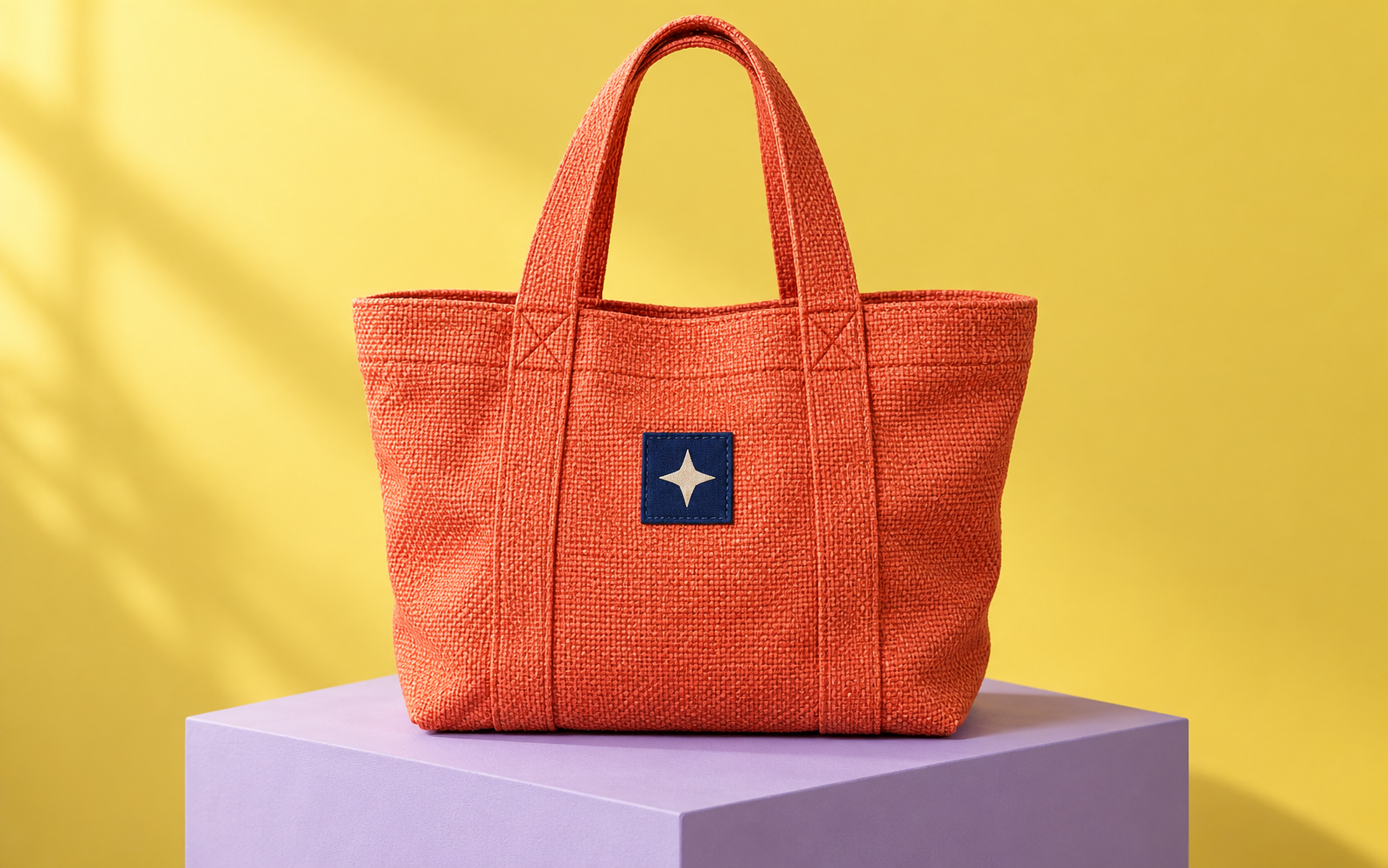
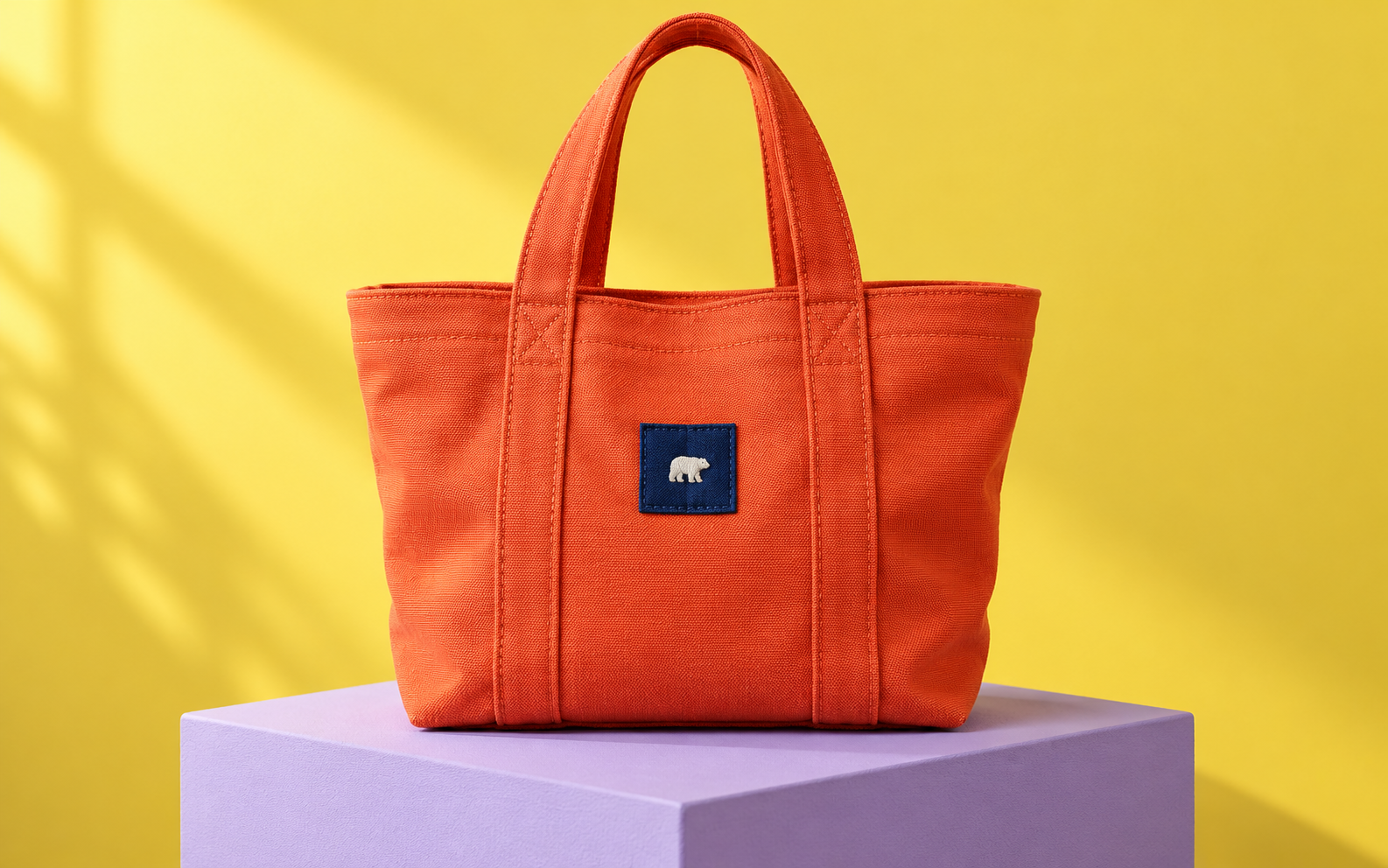
The following three images are an independent teaching exercise, not Krea outputs. We generated a fictional tote-bag reference, reduced it to 96 by 60 pixels with a conventional resize, and supplied only that reduced image as the reference to a separate image-edit request for faithful enlargement.
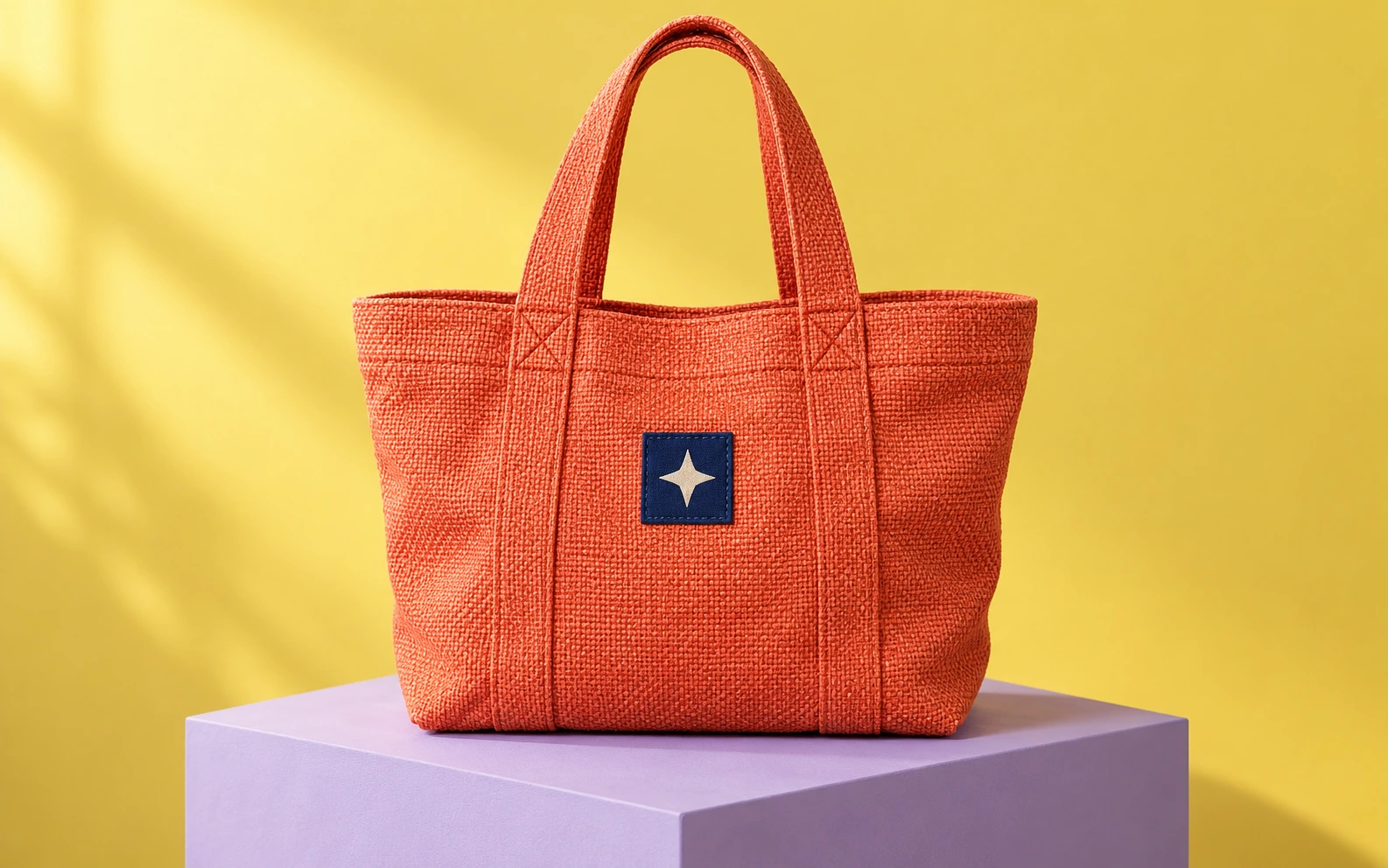

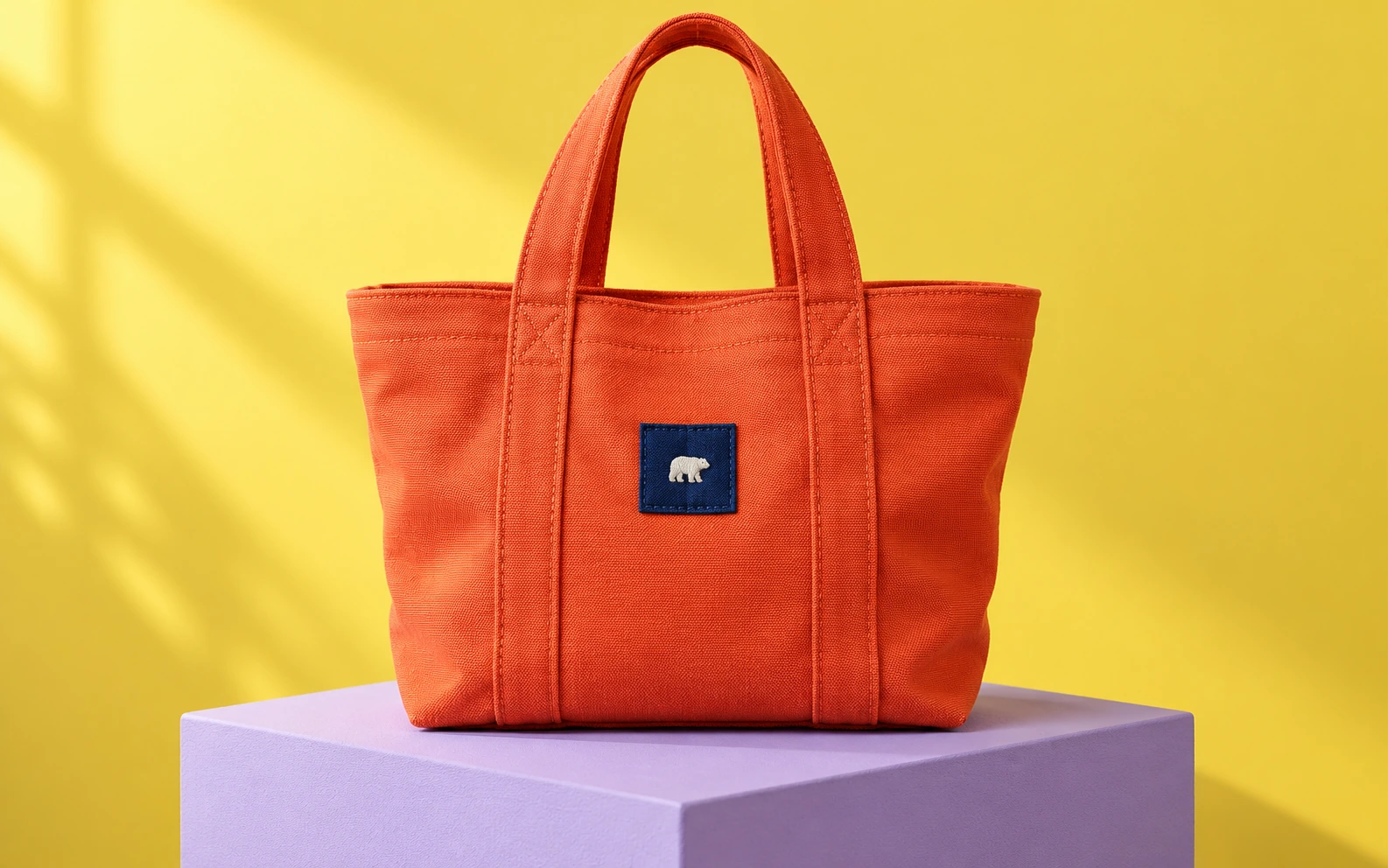
Download the native known reference, tiny input and independent reconstruction to inspect them at your own viewing size. No physical product, Krea inference or controlled cross-service comparison is represented.
Compare the emblem before accepting the texture
The known reference has one ivory four-point star on a navy patch. The independent reconstruction substitutes a white animal-shaped emblem. Its textile also looks finer than the reference’s coarse interlaced weave. The coral bag, loop handles, lemon backdrop and lavender pedestal remain broadly recognizable.
That combination makes the review useful: the picture can look coherent while failing an exact design requirement. A larger, sharper-looking result does not prove that missing information was faithfully recovered. This single illustrative edit does not measure how Krea or another provider would perform.
Download the filled observation sheet and file dimensions and provenance record. The findings name visible differences rather than inventing a numerical quality score. The reconstruction is unsuitable when preserving that exact emblem is a requirement.
Keep the reduction step reproducible
The tiny input contains 5760 pixels. We retained the larger reference so there is a known source to compare against, rather than guessing what the original design should have been. The separate edit was asked to preserve the visible composition and details; the returned design still changed.
Download the technical resize source. It uses Sharp in a Bun project to reproduce the 96 by 60 input. It does not call Krea or generate a reconstruction. The published provenance record identifies the image files and their hashes, while the cover is a separate editorial composition outside this exercise.
Use enhancement after approving the source
Krea’s upscaler page describes generating additional detail as resolution increases. Keep the approved source beside the result and inspect the parts that matter to the brief: logos, seams, product openings, jewelry, faces or architectural edges. Judge changes against the intended use rather than sharpness alone.
For exact branding, preserve approved artwork and consider an editable finishing step instead of accepting a newly interpreted mark. For a creative concept, some reinterpretation may be acceptable. Record that decision explicitly so a concept image does not silently become a product-accuracy claim.
Keep Realtime exploration separate from final approval
The official Realtime route is presented as an exploratory workflow. We did not run it or measure interaction latency. Use exploration to find a useful direction, then preserve the accepted reference and the settings of the actual operation you choose.
A promising draft still needs delivery review. Check the exported dimensions, crop, file type and detail at the final viewing size. If the next task is animation, approve the still before inspecting a separate moving result; a good first frame is not evidence that an entire clip works.
Choose the next step around the asset
For carrying approved copy and colors across several formats, inspect the Lovart campaign-planning guide and original editable SVG kit.
For a source revision, return to the Krea 3 editing brief and protect the details that must remain exact. For another service’s product-edit exercise, see the VisualGPT fidelity workflow. Keep each service’s account, settings and costs distinct.
For a separate Clout project, explore Image and Video or Marketing Studio. Clout publishes this guide. No Krea account connection, Krea model availability in Clout or comparative quality ranking is implied. Carry the accepted source, clear change request and actual review findings into whichever supported workflow you select.