

Use Krea 2 for visual exploration
Krea 2 is a family of image-generation models centered on visual exploration and style control. Its official technical report describes prompt expansion and style-reference systems as ways to steer a broad visual range. Start by separating the subject you want from the look you want it to have.
An invented reading lamp can appear as a paper collage, an ink illustration or a studio product image. Those are different art directions rather than minor color variations. Decide what should remain understandable across the experiment, then compare a small number of directions. Do not treat a reference’s subject matter as automatically part of the new brief.
Make the style brief concrete
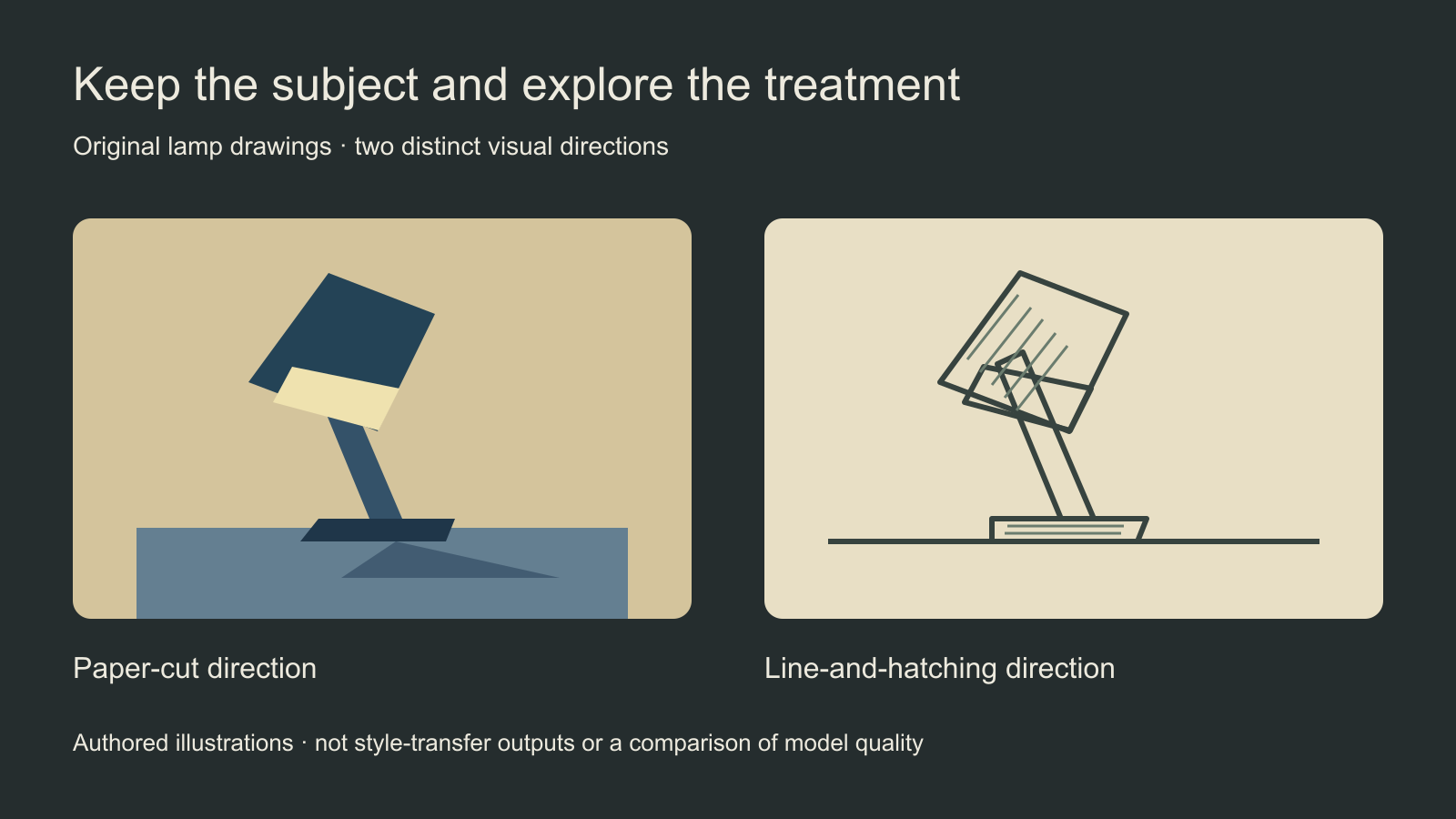
The original study keeps an invented lamp recognizable while changing its visual treatment. The paper-cut plan uses flat overlapping pieces and a limited palette. The line plan uses outlines and hatching. It is an illustration of briefing choices, not proof that a model will produce either result.
An original compact reading lamp on a plain desk, shown as a restrained paper-cut illustration. Layered matte paper shapes, a dark blue and cream palette, simple directional shadows, a clear lamp silhouette and generous empty space above it. No lettering, logo or extra objects.
This original untested prompt gives the subject, medium, palette and composition a clear job. Change one of those at a time if you want to understand its effect. Adding a new subject, a different reference, stronger texture and a new crop together makes it difficult to explain why the next output changed.
Distinguish a style reference from a moodboard
Krea’s official prompting walkthrough distinguishes individual style references from moodboards. The former carries visual treatment; the latter organizes a broader aesthetic direction. Use that distinction to choose a reference set instead of adding every attractive image you have saved.
For one clear treatment, select a reference whose relevant qualities you can name: line weight, palette, grain, material or lighting. For a board, look for a coherent relationship across the set. If half the images ask for clean flat graphics and the other half ask for glossy photorealism, decide whether that tension is intentional or an unresolved brief.
| Briefing choice | Write down | Inspect in the output |
|---|---|---|
| Subject | The object or scene being invented | It remains readable |
| Style | Medium palette texture and lighting | The intended treatment is visible |
| Composition | Crop viewpoint and empty space | The delivery layout works |
| Exclusions | Unwanted clutter lettering or motifs | References did not introduce them |
Review style and content separately. If you ask for a lamp in the visual language of an unrelated image, check that the output has not imported its incidental props or characters. A pleasing palette does not compensate for the wrong subject. Save a clean brief so you can revise the unwanted content without losing the intended treatment.
Choose Turbo as a workflow decision
The official Turbo announcement describes Krea 2 Turbo as a faster generation option compatible with style references, moodboards and LoRAs. It positions Turbo for exploration and recommends Medium or Large when stronger style adherence or final polish matters. Those are provider descriptions, not our comparative benchmark.
Use the actual selected version and quote to plan an experiment. Keep the brief and references consistent when comparing outputs, then inspect the acceptance conditions you care about. A faster preview can be useful for exploring directions, but a rejected image still costs time to review. Do not infer a guaranteed end-to-end generation time from a model name.
Keep hosted controls and local checkpoints distinct
For a different image family with separate generation and editing checkpoints, read the Hunyuan Image workflow guide and its original source-image exercise.
A hosted workflow and a local implementation may expose different controls. Record the exact model, interface or checkpoint before copying settings from another tutorial. For local use, start with the current official code and checkpoint documentation. This guide does not establish a tested installation, a universal memory requirement or a runtime for your computer.
For hosted use, inspect the available reference fields and how the service applies them. A prompt describing a material is not the same thing as a dedicated style-strength control. If a control is absent, do not assume that adding its name to ordinary text recreates the underlying operation. Keep the supported settings with each reviewed output.
Move from exploration to an accepted asset
For an explicit native guidance and negative-prompt experiment in a different image family, read the Z Image Base workflow guide. Its documented settings belong to Base rather than Krea.
Choose the direction that serves the actual delivery. Check the subject, important details, crop and space for any final copy. Add exact branding in a controlled layout when the generated lettering is unsuitable. Review the file at phone size as well as at a larger view, then preserve the source brief and accepted result.
Use the blank style exploration sheet to record the visual direction and acceptance decision. If the next job requires preserving an approved existing product, use the Krea 3 editing guide. If the project needs a reusable original creator, explore Clout’s saved-character workflow and inspect accepted references for consistency.
Clout Image and Video Studio provides its available generation workflows. This guide does not add Krea 2 or Turbo to Clout. Select the model actually listed, check the supported inputs and quote, and use controlled typography finishing when exact animated wording is part of the final creative.


