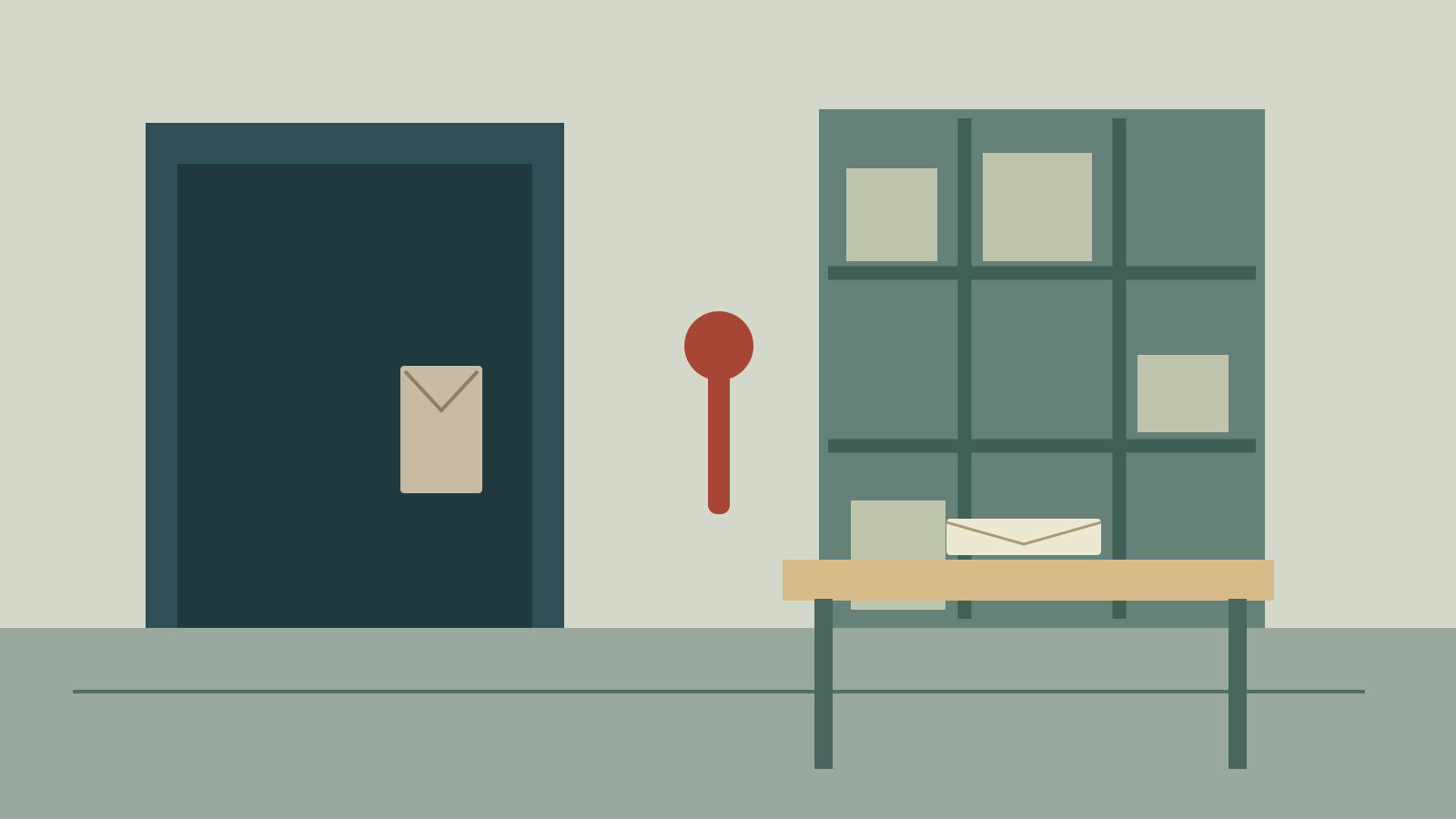
The Ken Burns effect turns a still into a moving composition through pan and zoom. It is useful for a documentary photograph, an illustrated story, a product detail or an AI-generated establishing image whose contents should remain fixed.
Begin with the detail the audience needs to discover. Then decide whether the move should reveal it, approach it or pull away to show context. A slow zoom with no visual destination can make a sequence feel busy without clarifying the story.
What the Ken Burns effect changes
A still contains a fixed arrangement of pixels. The effect changes which part fills the output frame. A push-in makes a smaller region occupy more of the screen; a pan shifts the viewed region; a pull-out reveals more of the source. It does not make a hand turn a key or produce previously unseen depth.
| Technique | Best starting task | Review before accepting |
|---|---|---|
| Ken Burns crop | Guide attention within one approved still | Start, destination, crop and perceived speed |
| Parallax animation | Separate foreground and background movement | Layer edges and revealed areas |
| AI image-to-video | Introduce action within the scene | Identity, object shape, action and continuity |
| Static hold | Give viewers time to read a complex image | Legibility and appropriate duration |
Choose the smallest operation that serves the shot. A crop move can preserve the approved illustration when a generated animation might change the face, product or setting. Conversely, a crop cannot deliver a scripted performance.
Choose a start and an end crop
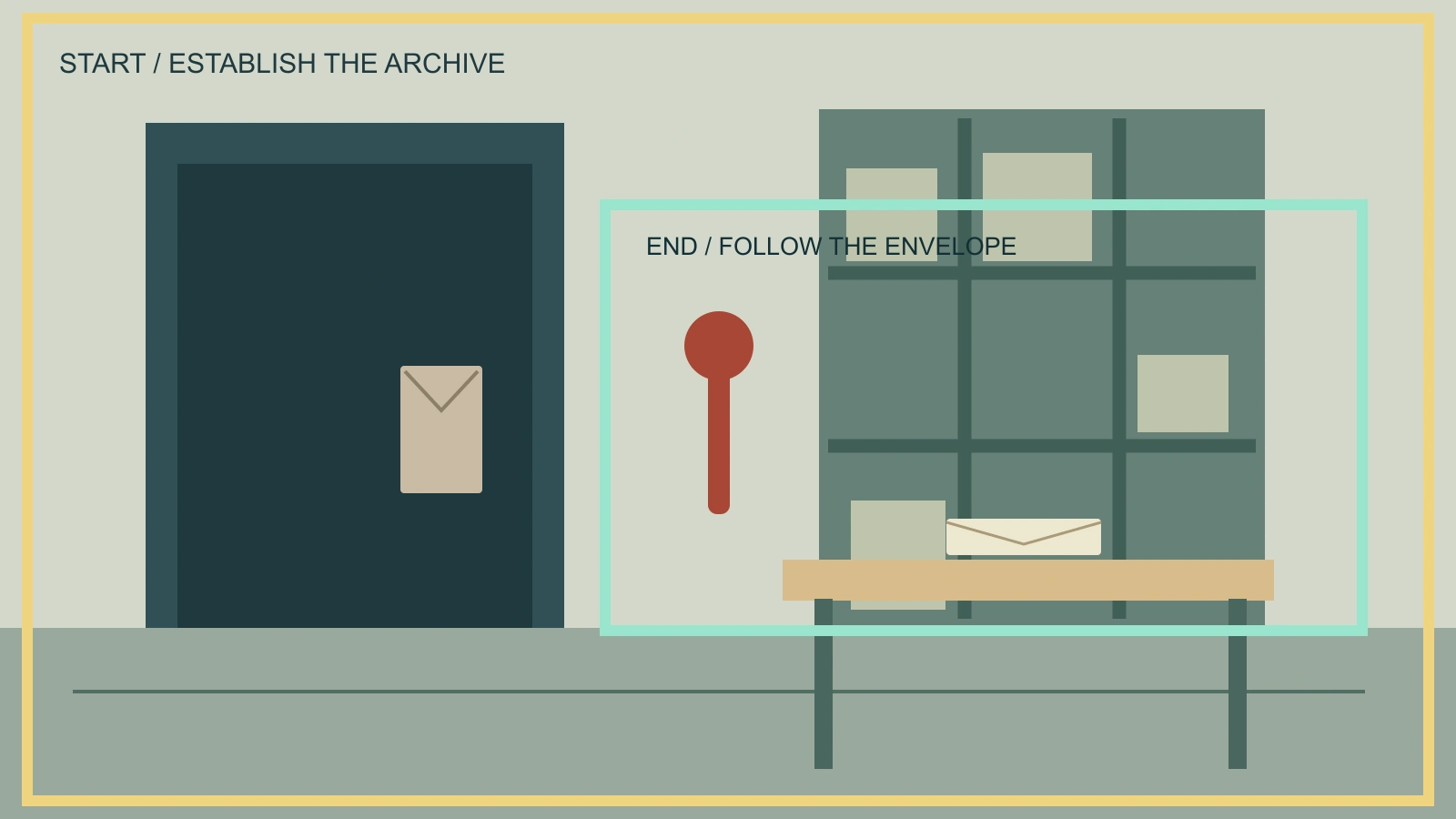
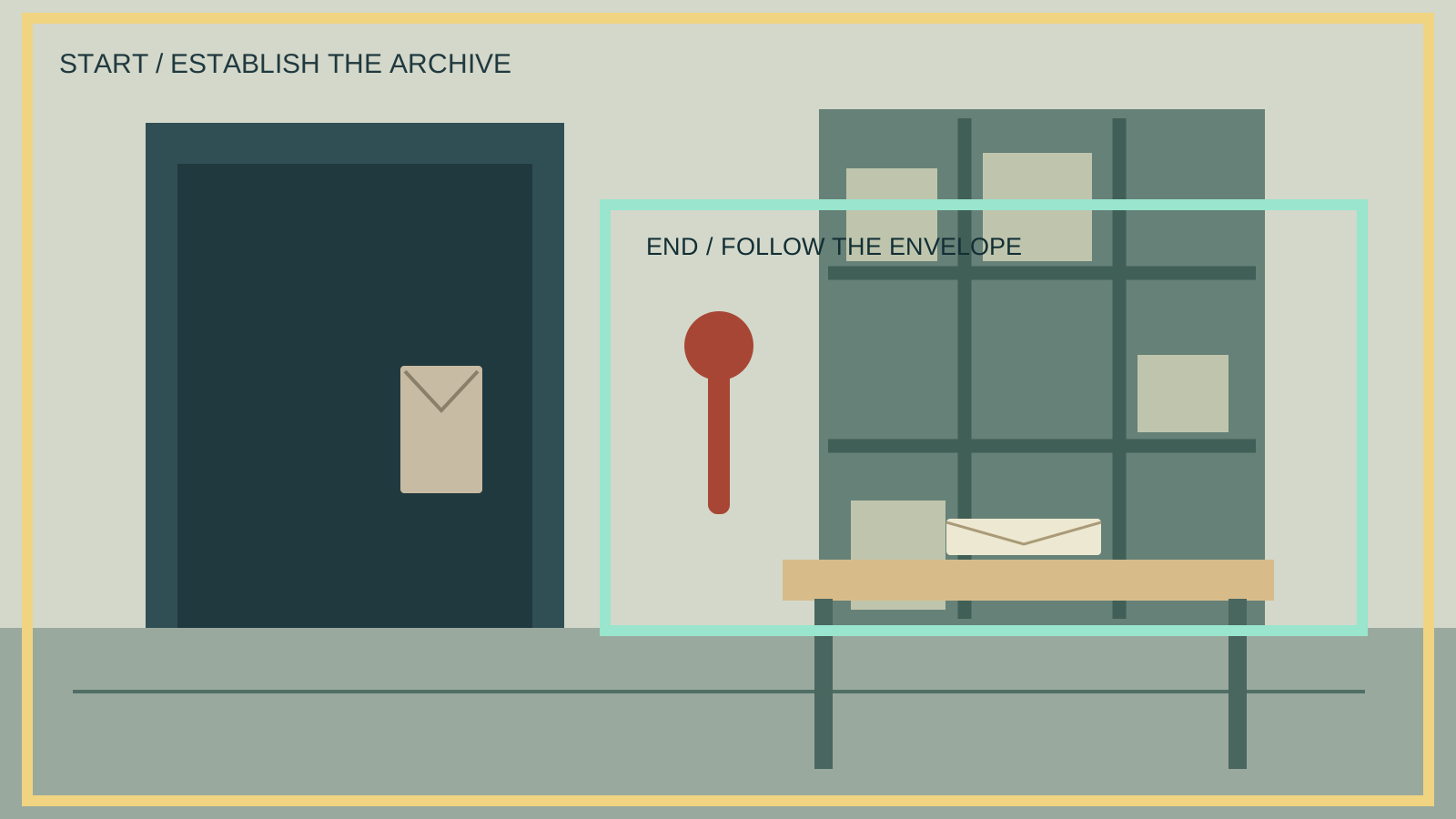
The archive example starts wide enough to establish the door and shelves. The end crop favors the envelope on the desk. That change directs attention from the room to the object. A second option would begin near the envelope and pull out to reveal the empty room; the source stays identical while the order of information changes.
Use the local tool to change the end zoom, horizontal focus and progress. It starts with a centered 16:9 crop and moves toward a closer horizontal region. The vertical center stays fixed in this simple preview. Downloading saves only the displayed PNG, not a video or an editing project.
Download the original still, editable crop diagram and original shot planning worksheet. Record the actual duration in your editor after choosing the framing.
Make a Ken Burns effect in iMovie on Mac
Apple’s iMovie guide describes selecting a photo or clip in the timeline, opening cropping controls and choosing Ken Burns. Set the Start and End rectangles, then apply the change. Playback interpolates between the chosen crops.
After applying the move, inspect the whole shot in your project. Check any title, subtitle and transition at the same time. A crop that looks good in isolation may move a face behind captions or remove the object needed for the next cut.
If you want the full still to remain fixed, choose a static placement in your editor rather than leaving an automatic move active. Interface labels and defaults vary across apps and device versions; use the documentation for the version you are editing with.
Plan movement around narration and image detail
Write a simple timing note before animating: “Establish the room, begin approaching the desk as the narration mentions the envelope, arrive before the final word, then hold.” The pauses give the audience a chance to recognize the starting view and understand the destination.
A closer end crop needs adequate source detail. For a 1920 by 1080 delivery, a source region smaller than those dimensions requires enlargement. That does not automatically make the shot unusable, but inspect the final export at its actual size. Fine text, eyes, paper grain and product markings can soften.
Use motion to support the edit. If the next shot begins on a matching envelope, arrive at a composition that connects visually. If the narration introduces a new person, preserve enough of their face and surroundings to keep the relationship readable. See the multi-shot guide for continuity between scenes.
Create an AI still that leaves room for the move
Wide illustration of a fictional archive room with a closed cream envelope on the desk at frame right. Keep the entire desk, doorframe and shelving visible. Leave clear surrounding space for a later crop toward the envelope. Preserve coherent straight architecture and simple readable objects. No lettering, logos or motion blur.
This untested direction is for planning a source still in Clout Image and Video. Review the still before editing the move. Do not ask the image model to create both the wide frame and the final crop as separate unrelated scenes if exact object continuity matters.
For an illustrated faceless story, use a mix of static holds, crop moves and generated action according to what each sentence needs. A photograph of an old house may need only a restrained approach. A character opening its door requires a separate performance shot or clearly authored animation.
Review the exported shot rather than only the endpoints
Scrub the middle of the move. Faces and important objects can leave frame even when both endpoints seem acceptable. Watch the export with captions visible, check the final aspect ratio and confirm there are no unintended black borders.
When a move feels too fast, compare a longer duration, a smaller crop change and a short hold at each end. These are separate choices; adding easing does not remove an excessive distance. If the image already tells the story clearly, a static hold remains a valid composition.
For a deliberately imbalanced frame instead of pan and zoom, compare the Dutch angle guide. For a product arrangement built to survive many crops, use the knolling workflow.