An AI commercial starts with a clear product story, then earns its place in a campaign through review. Decide what the viewer should notice, create the smallest asset set that tells that story, and finish the typography and edit deliberately. A collection of beautiful generations is only the raw material.
This worked example turns an original fictional mint kettle into a twelve-second product concept. You can download the actual MP4, both image inputs, the three-shot timing plan and the editable renderer. It is a practical assembly exercise you can adapt to a product you own.
Inspect the twelve second commercial example

Download the twelve-second commercial MP4. The file is 1280 by 720 at thirty frames per second with no audio track. It contains three still-image layouts joined by hard cuts. It does not demonstrate generated subject motion, a video-model result, kettle operation or measured advertising performance.
The complete sequence introduces the kettle, places it in a kitchen and returns to a concept card. The same input image appears in the first and last shots. That repetition gives the edit a deliberate closing shape without commissioning a third image.
Write the commercial brief around one visible idea
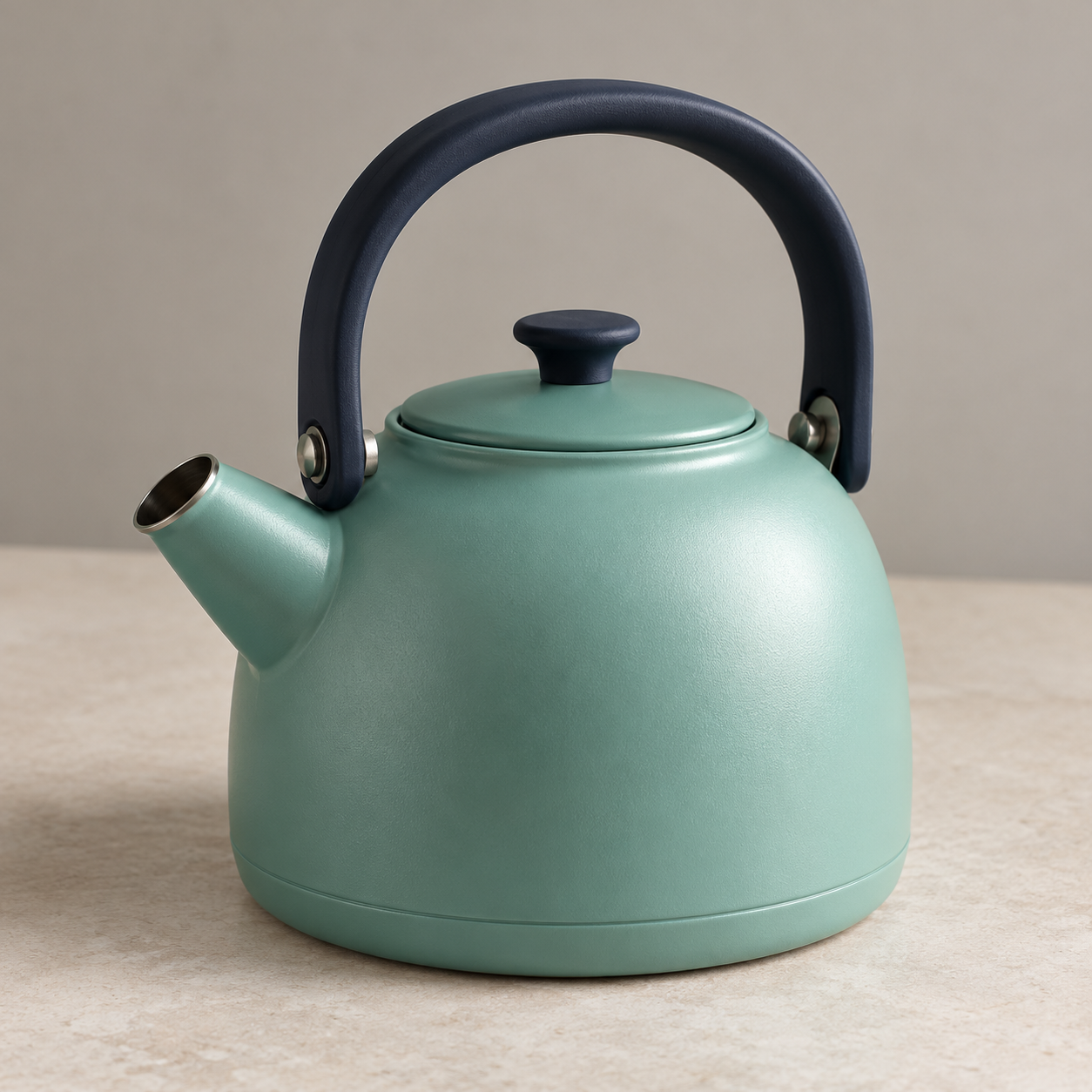
Our idea is morning color. The visual anchors are a mint body, a dark arched handle, a left-facing spout and a round closed lid. The allowed change is the setting. A coral cup supplies contrast, while the cream kitchen keeps the scene warm and readable.
For your own product, record the approved shape, materials, label and colors before requesting imagery. Choose one audience, one placement and one intended next step. A launch teaser can introduce a design; a demonstration needs actual evidence of the behavior being sold. A generated kettle scene cannot establish boiling speed or temperature control.
Use a compact brief: product reference, intended viewer, single visual message, permitted scene changes, required crop, exact copy and approval conditions. Name the output you need rather than asking for an entire campaign at once.
Plan three shots before generating more assets
| Time | Picture | Purpose |
|---|---|---|
| Zero to four seconds | Original studio kettle reference | Introduce the recognizable object and morning color idea |
| Four to eight seconds | Reference-led kitchen still | Place the object in a complementary setting |
| Eight to twelve seconds | Return to the original image | Close with an editable concept message |
Download the actual shot timing JSON. Four seconds per shot is an authored choice for this exercise, not an optimal advertising duration claim. Watch the sequence at normal speed and change the timing when the reading burden or story requires it.
A longer film needs more story development. A short product concept benefits from restraint: one visual promise, one change of setting and one ending. For a recurring person rather than an object, use the consistent character workflow to plan identity checks between shots.
Create the scene from a product reference
The original kettle reference and reference-led lifestyle still are downloadable inputs. They were generated with the built-in image tool. They are not a Lucid Origin, Clout video or another named provider benchmark. The reference is also used in our guide to content and style reference roles.
Keep the fictional mint kettle with its dark arched handle, left spout and closed round lid. Place it on a cream kitchen table beside a sunny window with one separate coral cup. Show the whole kettle. No people, pouring, steam, text or logos.
This is the creative direction used for the lifestyle setup. Inspection found the intended broad silhouette, colors, separate cup and closed lid. That is a visual review of this image, not a measurement of exact geometry preservation. Compare handle attachments, lid proportions and spout opening at equal scale when a real product must remain accurate.
Keep lettering editable outside the generated picture
The image inputs contain no campaign copy. The renderer adds cream lettering on a dark teal panel, away from the product. This makes headline changes predictable and keeps the kettle visible. It also avoids asking an image generator to produce exact promotional text inside a busy scene.
The editable TypeScript renderer defines all three titles and supporting lines. Change those strings, keep the line lengths within the panel, then inspect the new exported layouts. Long translations may need different line breaks or a larger text area.
The sample closes with a concept invitation because the kettle is fictional. A real campaign should use its approved offer and destination. Check that the on-screen message, landing page and actual product agree before publishing.
Render and review the whole commercial
The renderer uses Sharp to create three layouts and FFmpeg to encode their twelve-second assembly. Follow the reproduction instructions for the required image files and local dependencies. The download is a source project, not an in-browser conversion tool.
Open the complete MP4 and inspect every cut, the final card and the text at delivery size. Confirm duration, dimensions, frame rate and whether audio is present. This example is silent; a voiceover or soundtrack would be a separate finishing step requiring its own timing and listening review.
For a portrait placement, redesign the composition around that frame. Cropping this widescreen export would remove either the text panel or the kettle. Keep approved source images and editable copy so placement adaptation is a layout decision rather than a destructive crop.
For a visual comedy brief with separate setup action and reaction, use the funny AI video prompt and timing guide.
Choose the next test from the actual weak point
If the product changes shape, fix the reference stage. If the message is unclear, revise the script or title. If the pacing drags, change shot duration. Generate a new moving shot only when motion serves the idea and you can review the complete result.
Keep production approval separate from campaign results. This example has no launched advertisement or conversion data. For platform-specific tool selection, continue with the Facebook ad video workflow comparison. Explore Clout Marketing Studio for supported creative workflows and check the current operation before generating.