An AI banner generator can help explore artwork and visual directions, but the finished banner still needs exact copy, an intentional layout and a checked export. This guide includes a free local SVG layout helper and an original two-size example, so you can inspect how a wide design changes without pretending a resize creates new image content.
For a portrait editorial composition, use the AI magazine cover workflow and editable SVG maker.
Decide whether you need artwork or layout
Venngage’s official banner page describes prompt-led banner creation for social, website and event uses. getimg’s official banner maker page describes prompts with optional references and a separate resizing step. We did not test either service, its plan access or its exports. Check the actual operation you need before assuming one tool handles generation, exact text and delivery.
| Need | Useful workflow | Check |
|---|---|---|
| A new scene or product concept | Image generation or a supported reference edit | Subject details and actual composition |
| Exact headline on existing artwork | Editable text and image layout | Spelling hierarchy and fit |
| A different banner shape | Recompose crop or fit to the new dimensions | Product visibility and remaining space |
| Channel delivery | Export and inspect the destination preview | Actual crop file and placement |
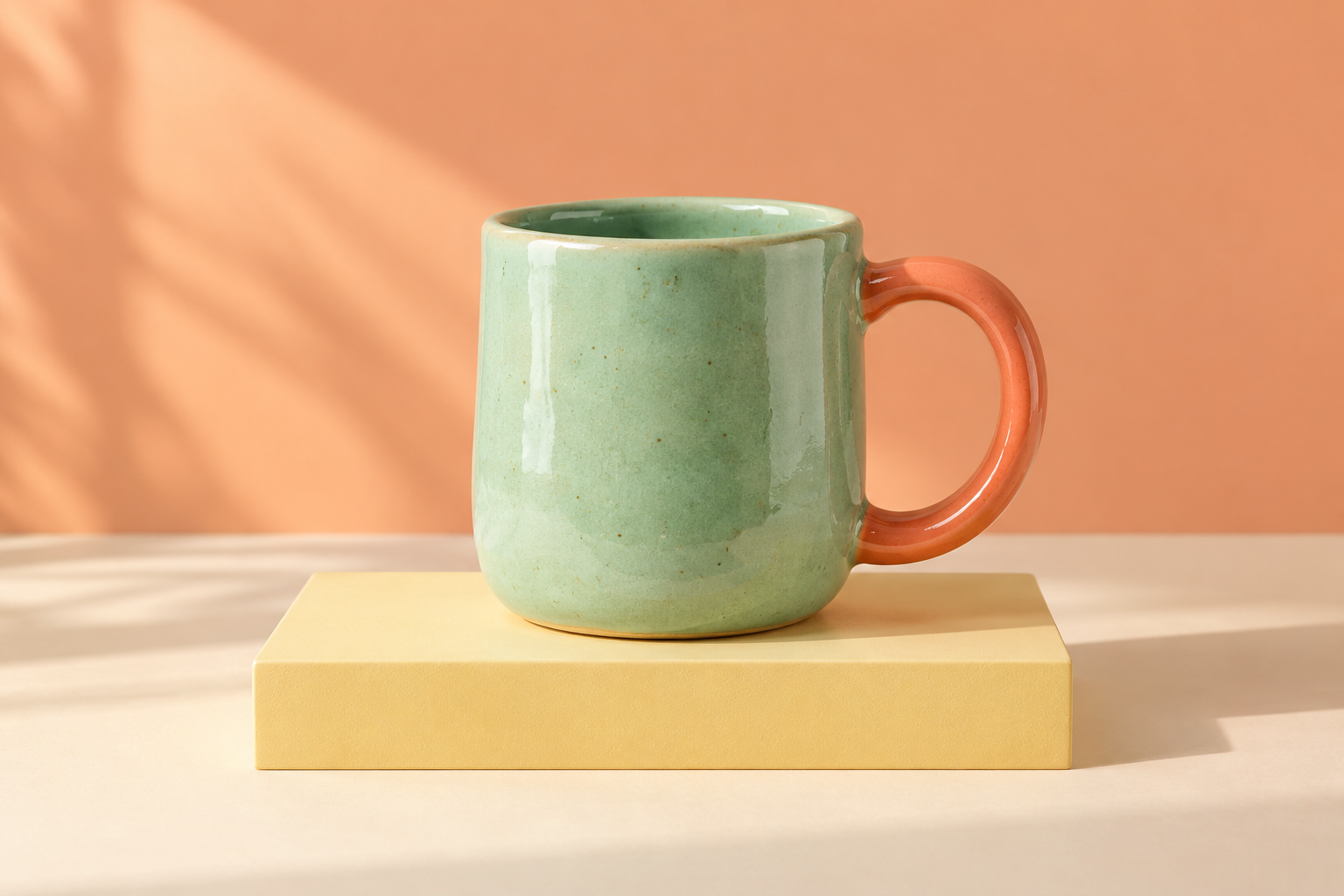
The helper above performs the layout stage using our fictional mug photo. It does not upload a visitor image, generate AI imagery, outpaint a scene or connect a provider. It loads the example image from Clout, lets you enter copy and exports a local SVG.
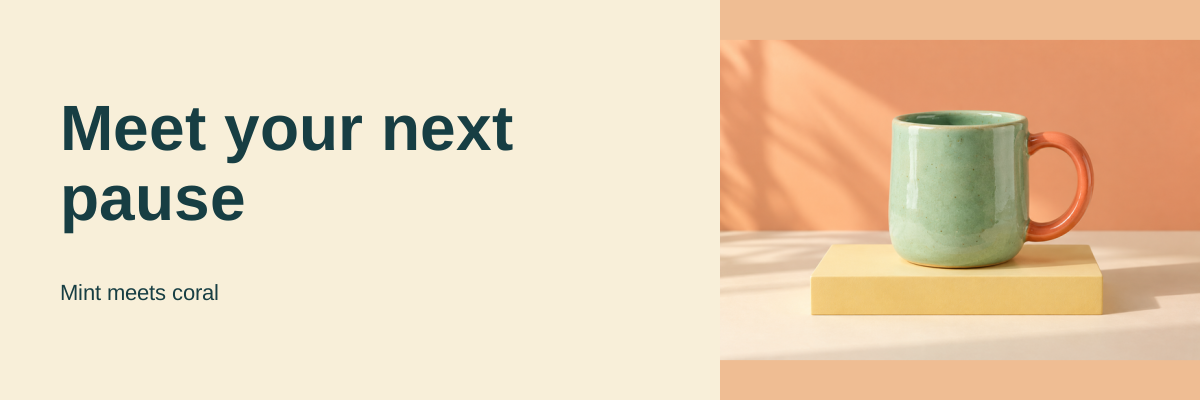
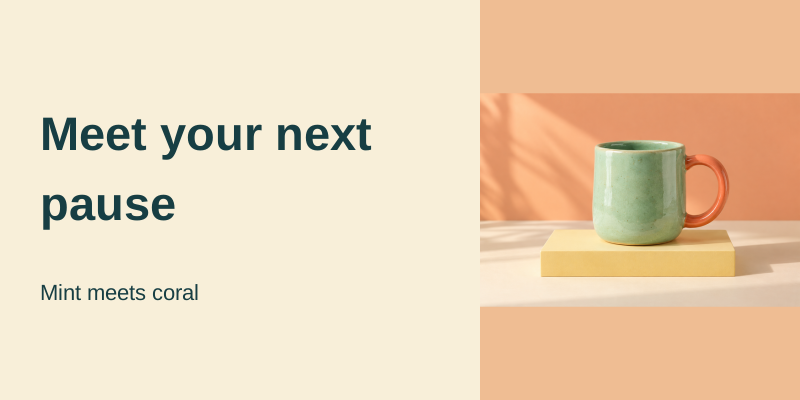
Compare the original wide and compact layouts
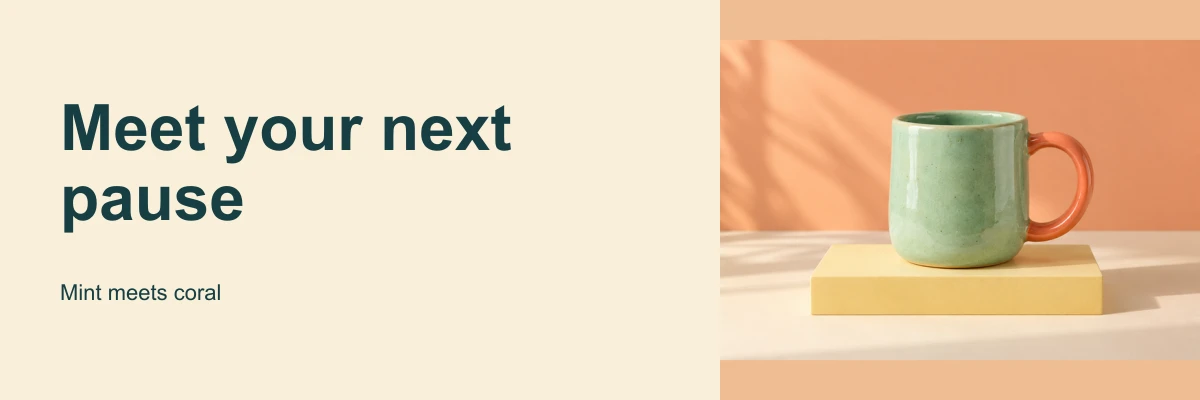
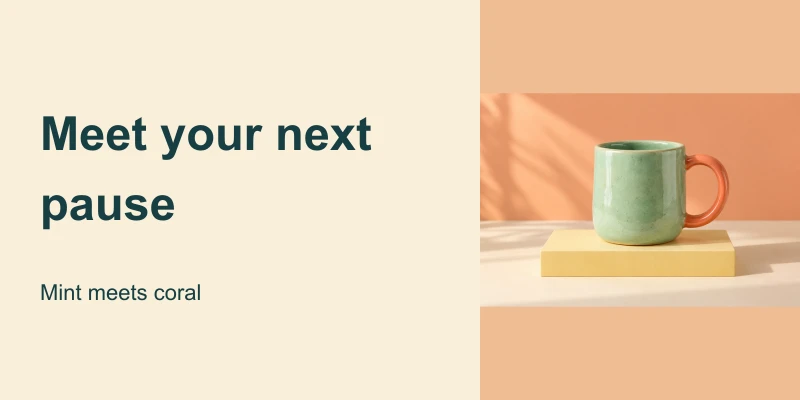
Both examples use the same fictional Pause mug image and the same words: “Meet your next pause” and “Mint meets coral.” The photo is fitted into the right-hand panel without cropping. The compact version has more empty space around the image because the source and panel proportions differ. No extra background pixels were generated.
These are authored example dimensions, not platform upload recommendations. A website header, an advertising placement and a social profile can have different requirements. Check the actual destination and its current primary documentation before treating either sample as a delivery specification.
Download the wide SVG, compact SVG, wide WebP and compact WebP. Native SVG text remains separate from the embedded photo. Fonts are not embedded, and import into a particular design application was not tested.
Use the local banner helper
- Choose the wide or compact authored size
- Enter a short headline and subline
- Check the preview and any fit message
- Download the SVG and inspect it in your destination workflow
The headline is limited to two lines and the helper rejects copy that cannot fit its rules. It does not silently remove words. Whitespace is normalized, so repeated spaces become single spaces. The subline also has a fit limit for the selected width. If the tool asks you to shorten it, revise the message or choose the wider layout.
The preview is a local composition, not a generated recommendation. Selecting a size does not establish that it will fit a specific account or placement. The download contains an embedded derived PNG so the design does not depend on a remote photo URL after export.
Inspect the actual source and export record
The photo comes from our original fictional social-post campaign. We created a 700-pixel-wide PNG derivative for this helper while retaining the full-resolution original separately. Download the derived photo and the derivation and hash record.
Download the source archive for the layout function, renderer and included photo. The archive renderer reproduced all four SVG and WebP examples byte for byte in our local environment. It requires Bun and Sharp; fonts can differ on another machine. This proves reproducibility of these example artifacts, not performance of an AI service or compatibility with every editor.
The helper’s tests also check markup escaping, invalid size rejection, image-reference restrictions and refusal to drop unfitting copy. Those are practical correctness checks. They are not a substitute for viewing the actual graphic, which we did for both static examples. Browser form interaction and download clicks remain untested.
Write a useful AI banner brief
Create a banner concept for an authorized product image with a mint body and coral handle. Keep the whole product readable at the right, leave a calm area at the left for editable copy and use a warm cream background. The headline will be Meet your next pause, with Mint meets coral as the subline. Return artwork without a fabricated offer, price or testimonial.
This is an original example brief, not a tested provider recipe. For a real product, use approved facts and an authorized source. Keep exact copy in a separate record if you plan to add it as editable text. An image-generation result can look attractive while spelling a headline incorrectly or changing product details.
Decide how to handle a new aspect ratio. Cropping removes content; fitting preserves the full picture with spare space; outpainting asks a model to invent additional content. Those choices produce different results. The local examples use fitting, so they make no claim that a new camera view or larger scene was generated.
Review the banner before handoff
Read the headline at the intended display size, not just at full resolution. Check whether the product, handle and important edges remain visible. Inspect contrast and spacing with the actual background. In this study, the first layout left the headline too small; we changed wrapping and type size before accepting the final example.
Download the filled layout review. It records the visible product and matched copy while leaving native-editor import and destination cropping unproven. Neither visual approval nor a successful export means that a banner was uploaded, published or commercially successful.
Connect the banner to the wider campaign
Keep the source image, copy version, dimensions and final file together. For the caption-and-asset handoff, use the original three-post campaign guide. For a different native design example, see the Fuser composition study. Clout Marketing Studio is a separate creative workflow; inspect its currently available inputs and outputs before using a banner as part of a new campaign.