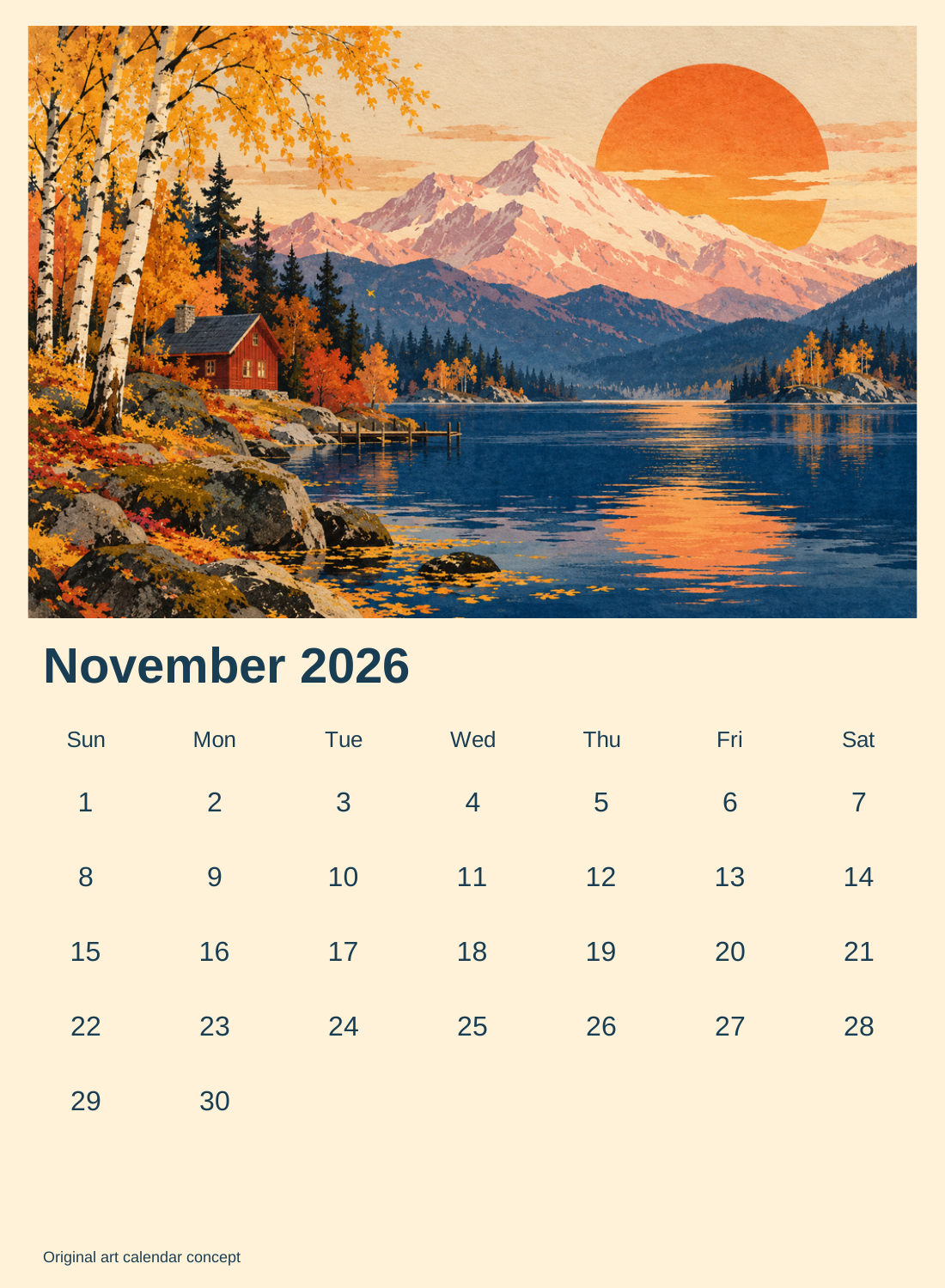
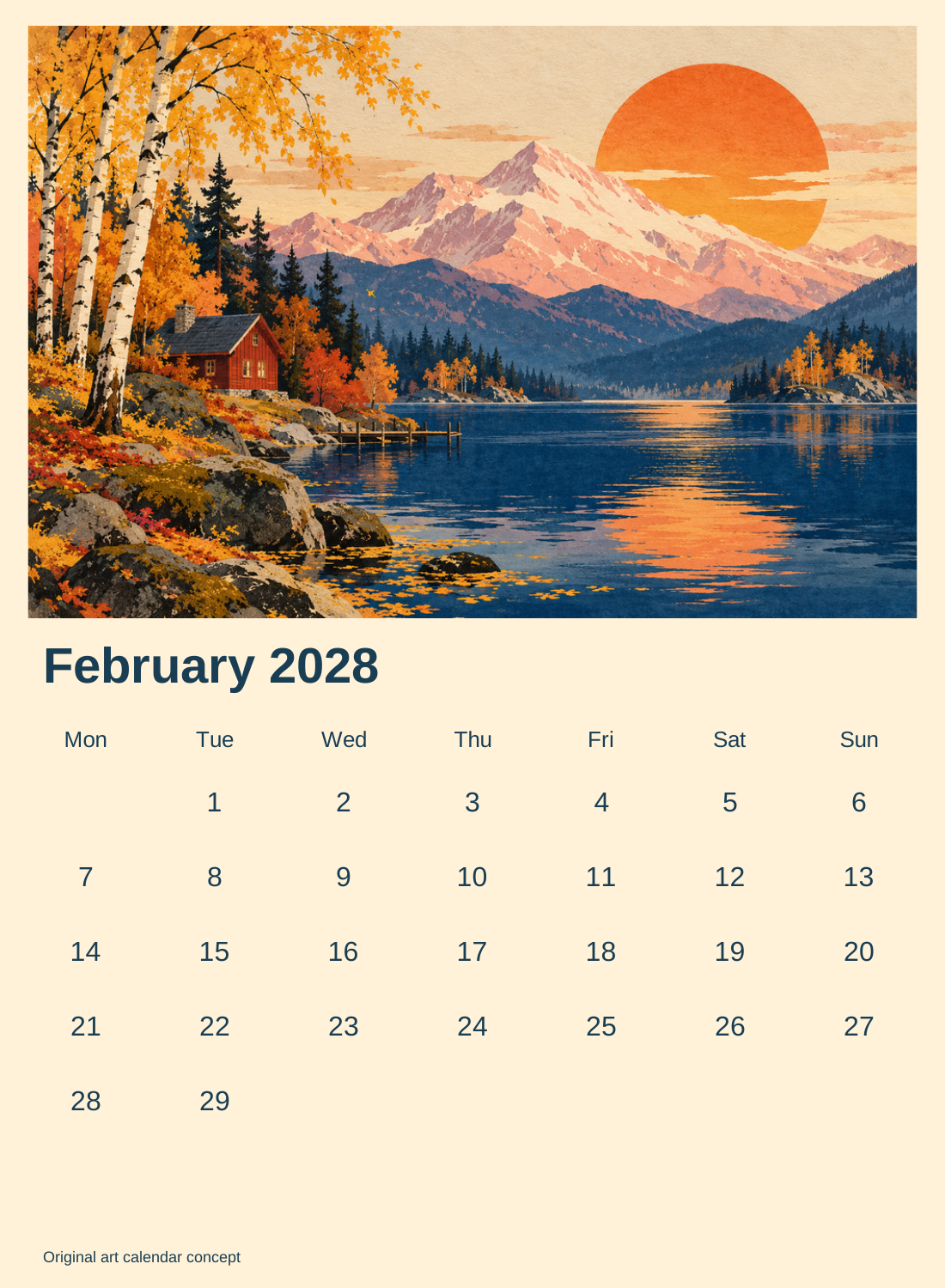
An AI calendar generator can mean a designed monthly page, a work schedule or a content plan. Those are different outputs. This guide focuses on the visual calendar: original artwork above a readable month grid, with dates calculated from the selected year rather than invented inside a generated picture.
Use the free maker above to choose a year from 2000 through 2100, a month and the first weekday. It uses the original landscape below and downloads a digital SVG. For a publishing schedule, use our separate AI influencer content calendar. For appointment scheduling, choose software that actually connects to your calendar account; this page does not perform that job.
For a one-off event card, use the AI invitation workflow and editable invite maker with separately verified event details.
Make a monthly calendar from original AI artwork
Our original landscape combines a red cabin, golden trees, an indigo lake, pink mountains and an oversized orange sun. It is a fictional art direction rather than a photograph of a documented destination. The artwork sets a mood; the separate date grid supplies the useful information.
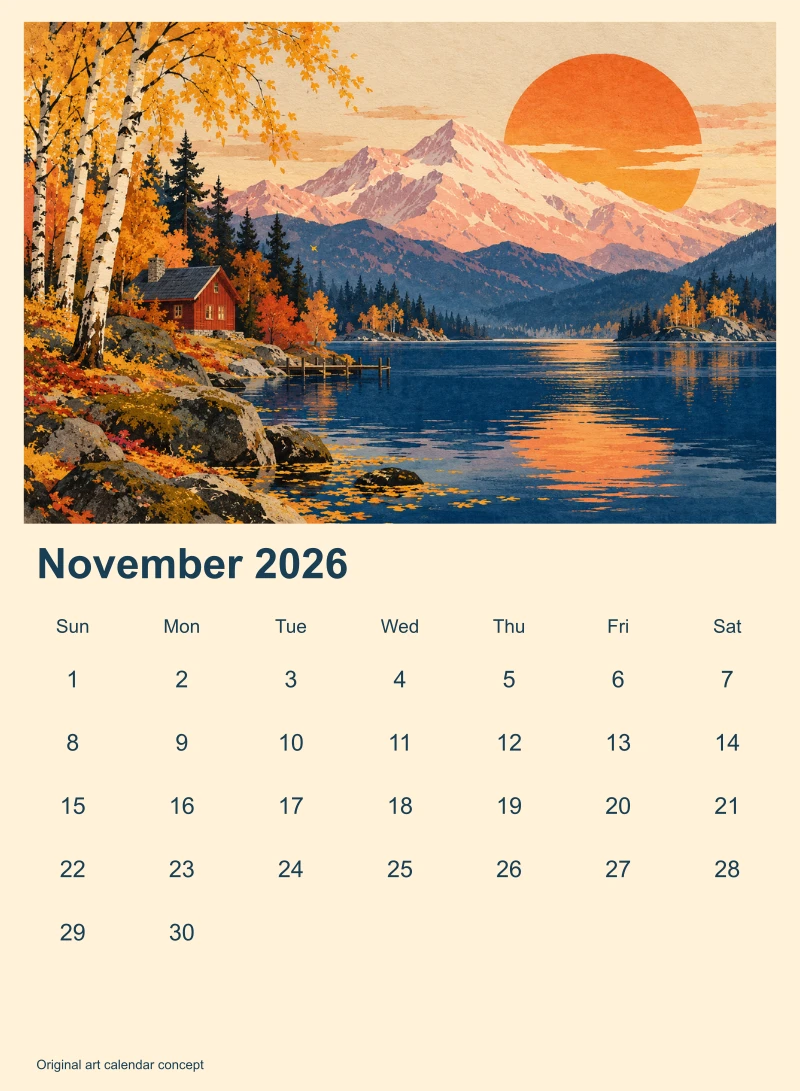
November 1, 2026 falls on Sunday. In this example it belongs in the first column, followed by the remaining dates in order. The grid uses six available rows, leaving unused cells blank. That stable layout accommodates a month that needs six weeks without moving the artwork or shrinking the date type.
Choose a design tool for the calendar you need
Canva’s calendar maker describes customizable templates and media tools for visual calendars. Venngage’s calendar page describes formats, key dates and design customization. These are public product descriptions, not results of a provider export test in this guide. Check the current account features and inspect an actual file before selecting a tool for production.
A monthly art calendar needs accurate dates, legible type and a suitable image. A shift schedule also needs assignments and coverage rules. An appointment planner needs availability, time zones and synchronization. A social calendar needs publishing responsibilities and campaign information. Decide the deliverable before comparing features or calling a design generator an automated scheduler.
Generate the artwork without generating the numbers
Original artwork brief: Create an autumn landscape illustration with a tiny red cabin beside an indigo lake, golden birch trees, pink mountains and a warm orange sun. Use layered woodblock-like shapes and tactile gouache texture. Keep the composition wide and balanced. Include no text, numbers, logos or calendar grid.
The resulting image contains the requested landscape elements. It is an independent generated illustration, not output from Canva or Venngage. We then resized the artwork and embedded that same PNG in each SVG example. The layout fits the whole picture inside its panel without generating extra scenery or cropping the cabin.
For a twelve-month series, define what stays consistent before generating eleven more images: palette, paper texture, horizon placement and subject scale. Vary the seasonal scene while keeping those anchors. Review the set together so one unusually dark or crowded panel does not make the series feel unrelated. Avoid putting essential words into the artwork if you need to revise them later.
Check leap years and week starts
The calendar helper uses UTC date arithmetic, keeping local daylight-saving changes out of the date-grid calculation. It determines the first weekday and number of days for the selected period, then places each date once. Switching to a Monday start moves Sunday into the final column; it does not change the month’s dates.
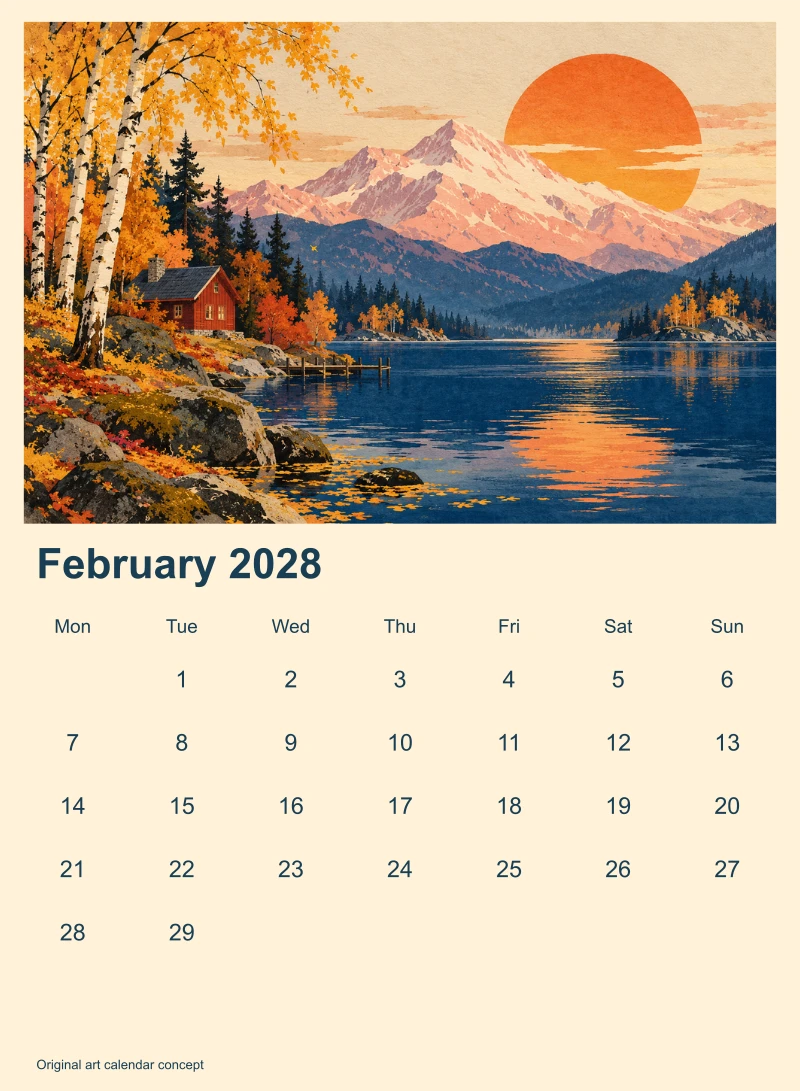
February 2028 has 29 days. February 2100 has 28, while February 2000 has 29. Those boundary cases matter because a simple divide-by-four rule alone mishandles century years. The source tests cover every supported month and both week starts. That verifies the date logic; it does not prove a particular browser download or a destination editor works.
Download the editable calendar and source
Download the November Sunday-first SVG, February leap-year SVG, original landscape, complete rendering source, filled review and source hashes and limitations. The archive includes the layout helper, rendering script, resized artwork and instructions.
The SVG contains an embedded image and native text for the month, weekdays and dates. Fonts use Arial with a sans-serif fallback and are not embedded. It is not a synchronized calendar file, an event database or a print-ready PDF. Import behavior and font rendering can vary, so inspect the file in your destination application.
Review dates before adding events or holidays
The maker includes no holidays or personal events. Add only verified dates in a finishing editor and check the intended region. A holiday observed on a different working day is not always the same as its calendar date. Keep source information with your project rather than letting an image model guess local observances.
If the calendar is for a campaign, check the launch date, artwork approval and distribution deadline separately. A beautiful calendar delivered after the start of the month is not useful. Retain the editable source so a corrected event does not require generating the art again.
Prepare a digital calendar or a printed edition
The local output is an authored 1100 by 1500 digital layout. For screen use, inspect readability and the destination’s crop. For printing, obtain trim, bleed, safe-area, color and PDF requirements from your printer, and check the artwork resolution at the actual physical size. We have not produced or color-checked a physical print.
Use Clout Image and Video to develop original seasonal imagery, then place accurate dates in a controlled layout. Continue with the magazine cover workflow for editorial typography or the social campaign workflow for promoting a finished art collection.