Qwen Video Edit is a research video-editing system that adapts an image editor to video latents. Its practical workflow starts with an existing source video and an editing instruction. This is distinct from generating a new clip from a text prompt or editing a single still image.
This guide traces pinned source revision 4e44e4992793379752387724666d24873ed9b8b2 and supplies an original numbered input clip, a local chunk planner and downloadable review sheets. We have not installed the model, downloaded weights or run inference. The prepared media are original inputs, not Qwen Video Edit results. We are not claiming measured search volume, viral adoption or independent generation quality.
Use the free video chunk planner
- Count the decoded frames in your actual source clip. Enter that count rather than inferring it from a rounded duration label.
- Choose the 45-frame or 81-frame chunk size that matches the checkpoint you intend to evaluate.
- Enter the number of nonempty prompt lines. In the pinned CLI, each line covers one chunk.
- Enter the source constant frame rate for the reference duration and the separate intended output fps.
- Download the JSON and CSV review sheets. They record slicing, repeated tail frames and unprocessed source frames; they are not ComfyUI workflow files.
The default exercise has 100 source frames at 24 fps, three prompt lines and 45-frame chunks. The source ranges are 0–44, 45–89 and 90–99. The last range supplies only ten real frames, so repeating its last frame 35 times fills a 45-frame chunk. That makes 135 planned output frames.
At the CLI default output rate of 16 fps, 135 frames last 8.4375 seconds. The original 100-frame CFR clip at 24 fps lasts approximately 4.166667 seconds. Even setting output fps to 24 leaves the padded output at 5.625 seconds. Matching fps does not remove repeated tail frames. This is source-traced arithmetic, not a generated output or a speed estimate.
Inspect an original source clip at chunk boundaries
Watch this clip and view its details
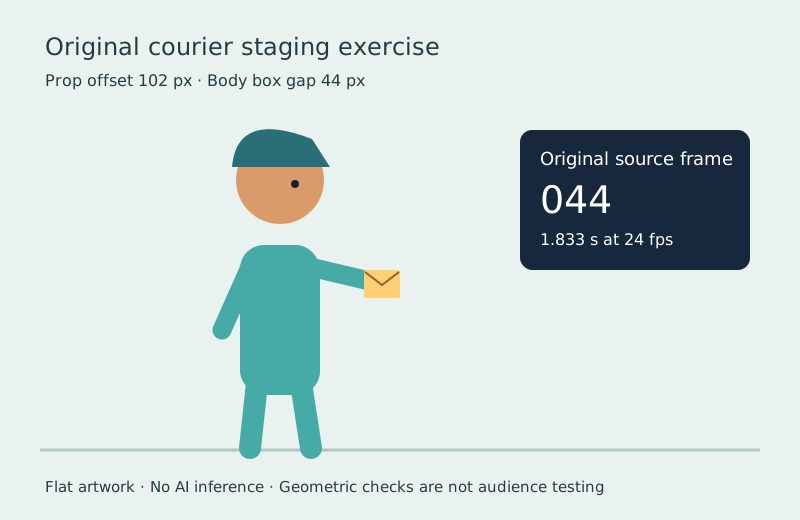
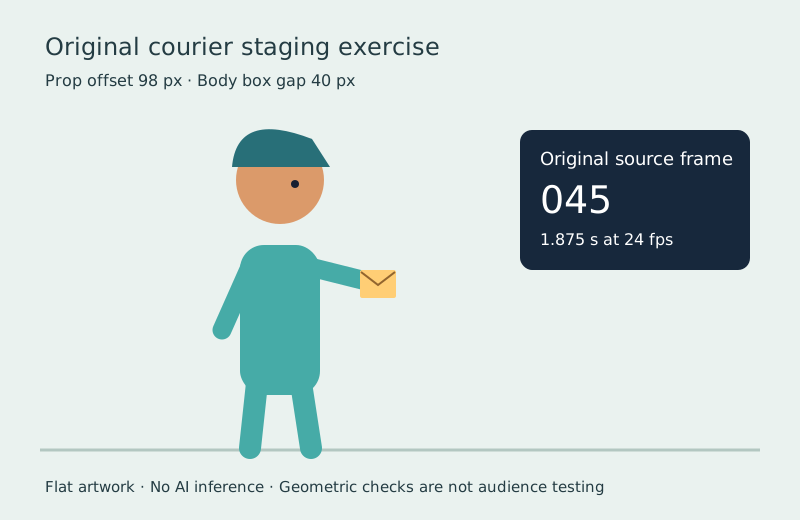
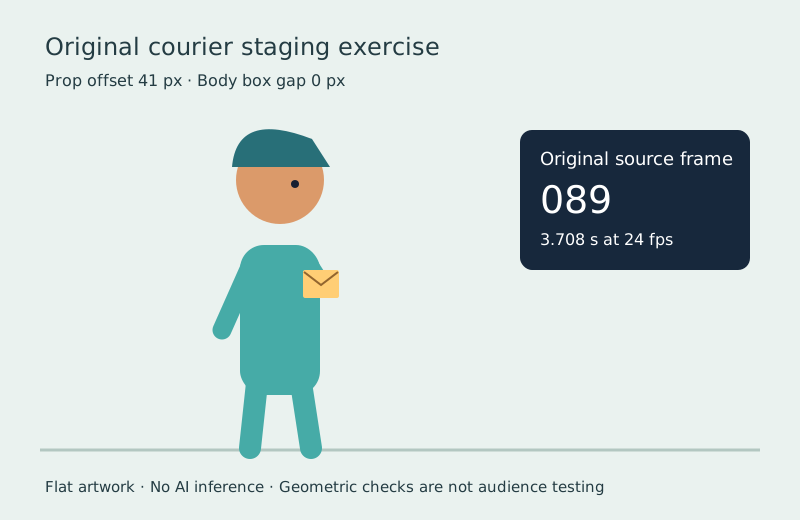
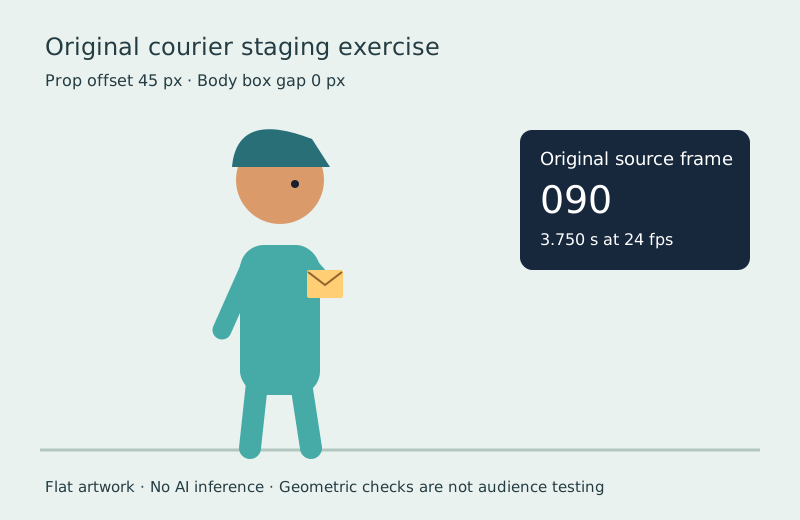
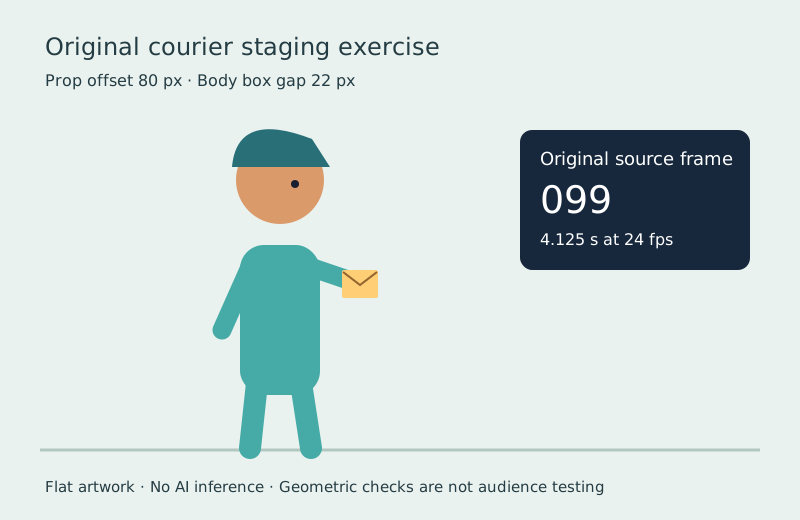
The courier’s envelope moves horizontally while a visible counter identifies each source frame. Inspect frames 44 and 45, then 89 and 90, when testing chunk boundaries. Those pairs sit on opposite sides of the 45-frame slicing boundaries. Frame 99 is the final real source frame and is the one repeated by the padded final chunk in this example.
Open the numbered input watch page or inspect the original SVG frames 44, 45, 89, 90 and 99. The source frame record stores timestamps and prop offsets.
Choose a checkpoint before changing chunk settings
The pinned model-zoo table pairs the recommended 360P checkpoint with 45 frames and a 245760 pixel budget, and the recommended combined 480P checkpoint with 81 frames and a 399360 budget. It also lists specialized 480P variants and a 720P checkpoint. Treat those as checkpoint-specific configurations rather than interchangeable resolution presets.
The planner models frame slicing only. It does not select or load a checkpoint, resize media, validate a GPU environment or predict quality. Keep the checkpoint path, chunk size and pixel setting together in a real experiment. A larger number is not automatically a better fit for the task.
The dataset helper resizes frames using dimensions rounded to multiples of 16. Its maximum-pixel argument should not be treated as an independently verified strict final-area limit after that rounding. Inspect the actual saved dimensions from a real run.
Understand what the CLI does with prompts and frames
The pinned inference entry point decodes the source into ordered frames, drops empty prompt lines and limits the number of chunks by both prompt count and available source windows. One prompt for the 100-frame example covers only frames 0–44, leaving 55 source frames unprocessed. Extra prompt lines do not create extra source windows.
The padding helper repeats the final available frame when a window is shorter than the selected count. The CLI output writer uses a separate fps argument, defaulting to 16. This path does not preserve arbitrary input presentation timestamps simply because it reads the video’s frames.
Our source inspection found a documentation difference worth recording: the README and entry-point header describe intermediate stages as chained in memory, while the implementation writes temporary edited chunk tensors to disk when enhancement is enabled and removes each after its enhancement pass. Plan temporary storage from the implementation you actually run. This observation is code inspection, not a measured peak RAM or disk benchmark.
Keep the ComfyUI route distinct from the CLI
The pinned ComfyUI node implementation has single-chunk sampler semantics. Its sampler takes the first selected number of frames and pads a short input. Feeding a longer clip to one sampler call does not automatically schedule every chunk of the CLI’s long-video path.
For a long ComfyUI workflow, explicitly manage source windows and verify the same prompt reaches the intended edit and enhancement stages. The node’s low-RAM option frees the editing stack before enhancement and reloads it later, while the default path parks it in host memory. These are different resource tradeoffs. We did not measure their latency or memory use.
Review a local edit against properties that should stay fixed
| Review point | Original input | Check in a real generated result |
|---|---|---|
| Identity | One courier and one envelope | Object count and proportions remain intentional |
| Motion | Envelope moves horizontally | No unexplained jump or change of hand |
| Boundaries | Source pairs 44/45 and 89/90 | Appearance and pose do not reset unexpectedly |
| Tail | Last real source frame is 99 | Repeated-frame padding is accounted for in delivery |
| Timing | 100 frames at 24 fps | Saved fps frame count and audio alignment are checked |
Use an original input and a narrow instruction for the first experiment: change the courier jacket to dark blue while retaining the envelope, movement and fixed camera. That is a proposed test direction, not a prompt we have run or a promise that the model follows it. Save the complete returned clip and inspect normal playback as well as boundary frames.
The example is silent. If your production source has dialogue or music, handle audio deliberately and verify synchronization after any frame padding or fps change. Do not assume a frame-based image pipeline preserves the original audio track.
Inspect the source audit and independent input checker
The pinned document audit records seven small files, including source, vendored-license documents and the model card. The read-only audit script reproduces those hashes without installing dependencies, fetching weights or importing upstream model code.
The model card metadata at revision f7d9ef0c2a510096529e27994555de16193978e7 declares MIT. The repository separately retains upstream license files for vendored components. Review the actual checkpoint, base models and included components for your intended use; a metadata label does not establish that every dependency has identical terms.
Download the default JSON review sheet and CSV sheet. Our independent input inspector checks a local clip and plan with Python and ffprobe. It verified the original 100 frames, source CFR timestamps, three chunks and 35 padding frames. It does not validate tensors, GPU kernels or generated output.
Choose the workflow around the edit you need
Use this research route to investigate instruction edits to an existing clip when you can maintain the local environment and review the output. For still-image changes, see the existing Qwen image-editing guide. For a reference-driven rendering study, compare the EdenLive input guide.
For hosted original images and videos, inspect the supported inputs in Clout Image and Video. For connected story coverage, plan in AI Cinema. This does not claim Clout hosts Qwen Video Edit. Start from the specific property you need to change, then judge the actual returned media against the properties that should remain fixed.