For independent drawing holds instead of joint rotations, try the limited animation exposure lab.
Puppet animation reuses a character while changing its pose over time. You can move a physical figure between photographs, rotate separate digital parts or deform an image with a mesh. The useful choice is how you want the character to bend and what you need to remain fixed.
This guide uses an original flat paper robot with two rigid arm segments. The interactive lab lets you adjust shoulder lift, elbow bend and timing, inspect individual frames and download the exact motion. It does not turn an uploaded photo into a rig or claim an AI-generated performance.
Cutout animation with the printable parts kit
Cutout animation moves separate flat pieces to create an action. The pieces can be arranged under a camera or controlled digitally. A reusable character with hinged parts is one cutout approach; replacement shapes and loose collage pieces are others. The robot lab on this page demonstrates rigid digital hinges.
The National Film Board of Canada’s cutout-animation overview includes physical paper work and a digital example. The representation can change while the useful principle remains: plan the separate pieces and how their positions change between frames.
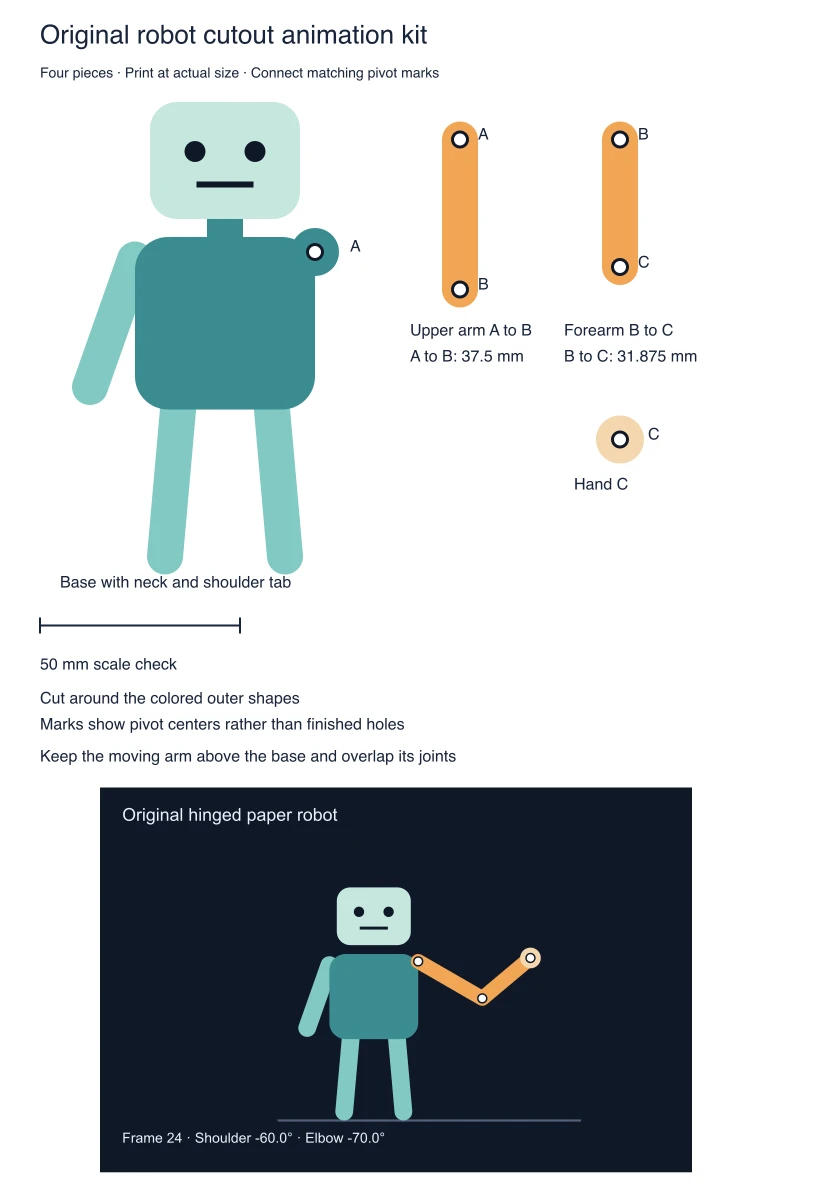
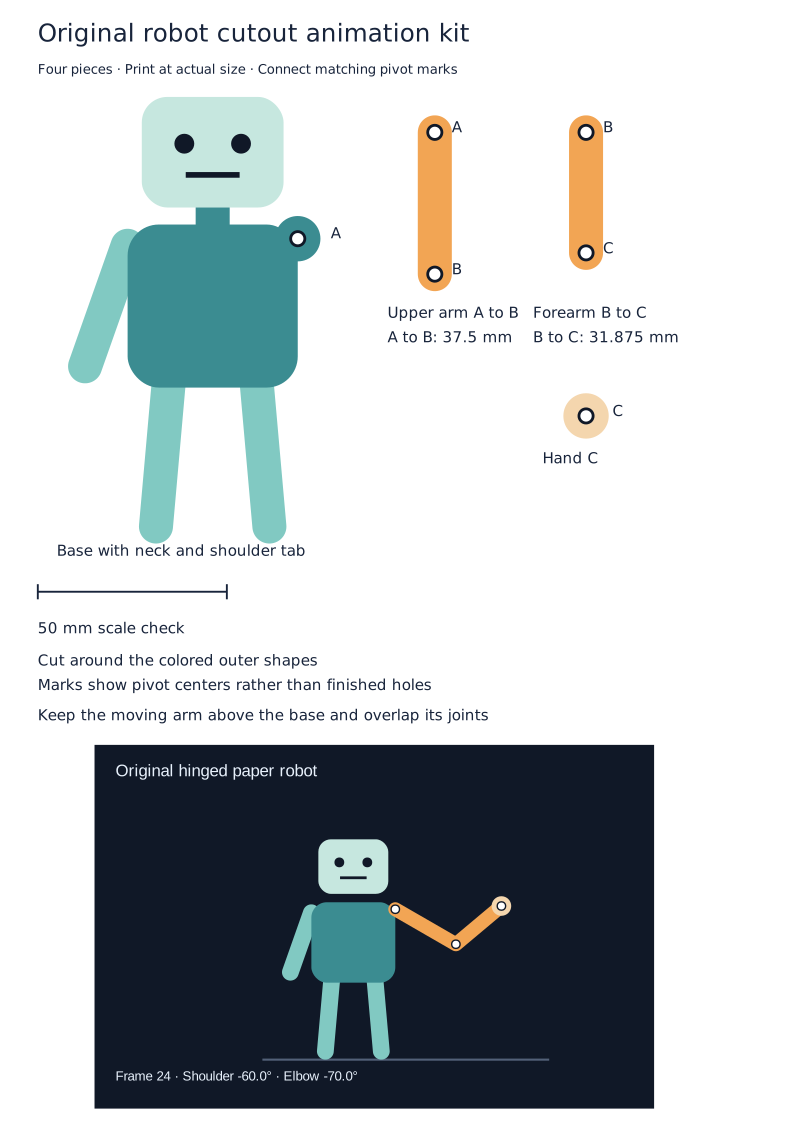
Download the original printable cutout kit, or open Printable cutout animation parts kit in the lab. The download contains four pieces: a connected base, upper arm, forearm and hand. The added neck joins the head to the base, and a shoulder tab surrounds pivot A for this paper adaptation. It is a digital template, not a photographed or physically tested puppet.
- Print the SVG at actual size on A4. Measure the calibration line: it should be 50 mm. Fit-to-page settings can change the joint spacing.
- Cut around the colored outer shapes while keeping the base connected. The circles identify pivot centers rather than finished holes.
- Match base A to upper-arm A, upper-arm B to forearm B and forearm C to hand C.
- Keep the moving arm above the base and overlap the joint ends. Choose attachments that allow the intended range without shifting the pivot centers.
- Test the assembled motion on your actual material before capturing a scene. Paper thickness, attachment friction and printer scaling are not represented by the SVG preview.
At actual printed size, the A-to-B pivot spacing is 37.5 mm and B-to-C is 31.875 mm. Both use the same common scale, preserving the digital lab’s 100-to-85 segment ratio. The hand is a separate piece attached at C. The printable silhouette is an adaptation of the original artwork rather than a native animation-editor rig.
To reproduce the printable artwork, keep the parts and ledger source, original robot geometry and asset builder together. Run the builder with Bun and Sharp using a new output directory to create the kit and its preview.
Capture a short paper cutout sequence
Start with one readable action: the robot notices a visitor, lifts its arm and settles. Keep the camera and background fixed. Lock focus and exposure where your capture setup supports it, then take a short test to check lighting consistency and whether the joints remain attached in the image.
Use the digital lab to inspect the gesture and relative elbow direction before arranging the physical pieces. It is a geometric reference, not motion capture of a paper assembly. If you capture one pose for every two delivered frames, 24 distinct photographs held for two frames each produce a 48-frame sequence at 24 fps. A different capture or hold pattern changes the movement and duration.
Review the actual photographed sequence at its intended playback rate. Look for a moving background, changing shadows, accidental bumps, gaps at the joints and an unclear silhouette. Keep a note of the accepted pose order and frame holds so a revision does not depend on memory.
For a collage approach, prepare fewer large pieces first and add details only after the action reads. For independent mouth and eye holds, use the exposure-sheet lab. For the difference between moving a target and changing its artwork, compare the motion tween guide.
Make a first puppet animation in the free lab
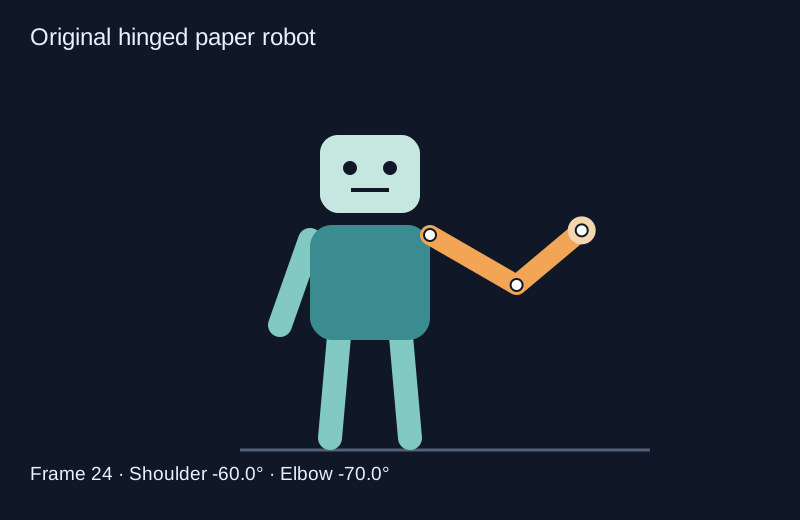
- Start with the default 60-degree shoulder lift and 70-degree elbow bend. These are the maximum movement amounts, not the angle at every frame.
- Choose Linear or Smooth in and out. Both modes share the same starting and lifted poses but reach the in-between poses differently.
- Keep Show joint markers enabled while inspecting the shoulder, elbow and wrist. The shoulder stays fixed while the other two points move.
- Press Play puppet to preview the loop or move Preview frame to inspect one of the 48 samples. Moving the frame slider pauses playback.
- Pause before exporting. SVG saves the current still pose; CSV and JSON save the complete motion with the selected settings.
The loop contains frames 0 through 47 at 24 frames per second. Its two-second endpoint is frame 48, which has the same pose as frame 0 and is not duplicated in the exported samples. Browser timer playback can drift when the page is busy. The exported samples and encoded reference video have a defined frame rate.
Watch the same puppet with two timing rules
Watch this clip and view its details
The left robot uses linear interpolation and the right robot uses a smoothstep curve. The body, limb lengths, starting pose and maximum lifted pose are the same. The encoded comparison uses the default 60 and 70 degree settings. The interactive lab can produce other settings, so its preview will differ after you move a control.
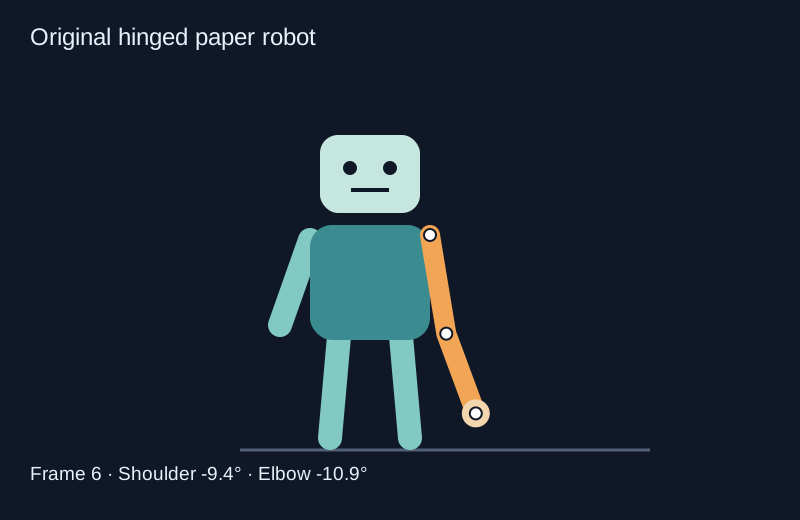
At frame 6, linear timing has moved one quarter of the way toward the lifted pose. Smooth timing has moved 0.15625 of the way. The shoulder angles are therefore minus 15 degrees and minus 9.375 degrees. At frame 12 both modes reach halfway, and at frame 24 they share the full lifted pose. Timing changes the path through the poses rather than the length of the arm.
Open the dedicated puppet timing study to inspect the clip. The linear plan and smooth plan record all 48 samples. These are original lab data, not an After Effects project, a motion-capture file or an AI API request.
Understand shoulder pivots and relative elbow rotation
The shoulder is at coordinate 430, 235 on an 800 by 520 canvas. The upper arm is 100 units long and the forearm is 85. The shoulder angle rotates the upper arm; the elbow angle is relative to it. The forearm direction therefore depends on the sum of the two angles. Treating both angles as independent world directions would produce a different rig.
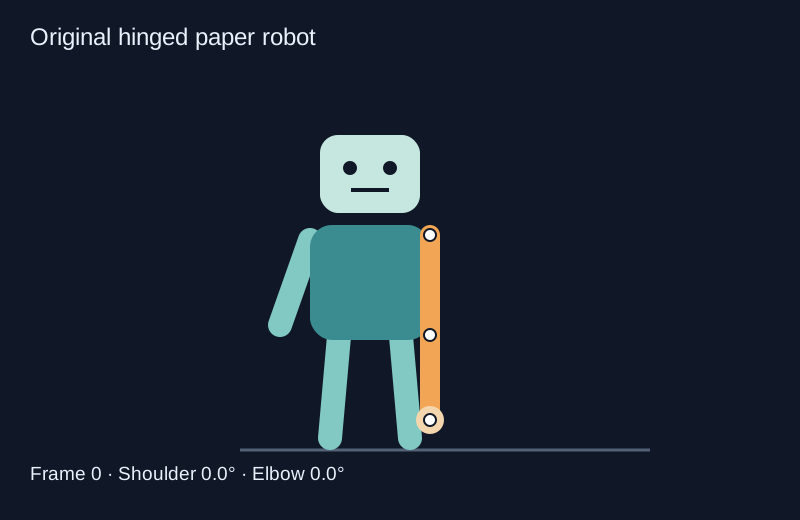
With both movement amounts set to zero, the arm hangs straight down. Raising the shoulder moves the elbow around the fixed shoulder. Bending the elbow moves the wrist around that new elbow position. Joint markers make these relationships visible, and the CSV includes elbow and wrist coordinates for every frame, rounded to five decimal places. JSON retains the computed numeric values.
Download the original starting pose, early smooth pose and lifted pose. SVG keeps the original paths and shapes editable. It is a still drawing; importing it does not automatically create bones or animation controllers in another application.
Choose rigid parts mesh deformation or stop motion
| Approach | What changes | Useful first check |
|---|---|---|
| Rigid cutout parts | Part position and rotation | Pivot attachment and overlap at the joint |
| Image mesh deformation | Pixels bend through a deforming mesh | Stretching around the face and narrow joints |
| Physical stop motion puppet | The photographed figure moves between captures | Stable camera lighting and visible support |
Adobe’s After Effects Puppet documentation describes pins acting on a distortion mesh and controls for overlap. That workflow can bend an image instead of rotating separate rigid pieces. Our lab demonstrates the rigid alternative, so its joint markers should not be mistaken for an implementation of Adobe’s mesh engine.
Choose the representation before adding more controls. A graphic robot can work well with hard hinges; a soft fabric character may need deformation; a physical figure introduces capture and support problems. A few well-chosen controls are easier to review than a complicated rig whose purpose is unclear.
Plan an original character action before adding dialogue
Use this original exercise: a service robot notices a visitor, raises one arm to acknowledge them and returns to its resting pose. Keep the feet, body and camera fixed for the first version. Review whether the gesture is readable without a spoken explanation. The loop here is a timing exercise, not a complete greeting performance with eyes, body weight and dialogue.
For a longer shot, add a pause at the intended story beat in your animation editor rather than stretching every part of the motion equally. A held raised arm communicates a different event from a continuous wave. Keep the fixed reference pose and name each revision so a change in timing can be compared with the previous take.
Use Clout Image and Video to explore an original character reference through a supported workflow, then inspect the returned design before animation. For connected scenes, develop coverage in AI Cinema. A generated character image still needs a chosen motion method; the local lab does not rig that image automatically.
Download the motion source and reproduce the comparison
The original geometry source and asset builder generate the pose drawings, plans, CSV ledgers and PNG sequence. Keep the files together, install Bun and Sharp and choose a new output directory. The encoding note gives the separate FFmpeg step for the silent MP4.
For a physical silhouette workflow, use the separate shadow puppet template and light-distance planner. For character movement across the ground, see the walk cycle guide. Keep the review tied to the intended action: the joints stay attached, the silhouette reads and the final export preserves the timing you chose.