%20rotate(-15)%20scale(0.65)%22%20opacity%3D%220.2%22%20data-target%3D%22original-ticket%22%3E%3Crect%20x%3D%22-62%22%20y%3D%22-42%22%20width%3D%22124%22%20height%3D%2284%22%20rx%3D%229%22%20fill%3D%22%23263d73%22%2F%3E%3Cpath%20d%3D%22M-46-27h92v54h-92z%22%20fill%3D%22%238fe0cf%22%2F%3E%3Ccircle%20cx%3D%2222%22%20cy%3D%22-5%22%20r%3D%2218%22%20fill%3D%22%23f3c378%22%2F%3E%3Ccircle%20cx%3D%2229%22%20cy%3D%22-10%22%20r%3D%2217%22%20fill%3D%22%238fe0cf%22%2F%3E%3Cpath%20d%3D%22M-30%2013l10-18%2010%2018z%22%20fill%3D%22%23263d73%22%2F%3E%3Ccircle%20cx%3D%22-35%22%20cy%3D%22-16%22%20r%3D%223%22%20fill%3D%22%23263d73%22%2F%3E%3C%2Fg%3E%3Cg%20font-family%3D%22sans-serif%22%20fill%3D%22%23263d58%22%3E%3Ctext%20x%3D%2240%22%20y%3D%2252%22%20font-size%3D%2225%22%3EOriginal%20lunar%20ticket%20property%20study%3C%2Ftext%3E%3Ctext%20x%3D%2240%22%20y%3D%2285%22%20font-size%3D%2216%22%3EFrame%200%20%C2%B7%20Rotation%20key%2024%20%C2%B7%20smooth%20interpolation%3C%2Ftext%3E%3Ctext%20x%3D%2240%22%20y%3D%22446%22%20font-size%3D%2218%22%3EPosition%20and%20scale%20finish%20at%2047%20%C2%B7%20Opacity%20finishes%20at%2012%3C%2Ftext%3E%3Ctext%20x%3D%2240%22%20y%3D%22481%22%20font-size%3D%2215%22%3ELocal%20vector%20preview%20%C2%B7%20No%20AI%20inference%20%C2%B7%20Not%20an%20Animate%20import%3C%2Ftext%3E%3C%2Fg%3E%3C%2Fsvg%3E)

A motion tween creates in-between property values for the same target object over time. Instead of redrawing a ticket, icon or character part in every frame, you set important values such as position, rotation or opacity and let the animation system interpolate between them.
The useful production question is often which property should finish first. A title card might finish rotating while it continues moving, or fade in before reaching its final position. Our free property-timing lab makes that separation visible with one original lunar ticket. It exports a still SVG and complete JSON or CSV samples, not a native Adobe Animate project.
Try the free motion tween property lab
- Choose the ticket’s final rotation between zero and 180 degrees. Its starting angle remains minus 15 degrees.
- Choose whether rotation reaches that angle on frame 12, 24 or 47. The angle holds after its selected keyframe.
- Set the final scale between 50 and 150 percent. Scaling and position continue through frame 47.
- Choose linear or smoothstep interpolation. This changes the interpolation curve in our example rather than selecting an Adobe preset.
- Play the preview or scrub to an exact frame, then pause and download a pose SVG or the full JSON and CSV review data.
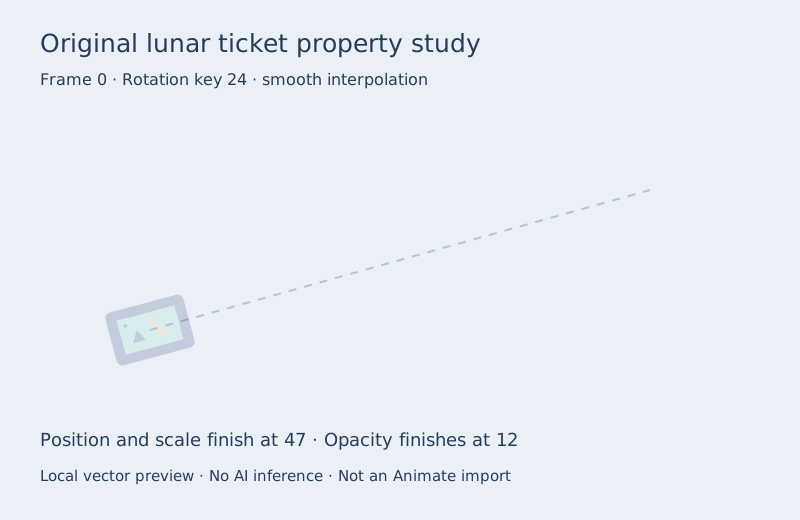
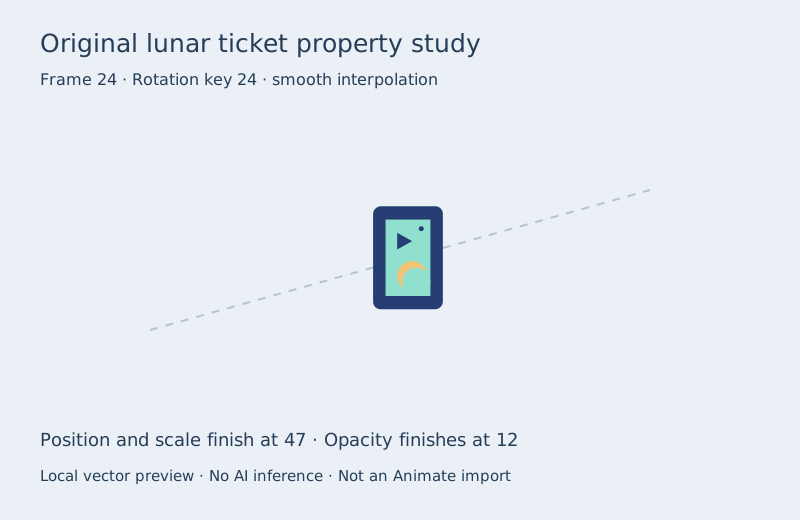
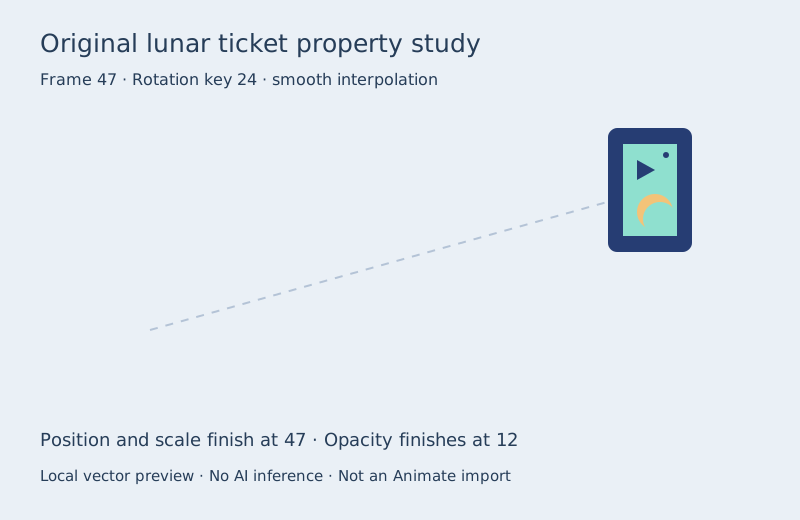
The lab contains 48 frames at 24 fps. Position moves from (150, 330) to (650, 190), while scale starts at 0.65 and ends at your chosen value. Opacity moves from 0.2 to 1 by frame 12 and holds. Rotation follows its own selected endpoint frame. These are explicit properties of the authored exercise rather than a reconstruction of Adobe’s internal tween engine.
The last sample occurs at 47 divided by 24 seconds, approximately 1.958333 seconds. An encoded 48-frame clip at 24 fps lasts two seconds because the last frame also occupies display time. Keep the distinction between a sample timestamp and the container duration when comparing your timeline with a rendered video.
Watch rotation finish before translation
Watch this clip and view its details
The left ticket reaches its final rotation on frame 24. The right reaches the same angle on frame 47. Position, scale, opacity and interpolation are otherwise shared. After frame 24, the left ticket continues moving and scaling while holding its angle. That makes the timing difference easier to inspect than comparing two unrelated animations.
Open the motion tween property watch page, compare the early-rotation samples and late-rotation samples, or inspect original poses at frame zero, frame 24 and frame 47. No Animate installation or AI inference was used to produce this comparison.
Create a motion tween in Adobe Animate
Adobe’s motion-tween creation guide describes selecting a symbol instance or text field, choosing Insert > Motion Tween, moving the playhead within the span and setting property values. A changed property receives a property keyframe. Scrub the timeline to inspect the result.
Keep one target object in each motion-tween span. If several objects must move together, organize the intended target appropriately before tweening. If parts require independent timing, plan separate spans or property keys instead of relying on a single final pose to describe the entire performance.
For our ticket exercise, first recreate the starting position, scale and angle in your destination document. Establish the final position and scale near the end of the span, then place the final rotation value earlier. Set opacity independently. This is a reconstruction task: the lab’s SVG provides artwork for inspection, while its JSON and CSV are reference data, not FLA files or Animate motion XML.
Choose motion classic or shape tweening for the task
| Method | Main purpose | Useful distinction |
|---|---|---|
| Motion tween | Animate properties of one target within a span | Property keyframes can occur at different times |
| Classic tween | Use the older keyframe-based tween workflow | Inspect the application’s supported behaviors before exchanging methods |
| Shape tween | Interpolate changes between drawn shapes | Changing a contour is different from rotating the same object |
| Frame-by-frame drawing | Author the drawings for individual moments | Use when the changing artwork itself carries the performance |
Adobe’s motion and classic tween comparison explains that these are separate workflows with different capabilities. Its motion-tween overview describes changing object properties and editing the motion path. Follow the current application documentation for the exact tool behavior.
A flat ticket rotating without changing its artwork is a property-animation problem. A drawing transforming from a ticket into a bird is a contour or replacement-artwork problem. If the intended result depends on new shapes, a transform-only tween will not create those drawings for you.
Diagnose a tween that feels wrong
Review one property at a time. If a ticket reaches the right position but looks unstable, freeze rotation and inspect translation. If the motion is clear but the reveal is weak, hold position and check the opacity timing. Separating the channels helps identify which decision needs revision.
| Symptom | Check | Possible revision |
|---|---|---|
| Rotation seems to orbit | Registration point and transform order | Choose a deliberate pivot and inspect the same pose again |
| Movement feels abrupt | Spacing between sampled positions | Adjust the curve or keyframe timing |
| Fade finishes too late | Opacity keyframe relative to the story beat | Place the final opacity key earlier |
| Object changes identity | Artwork or target replacement | Keep the intended target and accepted source artwork consistent |
In the SVG exercise, the ticket is drawn around its local origin, then scaled and rotated before being translated into the scene. A different pivot or transform order can produce a different result from identical numeric values. The preview timer can drift; use the exported samples and encoded file to inspect exact delivery timing.
Use property timing in a real creative workflow
Try an original event reveal: a lunar ticket moves into the scene, becomes readable, settles into its final angle and then finishes its travel. Let opacity finish before the viewer needs to read it. Let rotation finish before a small printed detail becomes the focus. The right ordering depends on the actual story rather than a universal animation formula.
For an original visual concept, explore a supported workflow in Clout Image and Video, review the returned artwork and prepare the accepted asset in your editor. For connected scenes, plan the surrounding coverage in AI Cinema. Generated video does not automatically follow the exact property keys in this lab; inspect the saved result before delivery.
Use the existing easing guide for curve comparisons, the staging lab for pose readability and the puppet lab for rigid-part motion. Motion tweening addresses the interpolation of properties, while those guides examine different parts of the production decision.
Download the original source and review data
The original timing source defines every sample. The asset builder creates the comparison frames using Bun and Sharp alongside the completed native camera study. The encoding note records the FFmpeg commands.
Keep the accepted artwork, property keys, frame rate and exported review sheet with the final clip. That record lets a later revision change one property without guessing which other timings were intended to remain fixed.