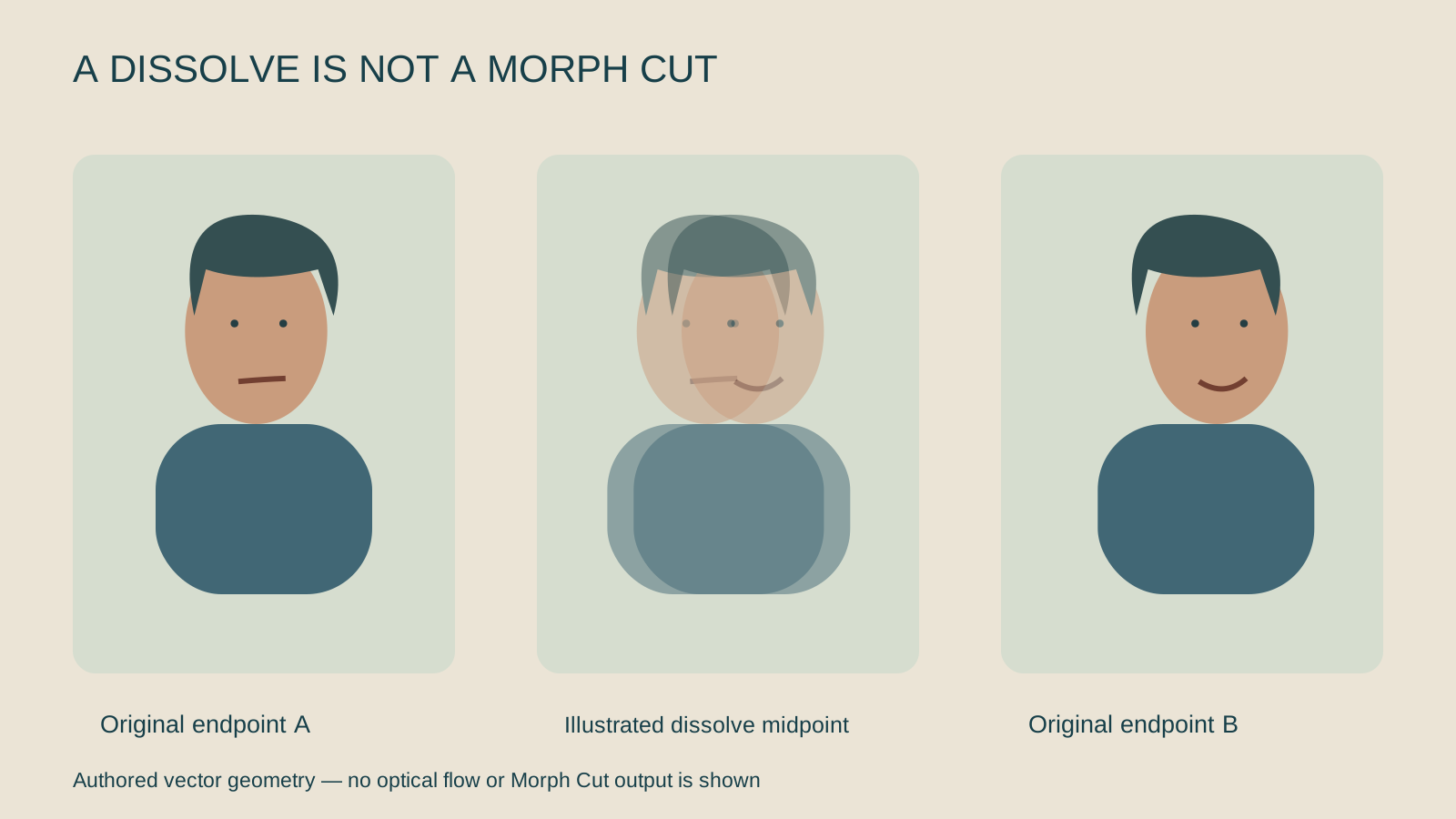
Morph Cut can help smooth a distracting interview edit after removing a pause or a repeated phrase. It works on the visual transition; the editor still has to preserve the speaker’s meaning, the rhythm of the sentence and convincing sound.
Start by listening to the edit without trying to hide it. If the sentence is wrong or the breath is clipped, a visual transition will not fix the decision. Choose the dialogue boundary first, then compare a straight cut, a cutaway and a Morph Cut where appropriate.
What Morph Cut does in Premiere
Adobe’s overview describes Morph Cut as a combination of face tracking and optical flow interpolation. It is designed to smooth transitions between similar talking-head views, with a fixed camera and a stable background being favorable conditions.
The transition has to reconcile the pictures around the cut. A small change in head placement is a different problem from a hand suddenly covering the face or a bright window changing exposure. Inspect the actual endpoints rather than assuming every interview pause will be equally easy to join.
Morph Cut vs a dissolve vs a straight cut
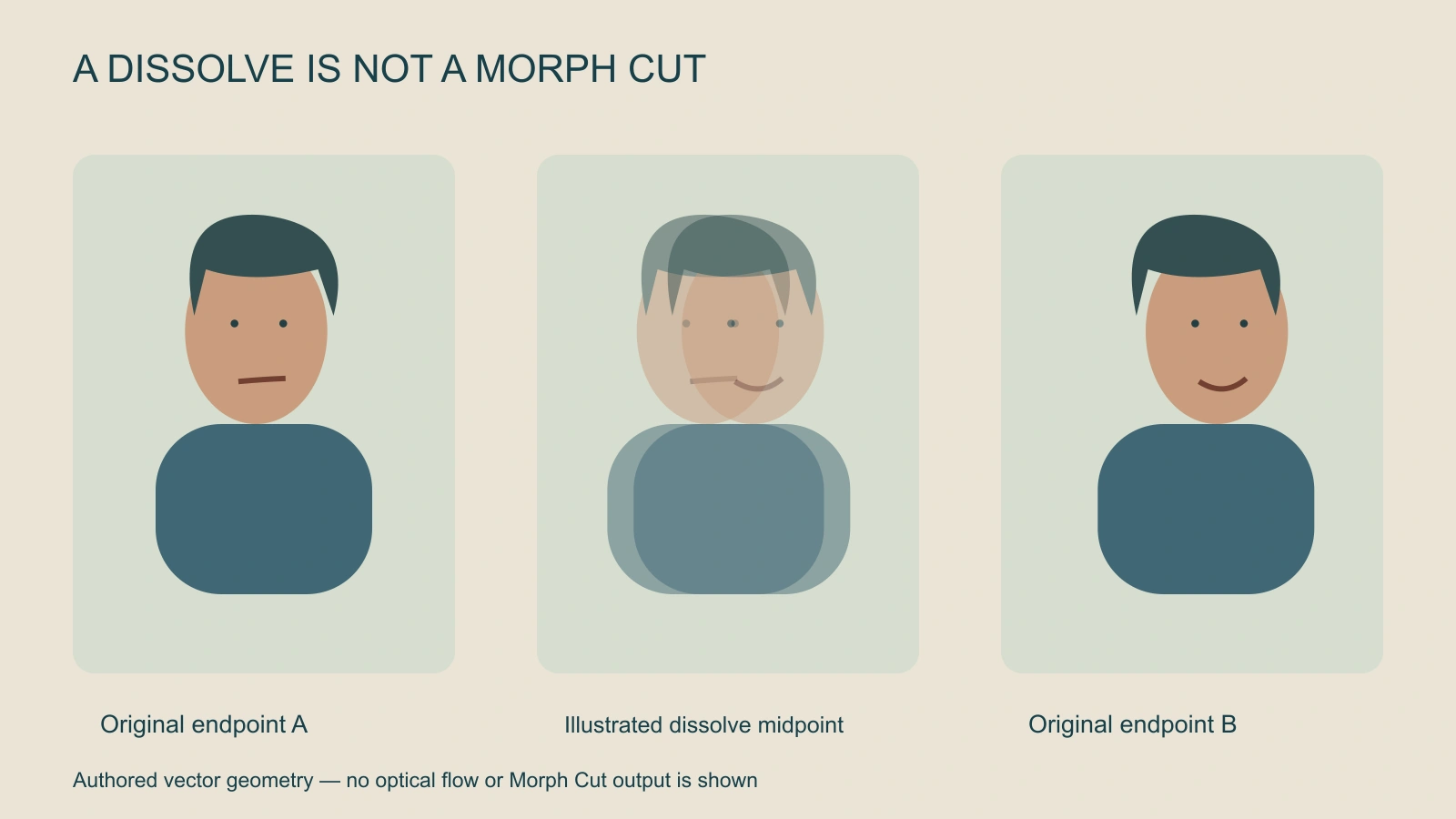
The middle drawing illustrates what overlapping two different poses can do: two outlines remain visible at once. It is not an output from Premiere and it does not benchmark Morph Cut. The point is to separate a blend from an inferred transition.
| Edit choice | What the viewer sees | When to compare it |
|---|---|---|
| Straight cut | An immediate change between accepted shots | The edit reads clearly without needing to disappear |
| Dissolve | Two images overlapping for part of the transition | The blend suits the intended passage or style |
| Morph Cut | A computed transition between neighboring images | Similar interview poses need a less distracting join |
| Cutaway | A separate relevant view covers the visual edit | You have useful coverage that supports the dialogue |
Download the editable original comparison and blank transition review sheet. The sheet records decisions, not synthetic quality scores or completed results.
Apply Morph Cut to an interview edit
Adobe’s application guide places the effect under Video Transitions, Dissolve, Morph Cut. Remove the unwanted section, drag the transition onto the edit and let its background analysis complete. Use the audio waveform to help identify a natural pause.
- Preserve the original: Keep the unedited interview available and label the sequence version.
- Choose the dialogue: Remove only the intended pause or repeated wording and listen across the join.
- Inspect the neighboring images: Compare head position, mouth shape, hands, background and exposure.
- Apply the transition: Let analysis finish before judging it.
- Review a rendered preview: Watch at normal speed with sound, then inspect the difficult frames individually.
- Choose the clearest edit: Keep Morph Cut only if it improves the sequence without introducing visible defects.
For a cutaway, choose a shot that belongs to what the speaker is saying. Random footage may conceal the jump while weakening the explanation. The sound bridge guide covers keeping audio coherent across a deliberate change of picture.
Choose transition duration around the speech
Adobe’s transition controls allow duration and alignment adjustments. Changing the transition can trigger another analysis. Let the new result finish before comparing versions.
Do not choose the duration solely because it is the default. A transition crossing a strong syllable can draw attention to the mouth. A longer transition gives the effect a larger span to reconcile, but that does not automatically make the result more natural.
Compare several short candidates around a sensible speech boundary. Keep the audio decision stable while testing the picture so you can tell what changed. Record each duration, alignment and visible defect in the review sheet.
Fix common Morph Cut problems
The face warps: Check how different the poses are. Try a closer neighboring position or choose another edit strategy rather than repeatedly stretching the same transition.
The hands smear: A hand crossing the face or body creates difficult changing boundaries. Find a nearby pause with less motion, use relevant coverage or retain a visible straight cut.
The background bends: Look at doorframes, shelves and other high-contrast lines. Camera movement and lighting changes can expose the join even when the face looks acceptable.
The mouth looks wrong: Re-listen to the first and last syllables. The transition must agree with the audible words; hiding the visual edit is not enough.
The preview stutters: Separate playback performance from the image result. Wait for analysis and use a rendered preview before concluding that the transition itself has a motion defect.
Use the same review discipline with AI presenter footage
For a Clout creator or a presenter-led campaign, keep the approved speaker and script beside the edit. Generated takes can already contain identity, lip or background changes before a transition is added. Approve the source take before trying to smooth its boundary.
This guide does not establish a Morph Cut control inside Clout. Generate the supported source assets, then use your editor for the transition and finishing. For a conversation rather than one presenter, the short drama workflow helps plan reaction shots that make deliberate cutting possible.
Accept the complete exported passage
Watch several seconds on both sides of the edit. A convincing isolated midpoint can still sit inside an awkward sentence. Check the final captions, music balance, crop and resolution, then record the exported file you actually accepted.
Keep a before-and-after sequence so the improvement is inspectable. If the effect creates more distraction than the original jump, use the clearer edit. An invisible transition is useful only when it serves the meaning and flow of the finished passage.