

LTX Desktop is worth evaluating when you want to operate a video-generation workflow on your own supported hardware. Start with the official repository and its current release. An old screenshot or a cached hardware table can describe a different version of the app.
What is LTX Desktop
LTX Desktop is an open-source application from Lightricks for working with LTX models. The official repository labels it beta. Our research snapshot is commit 8ffed888f3a9afdfbf137fa6193bf1cdc1cd657b, checked October 24, 2026. We have not installed the app, downloaded model weights or run a generation benchmark.
Read the pinned README for this snapshot and compare it with the release you actually install. Features and local operating limits can change independently of a model's name.
Read hardware guidance as a starting point
The pinned README lists Windows and Linux NVIDIA CUDA setups with at least 24 GB VRAM and 32 GB RAM as its published guidance. For full local Mac generation it lists Apple Silicon with at least 48 GB and macOS 26 or later. It asks for at least 100 GB free disk. These are the source's stated recommendations, not our measured minimums or a promise that every tool and setting runs.
The separate local compatibility matrix describes lower hardware floors and per-tool restrictions. A machine passing a launch check can still have particular durations, resolutions or operations disabled. Inspect the actual app's availability and budget decisions for the requested operation.
On this snapshot, the app can run on macOS 14 and later, while local generation needs macOS 26 or later. Running the application and running a local generation are separate capabilities. Do not assume a successful launch proves that a selected video job can execute.
Separate local generation from optional cloud features
The pinned API keys and privacy guide says keys are optional for local generation. It also describes cloud text encoding, cloud video operations in Gen Space and the Video Editor, optional fal image requests and Gemini enhancement. The provider and data path depend on the feature you select.
That means “desktop app” does not imply every operation stays local. Before using a reference image or a confidential brief, inspect the chosen feature, provider and settings. Treat API keys as secrets and distinguish free text encoding from paid generation operations. This page does not collect keys or connect to any of these services.
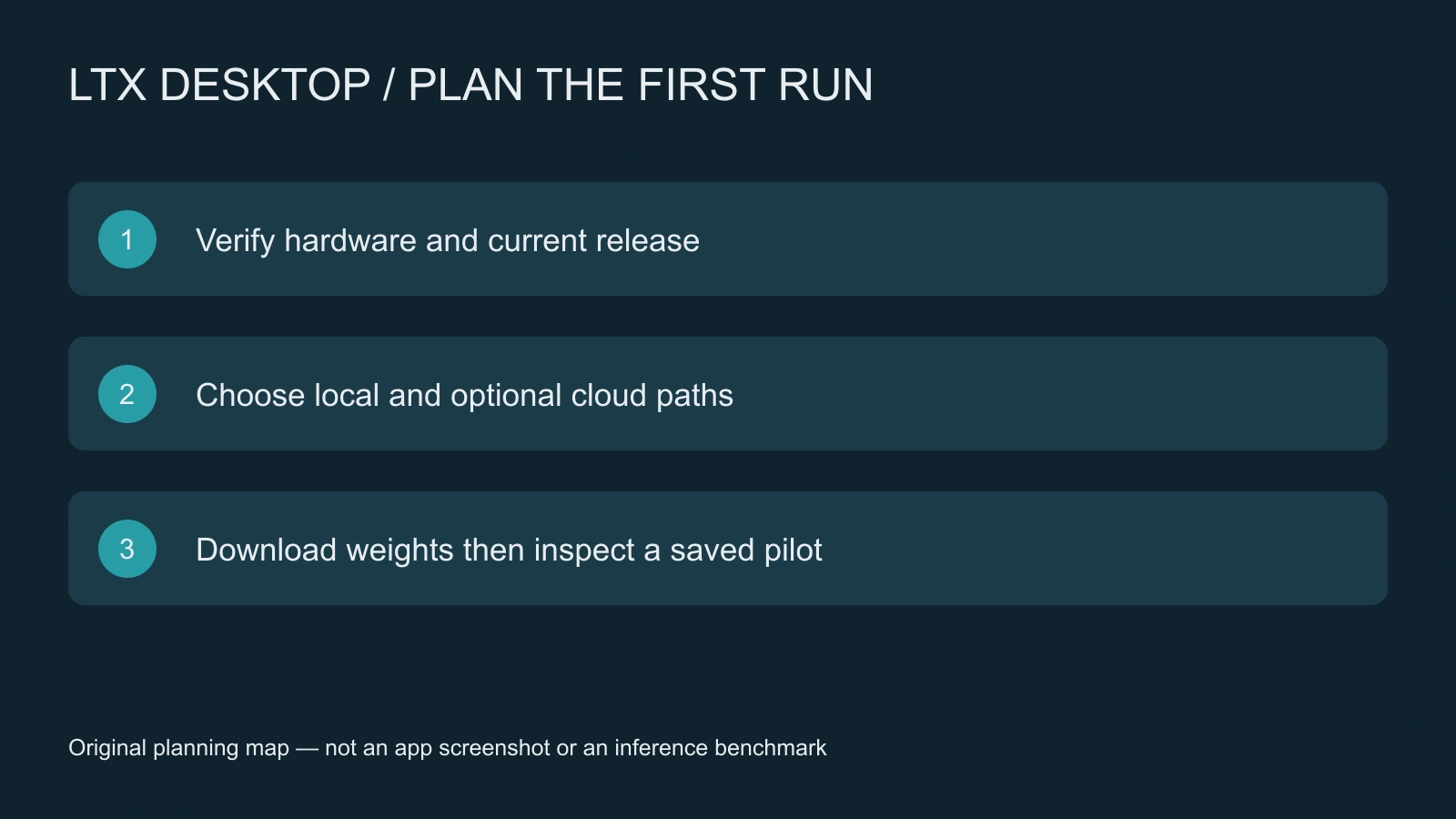
Plan the first run before downloading everything
- Record the exact app release, operating system and GPU or unified-memory configuration.
- Check the published hardware guidance and the selected tool's current compatibility limits.
- Choose the intended checkpoint and review its license and download requirements.
- Decide whether text encoding and enhancement should use local or cloud paths.
- Reserve disk space for the actual model set rather than just the installer.
- Run one bounded pilot and inspect the saved file before expanding the project.
Use our original first-run checklist and pilot ledger. Record the app version, model, source reference, output settings and result. Keep installation observations separate from generation observations: downloading weights successfully is not proof that an output meets your brief.
An image-to-video pilot with an observable action
Use an owned image of a plain teal case on a desk. The target is one small action: a hand approaches the latch and stops before touching it. Preserve the case silhouette, handle, latch count, desk contact and camera position. Choose the shortest supported test that lets you inspect those details.
Write the action and invariants before choosing extra style modifiers. Save the exact source image and prompt. Review whether the hand enters from the intended side, whether the case changes shape and whether the latch duplicates. A short accepted clip is more useful for learning the runtime than a longer clip with several unrelated failures.
If the job is rejected by the app's budget check, record that message and inspect supported settings. Do not call it a model-quality failure. If the job runs but the action fails, simplify the action or use a clearer reference, then compare one change at a time.
Choose a desktop runtime or a managed creative workflow
| Decision | Desktop runtime to evaluate | Managed workflow to evaluate |
|---|---|---|
| Hardware operation | Your installed app and supported local machine | The selected hosted operation and quote |
| Model and settings | Current app release, checkpoint and compatibility | Current operation inputs and available controls |
| Creative project | Your references, local outputs and edit | References, returned takes and a reviewed sequence |
| Acceptance | The actual saved export | The actual returned export |
Evaluate Clout Image and Video when you want a managed image or video workflow, and Clout AI Cinema for a connected scene plan. Compare the steps you need to finish the project rather than assuming identical model availability or credits. This guide does not establish that Clout runs LTX Desktop or a specific LTX checkpoint.
For a related production workflow, see our ChronoEdit image-editing workflow and reference exercise
Inspect the file before calling the pilot complete
Record output dimensions, frame count, playback rate, duration and file path. Watch the beginning, middle and end, then play the clip normally. Separate setup time, generation time, decoding and export time if you measure them. Do not convert an upstream speed figure into an end-to-end production claim.
For better prompt planning, use our LTX prompt guide. For sound after the picture is accepted, use the Foley cue exercise and ADR planning tool. Keep visual generation, dialogue and action sound independently reviewable through the final edit.


