Image to prompt means turning visible image details into usable creative instructions. Start with what the picture shows, label style guesses and leave hidden settings unknown. Then decide whether you want a new image inspired by the description or a reference-led edit that preserves more of the source.
Our worked example describes an original citrus illustration, sends that description to the built-in image tool without an image attachment and compares the new result with the source. The actual images, written prompt and filled visual review are available below. It is a recreation exercise, not recovery of the source’s original generation prompt.
What an image to prompt generator does
An image-to-prompt workflow can produce a short caption, a detailed scene description or model-oriented style terms. Those outputs serve different jobs. A caption identifies the picture; a generation brief also explains framing, relationships, light, materials and constraints.
The CLIP Interrogator repository describes a tool combining BLIP and CLIP to optimize prompts that match an image. We inspected its documentation, but did not install or run it for this example. The resources here use an AI-authored visual description and a separate built-in image generation.
If a file or saved project includes its actual generation parameters, inspect those separately. A description inferred from the visible picture is different from an original prompt stored with the source. Do not present a plausible description as recovered metadata.
Separate visible details from style guesses
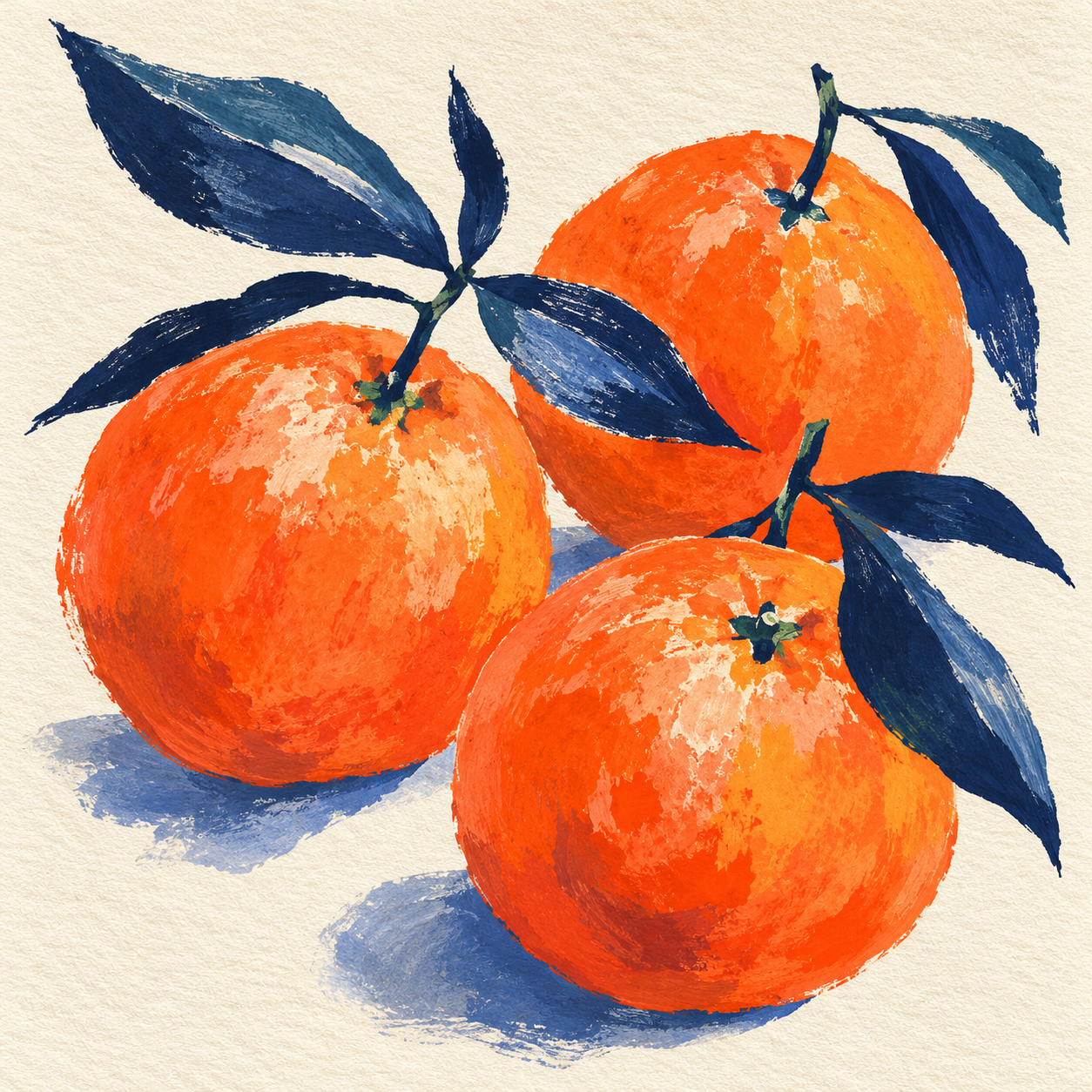
Open the original citrus illustration. It shows three orange fruits, long dark leaves, a cream textured background and cool blue shadow shapes. One large fruit sits at the left, one is higher at the right and another sits lower in front.
Those are visible observations. “Gouache-like” and “dry-brush” are useful descriptions of appearance, but do not establish a physical paint medium. An image alone does not supply a reliable seed, hidden model setting or exact original sentence. Keep those fields distinct in the downloadable description record.
| Part of the brief | Example observation | What remains uncertain |
|---|---|---|
| Subject | Three orange citrus fruits with dark leaves | Exact variety and real-world objects |
| Composition | Large left fruit with rear-right and front-right fruit | Precise geometry and camera setup |
| Appearance | Opaque-looking brush marks and textured cream background | Physical medium or original style instructions |
| Generation settings | Not observed from the illustration | Seed and original prompt were not recovered |
Turn the description into a clear generation prompt
Square painterly still life of three bright orange citrus fruits with dark navy elongated leaves and short green stems, on warm cream textured paper. One large orange sits on the left, one is higher toward the back right, and a third sits lower in front on the right. Opaque gouache-like orange brushwork with irregular cream highlights, cool blue shadows beneath the fruits, visible dry-brush texture and loose hand-painted edges.
The complete submitted text is in the description JSON, including the requested palette and exclusions. The brief describes relationships as well as objects. “Three oranges” alone would leave their relative size, overlap, leaf placement and background largely unspecified.
Write only the constraints that matter to the next image. For a new poster, palette and negative space may matter more than the source’s exact arrangement. For a product reference, correct shape may matter more than brush texture. Keep those priorities explicit rather than adding unrelated style terms.
Inspect the actual text only recreation
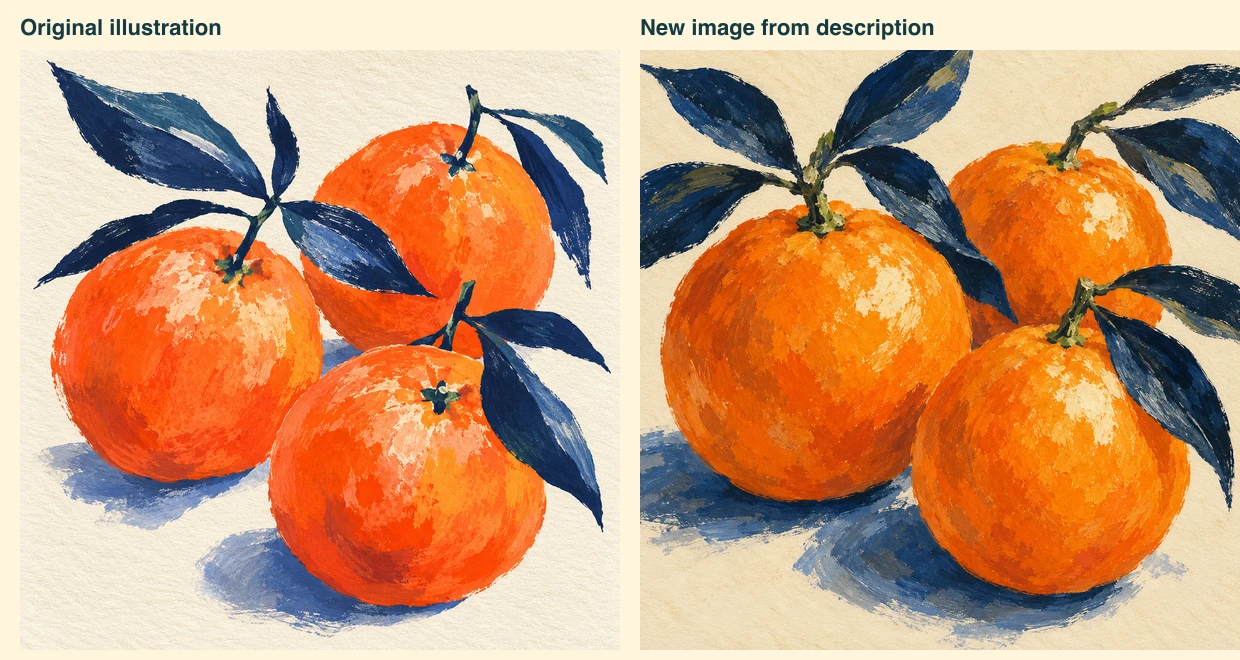
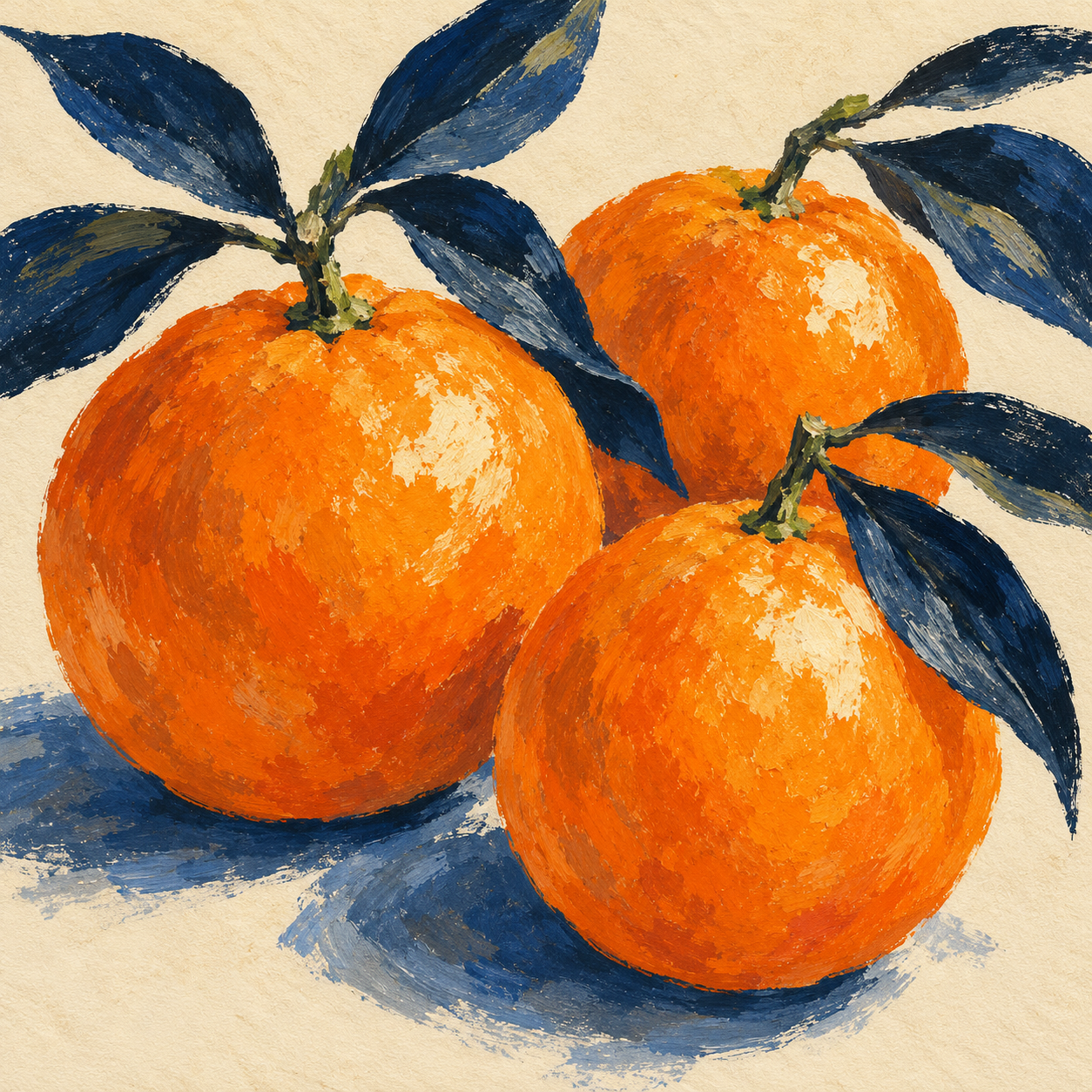
The native new image retains three fruits and the broad orange, navy and cream direction. Visual inspection found different leaf shapes and cropping, stronger olive stem details and changed highlight and brush-mark positions. The filled comparison CSV records those observations without assigning an invented similarity score.
No reference-image path was supplied in this new generation request. The image was generated from the written description. This gives us a concrete example of broad visual resemblance without establishing that the original prompt, seed or exact pixels were recovered. One example is not a benchmark of reverse-prompt tools.
Choose text recreation or reference led editing
Use a written description when you want to explore a new direction around the visible idea. Use supported image-reference or editing controls when the source’s form or layout needs to guide the next output more directly. Neither route eliminates inspection.
In the Lucid reference-role guide, this citrus illustration supplies a style direction rather than product geometry. For a real reference-led scene change, the food photography comparison follows the count and plating of a fictional dish. These are different creative tasks, even when both begin with an image.
Before using an operation in Clout Image and Video, check its current supported references and settings. This tutorial does not claim that the downloadable comparison source is an automatic image-captioning tool or that a Clout operation produced the independent specimens.
Download and reproduce the comparison
Save the layout source beside both native image files. With Bun and Sharp 0.34.5 available locally, run the script with an output WebP path. It rebuilds the labelled side-by-side layout. It does not infer a new prompt or repeat the image-generation process.
The provenance record identifies the inputs, output and review resources by hash. Keep the description you actually submitted beside the output you reviewed. When revising, change a meaningful detail such as composition or palette and compare the result against that instruction rather than expecting an exact duplicate.