AI food photography works best when the image starts with a clear serving specification. For a restaurant menu, use a reference of the meal customers actually receive. A generated concept can inspire a campaign, but the final image still needs ingredient, portion and plating checks.
Choose a reference that represents the actual serving
Photograph a fresh plate in clear light. Record visible ingredients, piece count, sauce placement and plate size. Keep one photograph as the approved food reference and identify styling references separately. An atmospheric reference should not silently replace the actual dish.
Plan light, angle and composition
Adobe's food photography guidance describes lighting and styling foundations. Translate those decisions into the brief: soft side light for texture, an overhead view for flat compositions, or a lower view when the layers matter. These are starting points to review, not settings that guarantee a realistic result.
Try a controlled food photography prompt
Edit the supplied photograph of our six-piece vegetable dumpling serving. Preserve all six dumplings, garnish and sauce portions. Use soft window light from camera left and a warm neutral tabletop. Keep realistic surface texture and believable contact shadows. No additional ingredients, lettering or invented utensils.
This original brief is a proposed workflow rather than a tested provider result. Supply the approved photograph through the chosen operation's supported reference input. Compare the returned food against the source even when the prompt says to preserve it.
Create fictional editorial food concepts
Fictional editorial photograph of a citrus tart with one cut slice showing its filling, on a pale ceramic plate. Soft side light, cream and yellow palette, realistic crumb, uncluttered background and open space for a headline added later. No lettering or logos.
Use fictional dishes for concept development. If the image will sell a real recipe or meal, cook and inspect the dish before treating the concept as a product representation. A plausible picture does not establish that a recipe works.
Build a restaurant campaign
Start with one square hero, one vertical social image and one wide banner. Recompose each placement and preserve the same dish specification. Add prices and offers as editable typography during finishing. Review the final mobile crop so the food remains recognizable and the offer stays readable.
Adobe's photographic prompting lesson discusses references and photographic language. Controls vary by model. In Clout Marketing Studio, inspect the selected operation's supported inputs and current quote before submitting a first variation.
Review the returned food image
Count pieces and check toppings, portion size and sauce quantity. Inspect plate rims and utensils for merged geometry. Look for repeated seeds, plastic highlights or implausible melting. Compare colors with the original serving: an attractive warm grade can still change how cooked or fresh the dish appears.
If a background edit redraws the food, reduce the scope and return to the approved reference. Keep accepted exports and source photographs separately. Every dish needs its own review even when a campaign shares one prompt structure.
Animate an accepted food photograph
Use a supported image-to-video operation and ask for one simple action, such as a gentle push-in or steam rising. Review the full clip for multiplying toppings, unstable plate contact and changing portions. Add sound deliberately in the edit so a pour or crisp break matches the visible event. Explore Clout Image and Video for available creation workflows.
Budget per accepted campaign image
Record the operation, approved reference, quoted cost, actual spend and acceptance decision. Include rejected attempts in the cost of the accepted asset. Keep layout and retouching time visible. Scale only after one complete export passes food accuracy and delivery checks.
For packaged goods and label preservation, continue with the product photography guide. The campaign is ready when its finished images show what the kitchen can actually serve.
Compare a real reference led edit of a fictional dish
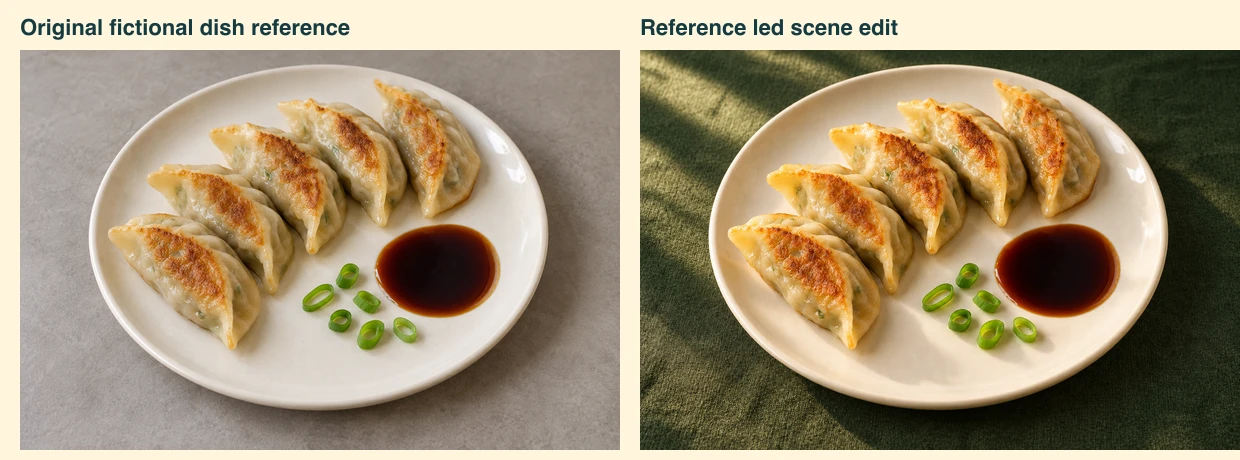
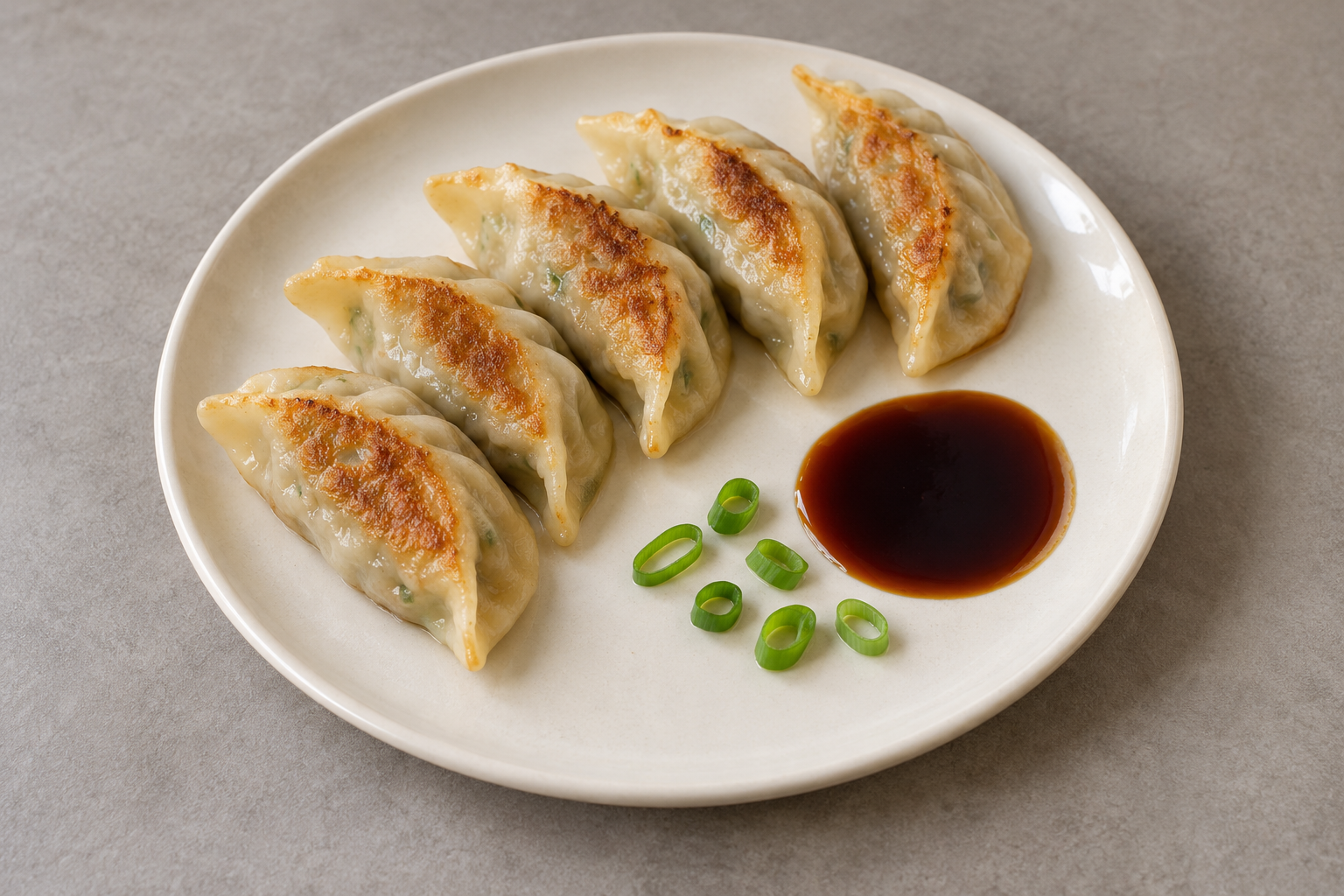
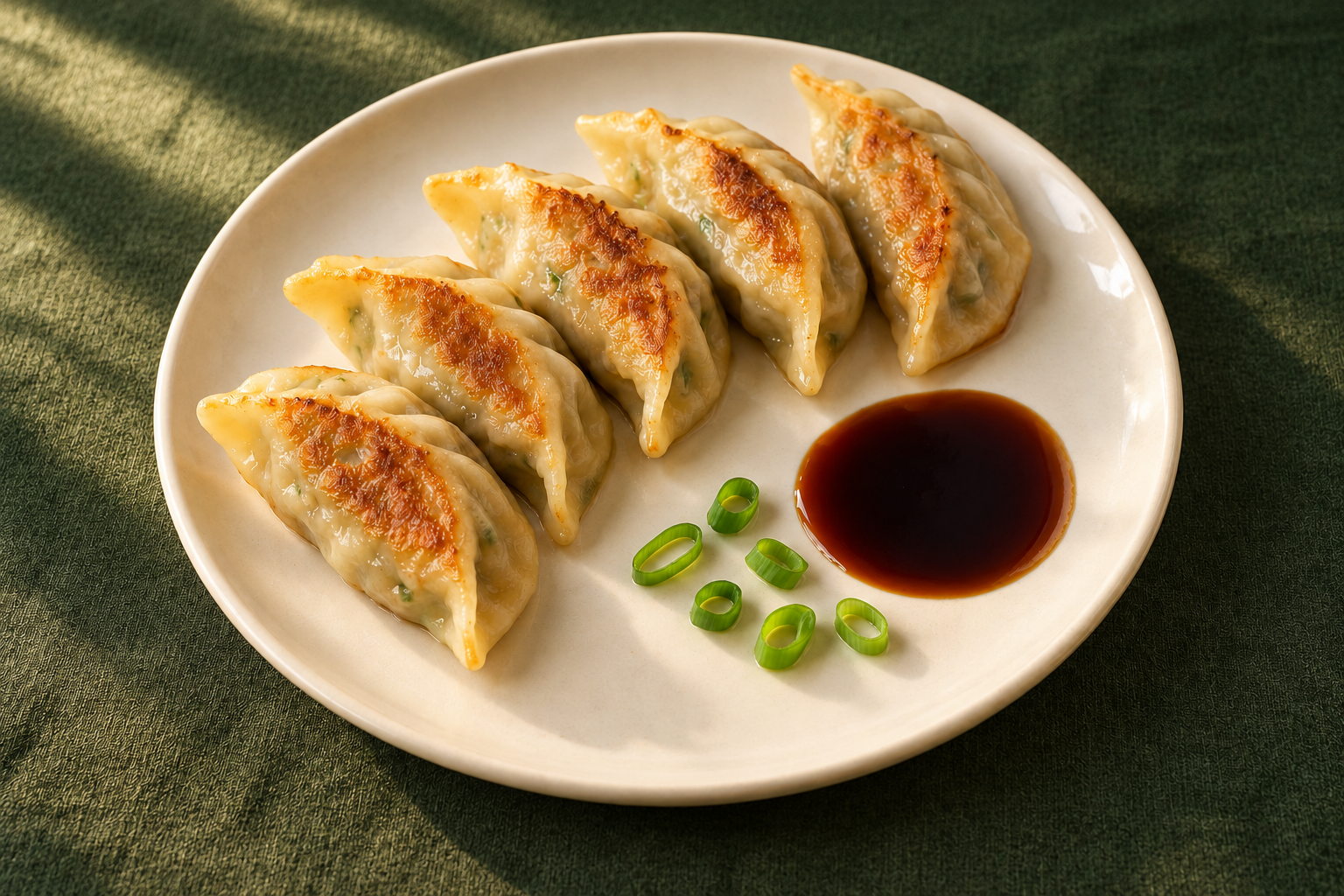
The native fictional dish reference contains five pan-fried dumplings, six scallion rings and one dark sauce pool on an ivory plate. We then supplied that image to the built-in image tool and requested a change of tabletop and lighting. This is an actual image edit, not a provider-specific benchmark or a demonstration of Clout preserving a real dish.
Change only the grey tabletop to forest green linen and use warm directional restaurant window light. Preserve the five dumplings, their positions and browned sides, six scallion rings, one sauce pool, ivory plate, viewpoint and framing. Do not add food, garnish, steam, utensils, text or branding.
In the native edited image, visual inspection still found five dumplings, six rings and one sauce pool, with the plate fully visible. The surrounding surface and light changed. The filled review CSV records those observations. Counts and broad composition do not establish identical geometry, actual ingredients or an accurate customer portion.
Separate scene approval from menu approval
For a fictional campaign concept, this edit is useful for discussing mood. For a restaurant menu, start from the actual dish and compare the edited picture with the current serving specification. A plausible dumpling image cannot show what filling was used, how much food a customer receives or whether a garnish belongs to that order.
Reject an attractive edit when it adds an unserved ingredient, hides an included component or changes the perceived portion. Make a separate note when the change is only background or lighting. This keeps creative approval from silently becoming a menu-accuracy decision.
Download the comparison layout source and both native inputs to reproduce the side-by-side WebP with Bun and Sharp 0.34.5. Run the script with an output WebP path; it expects the images beside the source file. The script rebuilds the comparison layout, not the image-generation process. The provenance record identifies the original files by hash.
For a complete product concept with editable titles and shot timing, continue with the AI commercial workflow example. Keep menu photographs and fictional advertising concepts clearly identified when selecting the assets for your campaign.