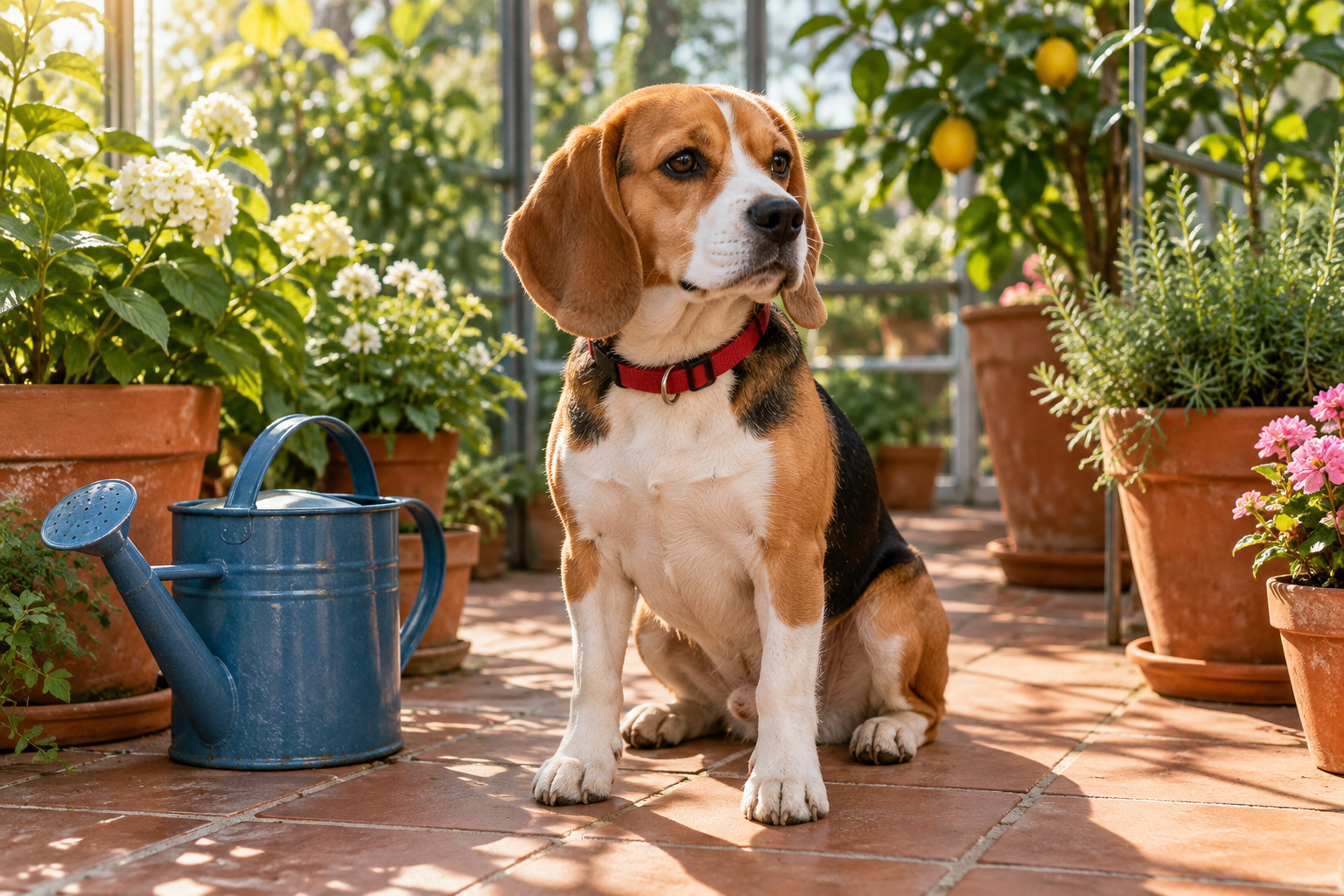
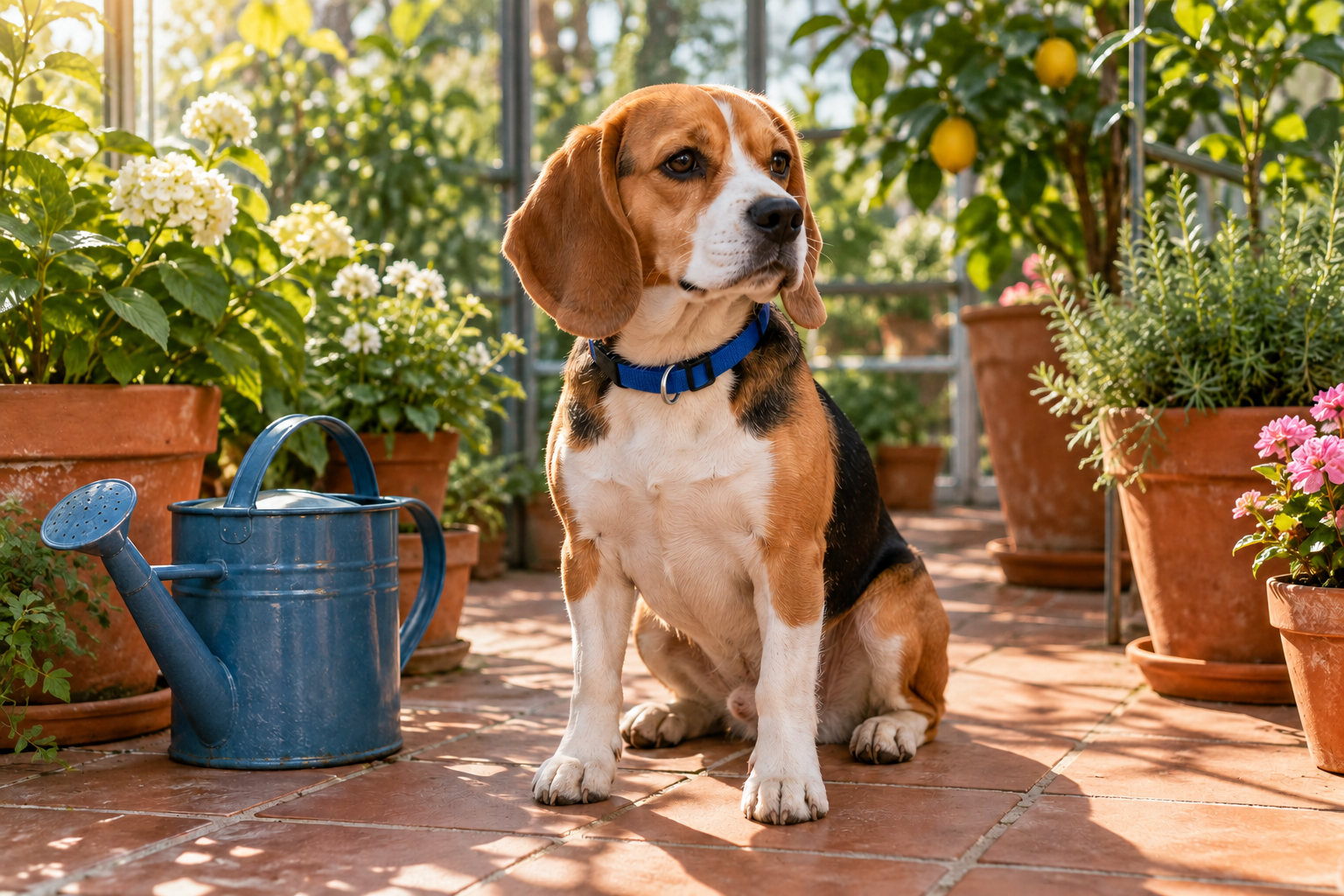
To use ChatGPT as a photo editor, attach the image you want to change and describe one specific revision. Name the details that should stay fixed, then compare the returned file with the original. A preservation instruction defines the task; the downloaded image shows what actually happened.
This guide includes a real reference edit, the original fictional source, exact prompt and a reproducible comparison. We requested a red-to-blue collar change on an original generated dog image. The result was made with the built-in image tool in this coding workspace, not by operating the ChatGPT website. It is a concrete editing example, not a ChatGPT plan, speed or quality benchmark.
How to edit a photo with ChatGPT
Official OpenAI image guidance describes attaching a reference and asking for a natural-language edit. It also recommends stating both the desired change and the details to preserve. Use the controls available in your version of the product rather than assuming another client’s screenshot matches it.
- Attach the intended original and identify it as the image to edit.
- State one visible change and its purpose.
- Name the subject, composition and details to retain.
- Inspect the returned image at its native size.
- Request a targeted correction or keep the accepted file as a new version.
If several images are attached, give each a role. One can define the object and another a visual style. Ambiguous references make it harder to tell whether an unexpected change came from the brief or from how the result was generated.
Use a change and preserve prompt
A useful prompt separates the new instruction from the baseline. For the dog example, the change is the collar color. The baseline includes the dog’s markings, pose, camera position and surrounding greenhouse. This gives the review something specific to check.
Edit the attached image. Change only the red fabric collar to cobalt blue. Preserve the collar shape and metal parts, the dog’s pose and markings, the camera angle, greenhouse, terracotta tiles and blue watering can. Do not add text or logos.
This short version explains the task. Download the exact submitted prompt for the actual run. The wording is an original exercise, not an official OpenAI prompt or a guarantee that every surrounding pixel will be preserved.
Inspect the actual red to blue collar edit
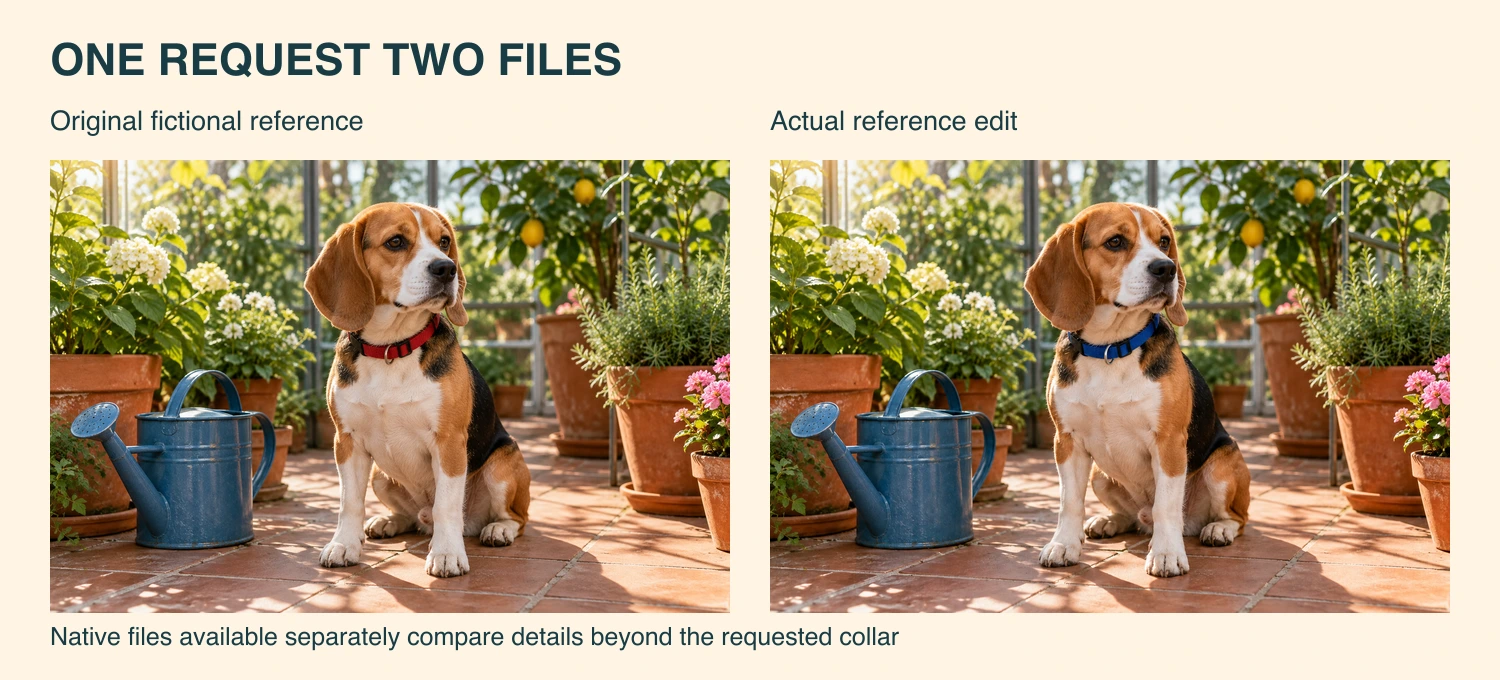
Download the native original reference and native edited image. Both measure 1536 by 1024 pixels. The original is a fictional generated beagle, not a real customer pet photograph. It also appears as the input-preparation example in our photo-to-video guide.
On visual review, the collar is blue and the seated pose, white muzzle, ears, visible paws and broad greenhouse arrangement remain similar. The watering can remains on the left. These are visual observations, not a measured identity match or proof that all surrounding details stayed unchanged.
The filled observation sheet records those findings and their limits. No ChatGPT browser upload, subscription allowance, selected-area control or account export was tested for this example. Keep the tool route attached to the evidence rather than treating every OpenAI-powered interface as identical.
Check more than the requested change
A successful color change is only one part of the review. Compare the subject’s outline, small hardware, textured edges and surrounding objects. For a pet, markings and paws may matter. For a product, the handle, label and contact with the surface may be the important fixed details.
We also compared a declared 200 by 200 pixel patch at the upper-left corner, outside the collar. The native decoded RGB values changed in 39,769 of its 40,000 pixels. Mean absolute channel difference was about 4.896 on the 0 to 255 scale. The images were not resized or aligned for this calculation.
That measurement establishes that this background patch is not pixel-identical. It does not identify why values changed or rate artistic quality. A small average numerical difference can coexist with visible similarity; neither observation means the whole image was preserved exactly.
Download the actual patch report and comparison source. The script rejects different native dimensions and does no automatic alignment. An unchanged-input check returned zero changed pixels, giving the local measurement a basic control.
Choose a prompt for the actual job
| Task | Useful instruction | Inspect afterward |
|---|---|---|
| Product color concept | Change the named surface to the specified color | Shape label material and shadows |
| Background replacement | Name the new setting and the subject to keep | Edges contact lighting and reflections |
| Wardrobe exploration | Describe the garment and retained pose | Identity hands seams and accessories |
| Photo cleanup | Identify the object to remove and what surrounds it | Reconstructed texture and repeated patterns |
These are proposed prompt structures, not four completed tests. Start from a source you can inspect and change one decision at a time. If a particular label or graphic must remain exact, keep an editable original and consider a conventional layer or mask workflow for that requirement.
Make a targeted revision
When a candidate fails, name the visible defect and return to the correct reference. For example, if the collar color is right but a tag appears, ask to remove the added tag while retaining the accepted blue. Keep the source separate from candidates so a rejected detail does not silently become the next baseline.
For a larger setting change, choose what needs to remain recognizable before writing the next prompt. A background replacement and a product-color edit have different review priorities. Avoid adding several unrelated requests merely because the previous image looks attractive.
Understand access and interface differences
OpenAI’s guidance says image availability and usage limits in ChatGPT web depend on the plan and workspace settings. Check the actual interface and account conditions in front of you. This guide does not establish a universal free allowance, unlimited editing or a fixed price per photo.
A ChatGPT subscription, a direct API project and an independent editor are different account contexts. For model identifiers and programmatic workflows, use the separate GPT Image model and API guide. This page focuses on preparing, requesting and reviewing a conversational photo edit.
For deliberate character exaggeration compare the AI caricature guide and two actual reference transformations.
Reproduce the comparison and retain your original
The reproduction notes show how to rebuild the side-by-side image and declared patch report with Bun and Sharp 0.34.5. This reproduces local presentation and measurement, not a second generative edit. The provenance record identifies the source files, prompt and result by hash.
Use a new filename for each accepted revision and keep the original. If you later add text, crop for a campaign or animate the still, inspect that final deliverable separately. An accepted photo does not prove correct typography or stable video motion.
Explore Clout Image and Video for available generation and editing operations. For choosing among model workflows, continue with the image-model selection guide. Use the same clear brief and review criteria wherever you create the next candidate.