

There are two different jobs behind “make a video slow motion.” You may want to slow a clip you already have, or you may want to create an entirely new scene that unfolds slowly. Choose that path first. Uploading existing footage to an image-to-video generator is not the same as changing its playback speed.
Compare the original and half-speed edit
The example uses Clout's original generated moonlight-train scene. The source is a 1920 × 1080, 24 fps silent clip lasting about five seconds. The edited version doubles the frame timestamps and exports at 24 fps, repeating source frames where needed. It demonstrates a real speed change, not optical-flow interpolation or high-frame-rate capture.
Original generated scene at its normal playback speed, approximately five seconds.
Download original train clipHalf-speed edit of the same accepted frames, approximately ten seconds. Resolution is preserved; duplicated frames make the motion less fluid than newly captured high-frame-rate footage.
Download half-speed train clipPlay both clips to compare the travel time and the cadence of the motion. The train takes longer to cross the same space in the second version. Repeating frames changes timing but cannot add real intermediate moments.
Calculate speed and final duration
| Playback speed | Duration from a five-second clip | Meaning |
|---|---|---|
| 100% | 5 seconds | Original pace |
| 50% | 10 seconds | Half speed |
| 25% | 20 seconds | Quarter speed |
| 80% | 6.25 seconds | A subtle slowdown |
Use final duration = original duration ÷ speed factor. A 50% setting is a factor of 0.5, so five divided by 0.5 gives ten. Small endpoint differences can appear when exporting to a fixed frame grid. Calculate the intended timing, then probe or inspect the exported file rather than assuming the editor's speed label proves the final duration.
Use source frame rate to choose a sensible slowdown
When each captured frame becomes one timeline frame, the native playback-speed factor is timeline fps ÷ source fps. A 60 fps recording on a 30 fps timeline can play at 50% speed with a unique source frame for every output frame. A 120 fps recording on that same timeline can play at 25%. A 24 fps clip slowed to 50% on a 24 fps timeline needs repeated or synthesized frames.
Frame rate is only one input. Motion blur, shutter exposure, subject speed and variable-frame-rate behavior also affect the result. A fast blurred hand does not become a sharp hand simply because the output file says 60 fps. Review edges and the actual movement, especially where objects cross or overlap.
Slow an existing clip in your editor
Import the original file, create a timeline for the intended delivery and select the clip. Open the editor's speed or duration control, set a conservative slowdown and choose how it handles missing frames. Preview the entire shot before exporting. Keep the original untouched and save the slowed version under a new name.
Frame repetition holds existing images. Frame blending mixes nearby frames and may create visible ghosting. Optical-flow interpolation estimates intermediate motion and can introduce warped edges. Try the available methods on the same short section and compare them at normal playback speed. Choose the method that looks clean for your particular scene.
A reproducible silent-video command
ffmpeg -i input.mp4 -vf "setpts=2*(PTS-STARTPTS),fps=24" -an -c:v libx264 -crf 16 -pix_fmt yuv420p -movflags +faststart half-speed.mp4This example doubles video timestamps, exports at 24 fps and removes audio. The official FFmpeg filter documentation explains timestamp adjustment. Change the output frame rate for your intended timeline; this command does not interpolate new motion.
Do not use the silent example blindly on dialogue. Decide whether speech should stay at normal pace, stretch with the picture or be replaced by a new narration track. Preserve the clean audio separately and check the exported voice reaches the final word. Music and ambience may need their own timing decisions.
Generate a new slow-motion scene instead
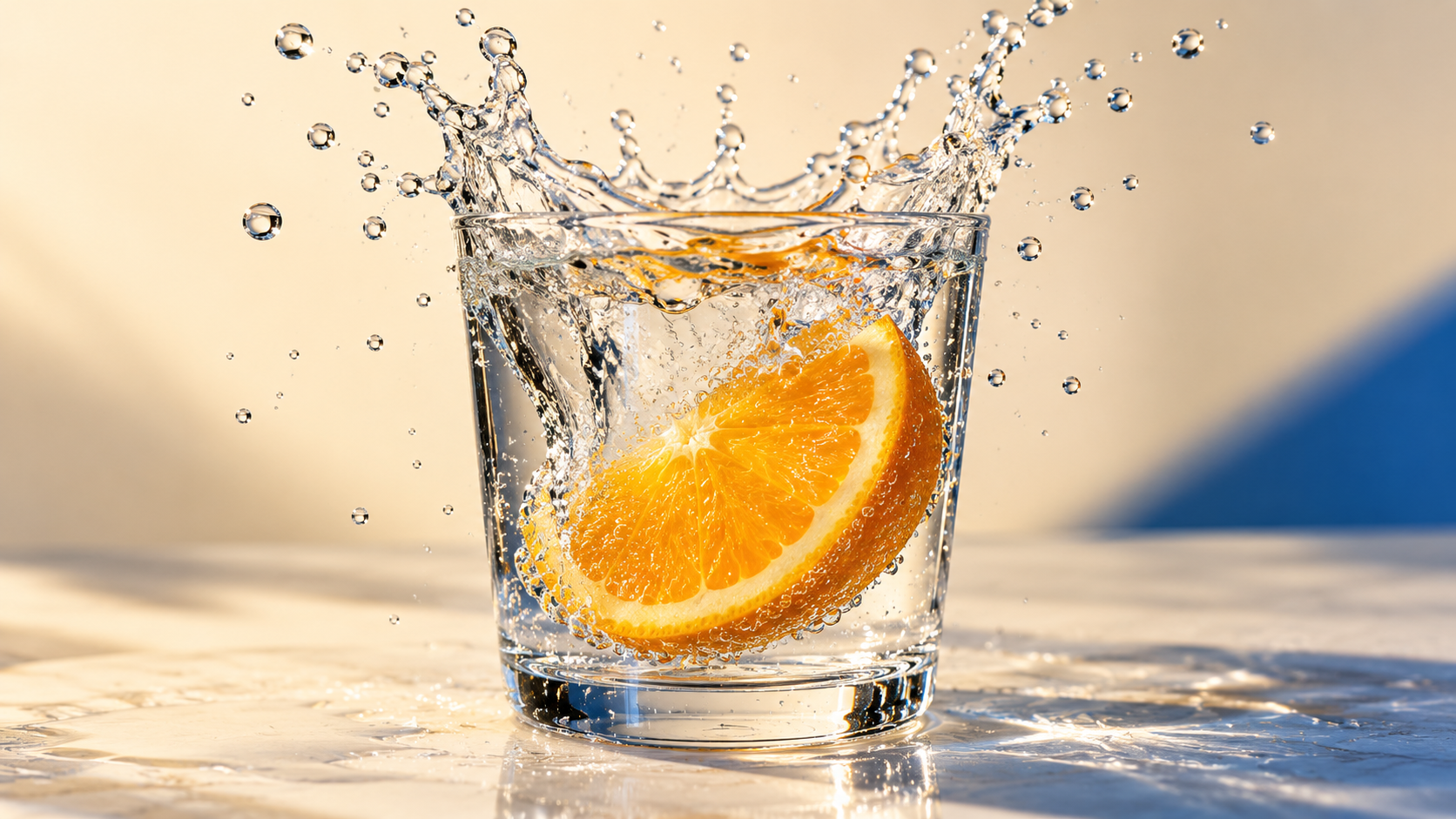
Original AI-generated splash concept for a new scene. This is a still reference and does not represent high-speed footage recovered from a real recording.
Download orange slice suspended inside a crisp water splashOriginal motion brief: A single orange slice descends into a clear water vessel, producing one restrained splash. Crisp droplets move slowly and fall back under gravity, fixed camera, soft cream background, one continuous action and no extra fruit. Preserve the vessel and slice shape from the approved first frame.
Higgsfield's slow-motion page describes creating new slow-action footage from text or an image. Use that approach for a fictional shot you want to create, rather than expecting it to preserve every event of an existing recording.
Review the output before choosing the final edit
Watch for repeated-frame cadence, transparent ghosts, rubbery edges and objects passing through one another. Check a paused frame only to investigate a problem, then judge the motion at its intended playback speed. Compare the exported duration and dimensions with your plan, and make sure a platform upload has not cropped the key action.
Create character and scene videos in Clout, then use an editor to control the pace of accepted footage. Keep generation and retiming as deliberate separate steps.


