An AI YouTube banner works best when the channel name survives the crop. Generate a background with room for the title, place approved words as editable text and review the exported file at the intended banner dimensions. A beautiful wide image can still lose its main message when only its center is visible.
Start with the current YouTube banner dimensions
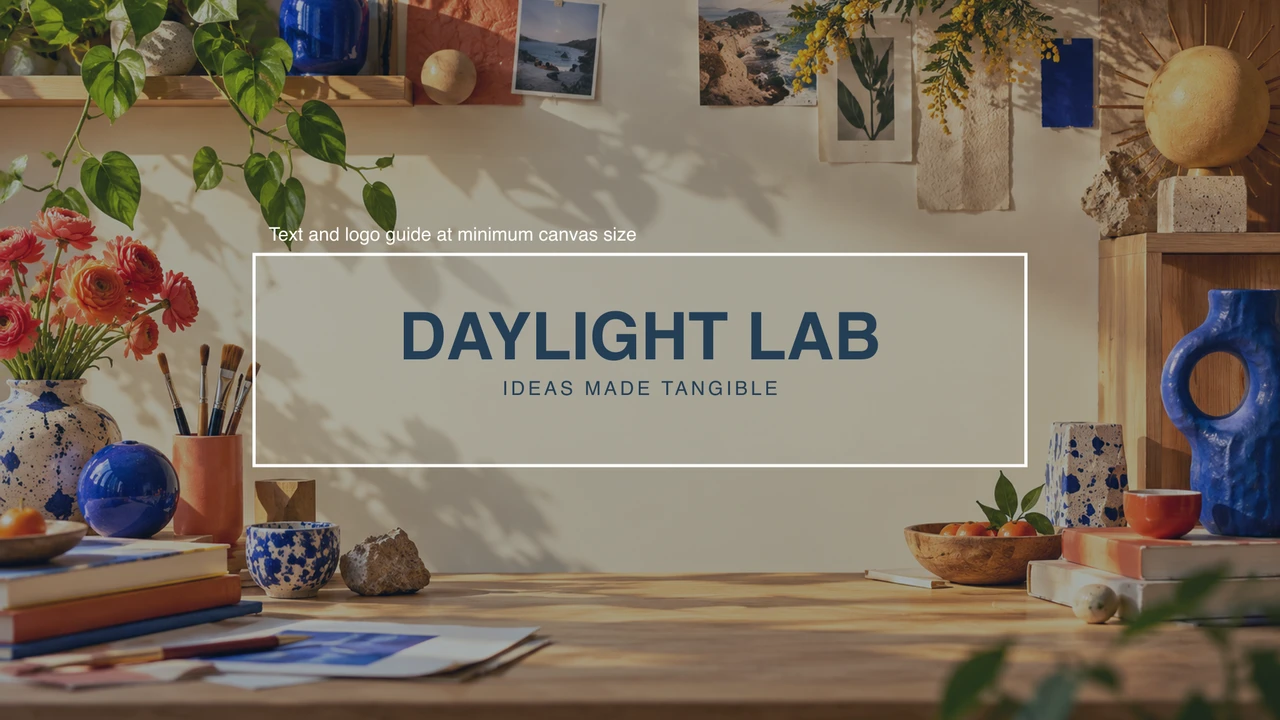
YouTube’s channel branding guidance lists a minimum upload size of 2048 by 1152 pixels, recommends 2560 by 1440 pixels and limits the file to 6 MB or smaller. At the minimum size, its published safe area for text and logos is 1235 by 338 pixels. The same banner is cropped differently across devices.
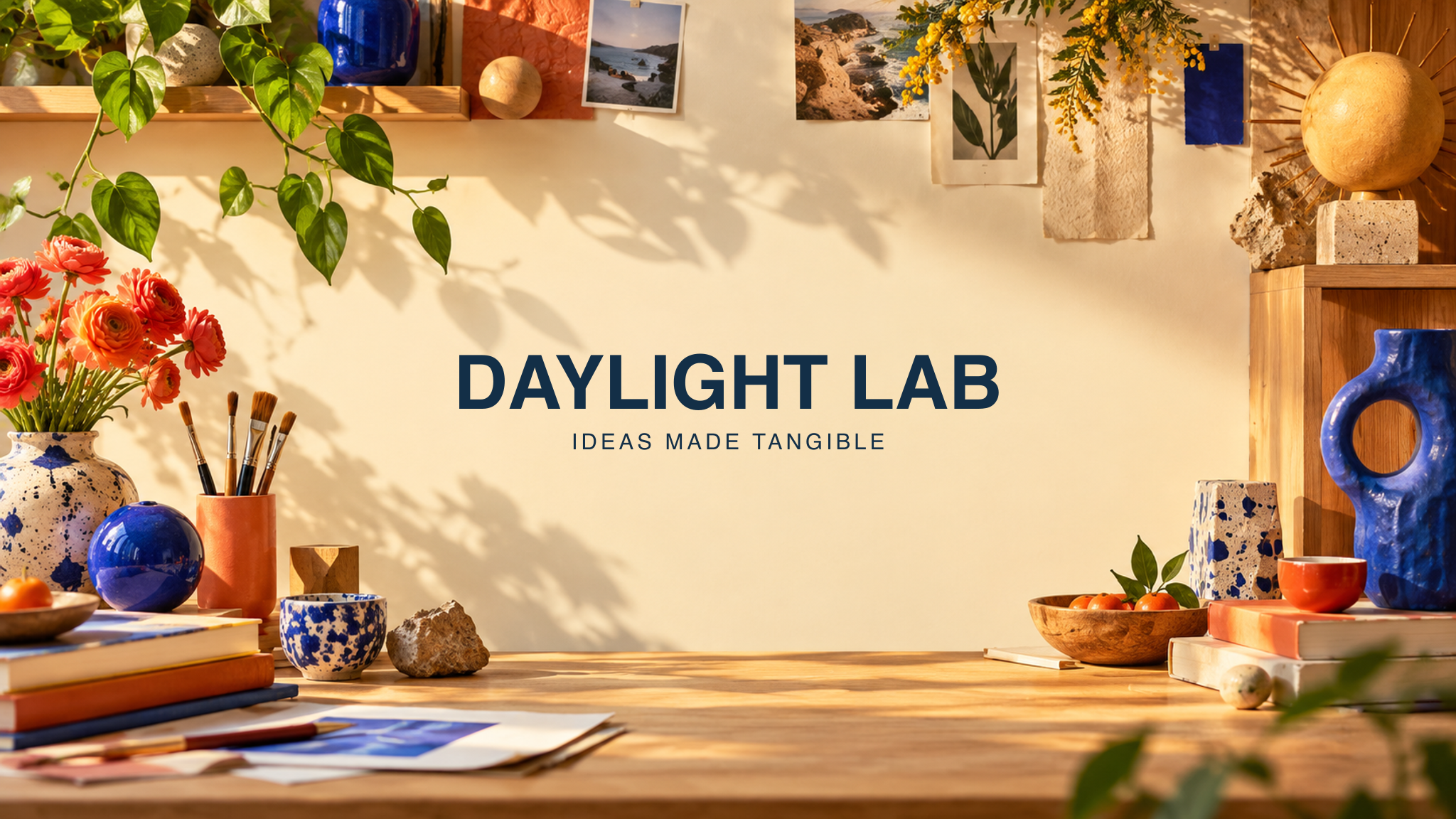
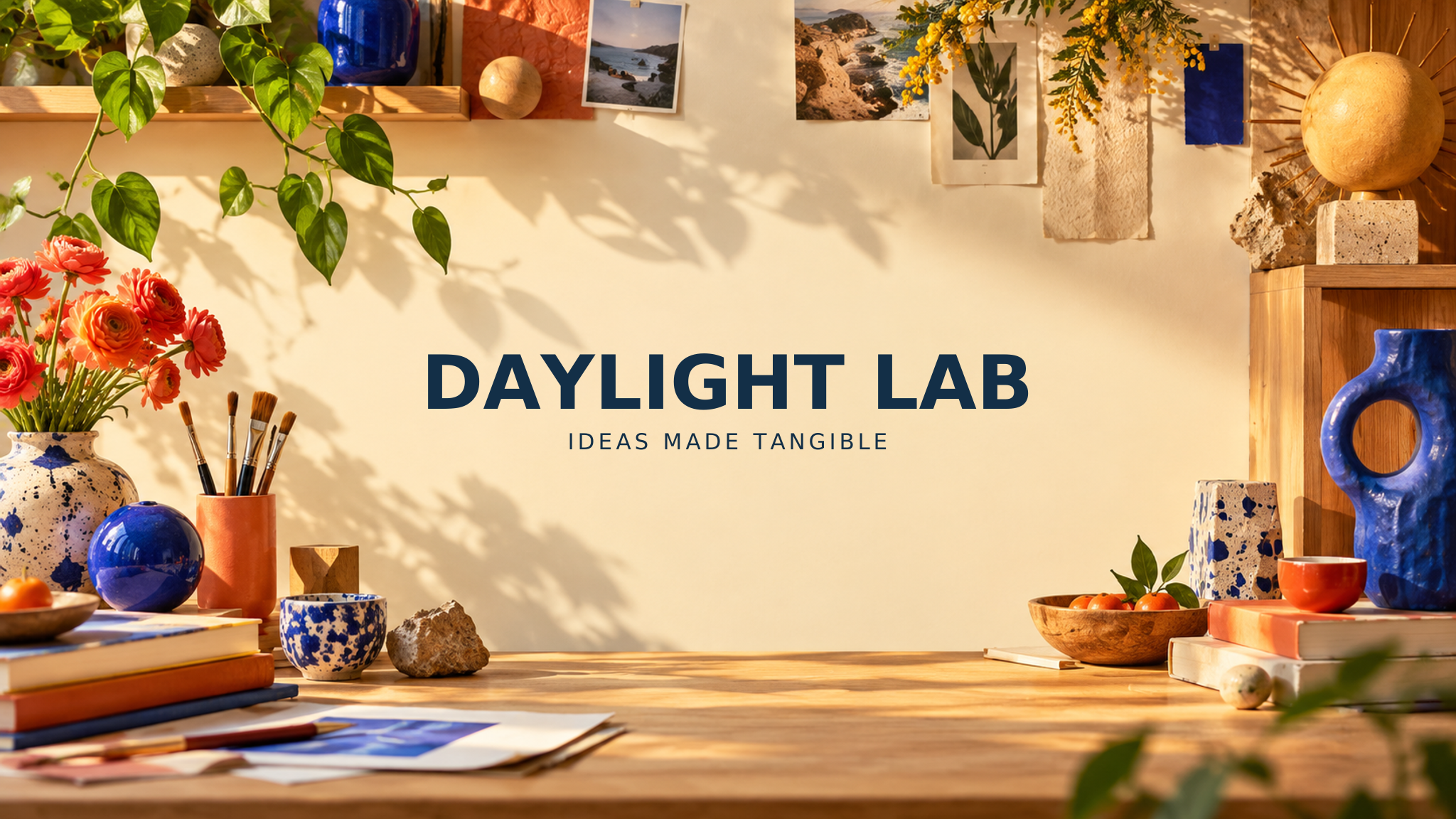
Our example uses the minimum 2048 by 1152 canvas so that the published safe-area numbers apply directly. If you choose a larger canvas, scale the guide proportionally rather than treating 1235 by 338 as the full-size guide at every resolution. Check the actual preview in YouTube Studio before publishing.
Brief the channel before generating its artwork
Write a channel name, a short promise and one visual direction. Our fictional Daylight Lab channel explores tangible creative ideas, so its background uses sunlit paper, brushes and cobalt ceramics. Those objects communicate the subject while a quiet central wall leaves room for the name.
Keep a banner distinct from a thumbnail. The banner establishes a recurring channel identity; a thumbnail introduces one particular video. Avoid filling a banner with episode titles, dense schedules or small calls to action that compete with the channel name.
Generate a background with usable title space
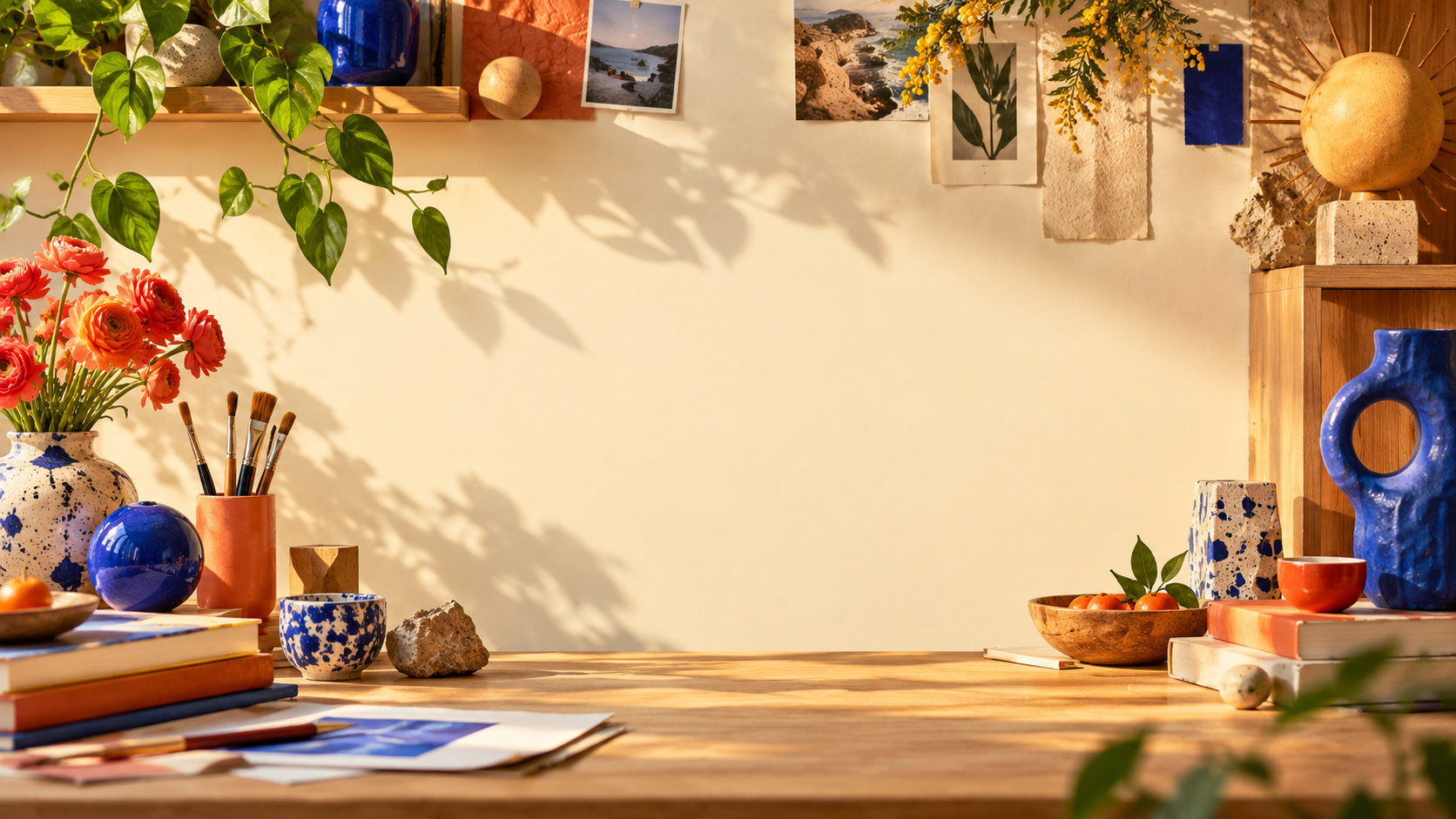
Original wide creative workshop background with warm sunlight, coral brush pots, cobalt ceramics and tactile paper. Keep the central horizontal band calm and uncluttered for editable channel typography added later. Concentrate decorative objects near the sides and outer edges. No lettering, logos, watermark or UI.
This is an original creative brief, not a guarantee that a model reserves the requested area. Inspect the returned image before placing text. Our independently generated background is 1672 by 941 pixels; the finished canvas is resized and slightly cropped to 2048 by 1152. That processing does not create additional native detail.
Inspect the original Daylight Lab example
Download the original background PNG, finished banner PNG and editable title layout. The SVG embeds the raster background and separate text objects. It does not convert the background into vector paths. Generic sans-serif font substitution can change the lettering, so inspect your own export.
The finished PNG stays below 6 MB. It is separate from the planning overlay; do not upload the guide as your finished channel artwork. The supplied artwork represents a fictional channel, and no YouTube account upload or acceptance test was performed.
Read the center before approving the full image
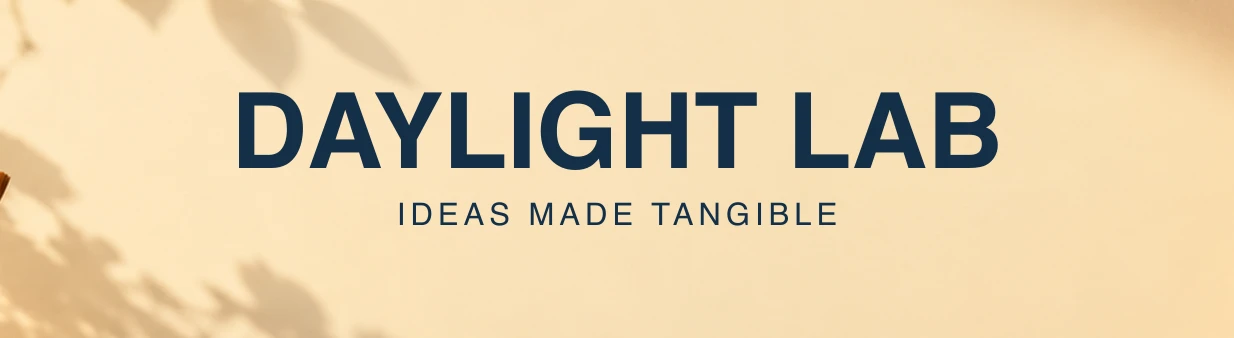
The name and short supporting line remain readable in this authored center crop. Peripheral ceramics and flowers are intentionally expendable. If the channel needs a logo, place it alongside the title within the protected region and review their combined spacing. A transparent logo file can be layered into your layout without asking the image model to redraw its exact shapes.
The guide is centered at x 406.5 and y 407 on the minimum canvas. The crop begins at integer x 407 and is 1234 pixels wide, staying inside the half-pixel guide boundary. These are local layout calculations, not a claim that every YouTube interface displays this exact crop.
For a text-intensive poster request, use the GLM Image exact-copy brief and preflight.
Keep an editable master and an upload export
The layout source rebuilds the SVG, finished PNG and two review images using Sharp. Use Bun with Sharp 0.34.5 and pass the asset folder as its argument. The readme explains the source dimensions and workflow; the file record identifies the supplied assets.
Keep the master, background and final upload separately. Check the actual image dimensions and file size after export. Review title spelling, contrast and whether decorative elements interfere with the center. Then inspect YouTube Studio’s current preview before publishing.
Connect the banner to the rest of the channel
Carry the same palette and visual motif into future thumbnails without making every frame identical. For a recurring animated introduction, use the logo reveal workflow. For typography that carries a video’s message, use the kinetic typography guide.
Explore Clout Image and Video for available image operations. Generate source artwork, add exact channel words in a controlled layout and review the actual saved file. This guide does not claim that the studio automatically exports a verified YouTube channel banner.