

An AI pet portrait generator can turn an approved photograph into a studio-style portrait, an illustration or a new scene. The useful test is whether the result still looks like the same animal. Start with a clear reference, identify the markings that matter and choose one style before generating a collection of variations.
For an outline activity sheet from an accepted portrait, inspect the photo-to-coloring-page study and A4 download.
Choose a reference that shows your pet clearly
Use a photograph with the eyes, muzzle and ears visible and enough space around the head for the intended crop. Avoid starting with a tiny screenshot or an image where a toy hides the face. If several animals appear, prepare a clear reference for the one you want to portray.
Keep a few approved views when the coat pattern changes between sides. A front view may not reveal the far ear or a patch on the body. Do not treat an invented unseen marking as a faithful reconstruction. For an important gift or print, compare the result with the original photos before approving the style.
Write a short identity record
Record visible coat colors, the shape of any blaze or patch, ear positions, eye color, muzzle proportions and collar details. Keep those observations separate from the new scene. A prompt that only says cute dog gives the generator little reason to preserve a particular pet's appearance.
For a fictional example, our planning brief describes a tan mixed-breed adult dog with a white forehead-to-muzzle blaze, white chest patch, dark brown eyes and a plain teal collar. Its asymmetrical ear pose is another recognizable cue. The inspected fictional source shows those broad features. They are visual observations, not a breed identification or a real pet history.
Try three original portrait directions
Natural studio portrait
Use the approved pet photograph as the reference. Preserve the animal's face proportions, coat markings, eye color and collar. Create a calm chest-up portrait against a warm neutral background with soft daylight and detailed natural fur. Keep the entire ears visible. No added animal, costume, lettering or decorative props.
Watercolor keepsake
Transform the supplied pet reference into a loose watercolor portrait on textured cream paper. Preserve the recognizable blaze, chest patch, ear pose and head proportions. Use soft tan washes, restrained dark facial details and a plain teal collar. Keep the background simple and leave room around the portrait. No invented markings, extra animal or text.
Cinematic outdoor scene
Use the approved pet reference for a quiet portrait at the edge of a sunlit garden. Preserve the face, coat pattern and collar while using warm directional light and a softly blurred natural background. Keep the animal seated in a plausible pose. No dramatic action, altered anatomy, extra pet or lettering.
These are original creative briefs to adapt to supported reference-based controls, not guaranteed presets or three completed provider outputs. In Clout Image and Video, choose an available image operation, add the supported reference and review the credit quote before generating.
Review identity separately from style
A successful watercolor treatment can still move a white patch, change the muzzle or replace the collar. Compare the face first, then the ears, coat boundaries and visible accessories. Look at both the complete portrait and a close view. Decide which deviations are acceptable artistic simplifications and which make it feel like another animal.
When a revision is needed, describe the actual defect: the blaze became wider, the eye color changed or the collar disappeared. Revise one issue at a time and retain the approved reference. Reusing a pet name without supplying the image does not establish the same visual identity.
Prepare a gift layout without baking in the name
Add the pet's name and a message as editable text after choosing the portrait. This lets you correct spelling or adjust a layout without regenerating the animal. Leave enough margin for the intended frame or crop. A square portrait may need a different composition for a tall card.
For a memorial portrait, decide which real photograph and visible details should be preserved. Treat a generated scene as artwork rather than evidence of an event. Keep the language personal and accurate; an image alone does not establish a pet's history or behavior.
Check actual pixels before ordering a print
Read the delivered image dimensions rather than assuming a large preview is a high-resolution file. Divide pixels by the intended print width in inches to calculate pixels per inch. For example, a 1600-pixel-wide file printed eight inches wide provides 200 pixels per inch. That is arithmetic, not a universal print-quality guarantee.
Ask the printer for its preferred dimensions, crop and color workflow. Inspect the final file for artifacts around fur, eyes and any text. Upscaling can change the pixel count without recovering missing original detail. Keep the accepted native file and a separate prepared print copy.
Animate an approved portrait as a separate step
If you want motion, choose a supported image-to-video operation and begin with one restrained action, such as a subtle head movement. Inspect ear shape, eyes, muzzle and coat boundaries through the entire clip. A clean first frame does not prove the animal remains consistent during movement.
Do not assume that a human lip-sync workflow supports animal faces. Check the actual model's supported inputs before planning a talking-pet video. A silent moving portrait can instead accompany a separately recorded greeting or music added in an editor.
Keep planning downloads separate from generation costs
Use the free planning resources to organize your references and compare outputs. Clout image and video generation uses the displayed credit quote. A search for a free pet portrait generator does not mean every service or operation provides unlimited free images.
Save the reference, prompt, accepted portrait and review notes together. For a portrait set, approve one image before expanding to new scenes. Consistent markings and a useful final crop matter more than producing many unrelated versions.
Inspect the original watercolor transformation
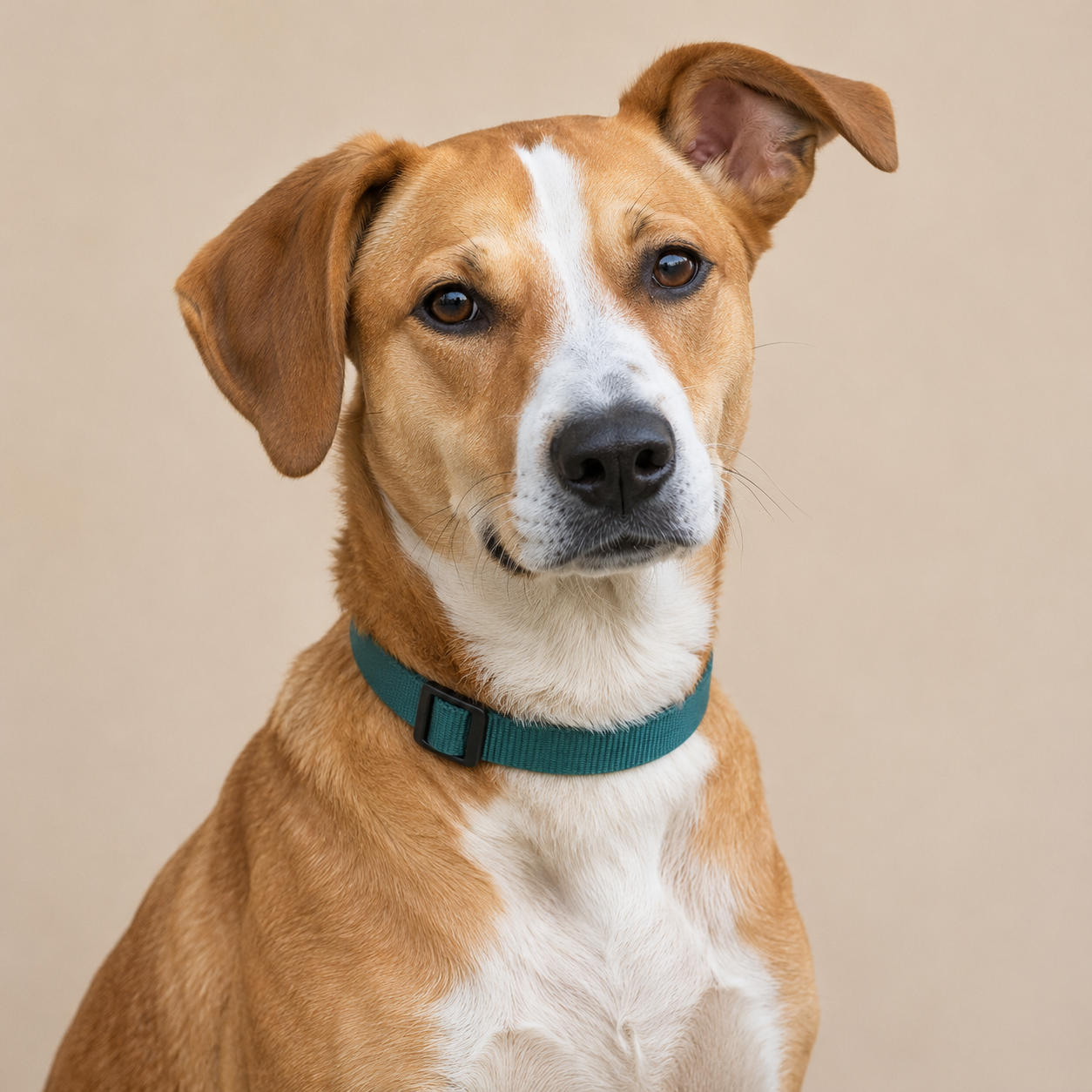
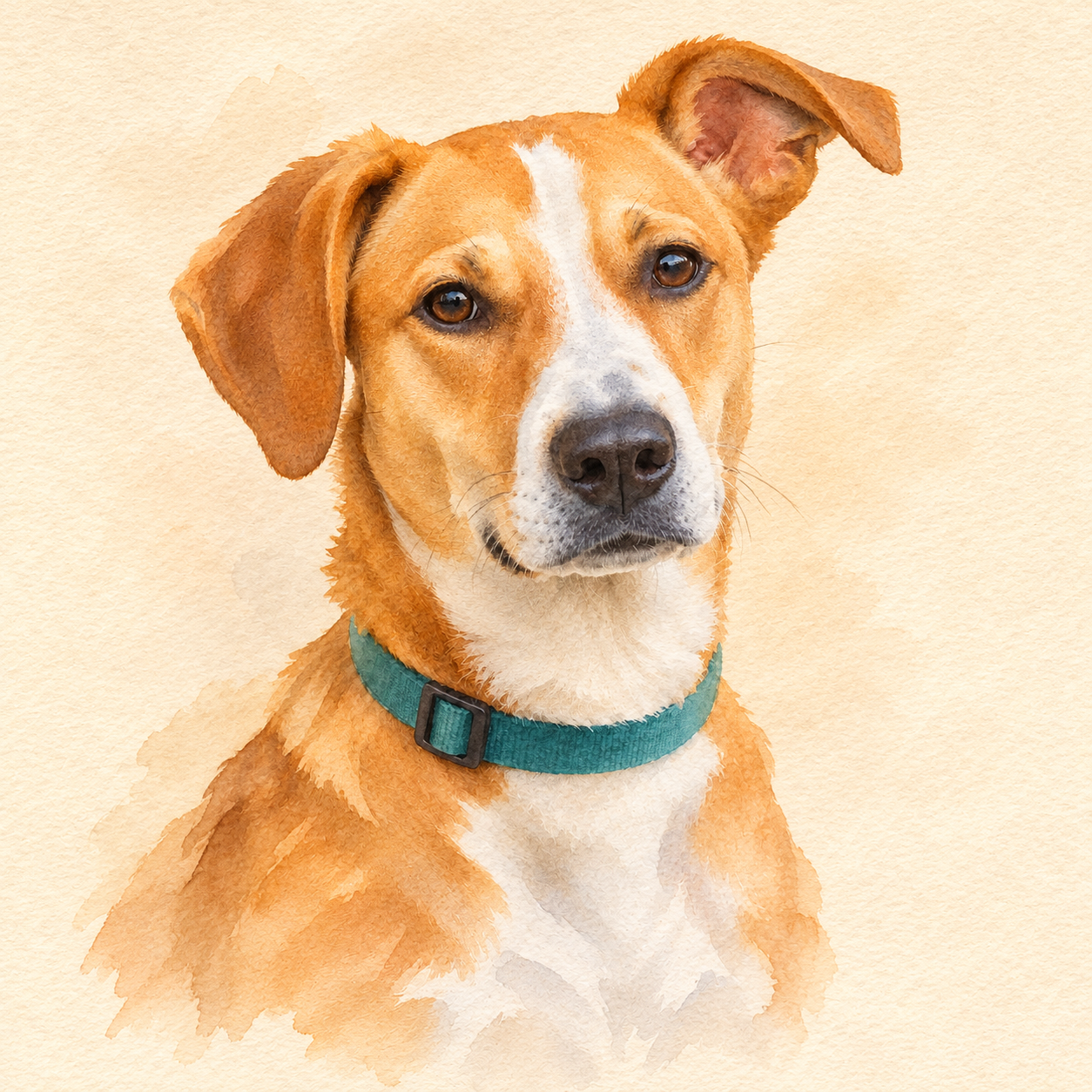
The blaze, chest patch, ear pose and collar remain broadly recognizable. Fur texture, edge definition and color intensity change with the watercolor treatment. We did not measure geometric identity or test a real pet. Download the filled feature review, native-file provenance and blank portrait planning template.


