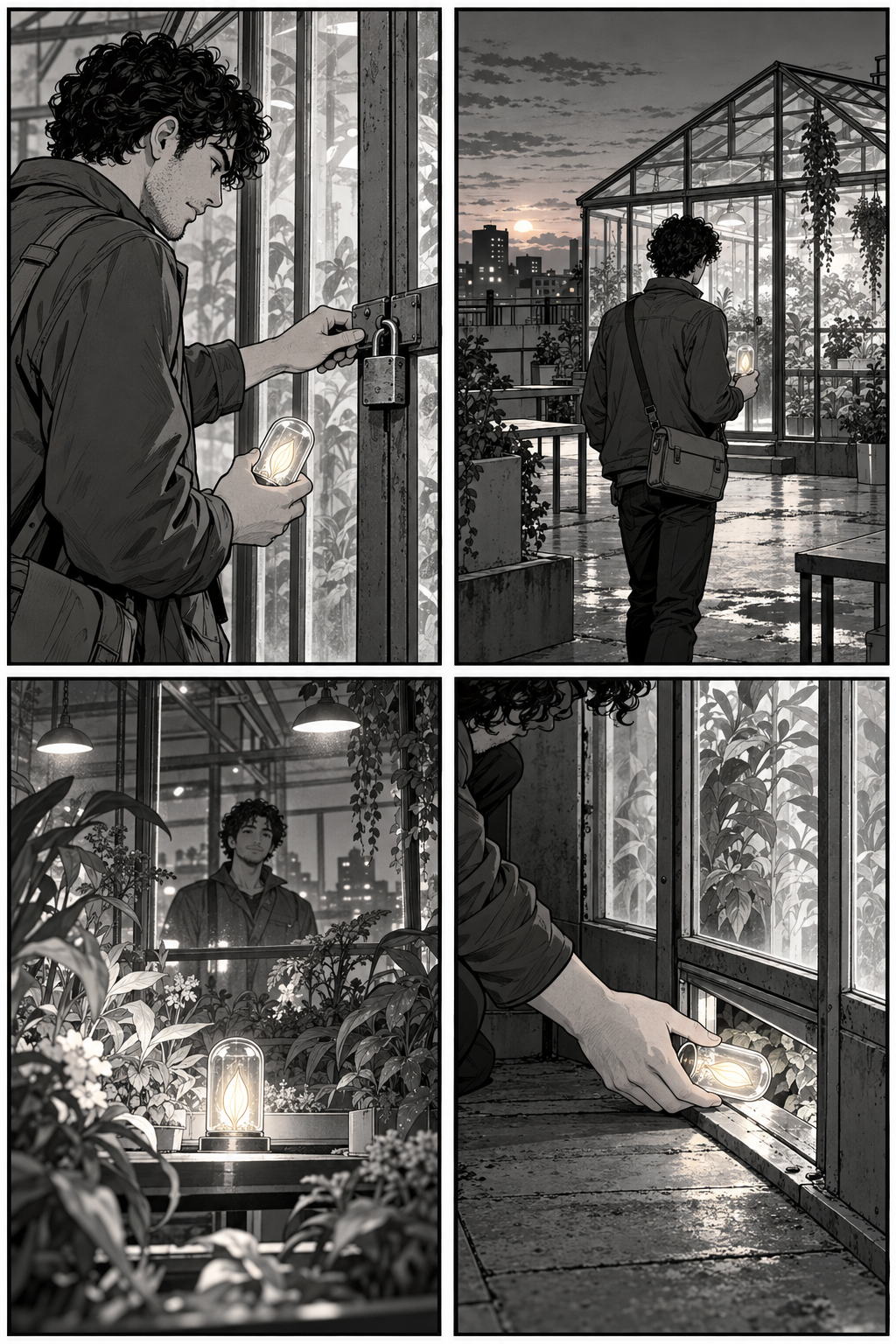
An AI manga animator workflow starts with readable sequential art and turns selected moments into a moving scene. Choose the panel order, separate camera movement from character action and test one short shot before attempting a whole chapter. A moving page can help establish timing, but it does not prove that a video model can animate every drawing faithfully.
Choose panel animation or a camera-only animatic
There are two useful starting points. An animatic places still artwork on a timeline with cuts, holds and optional camera moves. Generated panel animation asks a supported image-to-video model to create new motion inside a shot. The first helps plan rhythm; the second needs additional review for anatomy, line stability and invented action.
Use a camera-only version when the artwork must remain recognizable or when you are still deciding timing. Use a generated pilot when the scene needs a blink, a gesture or an environmental movement that cannot be communicated by a crop alone. Label your example according to what actually changes.
Start with owned art and a clear reading order
Use artwork you created or have permission to adapt. Keep the native page, the panel script and approved character references. A page downloaded from a manga reader is not automatically available for promotional animation. If you are making an original story, approve its main character and visual language before planning a sequence.
Our source is the original fictional courier page from the AI comic and manga creation guide. Its intended sequence is top-right arrival, top-left padlock, bottom-right lower-opening transfer and bottom-left payoff. The source has four panels, a recurring curly-haired courier and a luminous seed capsule. The transfer remains visually ambiguous, and the capsule orientation changes. Animation does not repair those story issues by itself.
Watch the original twelve-second camera animatic
Watch this clip and view its details
We authored this silent edit from the existing 1024 by 1536 generated page. Each panel holds for three seconds with a centered camera zoom from 1 to 1.04. The four hard cuts preserve the intended story order. There is no generated movement of the courier, hand, capsule or plants.
The delivered file is 720 by 1080 at 24 frames per second, with 288 frames and a measured duration of 12 seconds. It has no audio stream. The 492 by 744 source-panel crops were enlarged and slightly adjusted in aspect ratio during scaling. More output pixels do not establish more original drawing detail.
Download the native camera animatic, filled timing and crop sheet and render and file record. Compare them with the original full page. This is an inspectable editing example, not an Anifusion or Clout video-model benchmark.
Make a motion plan with one action per shot
| Story beat | Authored animatic | Possible generated pilot | What to review |
|---|---|---|---|
| Arrival | Three-second centered push | Very subtle jacket movement with a fixed pose | Bag strap and greenhouse lines |
| Obstacle | Hold the padlock view | A restrained glance toward the lock | Face profile and hand anatomy |
| Transfer | Show the lower opening | Separate clearer hand and capsule staging first | Whether the handoff actually reads |
| Payoff | Hold the capsule among plants | A small change in emitted light | Capsule silhouette and stable foliage |
The pilot column contains unexecuted creative directions. It is not evidence that a model can perform those actions reliably. For the unclear transfer, revise the source drawing or create an additional reference before adding motion. Increasing movement around an ambiguous action can make it harder to understand.
Prepare a clean panel reference
Use the artwork layer when you have an editable project. If the source is a flattened page, define a deliberate crop and inspect it for neighboring gutters, clipped heads and cut-off props. Keep a copy of the original page so the final edit can be compared with its intended sequence.
Speech bubbles are part of a flattened image. Cropping them away can remove a face or important background. Where needed, prepare an approved artwork-only reference through a supported edit and check it before video generation. Keep dialogue as editable text during finishing so spelling and timing remain under your control.
Write a restrained image-to-video brief
Use the supplied original courier panel as the visual reference. Preserve the curly hair, dark jacket, shoulder bag, capsule shape and greenhouse framing. Keep the pose almost still, with a very slight movement of loose jacket fabric. Fixed camera, restrained ink-and-tone treatment, stable face and hands. No new character, speech bubble, lettering, extra prop or change of location.
This is an original unexecuted brief, not a guaranteed preset. In Clout Image and Video, choose an available image-to-video operation that supports your reference and intended aspect ratio. Review its controls and credit quote before generating. Use AI Cinema when your project needs a supported multi-scene planning workflow.
Keep the subject action separate from camera motion. If both are complex, begin with a fixed-camera pilot. Once a take communicates the intended event, decide whether a separate editorial crop or a different generated camera instruction serves the scene.
Check line shimmer and invented movement frame by frame
Review the full returned clip, including the middle and final frames. Watch eyes, fingers, straps and the capsule edge for shape changes. Look for lines that crawl across a still wall, screen tones that flicker, background structures that bend and extra props that appear during movement.
Compare the first and last frames with the approved panel, then inspect the action at normal playback speed. A clean opening thumbnail does not establish a stable clip. Reject a take that changes the story even if its movement looks smooth. Keep a record of the actual defect so a revision changes a specific issue.
Add dialogue sound and captions after timing works
Record the intended dialogue or use a supported voice workflow with appropriate rights. Fit the edit to accepted speech rather than assuming three seconds is enough for every line. Our silent reference deliberately makes no claim about voice, lip sync or audio timing.
Use editable dialogue and captions with a clear speaker order. Review the sequence muted on a phone and listen separately for missing words or an overpowering music bed. For a motion comic, environmental sound and readable captions can carry a scene without making every drawn mouth move.
Choose a manga workflow without mixing up product claims
Anifusion's official feature page lists image-to-video animation for anime art and manga panels. That is a provider-described capability, not a quality result from our account testing. Verify the selected operation and current plan before relying on it.
Higgsfield's Mangaka introduction describes a manga and webtoon creation workflow. Creating pages and animating their subjects are separate tasks. Do not assume a page-generation feature supplies a finished animated episode or an identical Clout integration.
Export and review the actual delivery
Check the destination's current file requirements, final crop, dimensions and audio. Keep the native panel files, accepted motion takes, timeline and caption project. Our downloadable blank motion review worksheet separates camera movement, subject movement, continuity defects and acceptance decisions.
For a longer original story, approve one short sequence before expanding the chapter. Use the storyboard workflow to organize shot purpose and the book trailer guide when the destination is a promotional teaser. The planning downloads are free; Clout generation uses its displayed credit quote.