To AI upscale a GIF, preserve the animation before you try to improve its detail. Choose a tool that supports your actual input and export format, keep the original frame timing, enhance the sequence, then review the reassembled GIF at its intended display size. A sharper first frame is not enough if the face flickers, the reaction changes speed or the transparent background turns black.
This guide separates three jobs: ordinary enlargement, AI enhancement and GIF delivery. It includes two downloadable animation fixtures with measured timing and dimensions. They demonstrate a working resize-and-export pipeline, not an AI restoration result. For ordinary footage and resolution presets, use our AI video upscaler guide.
Choose the workflow your GIF actually needs
| Your source | Useful first step | Main review question |
|---|---|---|
| A GIF exported from a larger video | Find the video master and export again | Can you avoid enhancing an already reduced copy |
| A small photographic reaction GIF | Test sequence-aware AI enhancement on one loop | Does the face remain stable during playback |
| A transparent animated sticker | Keep a workflow with alpha support | Are the edges and uncovered areas still transparent |
| Pixel art or deliberate low-resolution graphics | Try a suitable ordinary scaling method first | Does the intended shape language survive |
| A product or text animation | Return to the original layout where possible | Are the product shape and lettering exact |
If you still have the original clip, start there. A larger source usually gives you more information to work with than a small GIF saved from a chat. Repeatedly downloading, enlarging and exporting the same reduced copy makes it harder to tell which stage introduced a problem.
Set a concrete delivery size. An animation displayed at 480 pixels wide does not automatically need a 4K intermediate. Keep the aspect ratio and decide whether your target accepts a GIF, video or another animated format. Use the required delivery format rather than changing formats solely because an upscaler's preview looks attractive.
Separate enlargement from AI enhancement
Ordinary scaling calculates a larger raster from the existing image. AI enhancement uses a model to infer new detail. Both can increase dimensions, but dimensions alone do not establish better likeness, cleaner motion or faithful product texture. Treat model-created eyelashes, teeth, clothing detail and lettering as material to review.
Compare the same moment at the same displayed size. Stretching the source into a larger comparison panel while showing the enhanced output smaller makes a misleading demonstration. Keep an ordinary resize as your baseline so you can decide whether an AI result adds useful detail beyond enlargement.
Review the full loop as well as selected frames. A portrait may look convincing in a screenshot while its eyebrows or teeth change on every frame. For a creator reaction, stable expression and identity matter more than a still image that looks unusually sharp.
If the source contains deliberately chunky pixels, soft illustration or stylized outlines, describe the style you want to preserve. An aggressive detail setting can replace the very qualities that make the animation recognizable. Start with a short representative test before processing a whole library.
Record the animation before converting it
The GIF89a specification defines frame delays in hundredths of a second, indexed transparency and disposal behavior. A color table can contain up to 256 entries. These constraints help explain why a GIF export can behave differently from a full-color video preview.
Record the source dimensions, frame count, individual frame delays, total duration and loop setting. Also note whether the animation depends on transparency. A file with unequal delays may hold an expression longer than the surrounding movement; converting everything to one frame rate can change that beat.
Check the rendered sequence rather than inspecting partial stored frames in isolation. Some animations store only a changed region and depend on previous frames and disposal instructions to build the displayed picture. A proper decoder should compose those updates before you enhance them.
Keep the untouched source and a simple record of your settings. If the export later looks wrong, you can compare the timing and dimensions directly. A filename such as reaction-master is more useful than a collection of unexplained final versions.
Use a video route only when it fits the source
A photographic GIF with an opaque background may be suitable for conversion into a video intermediate, enhancement and conversion back. Confirm the upscaler's accepted formats first. Keep the frame rate and duration deliberate, and avoid introducing a second timing change when exporting the final GIF.
A transparent sticker needs a different decision. A typical opaque video intermediate will not carry its transparency. If the next tool requires that kind of input, you must deliberately choose a permanent background or use another workflow that preserves alpha. Do not expect a later GIF export to recover transparency that was flattened earlier.
If you enhance an image sequence instead, retain frame order and timing information. Test adjacent frames with the same settings. Independent image edits can introduce inconsistent facial features or texture, even when each frame looks good alone. A frame-by-frame route needs a playback review, not just twelve separate approvals.
Spatial enhancement and frame interpolation are separate choices. Interpolation adds intermediate frames; it can change motion and the character of a deliberately snappy reaction. Leave it out of your first comparison unless smoother motion is part of the brief. Our consistent creator workflow covers identity review across the surrounding content.
Inspect a real downloadable timing baseline
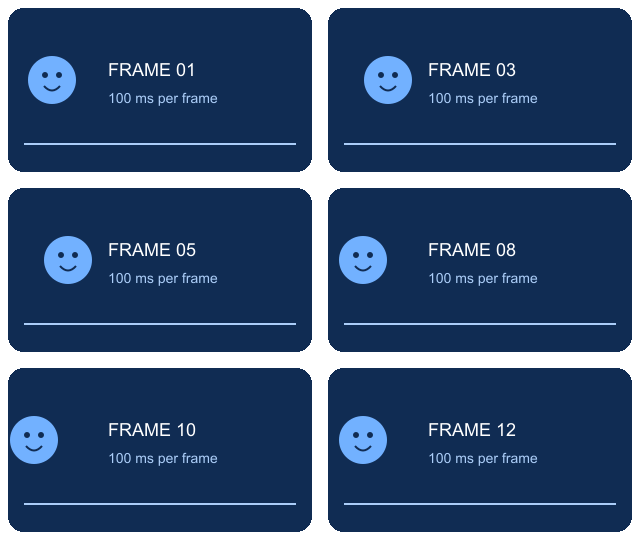
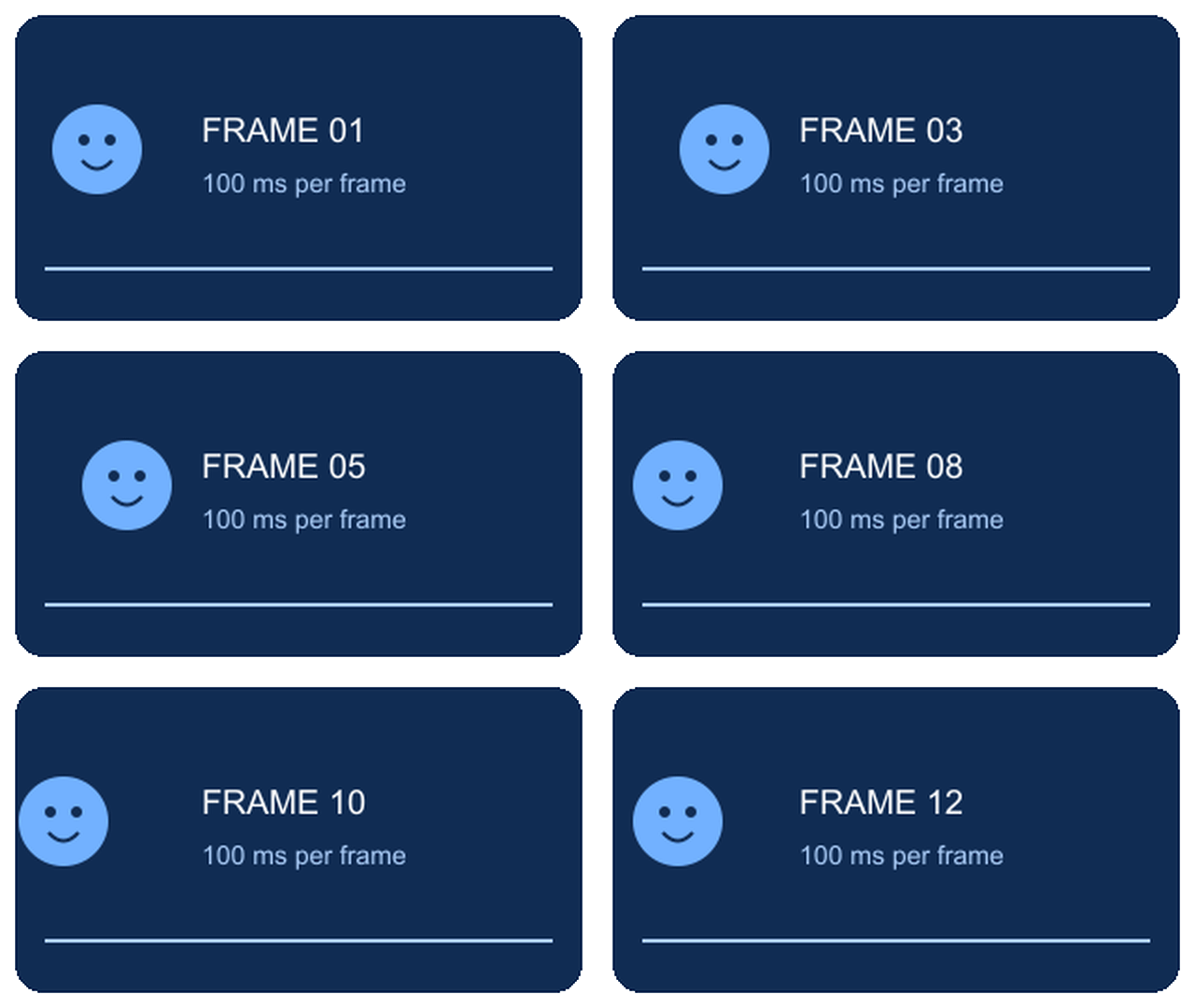
We made a small original code-drawn animation with a moving blue face and numbered frames. The source is 320 × 180 pixels. We enlarged it to 640 × 360 with FFmpeg's Lanczos scaling and a generated GIF palette. No AI model was used in this experiment.
| Measured property | Source GIF | Resized GIF |
|---|---|---|
| Dimensions | 320 × 180 | 640 × 360 |
| Frame count | 12 | 12 |
| Delay per frame | 100 ms | 100 ms |
| Total loop duration | 1,200 ms | 1,200 ms |
| Loop setting | Continuous | Continuous |
| Top-left corner alpha on every frame | 0 | 0 |
| File size | 33,123 bytes | 220,825 bytes |
Download the source GIF, download the enlarged baseline and download the measured results. Use them to check whether your chosen editor preserves a simple animation's timing and transparent corner.
The corner check verifies that specific point on every decoded frame. It does not certify every edge pixel. This fixture also has uniform delays, so passing it does not prove that a tool preserves unequal delays or every disposal mode. Test your actual source before processing a batch.
The enlarged file is substantially heavier despite retaining the same duration and frame count. That is a useful reminder to inspect the delivered file size alongside its appearance. These measurements describe our two files; they are not a general prediction for every GIF.
Export with a palette and transparency you have reviewed
FFmpeg's palette documentation describes palette generation, dithering and an alpha threshold for transparent pixels. These are export controls, not AI enhancement controls. Dithering can trade visible patterns for smoother apparent color transitions, so judge the final animation at its real viewing size.
Download the exact baseline resize command. It decodes one GIF loop, doubles the dimensions, generates a palette and exports a continuous loop. It is intended as a reproducible baseline for the supplied uniform-delay fixture. It does not call an AI model or establish that arbitrary variable-delay files will remain identical.
Compare your exported GIF against the enhanced intermediate. Look for color banding, noisy skin, jagged hair and a halo around transparent edges. If the intermediate looks good but the GIF looks poor, change the export choices before rerunning the enhancement model.
Keep captions editable until delivery when possible. Enlarging letters already baked into a tiny GIF can preserve their fuzziness or create incorrect strokes. Our editable campaign asset guide explains why native text and flattened lettering are different assets.
Check GIF support before choosing an online upscaler
The official Higgsfield AI Video Upscaler page describes ByteDance and Topaz engines, video presets, output up to 4K and optional frame interpolation. The public page checked for this guide does not document direct GIF input or GIF export. Confirm the current upload and download controls rather than treating a video capability as GIF support.
For any AI upscaler GIF workflow, ask four practical questions: does it accept your source, does the processing retain the whole animation, does the export support the required transparency, and can you control the final timing? A free preview of one frame does not answer those questions.
Before paying, test a permitted short loop and inspect the actual downloaded result. Review output dimensions, watermarks, limits and commercial-use terms in the current product interface. This guide does not claim unrestricted free AI GIF enhancement or rank tools by unperformed quality tests.
Publish a reaction that still feels like your creator
Play the source and delivery export repeatedly. Watch the expression, teeth, eyelids, hands and any visible product. Then stop on the most extreme expression and inspect the loop boundary. A reaction should return to its first moment without an unintended jump or a leftover image trail.
Use the blank GIF export review sheet to record your own observations. Its result fields are empty. Write specific findings such as the grin holds for too little time or the sleeve edge shows a dark fringe instead of assuming an upscale succeeded because the width doubled.
Clout can create an original recurring character and video scenes for your reaction ideas. Build the expression and scene around that identity, keep the strongest source you have, then prepare the animation for its destination. Creating the source and restoring a small existing GIF are different jobs; choose the workflow that addresses the actual limitation.