Rodin AI is Hyper3D’s route from a text description or image to a 3D asset. A useful workflow begins with the object’s intended role: a game prop, a product-viewing asset, a scene element or a physical prototype. Each needs a different review after generation.
This guide combines primary product information with an original reference-coverage exercise. Our cobalt radio has controls on the front and a mint access cap on the rear. One attractive front view cannot show both. You can download the actual authored geometry, inspect all sides and compare the GLB’s declared metadata with a real Blender import.
Start with the official Hyper3D product
The official Hyper3D homepage currently labels its selected model Gen-2.5 and presents image-to-3D and text-to-3D routes. It describes additional views as optional and lists exports including GLB, FBX, OBJ and STL. Confirm the selected version and actual export in your account. Similar brand names or third-party listings do not establish the same service.
Do not infer a delivered asset’s quality from a website preview. You need the downloaded file, the intended destination and a way to inspect the result. Keep the reference, selected settings and returned file together so a later review can explain what was requested and what was received.
Choose the asset task before the generation route
| Use case | Useful acceptance question | Keep as evidence |
|---|---|---|
| Game environment prop | Does the asset look right in the intended scene and budget | Imported model, materials and scene inspection |
| Product viewing | Do important details survive the views customers can rotate to | Front, side and rear comparisons |
| Concept visualization | Does the model communicate the proposed shape | Approved brief and selected viewing angles |
| Physical prototype | Has geometry been inspected for the production process | Actual dimensions and separate manufacturing review |
These are original review questions rather than a claim that any generation automatically meets them. A render may be suitable for a concept presentation while the same model needs substantial work before another use. Decide what “accepted” means before comparing polished previews.
See what a front reference leaves out
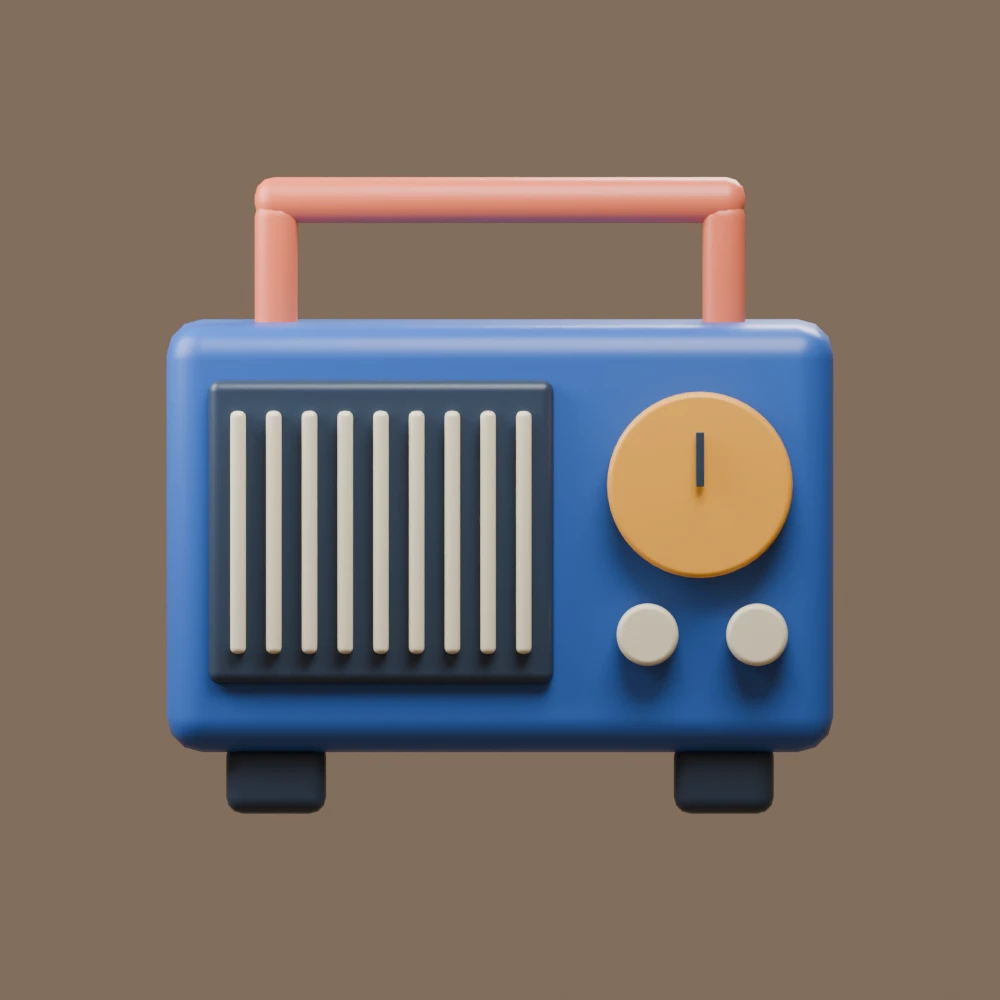
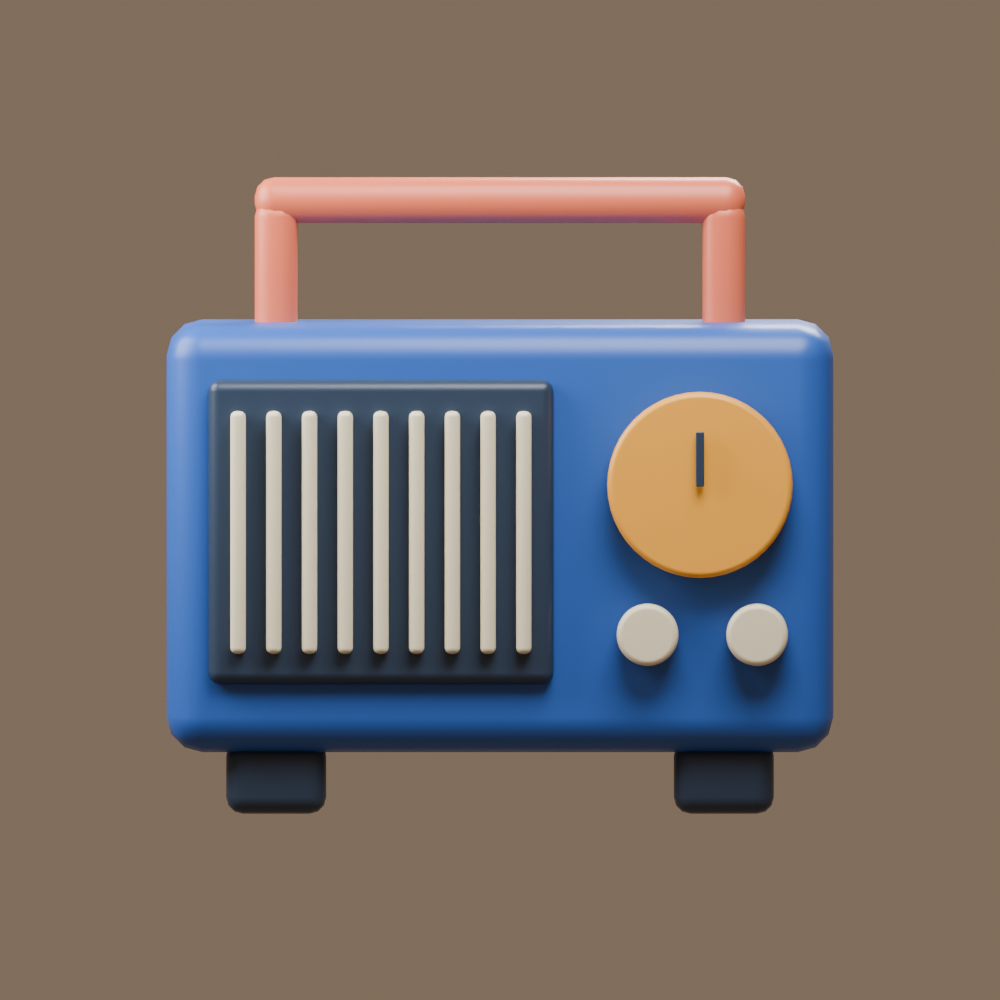
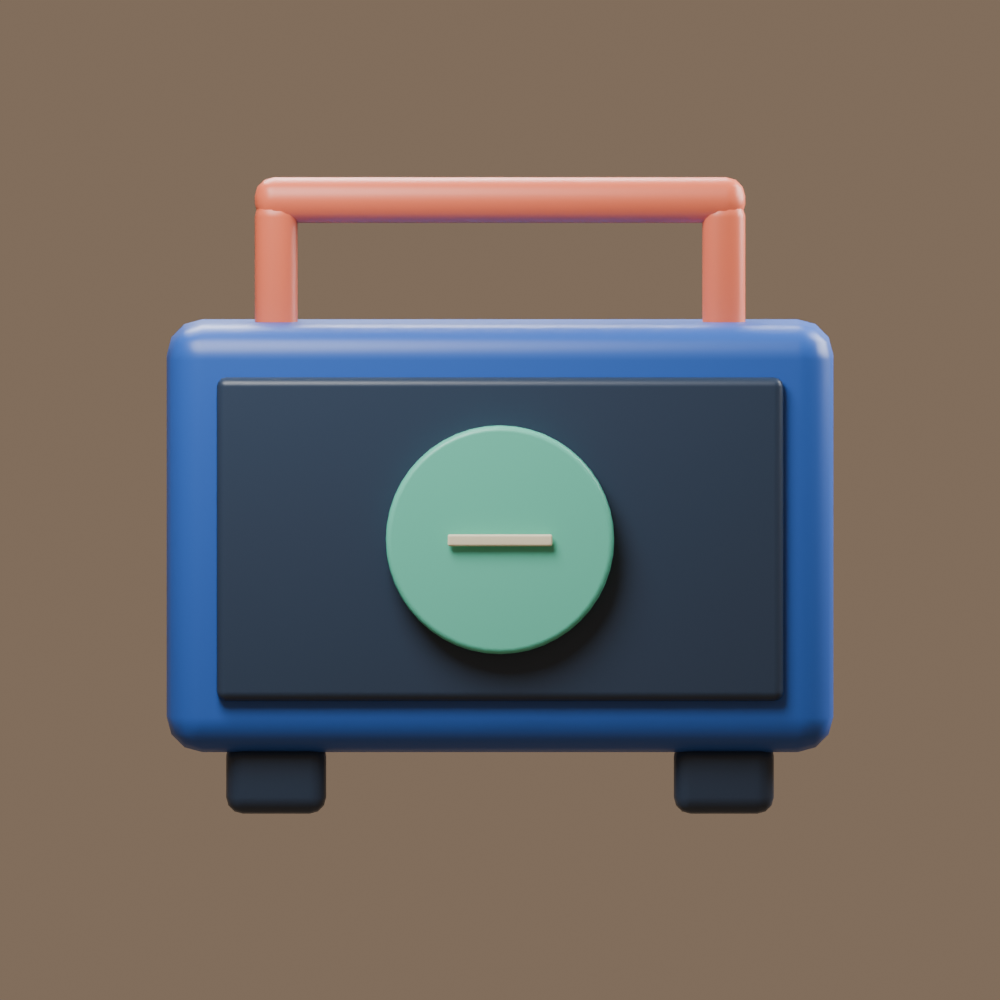
Our authored radio has a cobalt body, nine cream grille bars, an amber dial, two cream controls and a coral handle. The front view communicates those cues clearly. It gives no direct view of the mint circular cap or the cream slot on the back.
A model generated from one image still needs to supply surfaces that image does not show. If a hidden feature matters to your brief, give it a clear reference or describe it explicitly in a supported workflow. This is a planning decision, not a claim that supplying extra photos guarantees exact geometry.
Use additional views to communicate the same object
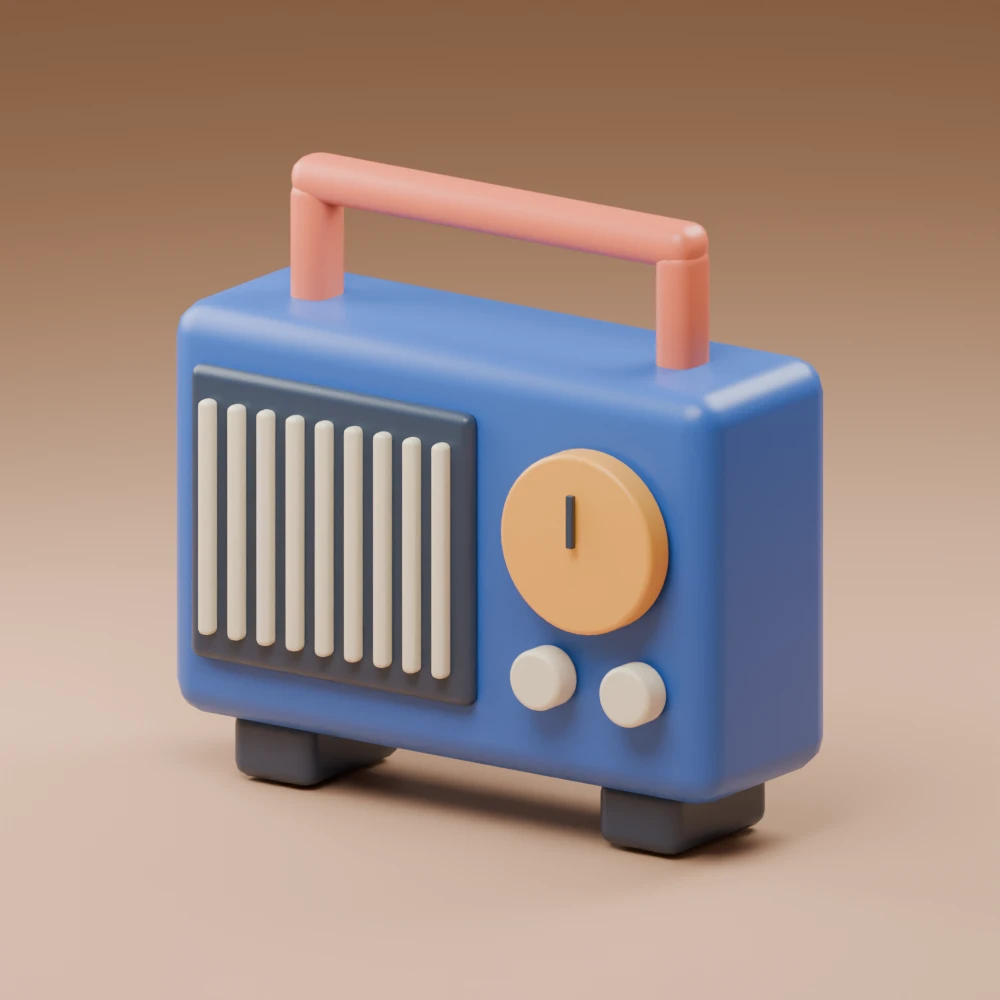
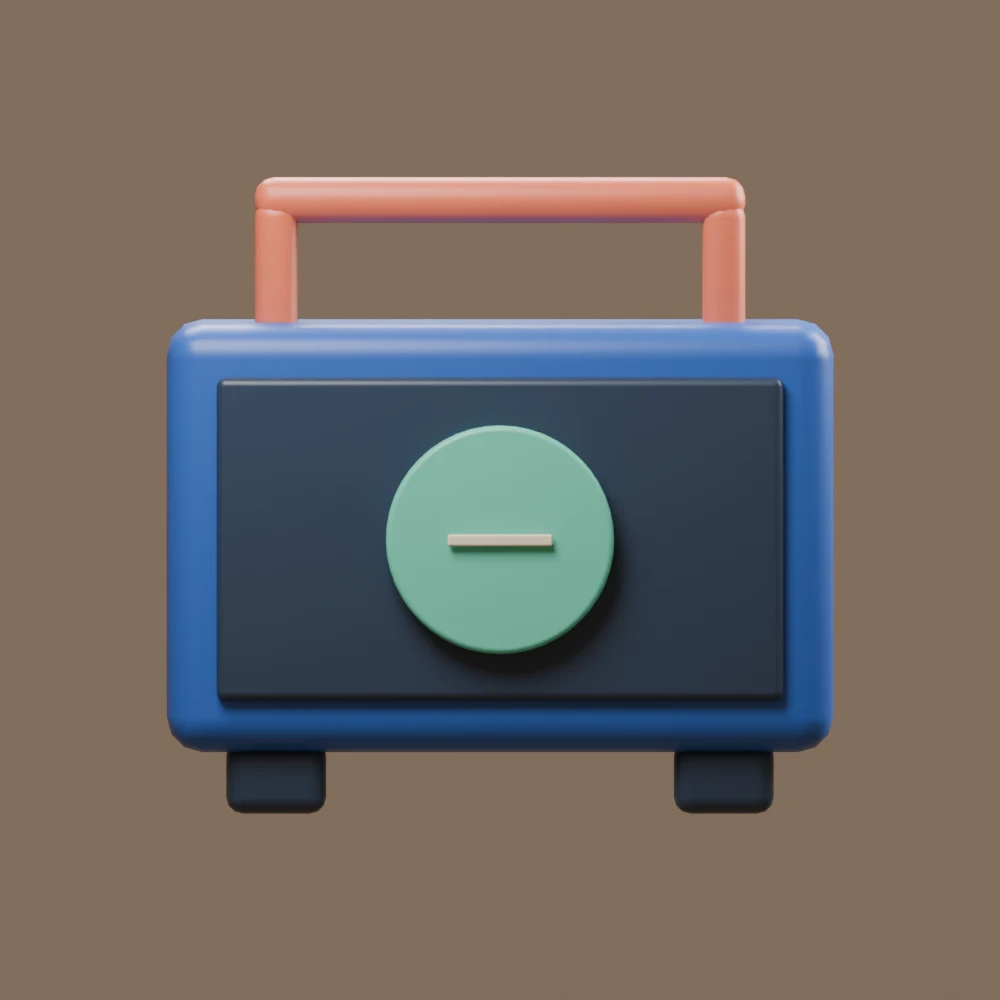
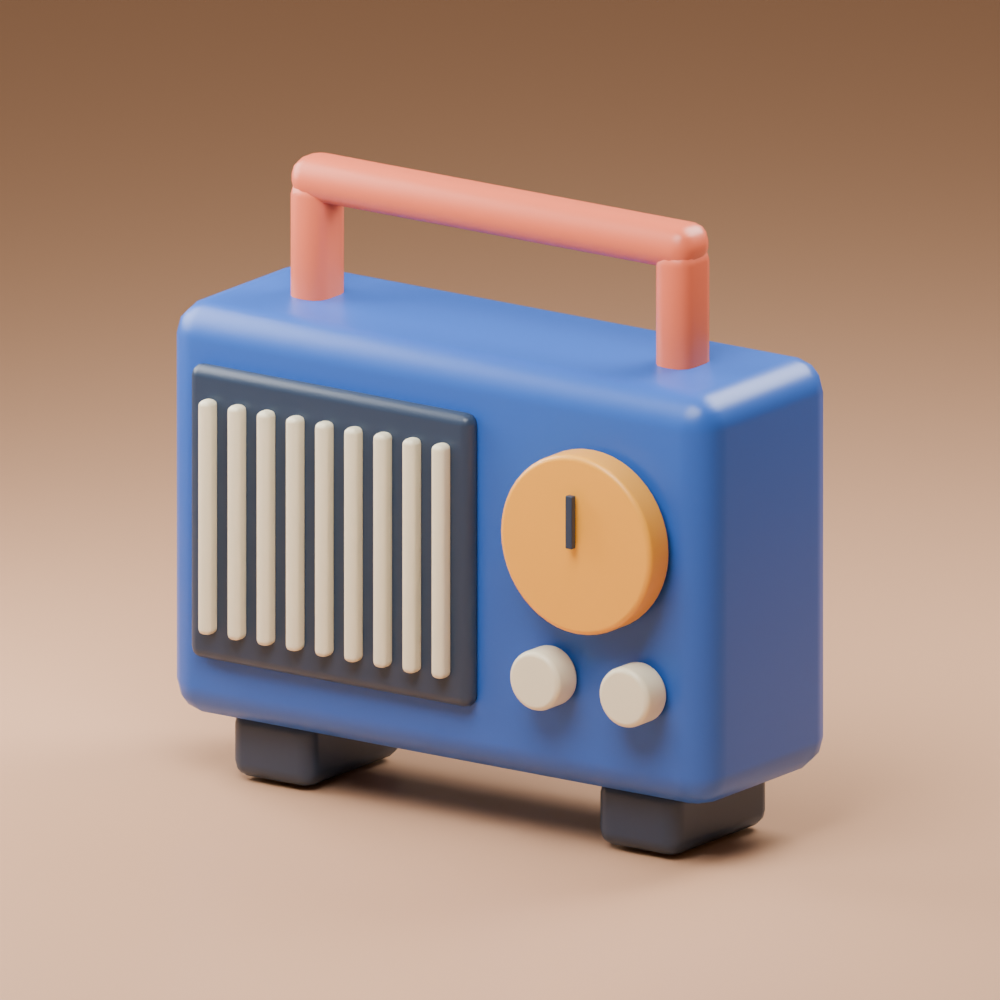
These views come from one Blender scene and one prop. They do not represent separate AI generations. That makes the geometric relationship known: the rear cap is actually present in the downloadable model even though it is hidden in the front render.
Use this as an input-coverage exercise. Match the handle, case and feet across the views, then identify the extra information the rear provides. The direct views have a plain background; the three-quarter view includes a studio floor excluded from the GLB. Lighting and camera presentation are not part of the exported object.
Write a brief with fixed shape cues and a destination
Create a stylized portable radio prop for a small environment scene. Use the approved reference views for a cobalt case, coral handle, nine cream grille bars, one amber front dial and two cream controls. Retain the mint circular rear access cap with its cream horizontal slot. Keep the object separate from the studio background. Before generating, identify the selected model, supported reference inputs, intended export and charge. After completion, provide the actual model file for inspection.
This is an original proposed brief, not an executed Rodin request or an API body. It distinguishes the object from presentation elements and names a rear detail that the front view cannot communicate. Adapt it to the controls the selected tool actually supports.
For a product with exact measurements or mechanical requirements, preserve those requirements separately. A visual reference and prose do not establish a dimensional drawing. Our radio is a fictional scene prop with no working electronics or measured physical product scale.
Download and inspect the native radio GLB
Download the original radio GLB and use the local checker above to read its container metadata. It is 309424 bytes and declares 23 meshes, six materials, zero images and 6628 triangles, with no external resource references. The zero-image count reflects constant material colors rather than a demonstrated textured reconstruction.
The separate Blender import review records an actual import: 23 mesh objects, 8281 vertices, 6628 triangles and six materials. These are counts for this authored file, not Rodin output statistics or a performance benchmark.
The checker reads GLB structure and declared counts locally. It does not render the object, inspect every accessor value or prove topology, UVs, dimensions, licensing or production readiness. A successful metadata report is a starting point for opening the model in your actual 3D application.
Review geometry after the preview looks good
Rotate to the back and underside. Inspect the cap, slot, feet, handle connections and surfaces hidden behind the front grille. Then inspect the object list and materials. Our model uses separate overlapping parts, so it is not a unified watertight print mesh. The same six-color material scheme that makes the fixture easy to read does not test an image-texture pipeline.
Try the asset in the destination scene before deciding whether it fits. A triangle count alone does not determine runtime cost; materials, draw calls, textures, lighting and the surrounding scene also matter. This guide did not run a game engine or record frame-rate results.
For the broader distinction between images, surfaces and editable geometry, continue with the 3D reconstruction guide. For another model-specific workflow and the original lamp metadata example, use the Hunyuan 3D workflow.
Keep the Hyper3D website and hosted API route distinct
The fal Rodin API page documents a generic Rodin endpoint with image or prompt inputs and mesh/texture results. That listing does not by itself establish parity with the current Hyper3D website’s Gen-2.5 selection. We did not submit a job through either route.
When building an integration, record the exact endpoint and schema you use. Keep the accepted request identifier and inspect that request before retrying after a local timeout. A price on one endpoint should not become a universal price for another route or account. No current account-specific price is quoted here.
Download the reference and source review pack
Get the native front PNG, three-quarter PNG and rear PNG, plus the Blender scene. The source archive contains the procedural authoring script and run instructions. It recreates the authored fixture; it does not call Rodin or generate a new provider asset.
The filled review CSV, container report, source hashes and reproduction record keep the evidence inspectable. With the same local Blender version, the repeated export matched GLB bytes and decoded render pixels. PNG metadata differed. Other versions or render environments may differ.
If your next task is generating a concept image before 3D work, explore Clout Image and Video and keep the approved visual reference with your brief. This guide does not claim Clout hosts the Rodin model or that an image download is a mesh export.