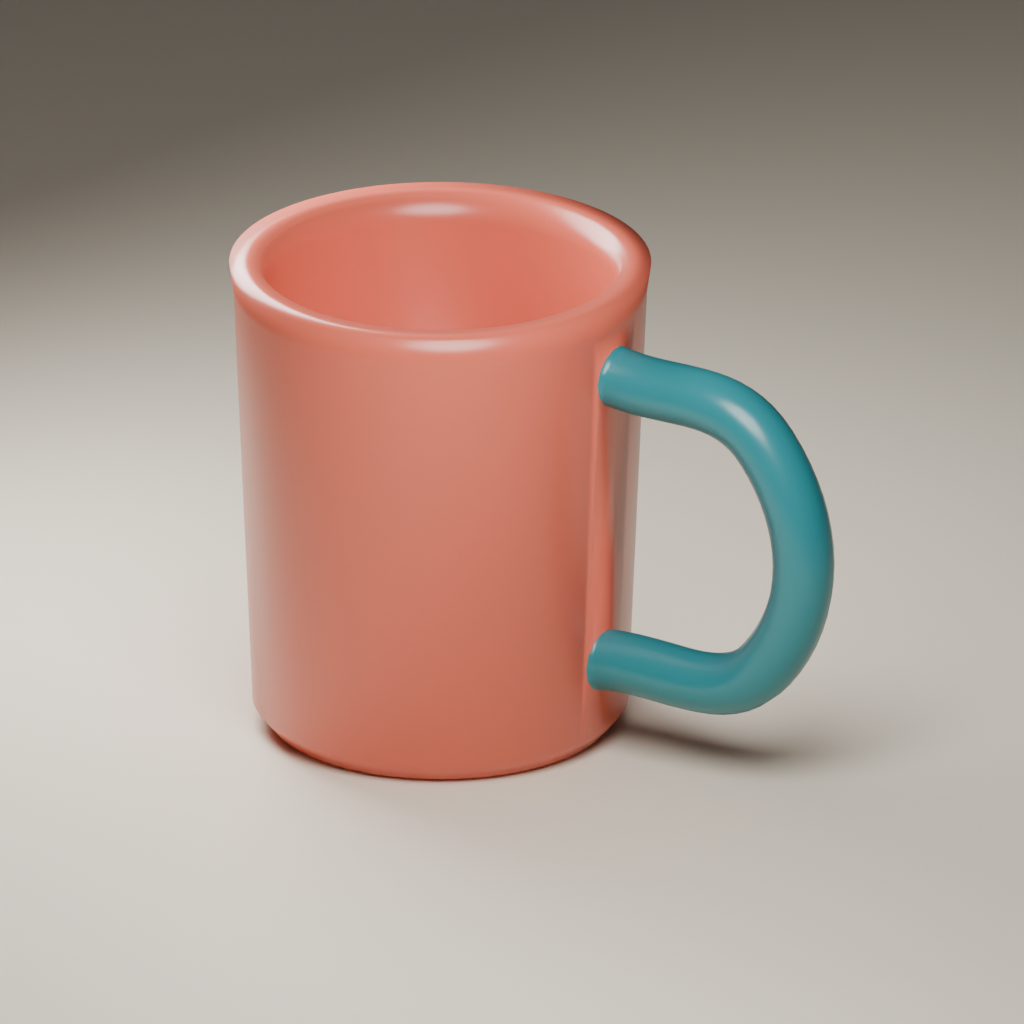
Hitem3D searches currently lead to a platform presented as Hi3D. The hitem3d.ai homepage uses Hi3D branding and describes image-to-3D creation, texturing and downstream model workflows. Start from the official site for access, then decide whether your deliverable needs editable geometry, materials or a geometry-only export.
This independent guide uses an original cup to practice that review. Download its Blender scene, GLB, STL, three views and actual local audit records. The cup was authored in Blender, not generated or refined by Hi3D. Its files demonstrate a view-and-export inspection process rather than provider quality or physical printability.
Separate the platform from similarly named research
The commercial website and its API overview describe image and multi-view generation, staged geometry and texture workflows, and all-in-one output. Those task choices are different from running a local refinement repository.
The official Hi3D v1.0 repository describes high-resolution geometry refinement using a coarse mesh and a reference image. It documents a Linux/NVIDIA stack and no CPU inference path. We have not installed those weights or run inference. Its version number should not be treated as the current hosted platform’s task specification.
Other research projects also use similar Hi3D names. Confirm the organization, repository and task before copying instructions. A search match is not enough to establish that a paper, an open refiner and a hosted generation service share the same inputs or capabilities.
Choose the deliverable before generating
The API overview lists geometry-only, staged geometry-then-texture and combined geometry-plus-texture options for its image and multi-view tasks. It also lists formats including OBJ, GLB, STL, FBX, USDZ and 3MF for those tasks. Check the selected operation and account rather than assuming every export button is available everywhere.
| Intended use | File to inspect | Important review |
|---|---|---|
| Material-aware scene asset | GLB or another supported scene format | Geometry materials scale and importer behavior |
| Geometry-only handoff | STL or another supported mesh format | Units closed surfaces and downstream requirements |
| Further native editing | Editable project or imported mesh | Topology organization and controllable changes |
| A rendered campaign image | Final image plus source asset | Camera lighting framing and delivery dimensions |
For a first test, choose one original object with a few visible structural requirements. A handle opening, an interior cavity and a closed base make our cup more useful than a featureless solid sphere. Each requires a different view or inspection.
Inspect one object from three directions
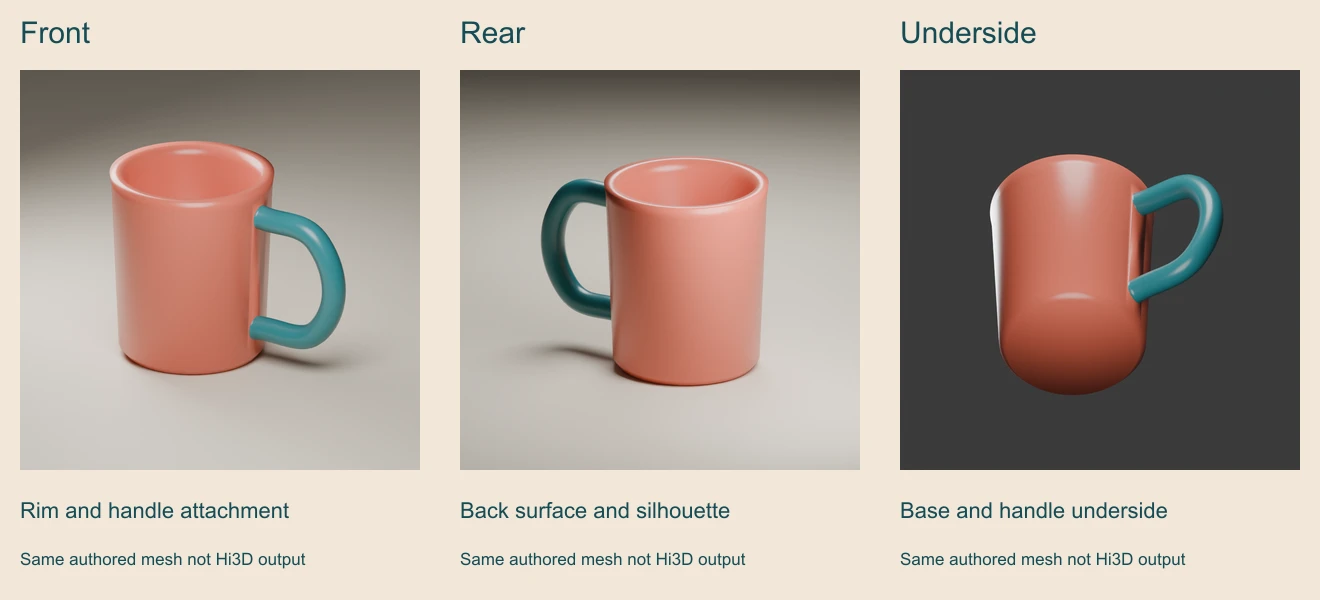
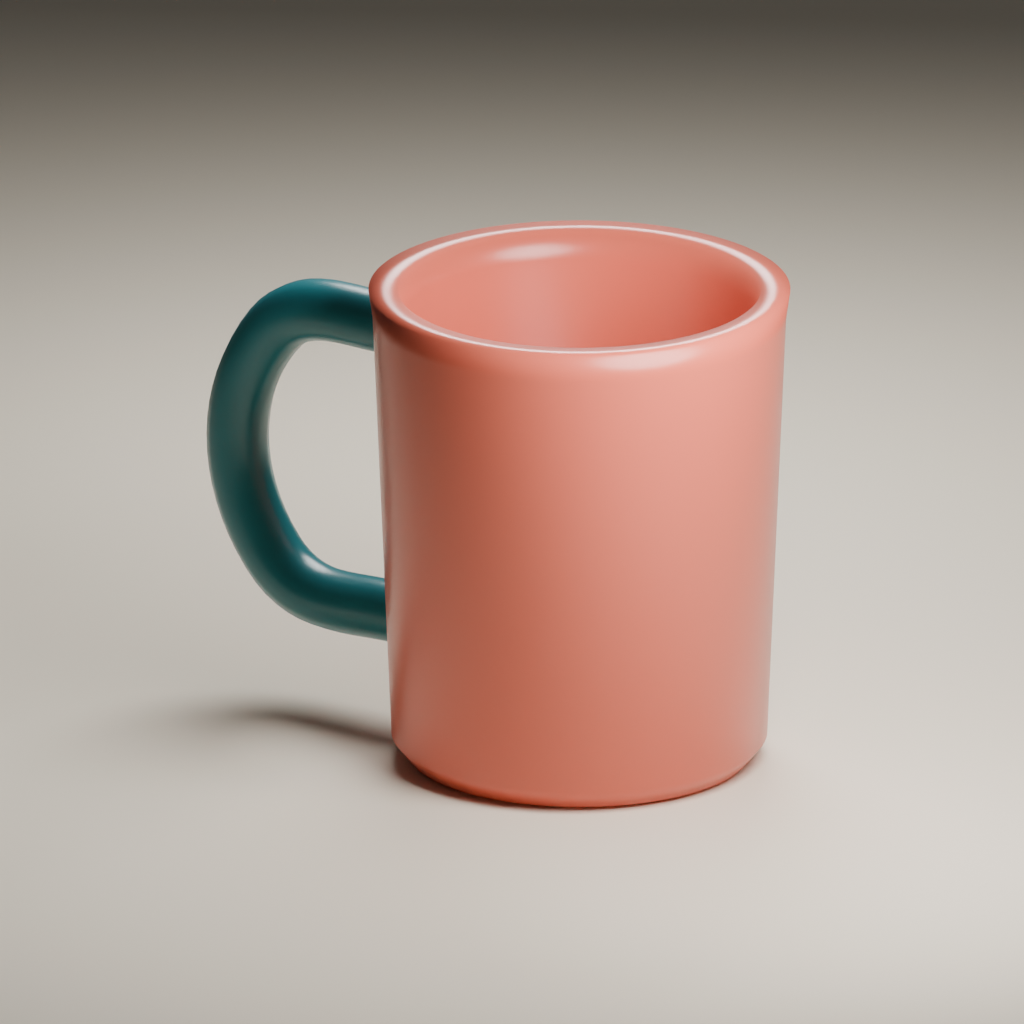
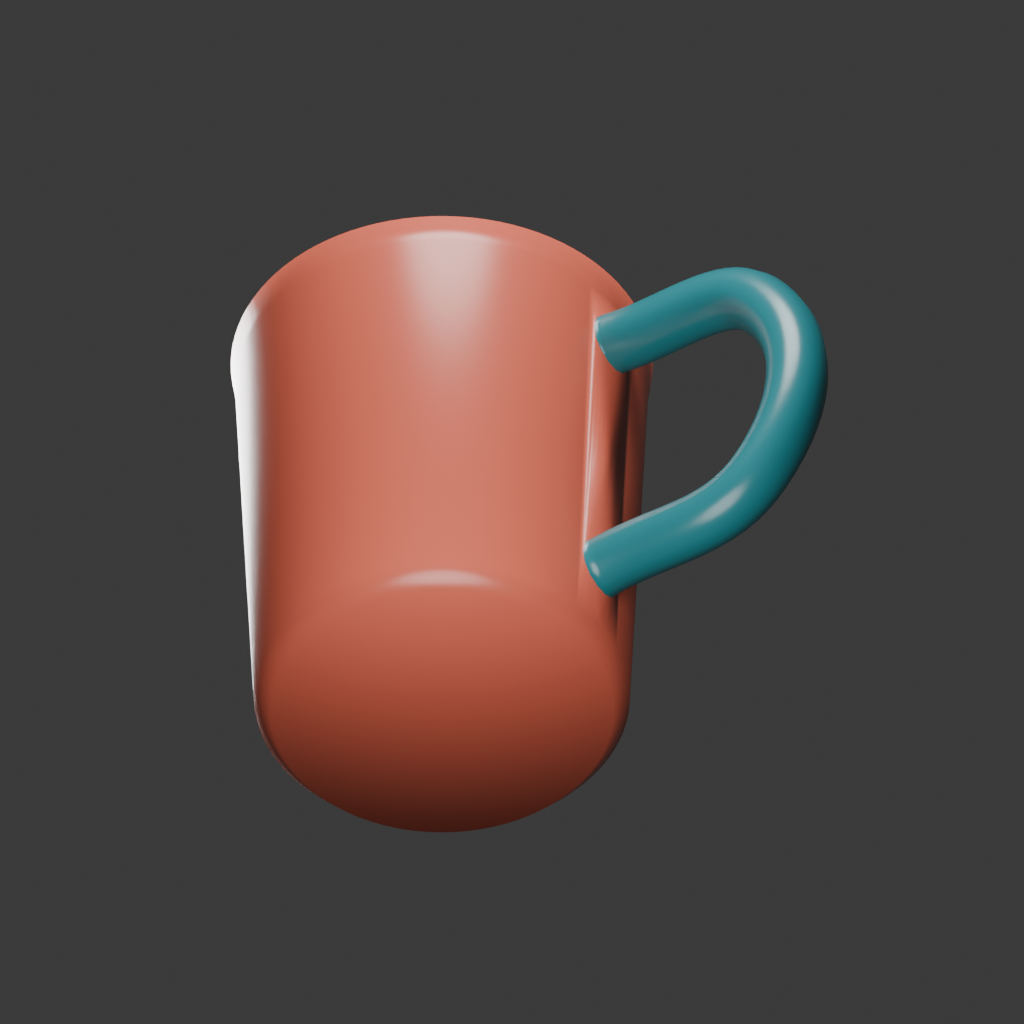
The front view shows the open rim, interior and handle. The rear view changes which body surface and handle attachment you can see. The underside view exposes the closed base and lower handle region.
All three were rendered from the same geometry. They are not three independently generated images that merely resemble each other. That distinction matters when preparing multi-view references: contradictory drawings can ask a reconstruction system to satisfy incompatible shapes.
A front picture cannot establish the unseen back or underside. If you test a generated model, rotate the actual exported asset and compare the silhouette, openings and attachments. Plausible completion is different from proving the hidden surface matches a real object.
Open the original GLB and STL
Download the original cup GLB and STL. The supplied GLB retains coral ceramic and teal handle materials. The STL contains the exported geometry without those materials. Both were re-imported in Blender for the checks recorded below.
The native fixture uses abstract coordinate units. An STL does not, by itself, settle which physical units your next application should apply. Set and inspect scale in the actual destination. Our download is an inspection object, not a tested drinking vessel or a print-ready product.
For scene work, examine how the destination imports materials, orientation and scale. A successful import into one version of Blender does not establish game-engine compatibility, runtime performance or acceptance by a manufacturing workflow.
Read the topology audit for what it proves
The native mesh audit reports 1,380 vertices, 1,448 polygons and 2,760 triangles, with one connected component, zero boundary edges and zero non-manifold edges. These are measured properties of this authored fixture.
The export check reports one imported mesh object and 2,760 triangles in each file. Both imports had zero boundary and non-manifold edges. The GLB check explicitly enabled vertex merging during import; the record names that choice instead of silently assuming every importer produces the same topology.
| Observed check | What it helps establish | What remains separate |
|---|---|---|
| One native connected component | The fixture is not a set of disconnected parts | Whether its shape is suitable for your use |
| No boundary edges | No open edge boundary in the inspected mesh | Self-intersections and material strength |
| Known triangle count | A measurable export size characteristic | Game performance or geometric fidelity |
| Two GLB materials | Color material assignments survive this import | Lighting appearance in another renderer |
| Matching exported bounds | The tested imports retain these coordinate dimensions | Validated physical scale |
These checks are useful without becoming a universal quality score. A closed mesh can still contain self-intersections, unsuitable wall thickness or an impractical shape. We did not run a slicer, wall-strength analysis or a physical printer test.
Keep resolution labels separate from delivery evidence
The official API overview uses model-specific resolution labels, including cubic-resolution notation. That label is not the same quantity as the final mesh’s triangle count, a texture image’s dimensions or a measured printing tolerance. Record the actual model version and selected task alongside the downloaded files.
Compare results using the same approved reference and intended output. A denser mesh may contain more triangles without resolving the particular handle or cavity defect you care about. Review the object first, then decide whether its geometry and export suit the destination.
The native cup also shows visible shading transitions around the handle junction. A clean topology count does not make every surface aesthetically perfect. Keep a concrete visual note in the filled inspection review rather than hiding a visible issue behind a passing count.
Use a short reference brief and an explicit review
Create one hollow cup with a coral body, teal loop handle, open rim and closed base. Preserve the visible handle opening and two body attachments. Keep the interior separate from the outer surface. Use the supplied views only for their matching geometry and material direction. Return a format suitable for inspection in the selected destination.
This is an original planning brief, not an executed Hi3D request or a universal API schema. The required fields depend on whether you use image-to-3D, multi-view generation or a coarse-mesh refinement route. Keep the exact reference files with the actual job record when you test a service.
Review an accepted model before texturing or creating a larger set. If the handle is closed over, name that structural failure before spending time polishing its surface. If the geometry is suitable but the material is wrong, treat that as a different revision.
Rebuild the scene and inspect the exports
The editable source kit includes the Blender scene, modeling and render source, import-check source, views, exports, audit records and delivery record. The scripts author and inspect this fixture without calling Hi3D.
Run the modeling script in Blender background mode, passing an output folder after --, then run the export-check script against that folder. The supplied records identify the Blender version used. The separate layout source rebuilds the contact sheet and view map with Sharp 0.34.5. See the included README for exact commands and reproduction limits.
For another asset pipeline, use the Hunyuan 3D workflow or Trellis 2 guide. For a separate visual brief and rendered content workflow, explore Clout Image and Video and check the current model catalog. Provider accounts and native mesh-generation tools remain separate choices.