Ideogram Vector creates SVG artwork from a prompt or an existing image. The useful question is what you can change after exporting. A scalable outline, editable colors, live lettering and a clean handoff are different requirements. Decide which ones your project needs before generating a candidate.
This guide covers the Ideogram Vector workflow and a practical export review. Our downloadable citrus sticker exercise contains original hand-authored SVG files. It demonstrates structural inspection and recoloring; it is not an Ideogram generation or a model-quality comparison. For a broader introduction and the local file inspector, use our AI SVG generator guide.
What Ideogram Vector does
The official Ideogram Vector page describes prompt and image inputs with scalable, editable SVG output. Its examples include illustration, logos, stickers and print graphics. Shape editing and color adjustment are useful when the next task is a design revision rather than another flattened picture.
Start with a deliverable: a sticker, a small icon, a label illustration or another graphic with a clear production purpose. Keep a photographic campaign image and its editable graphic master as separate files. Our Ideogram image editing guide covers a different workflow for changes to an existing raster image.
Choose text to vector or image to vector
Use a text brief when you need a new graphic direction. Use an image reference when you already have artwork whose silhouette or arrangement matters. In either case, preserve the original reference and record what must survive the conversion. A photograph contains texture and light that may need simplification rather than literal tracing.
| Starting point | Useful brief | Review after export |
|---|---|---|
| New sticker concept | Subject, silhouette, palette and intended size | Recognisable form and individually selectable parts |
| Existing flat artwork | Preserve arrangement and important negative spaces | Missing details, joins and shape complexity |
| Graphic with lettering | Exact spelling and required editing workflow | Live text versus outlined lettering and font availability |
| Photo reference | Prioritise the defining shape over tiny texture | Whether simplification still represents the subject |
Do not treat a longer prompt as a substitute for a concrete brief. Name the object, identify its defining parts and specify which details can disappear at small sizes. A tiny sticker needs a different amount of detail from a large editorial illustration.
Write an Ideogram Vector prompt around the final asset
Here is an original proposed brief for a fictional citrus sticker. It has not been submitted to Ideogram and is not the request that created our authored SVG exercise.
Create a clean flat citrus sticker illustration with one round orange fruit, two separate dark green leaves and a short stem. Use solid coral orange, deep green and pale cream. Preserve generous negative space and a recognisable silhouette at small sizes. No photographic texture, background objects, gradients or lettering. Deliver editable SVG artwork with distinct fruit and leaf shapes.
Leaving lettering out of the first pass makes it easier to evaluate the illustration. Add approved type separately when exact copy or a specific font is essential. The downloadable brief includes a reference-led variation and an export review checklist. These are proposed requests, not evidence that a model follows every instruction.
Inspect our original editable SVG examples
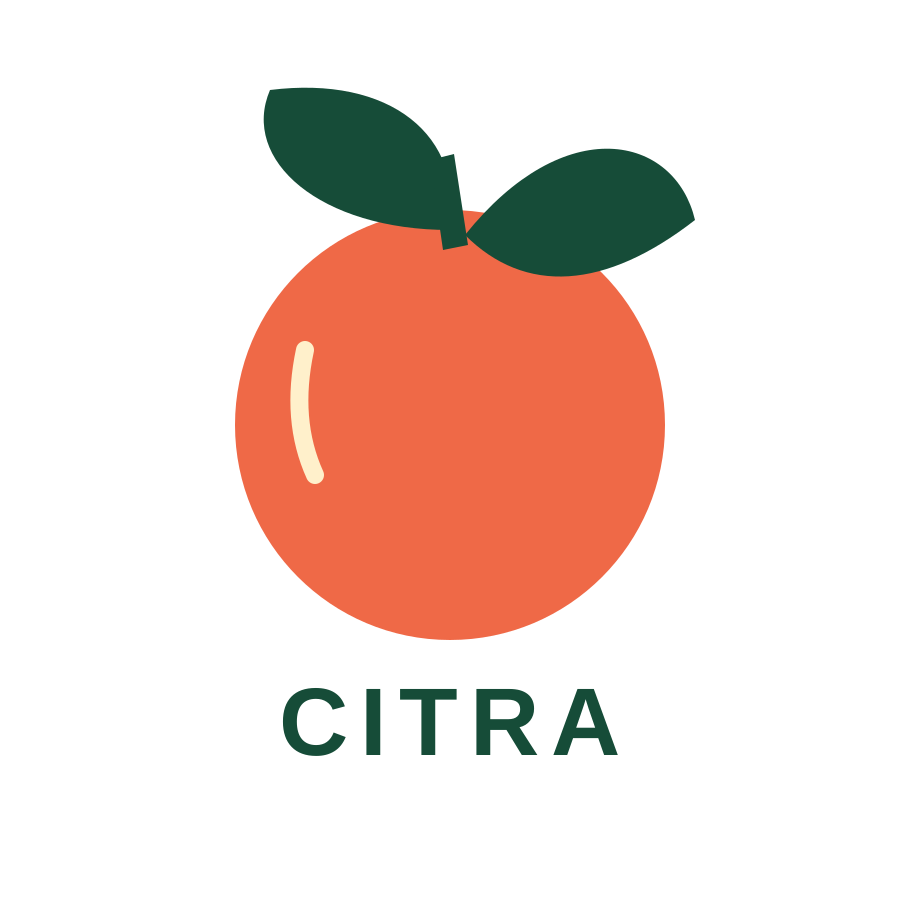
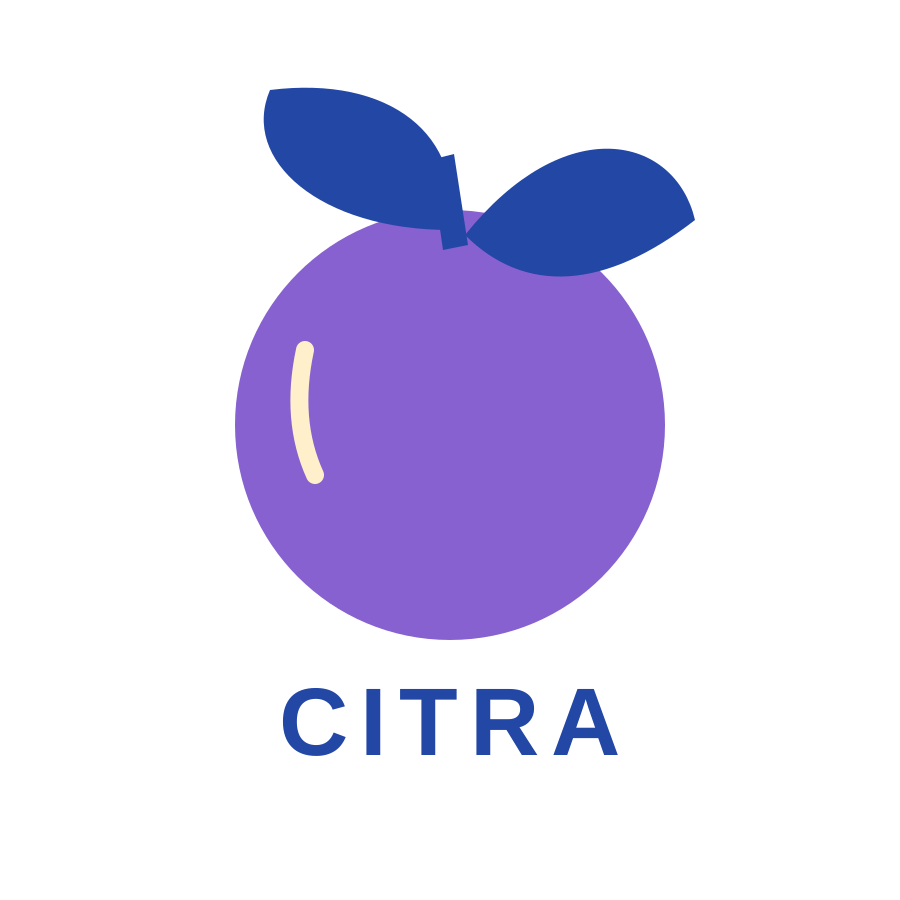
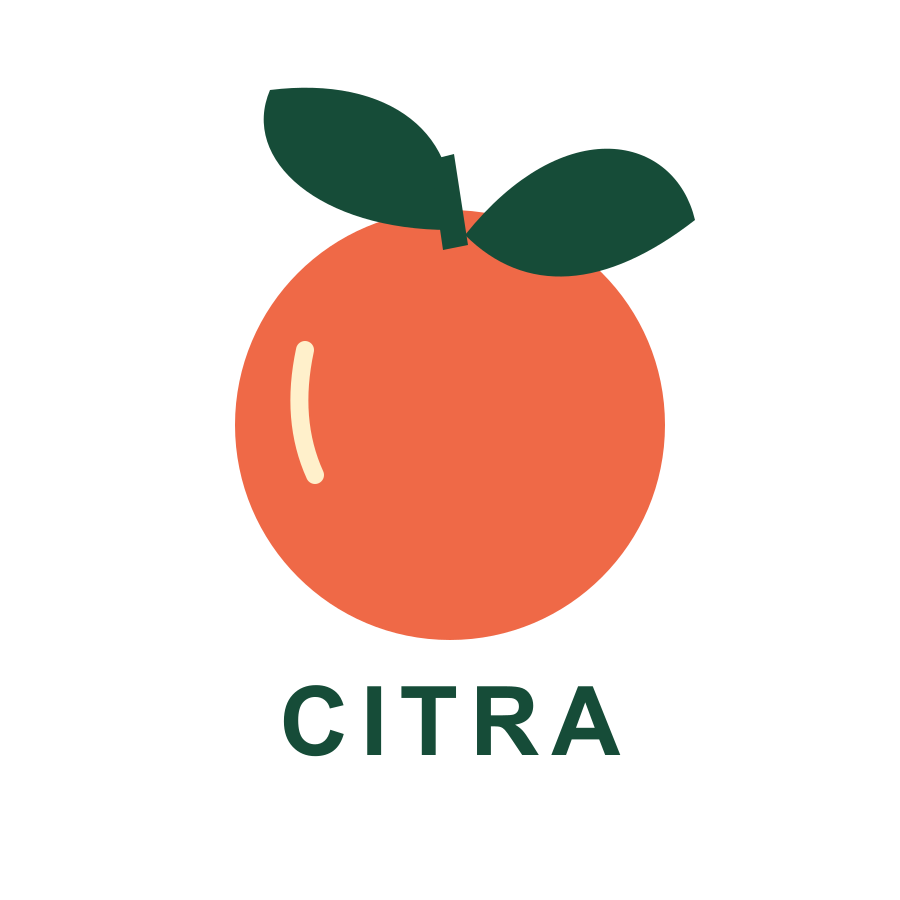
The three examples below share one authored illustration. The second changes only palette values. The third wraps a PNG of the original in an SVG container. All three can look convincing at ordinary viewing size, but they provide different editing possibilities.
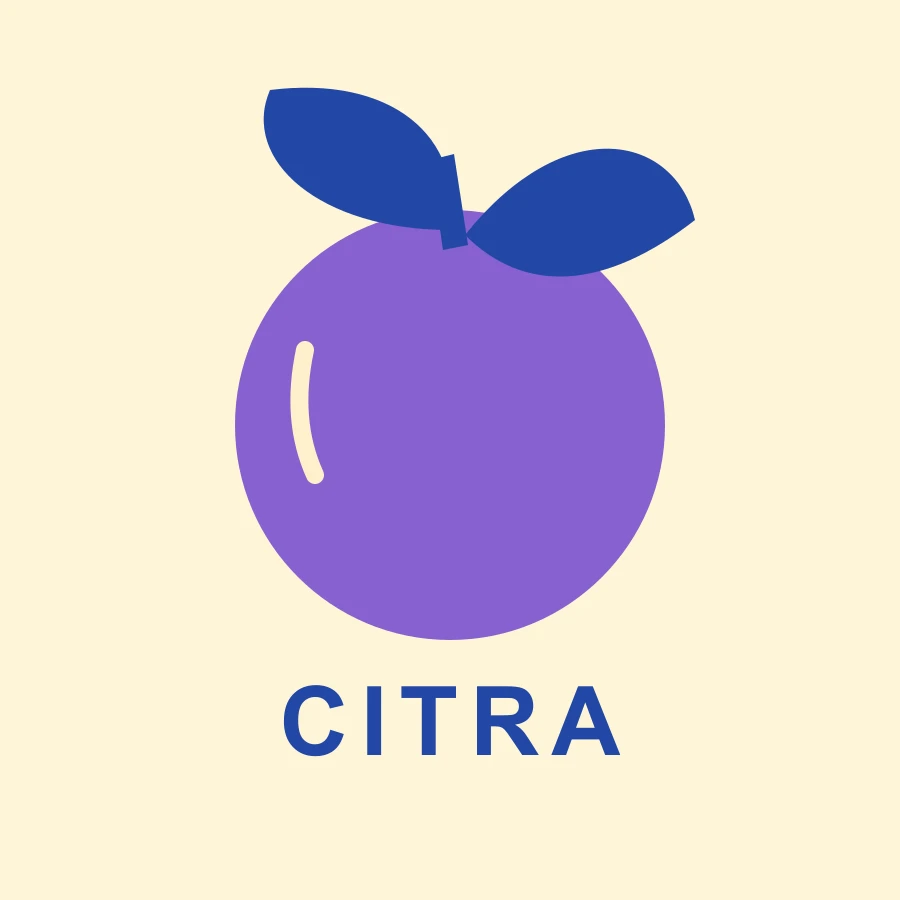
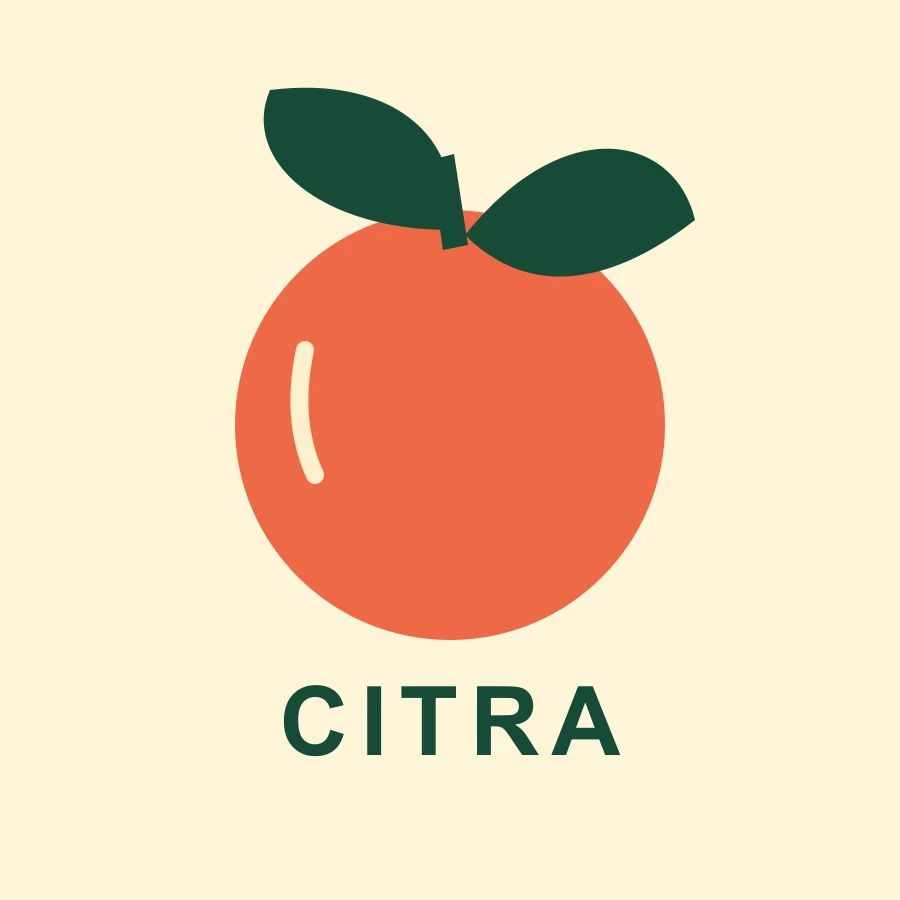
Download the original editable SVG, recolored SVG and raster-wrapper SVG. The files have a 900 by 900 viewBox. The source record contains actual element counts and the palette-only comparison result.
These small files are teaching examples. They do not establish how many paths Ideogram produces, whether its lettering remains live, or how it handles difficult photographic references. Their deliberately simple structure makes the distinction inspectable.
Recolor the vector without changing its silhouette
- Save a copy of the original SVG before editing.
- Open it in a vector editor that supports SVG or inspect its source in a text editor.
- Find the fruit group and replace its coral fill value
#ef6947with violet#8761cf. - Replace the dark green value
#164c38with cobalt#2247a5for the leaves, stem and lettering. - Keep every coordinate, path definition, text string and viewBox unchanged.
- Export a sibling file and compare it with the supplied recolored example.
The palette edit is deterministic: it changes two color tokens rather than regenerating the scene. Both SVGs retain the same geometry and the word CITRA. The example uses a generic sans-serif font stack, so letter shapes can differ across systems even when the text remains live. That is a handoff issue to resolve before final approval.
Check paths and embedded images before delivery
Open the local SVG export inspector and try its built-in example, or select one of the downloaded exercise files. It reads declared dimensions and counts geometry, text and image references locally. It does not upload the artwork or certify that a file is safe or easy to edit.
The original and recolored files contain five geometry elements, one live text element and no image elements. The wrapper contains one embedded PNG image and no geometry or live text. Changing a wrapper's dimensions can scale its placement; it cannot recover the fruit and leaf paths that were flattened into pixels.
Use structural counts as a first check, then inspect the visual result in your actual editor. A file can contain many paths yet remain inconvenient because of excessive points or a fragmented silhouette. Conversely, a deliberate embedded photograph may be valid for a mixed-media composition. The requirement comes from the brief.
Keep live text and outlined lettering distinct
Live SVG text can be edited as characters, provided the editor supports it and an appropriate font is available. Outlined lettering is geometry: you can manipulate shapes, but ordinary text replacement may require rebuilding the word. A bitmap of lettering provides neither kind of character-level editing.
For exact packaging copy, keep a separate copy deck and check spelling at final size. If you outline type for production, retain an editable master with the original text and font information. Our CITRA exercise keeps live text so you can inspect that distinction; it is not a claim about Ideogram's exported typography.
What the official Vector API exposes
The official Generate SVG reference documents an asynchronous prompt-based endpoint with optional image references, quality and aspect-ratio controls. It returns a generation identifier rather than an immediate finished file. Its dry-run option validates and prices a request without generating or billing it.
The separate Vectorizer reference documents image-to-SVG conversion with simple, detailed and automatic modes. It accepts JPEG, PNG or WebP input up to 50 MB and also supports a dry-run quote. Check the current documentation and the exact interface you use before building around these options.
No API request, paid generation or vectorization job was run for this article. A hosted product's controls may differ from the native API. Save the actual request and returned SVG if you run a test, then evaluate that file instead of inferring quality from a model description.
Prepare a production handoff
Record the accepted SVG, a viewing PNG, palette, intended size, typography decision and any unresolved editor differences. Test the small placement where the artwork will appear. Look for disappearing gaps, thin strokes and lettering that becomes unreadable. A large preview alone cannot answer those questions.
For print work, agree on dimensions, color handling and cutting requirements with the receiving supplier. A visually clean SVG is not a print-production certificate. For web use, serve a reviewed asset through your normal pipeline and verify its rendering in the actual page.
You can use approved artwork as a reference when developing campaign imagery in Clout Marketing Studio. Check the chosen workflow's supported inputs and quote. This guide does not claim that Clout directly generates Ideogram vectors or preserves editable paths through a raster image workflow.
Download the editable exercise and review sheet
The complete SVG exercise pack contains the authored SVGs, viewing images, palette edits, proposed prompts, a blank review CSV and dated structural observations. The printable comparison embeds the three viewing images for offline review. Its captions identify which file is the bitmap wrapper.
Use the blank export review sheet to record your own actual result. Check geometry, image references, text behavior, palette editing, small-size legibility and editor compatibility. Acceptance fields start empty; downloading the sheet does not imply that an Ideogram output has passed those checks.