
What Boords Does and Does Not Do
Creators entering generative video production often run into unexpected credit waste when jumping straight from a text prompt into video rendering engines. Without a locked pacing structure, generated clips frequently have incorrect durations, inconsistent angles, or awkward scene transitions. Boords addresses this specific pre-production phase by combining scriptwriting, AI still generation, and timeline animatic playback.
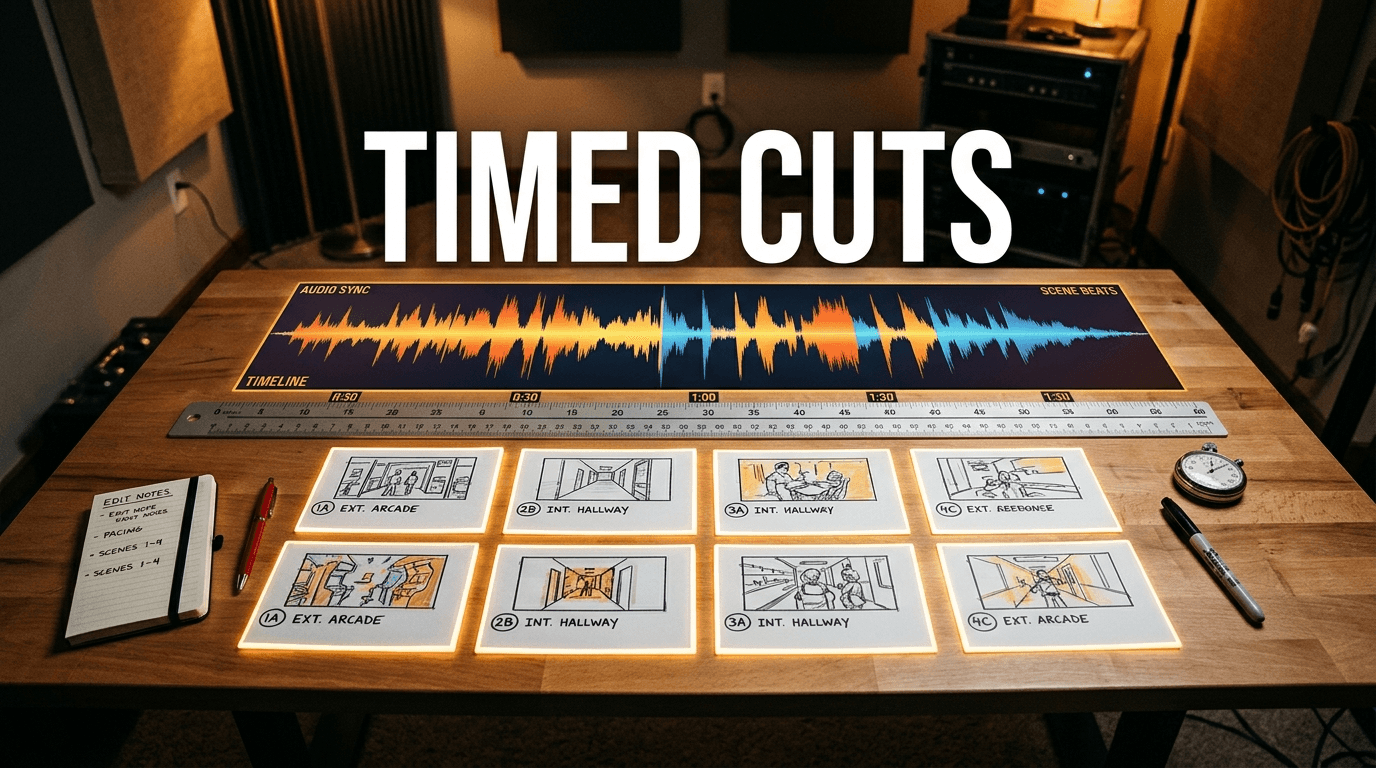
It is critical to distinguish an animatic from generative video rendering. Boords does not render synthetic camera movement, frame interpolation, physics simulations, or character lip-sync. Instead, it creates a traditional animatic or Leica reel: static storyboard panels held over discrete time intervals and played back in synchronization with voiceover, sound effects, or background audio.
Core Pipeline from AV Script to Timed Animatic
Executing an effective pre-production pass with Boords involves five connected stages. This workflow keeps narrative intent, visual framing, and spoken timing locked before downstream image-to-video rendering or animation handoffs take place.
- Script drafting and duration calculation: Write dialogue and visual cues inside the two-column audiovisual (AV) editor, using the built-in reading speed estimator (defaulting to 130 words per minute) to project target scene runtimes.
- Audio track integration: Record a scratch voiceover or export an external voice track and upload the sound file into the project, respecting the documented 20 MB file size limit.
- Keyframe prompt engineering and framing controls: Populate frames by choosing an exact camera preset from the Shot type dropdown (such as Close up, Mid shot, Wide shot, From below, From above, or Aerial) when starting without references, and write descriptive prompts to establish the scene layout.
- Reference tagging for visual continuity: When maintaining subject or character continuity across successive panels, attach reference images or mention an earlier frame. Because Boords disables the Shot type selector whenever reference images are attached, specify the camera angle directly within the natural-language prompt.
- Timeline alignment and subtitle check: Switch into Animatic Mode, pull frame duration handles along the audio waveform to align cuts with vocal cues, and verify on-screen subtitles pulled from the frame dialogue boxes.
Planning and Inspection Matrix for Storyboard Panels
Before committing storyboard panels to client review or passing them into downstream video tools, use structured inspection criteria to evaluate whether each frame achieves its narrative purpose.
| Production Phase | Key Decision Factor | Inspection Criteria | Downstream Impact |
|---|---|---|---|
| AV Scripting | Pacing vs spoken word count | Ensure dialogue blocks fit estimated reading intervals without requiring unnatural speech velocity | Prevents compressed audio tracks and rushed animatic sequences |
| Panel Staging | Camera angle selection | Confirm alternating shot types (e.g., establishing wide shot to over-the-shoulder medium shot) | Prevents visual monotony and establishes clear spatial geography |
| Subject Consistency | Reference anchor tagging | Inspect secondary frames against the baseline reference frame for recognizable character markers | Reduces stylistic variance before external image-to-video processing |
| Animatic Trimming | Waveform beat alignment | Verify panel transitions cut on natural audio pauses or sound effect spikes rather than mid-word | Creates a professional Leica reel that accurately guides non-linear editing |
| Export Hand-off | Project delivery format | Determine whether the team requires standalone MP4 preview files or layered XML/JSX timelines | Ensures timing and frame metadata transfer seamlessly into Premiere, Resolve, or After Effects |
Detailed Production Prompt Brief
The following hypothetical planning brief illustrates how to structure a scene sequence inside Boords using documented UI controls. Note that the Shot type selector is utilized on standalone frames, while reference-anchored frames convey camera distance and perspective directly in the prompt text.
Project Concept: Architectural Tech Launch Teaser (Hypothetical Planning Example) Frame 01 (Establishing Baseline): Shot Preset: Aerial Reference Images: None Visual Prompt: High-angle exterior of a modernist glass laboratory situated in a pine forest at blue hour, minimalist geometric architecture, warm interior illumination glowing through expansive floor-to-ceiling windows, subtle ground mist, cinematic lighting, architectural photography style. AV Dialogue: 'Innovation requires stepping beyond familiar boundaries.' Target Duration: 3.5 seconds. Frame 02 (Subject Introduction): Shot Preset: None (UI selector disabled due to attached reference) Reference: @Frame 1 Visual Prompt: Show a mid shot from below of a senior female architectural engineer in a charcoal minimalist work coat standing on an open interior concrete balcony looking downward toward blueprints, architectural interior echoing the clean geometry of @Frame 1, soft rim light. AV Dialogue: 'Every structure begins with an unanswered question.' Target Duration: 2.8 seconds. Frame 03 (Detail Focus): Shot Preset: None (UI selector disabled due to attached reference) Reference: @Frame 2 Visual Prompt: Show a close up of a digital stylus pen resting on an illuminated drafting tablet, glowing structural schematics reflected in the brushed aluminum bezel, shallow depth of field. AV Sound Cue: Interface click and tonal hum. Target Duration: 1.7 seconds.
Common Animatic Mistakes and Troubleshooting
Working through storyboard-to-animatic workflows often introduces operational friction if teams treat the animatic as a final motion delivery rather than a timing blueprint. Watch for these common pitfalls during pre-production:
- Treating static frames as final motion: Expecting Boords to generate camera zooms, pans, or morphing between panels leads to confusion; all animated motion or transitions must be constructed downstream in editing software.
- Exceeding audio file thresholds: Attempting to upload full uncompressed master stems can trigger upload failures. Ensure your scratch voiceover or temp mix stays under the documented 20 MB audio file limit before importing into the project.
- Attempting to combine reference attachments with shot presets: In Boords, attaching reference images or tagging earlier frames disables the Shot type dropdown menu; camera framing must be written directly into the text prompt whenever reference assets are active.
- Over-prompting without reference anchors: Writing entirely detached prompts for each subsequent panel causes character wardrobe and facial shifts. Use the reference tagging system to anchor subject continuity across panels.
- Failing to review subtitle cutoffs: Ensure dialogue text entered in script fields fits within the animatic playback viewer without occluding critical visual composition points.
Downstream Handoff to Editing and AI Video Tools
Once an animatic receives director or client approval, it serves as the pacing ruler for the entire remainder of production. Boords supports exports ranging from web-shareable client URLs to timeline interchange formats like XML for Adobe Premiere Pro and DaVinci Resolve, or native JSX script packages for Adobe After Effects running at 25 frames per second.
In a modern hybrid pipeline, creators export both the timed timeline and the individual high-resolution keyframe images. Each approved keyframe can be supplied as an initial image input into downstream video generation models. However, animatic durations (such as 3.5 seconds or 2.8 seconds) represent conditional target runtimes. Because external AI video models generate clips in fixed discrete duration increments rather than arbitrary sub-second lengths, video outputs will require final trimming, rate adjustment, or extension in an NLE to lock precisely against the animatic timeline markers.


