

A video to prompt generator describes a reference clip so you can build a new shot brief. It can identify a subject, action, framing and scene direction, but that description does not reveal the exact hidden prompt that originally produced the footage. Treat the output as an interpretation to review against the clip before generating anything.
The useful result is a short instruction that preserves the structure you liked. If the joke depends on a curious animal approaching a stationary camera, keep that cause and effect. Avoid replacing the action with a long list of unrelated cinematic adjectives. Keep captions in a separate editing step so their font, placement and complete letters stay under your control.
Choose the part of the reference you want to reuse
Decide whether you want the timing, camera position, subject action or visual style. You do not need to reproduce every detail. A reference might work because it opens with an ordinary parcel, introduces an unexpected visitor and ends with a close-up. That structure can support an original scene with different characters and surroundings.
Use footage you have permission to analyze and adapt. Keep the reference file, your observation notes and the new creative brief together. For someone else's Instagram video, an accessible link is not itself evidence that you can reuse their footage, soundtrack or identity. An original concept inspired by an action pattern is a different deliverable from republishing the reference.
Describe observations before writing the prompt
Inspect the opening, middle and ending. Record what is visible at each timestamp: subject position, object interactions, framing and background. Mark uncertain details as inferences. A growing face in the frame could mean the subject approaches, the camera moves or the shot zooms. Check the background before assigning the camera instruction.
Check whether the file contains audio before asking for a transcript. Separate audible speech from a caption visible in the picture. If the footage is silent, a spoken line you add is new creative direction, not something extracted from the source. The same applies to inferred mood or intent: visible action should come first.
Use a structured analysis request
Ask the analyzer to return subject, setting, an action timeline, framing, apparent camera movement, lighting, visible text and audio availability. Require timestamps for observations and labels for inferences. Ask for a new shot brief after that analysis, rather than asking it to guess the original generation prompt or model.
Official Gemini video understanding documentation describes video analysis and timestamped questions. That provides one route for obtaining an initial description. Review the answer against the source instead of assuming a model's confident wording establishes the movement. Our example below uses measured local footage and inspected frames; we did not run a video-analysis API for it.
Describe only what is visible in this permitted clip. Return subject, setting, action timeline, framing, apparent camera movement, lighting, visible text and audio availability. Cite timestamps for observations. Mark inferences explicitly. Do not infer the original generation prompt, model or creator identity. Then propose a concise new shot brief using original subject and scene choices.
Worked example from a fictional delivery demo
Our existing fictional Clout demo is eight seconds long at 1920 by 1080 and 24 frames per second. It contains a video stream and no audio stream. At 0.5 seconds, a raccoon stands beside a taped cardboard box on a porch with a paw on top. At three seconds, it faces toward the camera. At six seconds, its face is much closer to the lens and partly obscures the parcel.
Light-colored siding, a gray porch floor, railing and warm lamp remain visible. A denser review at four sampled frames per second across the full eight seconds shows the raccoon lowering its head toward the parcel, turning toward the lens, approaching, then retreating toward the box before the clip ends. The background stays broadly stable in those samples, which supports the interpretation of a fixed camera with subject movement. Sampling does not establish a frame-perfect absence of cuts or artifacts.
The burned-in words are “Delivery is here” in bold white text with a dark outline. Those words belong in the caption notes. They should not become an instruction to generate lettering on the parcel or house. The original demo is fictional footage, not a real delivery-camera recording.
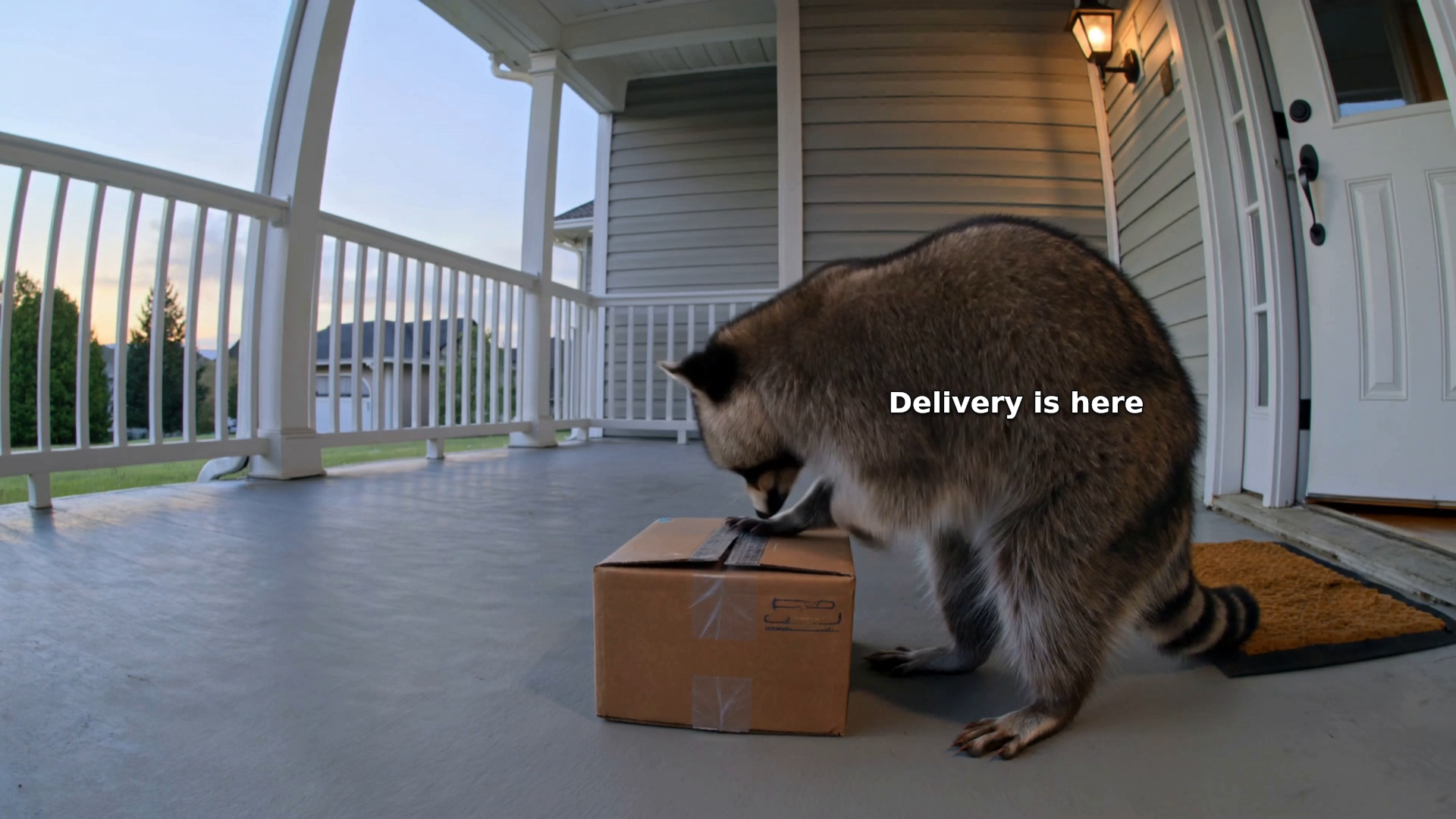
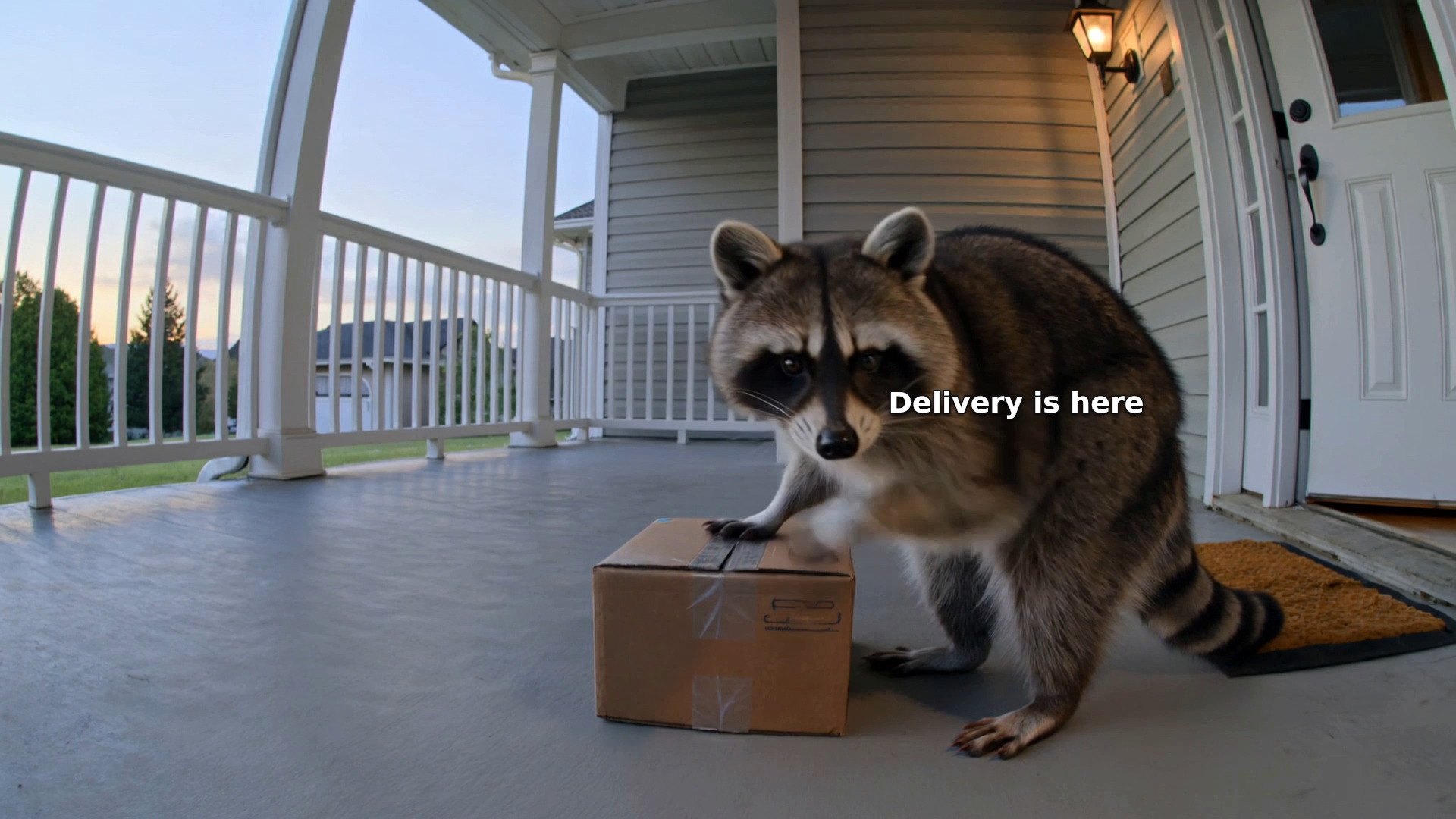
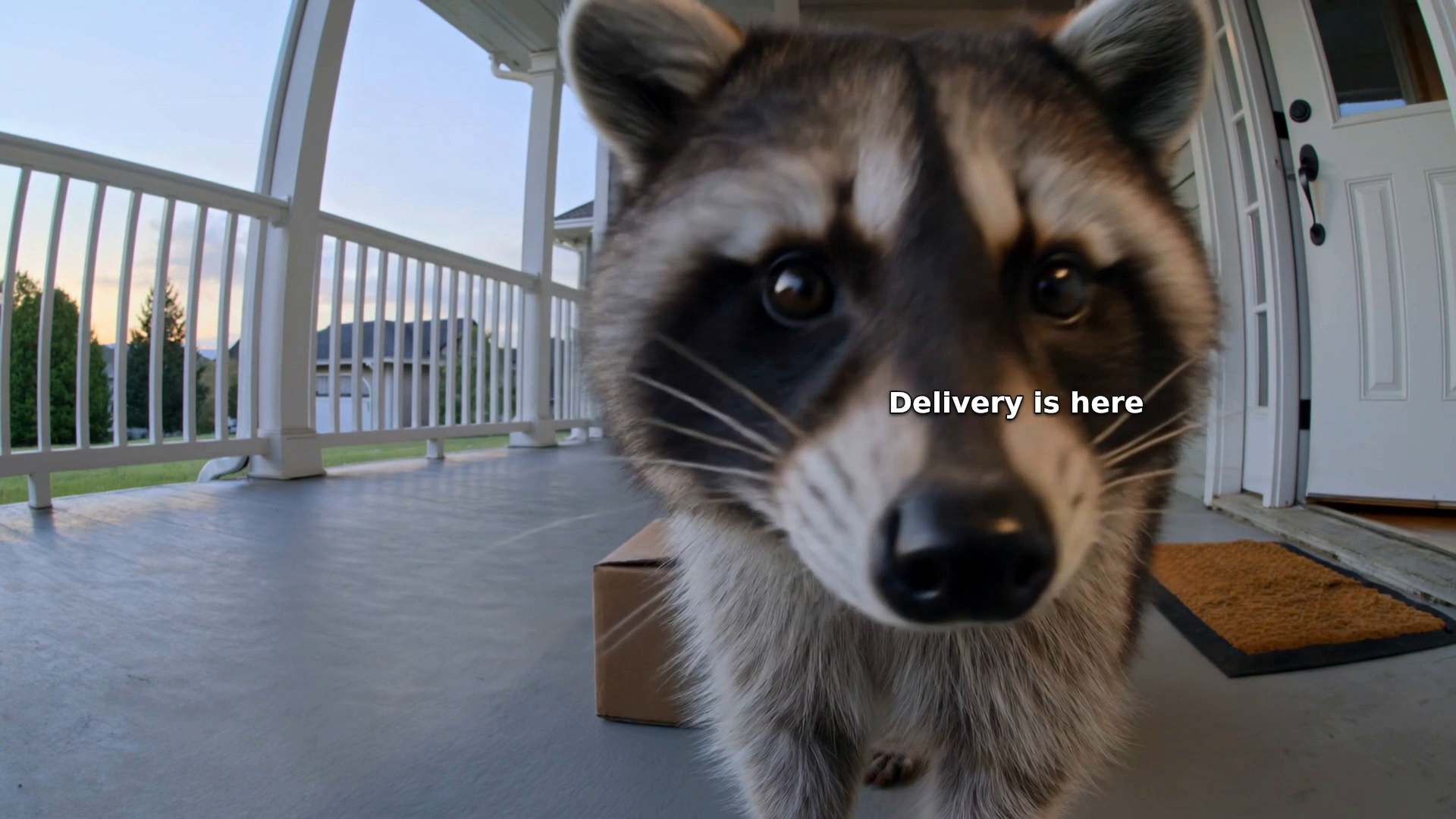
Download the opening reference frame · Download the middle reference frame · Download the close-up reference frame · Download the complete fictional reference clip
| Sequence | Observed action | New brief direction |
|---|---|---|
| Opening | Paw and head near the box | Establish the visitor and parcel |
| Middle | Turn toward the lens and approach | One curious movement toward a fixed camera |
| Close-up | Nose and face become prominent | Hold the comic reveal briefly |
| Ending | Retreat toward the parcel | Return to the original situation |
Turn the observations into one simple shot
A proposed brief is: one continuous fixed porch-camera shot in a playful realistic style. A raccoon stands beside a taped cardboard parcel outside a light-sided house. Warm porch light contrasts with cool evening light. It rests a paw on the box, looks toward the lens and approaches until its curious face fills much of the frame. It then backs away toward the parcel before the shot ends. Keep the siding and railing stable. Generate the scene without text.
This is an editorial reconstruction to test, not a recovered source prompt or a completed new generation. Review the result for the parcel interaction, coherent approach and stable environment. If the face simply grows without convincing movement, simplify the action or use a shorter approach. Do not report that revision as successful until you inspect the exported clip.
Choose inputs that the analyzer actually supports
A local video upload, a public video URL and a few still frames provide different evidence. Check the chosen tool’s input controls before collecting references. Gemini’s official documentation includes video files and public YouTube URLs; that is not a promise that any Instagram link will work. Some applications add their own URL retrieval or import controls, which you should verify directly.
If you use still frames, keep their timestamps and describe the result as a sampled observation. Frames can establish visible subjects and composition while missing fast actions between them. A clip-aware analyzer may provide a timeline, but you still need to compare its claims with the footage. When there are multiple shots, split the output into separate briefs rather than squeezing a montage into one impossible continuous action.
Compare video to prompt generators by their output
Use the same permitted short clip and the same analysis request for each candidate. Check whether the tool accepts your file, returns timestamped observations, separates camera and subject movement, handles audio accurately and labels uncertainty. Inspect whether it mistakes burned-in captions for spoken words or objects in the scene. Save the resulting brief so you can edit it without starting over.
For this example, an answer that stops at “a raccoon approaches a camera” misses the ending. An answer that invents a delivery announcement also adds speech to a file with no audio stream. Those are concrete differences to record in the worksheet. This guide supplies a method and inspected reference, not an untested leaderboard of generators.
Fix an overcomplicated reconstruction
Remove details that compete with the core action. A new prompt that asks for a parcel reveal, a running animal, an orbit, dialogue and multiple cuts changes the reference structure. Begin with one visitor, one parcel and one fixed view. Only add a second action or camera move when it serves the new idea and the first test is coherent.
Record the difference between the requested action and the actual export. If the camera follows the visitor despite a fixed-view instruction, simplify the motion and inspect another result. If the caption clips, change the editor’s text box or line breaks instead of rewriting the scene prompt. This keeps scene, camera and typography problems connected to the controls that can address them.
Keep Sora video to prompt separate from generation settings
For a Sora video to prompt workflow, the observation stage produces a portable scene brief. Model selection, duration and reference controls belong to the later generation stage. An analyzer's description cannot establish that the source used Sora or that another model will reproduce it exactly. Adapt the instruction to the available controls and compare the resulting motion with your intended sequence.
Prepare Instagram references as visible footage
An Instagram video to prompt generator may require an uploaded file rather than accepting a Reel URL. Check the actual input controls. Do not assume a tool can retrieve an authenticated or unavailable link. When permitted, analyze the source clip and record the aspect ratio, caption position, opening action and ending separately. Use those observations to create an original scene rather than copying the creator's identity or soundtrack.
Center captions after the scene works
Add captions in the editor after reviewing the motion. Place the text inside the visible video area with enough room for the complete letters and outline. Review the actual mobile crop: a caption can be centered in the source canvas but clipped in a different player ratio. Keep lines short enough to read without hiding the joke or important object interaction. Match caption timing to the new footage, not blindly to the reference.
Review the export with a worksheet
The blank observation sheet has rows for the subject, opening, middle, ending, camera, caption area, audio and continuity. Fill the visible-observation field from the reference and label any inference. Put the new direction in its own column. Review the complete new export against that direction before accepting it. The worksheet does not contain fabricated results or a tool ranking.
Download the video observation worksheet
Create an original faceless scene in Clout
Take the approved shot brief into Clout to create an original faceless video around your own scene and action. Keep the reference observations as planning notes, then review the exported movement and caption layout. Clout is the creation step in this workflow; the analysis template above can be used with a separate video-understanding tool.
Create my original faceless scene


