A Sora prompt is still useful as a record of a scene you wanted to make. What changes is the production route. Keep the subject, action and visual direction, then adapt the brief to a video model you can currently access.
As checked October 2, 2026, OpenAI's official discontinuation notice says the Sora web and app closed April 26 and gives September 24 as the API shutdown date. Both dates have passed. An old prompt tutorial or model name on a comparison page is not proof of current generation access.
This guide includes a working shot-brief builder, six original examples, a downloadable prompt pack and a blank review sheet. The examples are creative instructions, not tested Sora outputs. For choosing a new production route, read the separate Sora alternatives guide.
Build a prompt from the scene you can actually describe
Use the shot-brief builder above to choose a starting idea and revise its fields. It runs in your browser and formats the text you enter. You can copy or download the result without a generation account.
Start by answering one question: what visibly changes between the opening and ending of this shot? A robot lifts an oversized pastry. A creator discovers an unusually large carrot. A courier's umbrella flips inside out. Each gives the viewer an event to follow, rather than a list of abstract adjectives.
| Brief field | What it resolves | Example |
|---|---|---|
| Subject | Who or what the viewer follows | A tiny teal tin robot with amber eyes |
| Setting | Where the action takes place | A cream bakery counter beside a copper kettle |
| Visible action | What changes within the shot | The robot lifts a heavy croissant and sets it down |
| Camera | What remains visible while it happens | A locked shot showing the feet and tray |
| Style and light | The intended treatment | Tactile miniature materials in warm window light |
| Sound and dialogue | The audio event or spoken line | A tray tap with no dialogue |
Keep the finished brief readable. Adding an elaborate lens description is less useful than making the object and action unambiguous. If you cannot sketch the scene from the text, revise the brief before adding more style language.
Use the Sora prompting guide as historical documentation
OpenAI's Sora prompting guide describes concrete shot direction, simple action, explicit dialogue and controlled iteration. It also distinguishes prompt prose from API settings. Those are useful planning distinctions, but its retained endpoint examples should not be mistaken for a current access promise.
Preserve the creative intent when migrating a saved prompt. Check the new tool's own reference support, audio mode, duration and output settings. Do not paste a historical API payload unchanged and assume another provider accepts the same keys.
Try six original prompt examples
Download all six original shot briefs. Adapt one at a time to your available tool. These examples cover comedy, realism, original animation, faceless detail and cinematic scenery. None has a claimed performance score or guaranteed viral result.
Tiny robot bakery comedy
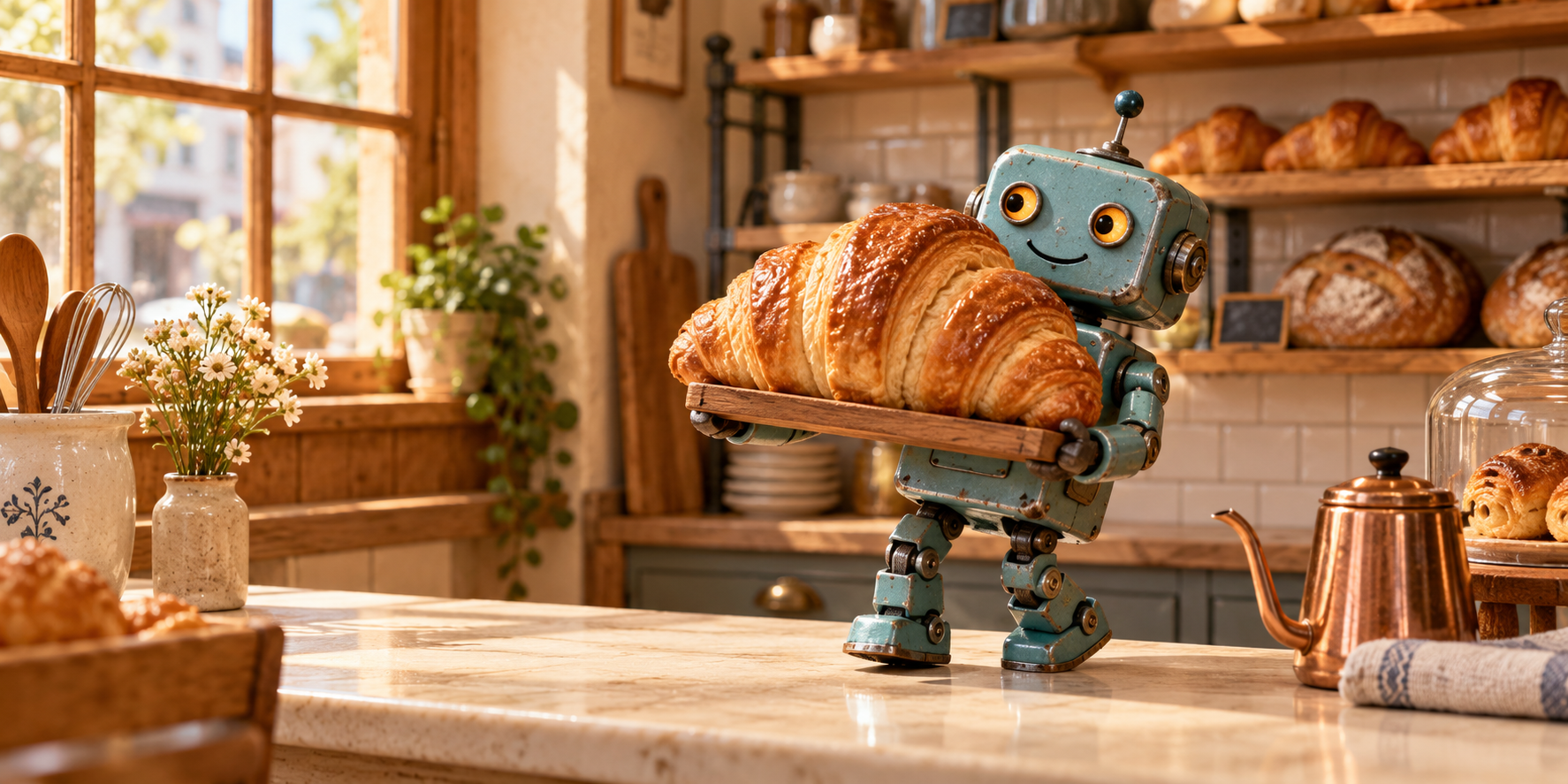
An original tiny teal tin robot with amber eyes stands on a cream bakery counter. It lifts an oversized croissant on a wooden tray, pauses under the weight and sets it down carefully. Keep the camera locked at counter height with feet and tray visible. Use tactile miniature materials, warm window light and cream, teal and honey colors. Sound: one quiet tray tap and bakery room tone. No dialogue.
The hero artwork is an original still reference for this idea, not a video frame or proof that the action was generated. Download the full-resolution robot artwork if you want to practice planning a scene around an approved visual reference. Verify your chosen tool's image-reference support and framing separately.
Casual creator grocery comedy
An original adult creator in a rust overshirt opens a paper grocery bag in a daylight apartment kitchen. The creator discovers one oversized carrot, lifts it into view and gives a surprised smile. One handheld medium shot with slight natural sway keeps the face, bag and carrot visible. Natural phone-video realism, soft daylight and ordinary kitchen detail. Sound: paper bag rustle. Dialogue: Creator: “I ordered one carrot.”
The humor comes from one disproportionate object and a recognizable reaction. Use a short line that adds to the visual moment. If a separate narration or lip-sync operation is required by your chosen tool, treat that as its own production step.
Original anime courier scene
An original adult courier in a blue raincoat opens a yellow umbrella on a hand-painted rainy street at dusk. A gentle gust turns the umbrella inside out. The courier stops and looks upward in disbelief. A locked wide shot leaves space above the umbrella. Original 2D anime-inspired linework with blue street light and amber shop windows. Sound: rain and one soft umbrella snap. No dialogue.
Describe an original character and visible style choices. For another shot, carry forward the coat, umbrella and light palette. A generic instruction to make it “more anime” gives you less to compare than named visual anchors.
Faceless cafe detail
A white ceramic cup rests beneath an espresso machine in a quiet neighborhood cafe at opening time. One coffee stream fills the cup and stops, leaving a thin crema layer. Keep a locked close-up on the cup and stream. Natural documentary detail, warm morning light and a restrained cream and walnut palette. Sound: machine hum. No people or dialogue.
This faceless prompt gives the scene its own action. Add explanatory narration and centered captions in editing if the final format needs them. Keep important details clear of the eventual caption region.
Cinematic coastal scene
One small red fishing boat moves slowly across a calm harbor at sunrise. A gull crosses high above as the boat passes a stone pier. Use a wide fixed composition with the full boat visible and a low horizon. Soft peach sky, cool blue water and subtle reflected light. Sound: gentle harbor water. No dialogue or scene changes.
Choose whether the boat or the camera provides the movement. A simple establishing shot can give an edited sequence breathing room without asking one generation to become an entire film.
Playful workshop reveal
An original round wooden toy mechanic stands beside a tiny workbench. It pulls a cream cloth from a repaired clockwork duck, then takes one proud step backward as the duck nods. A medium fixed shot keeps both characters and the workbench visible. Handmade painted wood, warm desk light and teal workshop walls. Sound: a cloth rustle and one clockwork click. No dialogue.
This is a reveal brief, not a guarantee of stable prop geometry. Review the object before, during and after the cloth moves. If the reveal is too complex, generate a simpler uncovered-object action first.
Make a funny prompt readable before making it elaborate
For fun or funny video prompts, write the setup, visible mismatch and reaction. The viewer should understand the joke without needing a paragraph of background. A familiar grocery action with an oversized carrot is easier to communicate than several unrelated surprises competing in one frame.
For a short-form or TikTok edit, decide where the first visible hook appears and where you will cut. Do not assume the word “viral” specifies either. Keep room for centered captions and inspect the actual crop after editing. Audience response requires a real publishing test; a prompt cannot establish it in advance.
Use JSON as a planning format
The builder's JSON checkbox exports the same brief as named fields. That is helpful when storing a prompt library or passing a brief to an editor. It does not call an API, select a model or make the text more powerful by itself.
For JSON prompts, keep creative fields separate from the provider request. The article's JSON structure is ours: subject, setting, action, camera, style, sound and dialogue. Map those instructions into the selected tool's documented input rather than inventing unsupported request fields.
Ask a writing assistant for a focused revision
If you use ChatGPT or another writing assistant as a prompt helper, supply the actual scene and ask for a constrained rewrite. Review the rewritten brief for added props, conflicting camera moves or dialogue you did not approve.
Rewrite this idea as one short shot brief. Keep the subject and joke unchanged. Identify the setting, visible action, camera, visual style and optional sound. Flag anything unclear instead of adding a new scene. Do not invent API parameters or claim a model is available.
Improve the brief by fixing one observed failure
| Observed problem | Useful brief revision | What to review next |
|---|---|---|
| The joke is difficult to follow | Remove a competing event or extra character | Can the setup and reaction be understood immediately |
| The important object leaves the frame | Name the object that must stay visible and simplify movement | Visibility throughout the shot |
| The creator changes appearance | Return to the approved identity and supported reference route | Face, hair and wardrobe against the reference |
| Spoken lines do not fit | Shorten the line or use a separate audio production step | Intelligibility and timing |
| The output has an unwanted cut | Clarify a continuous single shot and reduce event count | Complete uninterrupted playback |
Download the blank shot-brief review sheet. Record the prompt version, selected tool, settings, observed issue and next revision. Keep accepted references and exports together so each new attempt begins from reviewed work.
Clout can help you create an original recurring character and coordinated photos and video scenes. Establish the identity before making several disconnected clips. Continue with the consistent creator workflow, the camera movement guide and the faceless channel ideas guide for the next production decisions.