Seedance 2.0 vs Seedance 2.0 Fast is a production decision about the file you need and the time it takes to get an acceptable version. The fastest completed job is not necessarily the fastest route to a usable edit if it needs several retries or finishing work.
This guide compares Standard, Fast and Mini in Higgsfield. It includes an original paper-boat reference, a shared test prompt and a local timing log. For general prompting, use the Higgsfield Seedance prompt generator. For the newer release and existing-clip editing, read the Seedance release and Edit guide.
Standard, Fast and Mini at a glance
| Variant | Positioning in current help | Listed output range | Listed clip length |
|---|---|---|---|
| Seedance 2.0 Standard | Quality-focused multimodal generation | 480p to 4K | 4 to 15 seconds |
| Seedance 2.0 Fast | High-volume iteration | 480p to 720p | 4 to 15 seconds |
| Seedance 2.0 Mini | Short-form speed | 480p to 720p | 4 to 15 seconds |
These are the descriptions in Higgsfield's current Seedance help table, checked October 17. They are vendor positioning and listed capabilities, not our measurements. Confirm the selected model, available resolution and displayed charge in your account.
Decide the delivery requirement first. A larger required master can rule out a particular setting before you compare speed. If the brief is a short draft for review, a lower-resolution route may be sufficient. A useful comparison holds that delivery target steady rather than giving each variant a different task.
Enhanced Fast and the picker label
The official Unlimited article says Enhanced Seedance 2.0 Fast is the full name of the variant that appears as Seedance 2.0 Fast in the interface. It also separates Unlimited access from credit generation and describes a shared queue. Treat model choice and queue entitlement as separate settings.
There is a documentation mismatch: that article describes Standard with a lower resolution ceiling than the current help table's 4K listing. We cannot resolve account or route availability from those two pages alone. Check the actual selection before paying, and record which limit you observed instead of repeating an older comparison as universal.
A subscription label does not fully describe a run. Write down the model, output size, duration, aspect ratio, reference inputs, audio setting and whether it used credits or an Unlimited route. Those details make your result interpretable later, including when a provider changes a menu or entitlement.
Separate queue delay from the render interval
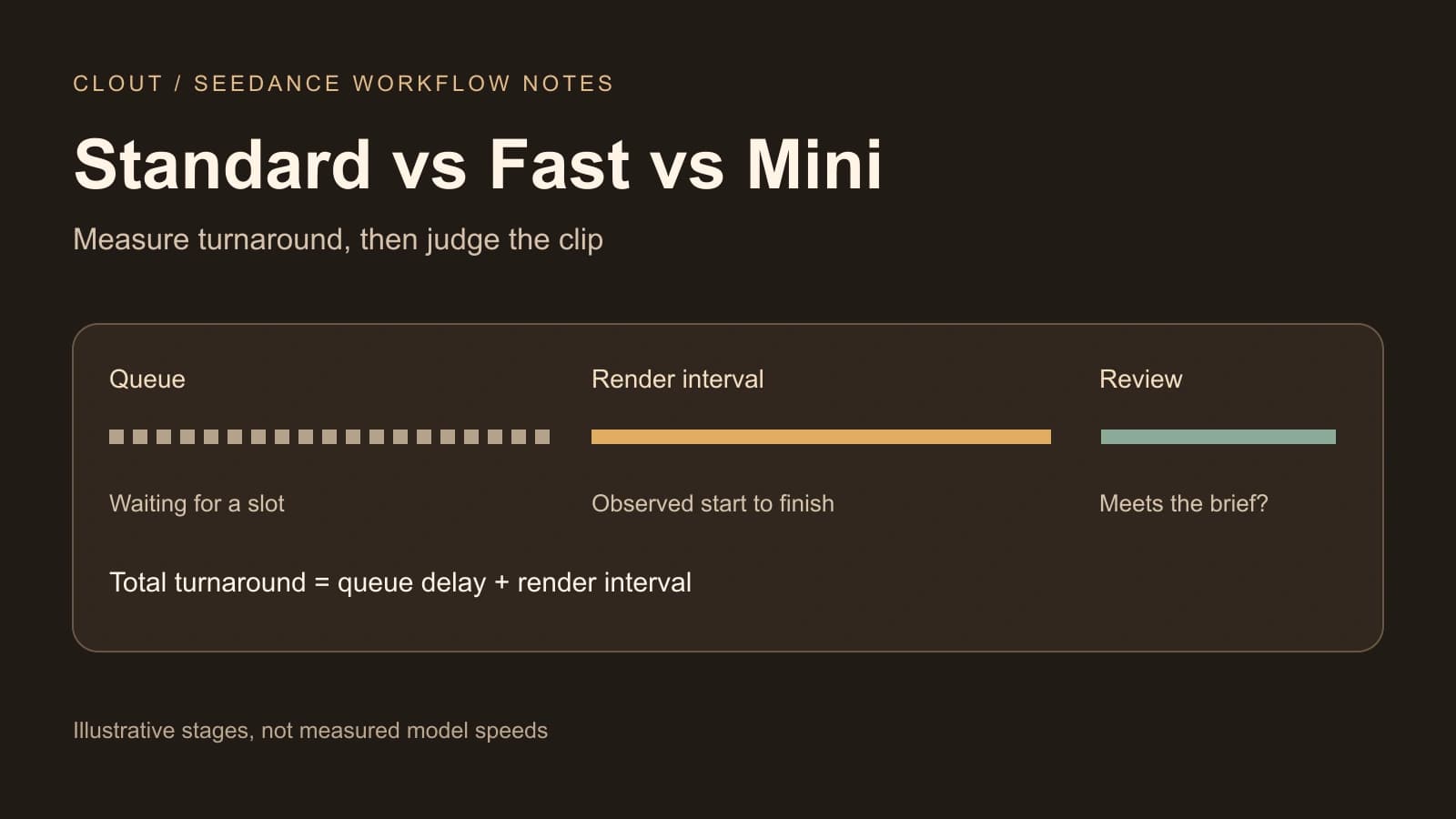
The time between submission and a completed file contains more than one stage. A faster underlying render can still arrive later if it waited longer for a slot. Conversely, a short wait can make a slower rendering operation feel faster in one isolated attempt.
- Record when the job is accepted or first appears queued.
- If the interface exposes the transition, record when it starts processing or generating.
- Record when the job completes, then separately check the downloaded file.
- Keep the queue route and selected settings beside those observations.
The log calculates queue delay from queued to started, render interval from started to finished, and total turnaround from queued to finished. If the start was not visible, leave it blank: the tool can show total turnaround without inventing how much of it was rendering. These are intervals between your observations, not internal provider telemetry.
Use timestamps with a timezone. For example, 2026-10-17T14:30:00-07:00 describes an unambiguous time; “2:30” does not. A run spanning midnight should still produce a sensible interval. The form rejects reversed observations and leaves missing stages unknown rather than treating them as zero.
Use one original source for the first comparison
The reference below is an original code-authored illustration: a yellow folded paper boat on a teal puddle, a terracotta curb and a few plants. It has no person, product branding or provider-generated result. Its simple silhouette makes motion and preservation easy to inspect.

Download the paper-boat reference, or open and save it through your browser. The editable SVG source is also available. Use the PNG as the reference where the selected generation route accepts it.
Animate the supplied illustration for eight seconds as one continuous shot. The yellow paper boat drifts slowly from left to right across the puddle, with gentle ripples. Preserve the folded boat shape, terracotta curb, plants, sand colors and illustrated style. Keep the camera locked. No cuts, new objects, text or people. End with the boat still visible. If audio is enabled, use quiet water ambience without speech or music.
For a first matched run, request eight seconds, 720p and a landscape frame where each selected route supports those controls. Keep the source and brief identical. If you cannot match a setting, record the difference; do not silently compare a higher-resolution final against a smaller draft.
Define acceptance before looking at the results
| Checkpoint | Accept when | Reject or revise when |
|---|---|---|
| Boat identity | The same folded yellow boat remains recognizable | Folds collapse, color changes or the boat becomes another object |
| Requested movement | It drifts gradually across the water | It jumps, disappears or performs a different action |
| Scene preservation | Curb, plants and illustrated treatment remain coherent | New objects appear or the composition changes unexpectedly |
| Camera and ending | The shot stays locked and the boat remains visible at the end | There is an unrequested cut or the ending loses the subject |
| Actual deliverable | The downloaded clip has the requested usable length and format | The file is incomplete or fails the delivery requirement |
Watch every export all the way through. A strong poster or opening second is not enough. Keep the output file and notes from each attempt, including rejected takes. The first comparison should answer what happened under the same brief; a later revision pass can answer how much work each route required to meet it.
This is an intentionally narrow test of a stylized object. It cannot establish which model is best for human identity, lip sync, product lettering or multi-character scenes. Use an additional owned or consented source for any of those requirements, with its own acceptance checklist.
When Mini is worth evaluating
The June 21 Mini release note describes it as a lighter, speed-oriented family member. Treat that as the vendor's stated purpose rather than assuming a fixed speed ratio in your account. If your project needs many short concept checks, evaluate it against your actual acceptance rate and finishing effort.
Do not mix up clip duration with production speed. An eight-second video might take much longer to become available, and a shorter output may still be unusable. If you run several attempts, retain each one rather than reporting only the fastest successful job.
Compare time and cost per accepted clip
For a deadline, count the time required to reach a publishable result, including retries and review. For cost, divide total charged spend by the number of accepted clips in the same currency and purchase context. Keep manual finishing time as a separate field if it matters to your team.
Unlimited is an access arrangement, not proof of instant service or acceptance. Check the current offer, expiry and queue rules on the official service. Our Higgsfield Unlimited guide explains that decision separately; this page does not promise a free variant or a universal price.
For a stuck or failed run, preserve the original job rather than replacing its record with a retry. Use the Higgsfield troubleshooting guide to separate queue state, technical failure, delivery and credit reconciliation. A technically completed clip you reject creatively is a different outcome from a job that failed without an export.
Choose the route that fits the brief
Evaluate Standard when the available output setting and quality requirements make it the relevant candidate. Evaluate Fast or Mini for iteration when their available exports meet the draft brief. Let observed turnaround and accepted results inform the choice; the name alone should not decide it.
If you need to change an existing video rather than generate from a reference, inspect the separately named Edit operation. For longer scenes or current release features, use the newer Seedance guide linked above. For a coordinated creator project, Clout's AI Cinema workspace is another service to evaluate, with separate access and credits. Clout publishes this guide and does not operate the Higgsfield queue.