Make the playback seam part of the brief
A looping AI video needs more than a player that repeats the file. The end must lead naturally into the beginning. Compare the subject’s position, motion direction, lighting and sound at that boundary. A clip that looks convincing once can reveal a jump every time it repeats.
The free loop sequence planner above calculates a finite repeated edit from source frames, frame rate, repetition count and overlap. It also supplies a template brief. It does not inspect a file, generate a clip or prove the seam is smooth. Use it alongside your editor and the actual exported video.
Compare a repeating path with a reset
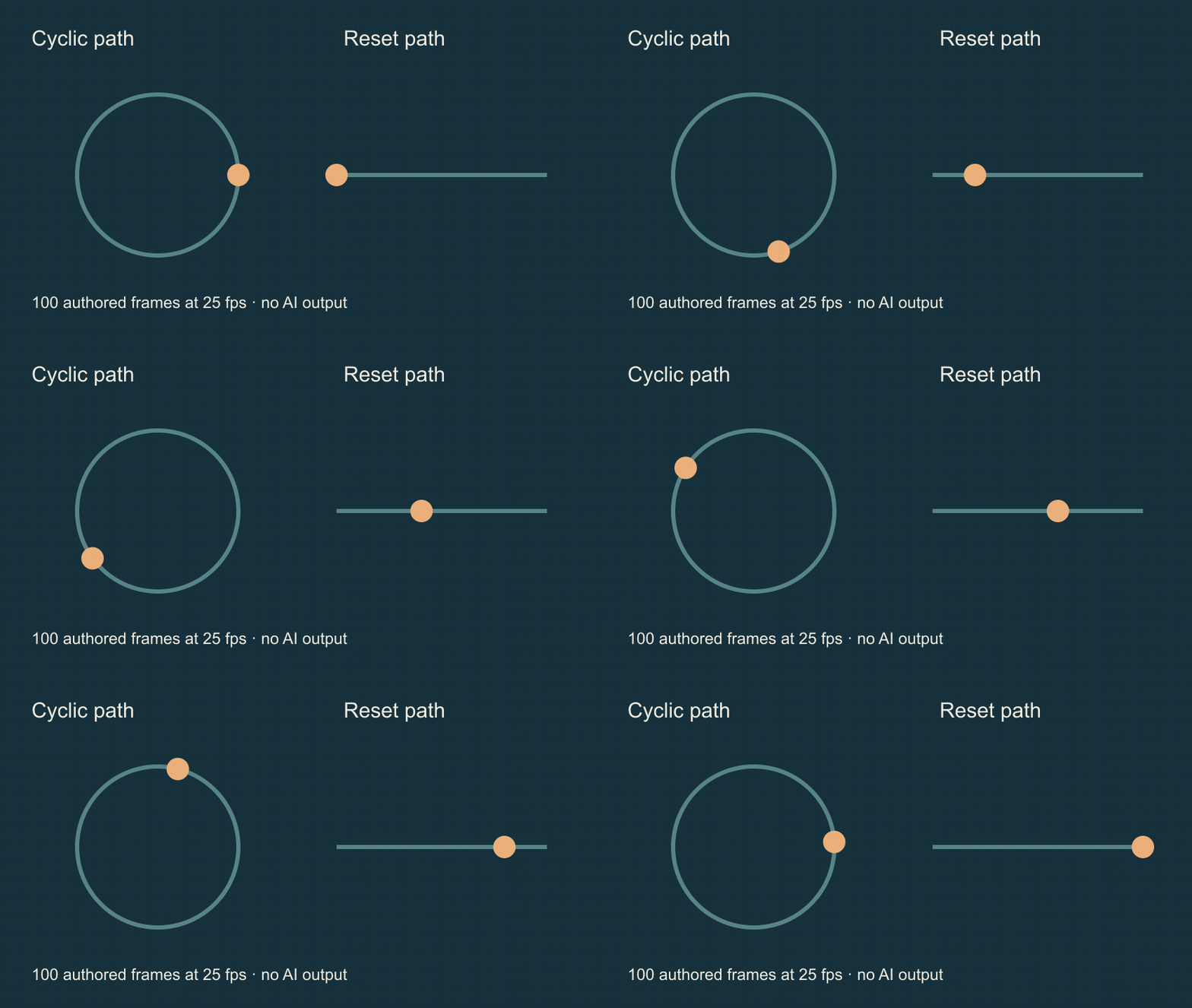
Open the original animated seam comparison to see two code-authored dots in motion. The left dot follows a circular path. The right dot travels across the frame and jumps back to its starting point. This four-second, hundred-frame diagram is an animation lesson, not an AI model output or a photograph.
The comparison isolates the seam. A circular path keeps the next position close to the previous one at the wrap. A one-way path can create a large reset. Real footage adds more variables: a shadow can jump even when the subject returns, and a repeating sound can click even when the image appears continuous.
Choose a loop strategy that matches the action
| Strategy | Useful scene | Review carefully |
|---|---|---|
| Cyclic motion | A deliberate orbit or gentle repeating sway | Position and movement direction at the seam |
| Generated bridge | An ending that must return to a starting state | The bridge preserves identity and spatial logic |
| Overlap edit | Compatible texture or atmosphere | Ghosting and shortened duration |
| Forward then reverse | An action that can plausibly run backward | Reversed physics and pauses at direction changes |
A dissolve can soften a mismatch while making two subjects briefly visible. Reversing pouring, speech or falling objects can make the action implausible. Choose the method for the actual scene rather than assuming one technique fixes every generated clip.
Prepare an endpoint-aware generation brief
One continuous locked-camera shot of an original lantern swaying gently in a quiet room. Keep the lantern design, wall details and light level stable. Use one small repeating motion with a consistent rhythm. Return toward the opening composition without a new subject, scene cut or text. Keep the surrounding room still. Review the final-to-first playback transition before accepting the result.
This is an original untested brief. If the selected model supports first and last images, prepare those inputs and apply the actual controls. Asking for a loop in prose does not add a missing keyframe feature or guarantee that all intermediate frames preserve the subject. Use a short test and review it before repeating a longer sequence.
Adobe’s Firefly and Premiere tutorial describes exporting endpoint frames, generating a bridge and refining timing in the edit. That is a workflow example, not evidence that every model exposes identical inputs or that a bridge always removes the seam. Check the available settings and current quote before generating.
Calculate the finite edit before export
For a hypothetical source of 144 frames at 24 fps, one copy lasts six seconds. Four copies with a twelve-frame overlap at each of the three internal joins produce 540 frames, or 22.5 seconds. The calculator uses that arithmetic. It does not subtract another overlap at the final-to-first playback boundary.
That last boundary still needs its own creative review. The calculation describes a finite timeline with internal transitions, not an automatically closed ring. Editors can handle transition trimming differently, so compare the actual export frame count with the plan. Use a known constant frame rate; variable-frame-rate footage needs an appropriate editor workflow before this arithmetic is meaningful.
Review repeated playback and audio independently
Watch at least several repetitions and focus on the transition rather than the middle of the clip. Check subject geometry, the direction of movement, background details and the pace of the action. Then listen for a click, sudden ambience change, repeated breath or clipped word. A smooth visual seam does not establish a smooth audio seam.
Adobe’s loop playback guide explains using In and Out points with repeat playback to review a selected section. Use the equivalent supported controls in your editor and inspect the final file too. A timeline preview and a platform’s player can present different viewing conditions.
Download the blank seam review sheet to record the source, strategy, join and observed issue. For selective movement within a mostly frozen scene, use the cinemagraph guide. For separate clips and deliberate cuts, see the transition comparison guide.
Create source visuals and finish the loop separately
The Clout Image and Video Studio provides available source-generation workflows. Inspect the selected model’s inputs, duration and current quote. This guide does not establish a dedicated seamless-loop model or an automatic loop editor in Clout. Keep the accepted source and finished edit together so a later revision starts from the right take.
Review inserted motion separately from the seam
The frame interpolation study compares repeated, blended and motion-compensated frames. A smoother middle does not automatically close the final playback seam.