

An AI 360 spin turns a product reference into a rotating visual, but the useful result depends on what the viewer needs. A short campaign clip can use inferred views. A shopper inspecting the exact back, openings and fittings of a real item needs observed product information. Decide which job you are doing before choosing a generator or viewer.
If you searched for AI 360 spin multiple image, the important question is how the tool uses the images. Some workflows accept a start frame, some accept additional references, and an interactive image-sequence viewer uses an ordered set of captured views. Uploading several photos does not automatically produce editable geometry or accurate hidden surfaces.
This guide uses a fictional terracotta jug as a planning example. The original studio image is reference artwork, not a rendered spin or evidence of a real SKU. Download the angle plan and briefs below, then substitute authoritative images of your own product.
Choose a spin video or an interactive product view
| Output | Inputs | Best review question |
|---|---|---|
| Generated spin video | Supported image references and a motion brief | Does the silhouette stay coherent throughout the turn |
| Captured 360 product spin | Ordered photographs around the real object | Do all frames show the same physical item |
| Rendered product spin | Approved geometry and materials | Does the model match the actual product |
| Flat image spinner | One photograph and a visual transform | Is a rotating card the intended design effect |
An MP4 plays on a timeline. An interactive spin lets a viewer move between angles. A model viewer renders geometry. These are different deliveries. The 3D image rotation guide includes a local flat-card preview when the image itself is the design object; that preview does not expose the real back of the pictured product.
Sirv's spin documentation describes creating an interactive spin from a set of images or a video. Its image-sequence delivery is a useful example of a viewer workflow. Higgsfield's product video page advertises generated 360 spins and reference-led product motion. Those provider claims describe the intended use, not proof that every generated frame matches your SKU.
Build a multiple-image reference pack for one product
Keep the product variant, camera height, framing and lighting consistent. Capture a clear front, both sides, the back and any feature a moving view could reveal. For the jug, record the handle opening, its two connections, the spout, rim, cream interior and base. A front image cannot establish whether the back has a label, seam or second opening.
Assign a role to each file. The front can define the opening pose. Side and back images supply observed construction. A separate close-up records a detail, rather than becoming a competing full-frame composition. Name the images by angle and variant so the generation request cannot accidentally mix two products.
Check the selected interface before supplying this pack. If it supports only one start image, retain the other views for review or choose a workflow that supports them. Do not describe unused files as model inputs. For real catalog information, a captured sequence or verified model can be a better fit than asking the generator to infer the unseen surface.
Download the original jug reference
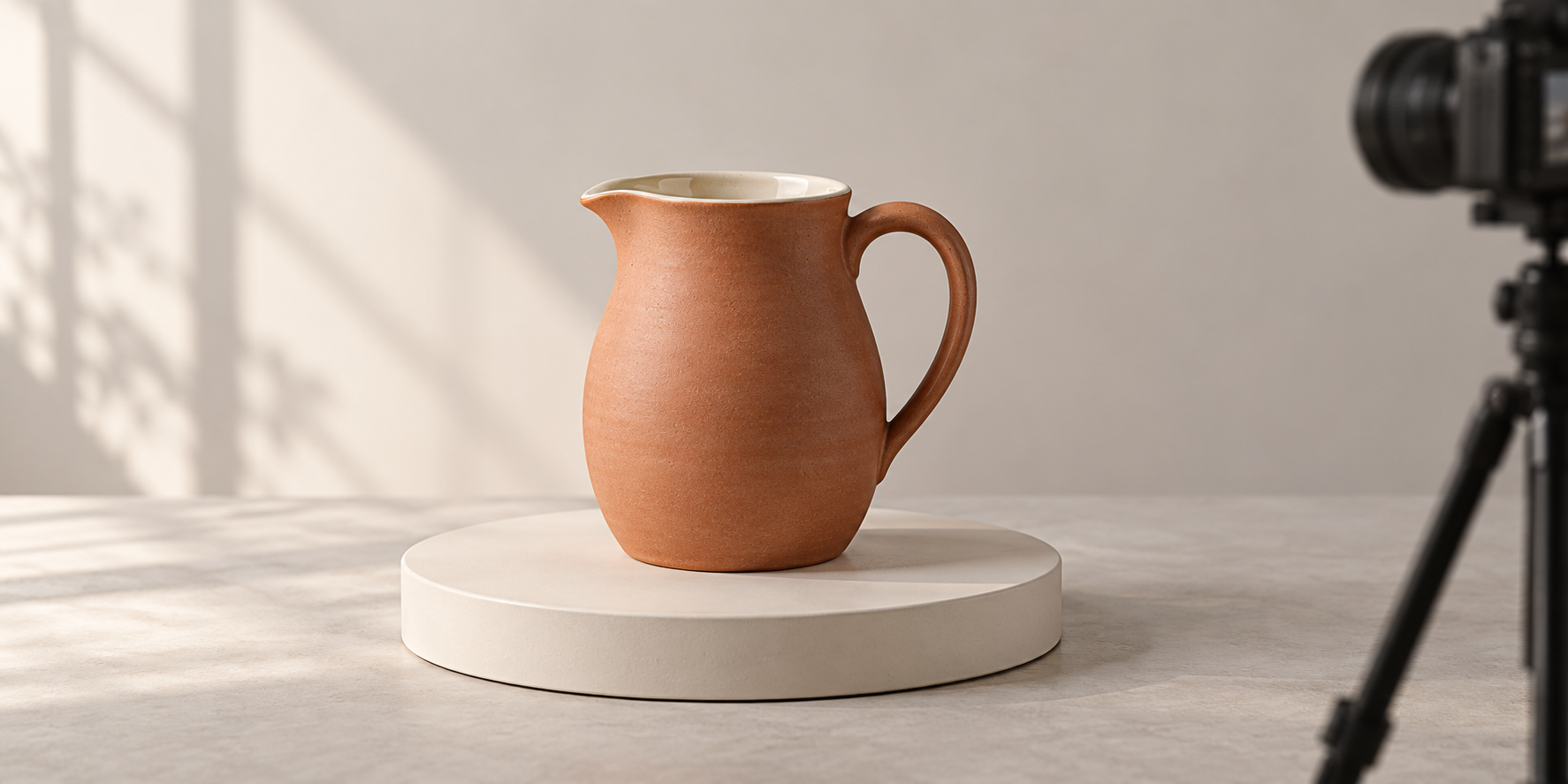
Fictional reference artwork for spin planning rather than an actual product capture or completed rotation
Download the native-resolution jug referenceThe example has one handle, one small pouring spout and no lid or printed wording. Those are the invariants in the briefs below. If an output adds a lid, closes the handle opening or changes the rim, its attractive lighting does not make it an accepted view. For an actual store item, replace these example details with a product record and photographs you can verify.
Copy an AI 360 spin brief with a fixed camera
Use the supplied product references for the same terracotta ceramic jug, cream interior, single curved handle, single spout and proportions. The jug turns through one full rotation on the cream turntable while the camera remains fixed. Keep the complete silhouette inside the frame, the object centered and the lighting steady. Start and end with the same front three-quarter orientation. No extra handles, lid, labels, liquid, hands or added accessories. Review the side and back against the actual reference photographs.
This is a creative direction, not a guarantee that an AI tool will obey an exact angle or produce a seamless loop. Set the duration and aspect ratio using the controls your chosen workflow actually provides. Ask for one simple movement before combining rotation with zooms, light changes or floating props.
A camera orbit is a different request: the camera moves around a stationary product. A turntable shot keeps the camera still while the object rotates. Choose one in the brief. Mixing both makes it harder to spot unwanted changes in apparent size, shadows and object position.
Create a 360 spin image sequence from captured views
For a 360 product spin with factual product views, photograph or render an ordered sequence. Our downloadable planning CSV uses 24 positions at 15-degree steps: 0 through 345 degrees. This is a convenient example, not a universal frame-count requirement. More positions can make angle changes smaller, while also increasing capture and delivery work.
Download the blank 24-angle capture plan. The angle and proposed filename are filled; source file, observed features and approval are empty. Fill those fields after capture. Keep the center and crop steady across frames so dragging between angles does not make the item jump.
At 360 degrees you return to the same orientation as 0 degrees. Avoid accidentally counting that duplicate position as another unique view. Check how your selected viewer handles the wrap from the last frame to the first. For an MP4 loop, also inspect the final motion and timing; matching orientation alone does not prove a smooth join.
To create 360 spin image content for a listing, first confirm whether your site expects an image sequence, a supported video or a model file. A set of still images does not become interactive simply because it is uploaded to an ordinary photo gallery. Use the destination's supported viewer and test the actual page.
Copy a short partial-turn campaign brief
Show the approved terracotta jug on the cream turntable in a warm neutral studio. Use a slow partial turn from the front three-quarter view toward the handle side. Fixed camera and steady light. Keep the same rim, spout, cream interior and handle construction throughout. The entire jug remains visible with space around it for a vertical crop. No captions, badges, added products or scene cuts.
A partial turn can communicate the handle and finish without forcing every hidden surface into one generated shot. It is often a clearer campaign concept when you only have a few useful references. Keep any claim about capacity, material or construction grounded in the actual product record rather than the generated appearance.
Review geometry at the difficult angles
| Moment | Check | Reason to revise |
|---|---|---|
| Opening | Color, silhouette and crop match the approved reference | A different variant or clipped spout |
| Handle side | Opening and connections remain coherent | A handle merges into the body or gains a connection |
| Back | Observed construction agrees with the back reference | Invented wording, fittings or seams |
| Opposite side | Proportions remain stable | Product grows, shrinks or changes material |
| Loop join | Pose, framing and movement continue cleanly | A snap, hold or lighting jump |
Watch the complete take at normal speed, then step through the difficult views. Compare the same feature at successive frames. A handle that looks correct in one paused frame can dissolve during the turn. Check highlights and shadows too: crawling reflections can make ceramic look like a different material.
Download the blank product-spin review sheet and download both copyable briefs and reference notes. The review observations are empty because no rotation result has been tested for this example. Record the actual export, feature changes and accepted or revised decision.
Deliver the spin in the format people will use
Keep a native-resolution master and make a delivery copy for the destination. Inspect the complete outline in portrait, square and landscape crops. A side view can be wider than the opening view. Leave enough margin for the widest position rather than sizing the frame from the first still alone.
For a video ad, add readable captions after the product motion is approved. For an interactive viewer, test dragging or tapping on desktop and mobile, its starting angle and the return to the first frame. Keep an ordinary static product image available while richer media loads. A beautiful source is not a finished delivery until the live page works.
Build the creator story around the product
The spin can establish the object; a recurring creator can introduce it, explain a use case or connect it to the rest of the campaign. In Clout, build your original character and generate coordinated photos and video scenes around the same creator and product direction. Start with an approved identity and clear scene references, then review each product interaction before publishing.
Create my product campaign character. Continue with the product photography guide for reference approval, the product video guide for ad assembly and the camera movement guide for deliberate shot direction.


