

Choose the right kind of photo shadow correction
A photo shadow remover can refer to several different tasks. You might need to turn off an editable shadow effect, gently lift a dark region or replace a distinct cast shadow with surrounding texture. Start by identifying what is actually present in the source. One operation will not reliably solve every case.
This guide covers correcting unwanted shade in an existing image. To create a new product shadow after a cutout or background change, use the AI shadow generator guide. Keeping those tasks separate helps you preserve the subject and choose a useful review standard.
| What you have | Possible operation | Main risk to inspect |
|---|---|---|
| An editable shadow effect | Disable or revise that effect | Unintended changes to other layers |
| A dark region with visible texture | Targeted tonal correction | Washed highlights, noise and color shifts |
| A cast shadow over a simple background | Masked repair using suitable surrounding texture | Repeating patterns and visible seams |
| A shadow across a face or product label | A carefully constrained edit or a better source | Invented identity or product details |
| Clipped or obscured detail | Preserve uncertainty and seek another source | Mistaking plausible replacement detail for recovered evidence |
Preserve the original before you remove a shadow
Keep an untouched source and make the correction on a separate version or reversible layer arrangement in your editor. Name the actual problem: a hard shadow across the tabletop, a face that reads too dark or a detached effect under a cutout. This makes the edit easier to evaluate than a general request to clean everything up.
Check the intended use as well. A natural contact shadow can help a product sit on its surface. Removing every dark region may flatten the subject or make it appear pasted into the scene. Preserve the cues that explain form unless changing them is part of the brief.
Separate brightening from texture replacement
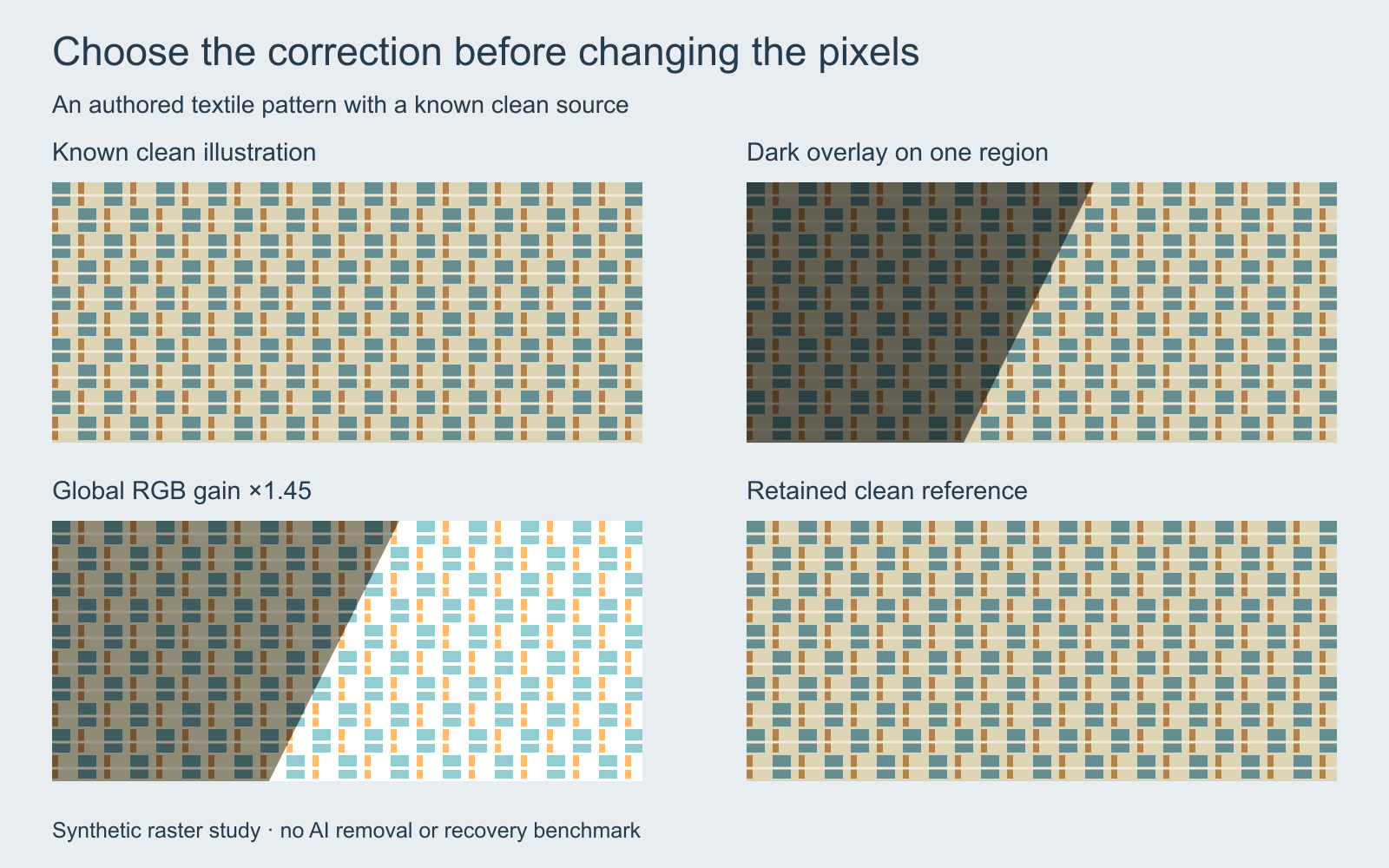
The original pattern study starts with a known authored textile illustration. A dark overlay simulates shade on one region; a global brightness lift also alters the unshadowed area. The retained clean reference makes those changes easy to inspect. It is not a test of a model and does not prove that a photograph contains recoverable detail under an arbitrary shadow.
Brightening changes recorded values. Replacing a region uses another source or invents new content. Both can improve a creative image, but they have different implications for a face, brand label or documentary subject. Do not describe a newly plausible texture as a verified recovery of details you could not see.
Use the documented Photoshop route for the selected problem
Adobe’s official shadow-removal guide describes several routes: Patch with Content-Aware Fill for selected areas, brightness and temperature adjustments for gentler shade, Clone Stamp or Healing Brush for source-based repair, and Dodge for localized brightening. Its Patch workflow begins by duplicating the layer and then selecting the unwanted area and finding a suitable nearby texture.
Choose a matching texture and inspect the boundary before accepting the repair. A repeating floor pattern or product label can make a poor patch conspicuous. Follow the current official tutorial for the actual tool rather than assuming a single click can preserve every structure in the selected region.
Constrain an AI shadow-removal request
Reduce the unwanted hard shadow on the pale tabletop beside the approved amber bottle. Preserve the bottle shape, cap, label area and existing crop. Keep a restrained contact cue at the base so the product remains seated. Do not add a new product, rewrite text or redesign the table surface. Return a candidate for review against the untouched original.
This is an unexecuted creative brief. Use it only with a selected workflow that supports the necessary source and edit. If a service regenerates the entire image, compare the supposedly untouched regions too. A correct-looking tabletop does not establish that the product remained exact.
The shadow-correction brief separates the unwanted region, protected anchors, allowed change and observed result. It is a planning file, not an automatic mask, API request or executed correction.
Check boundary texture color and identity
View the repaired region at normal size and inspect it more closely around the boundary. Look for halos, smeared edges, repeated patches, a sudden change in grain and color mismatches. Compare the subject with the original: face shape, hands, product proportions and lettering deserve their own check.
For a series, compare candidates at the same framing before deciding whether the correction is consistent. Use the free contact sheet maker to collect the variants and attach readable labels. It arranges images locally; it does not remove shadows or score the repair. Open the accepted original at full size before publishing.
Keep face and product edits tied to an approved source
A face partly hidden by shade can invite a model to redraw features. A label can acquire plausible-looking but incorrect letters. If exactness matters, use the strongest available original and narrow the change. Ask for a better-lit source or reshoot when the missing information is central to the deliverable.
A creative replacement can be an intentional choice, but describe it accurately and review it as a new candidate. Keep the original, submitted references and accepted output together so a future revision does not confuse a reconstruction with the original record.
Evaluate free tools by their actual output
Check whether a tool is changing brightness, removing a layer effect, replacing a region or regenerating the image. Confirm resolution, watermark, supported input and the actual account terms before relying on a free allowance. This guide does not claim that a particular paid editing operation is universally free.
The original shadow review ledger can record the service, source version, observed defect and acceptance decision for either creation or correction. It does not calculate a model score. Use a separate sheet version if you change the brief between rounds.
Plan the next edit in Clout
Explore Clout Image and Video for currently supported creative operations, and verify source support and the quote before generating. This page does not establish a dedicated automatic shadow-removal model or a guarantee that hidden texture will be recovered. Keep the requested correction narrow and inspect what actually returns.
Use the AI relighting guide when you intend to change the broader lighting across the scene. Use the product-shadow guide and light-position lab when you need to add a new shadow with a coherent direction.


