An AI music visualizer turns a song into a visual direction, but the word visualizer can describe several different outputs. Decide whether you want a continuous animated artwork, cuts aligned to a song, or graphics that change with measured audio. That decision determines what you generate and what you assemble in the edit.
For the square release artwork and editable title treatment, use the AI album cover workflow guide and its delivery checklist.
Inspect the actual audio reactive study
Watch this clip and view its details
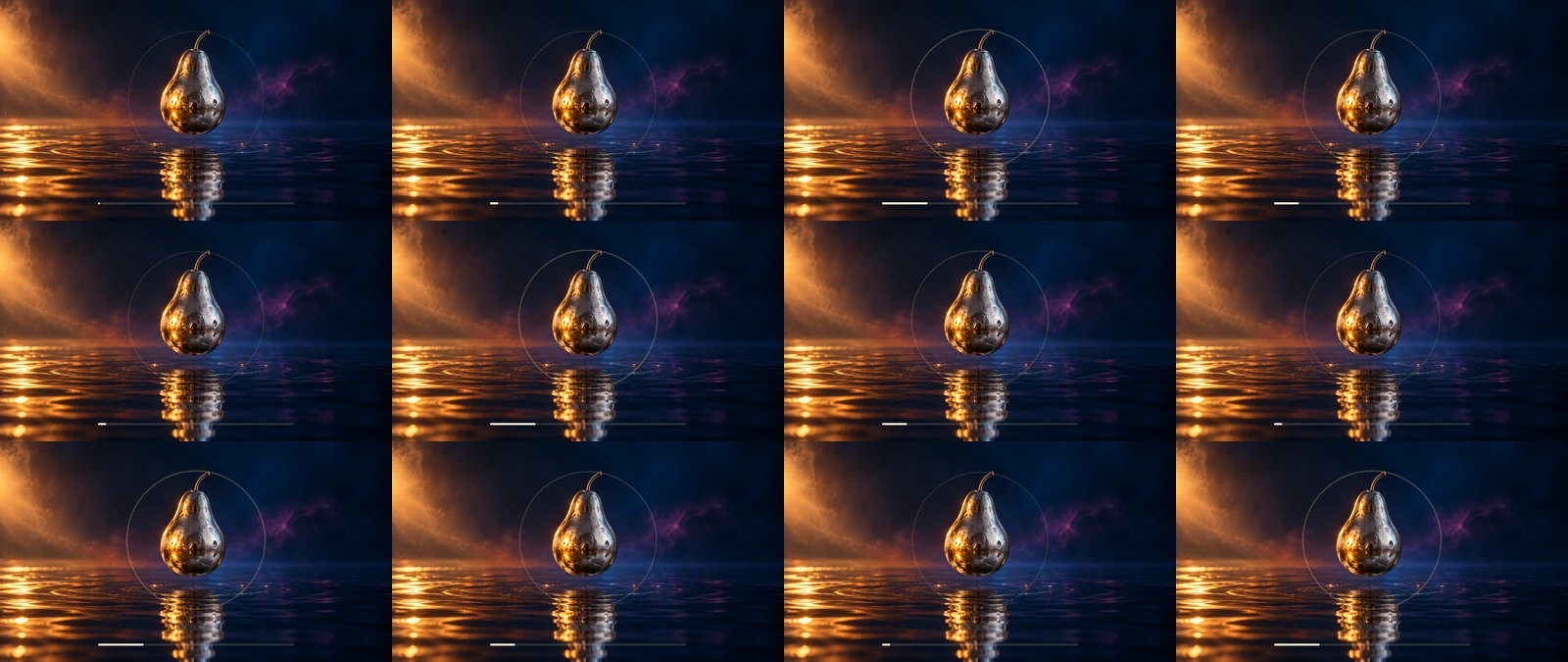
Watch the standalone study or download the native MP4. It contains 360 frames at 30 fps, H264 video at 1280 by 720 and mono AAC audio at 48 kHz, with a measured duration of 12 seconds.
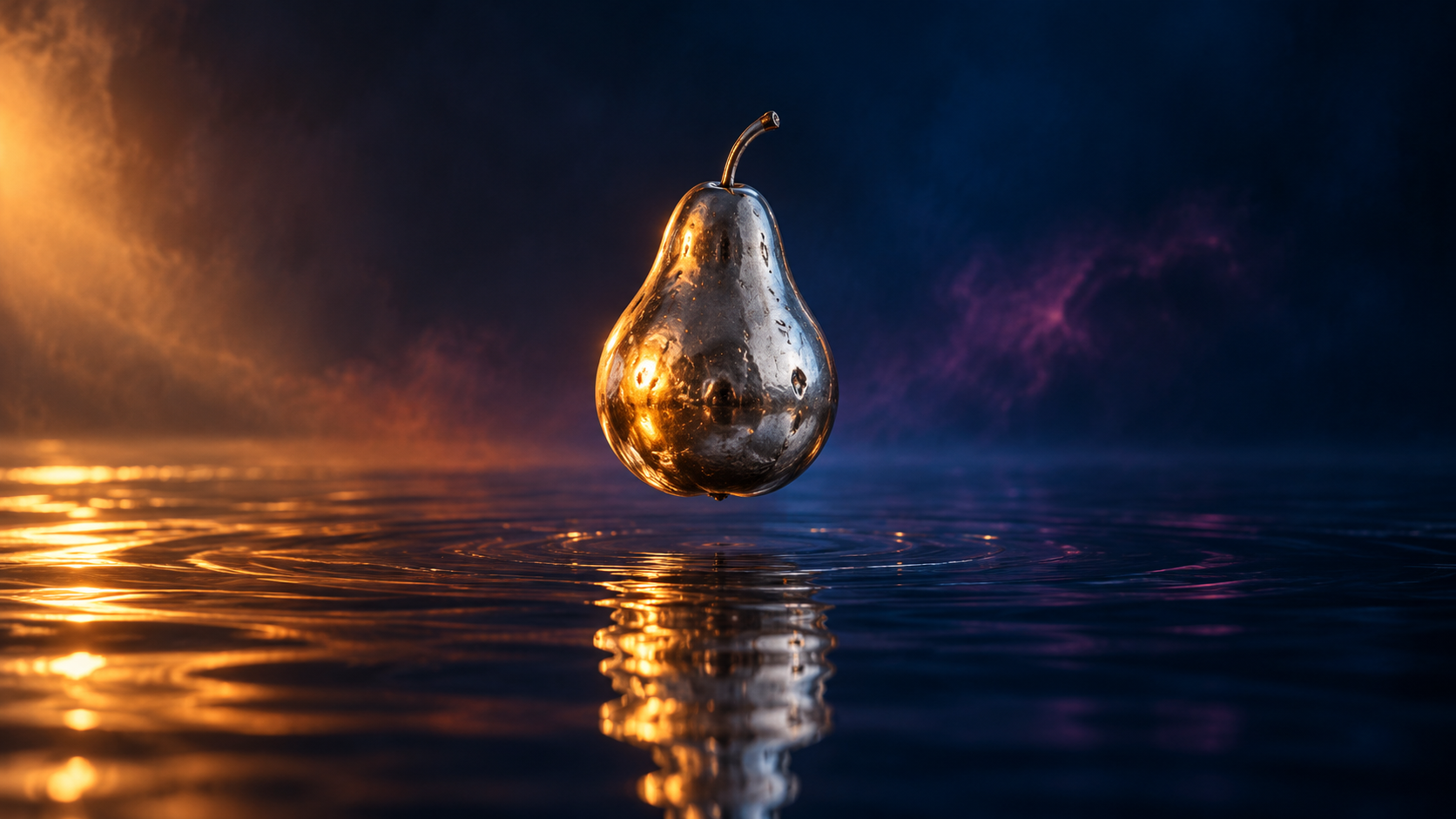
The original silver pear still was generated for this guide. It remains static throughout the local composition. The visible ring and lower bar respond to the authored source WAV, which contains synthetic 220 and 440 Hz tones with repeated decaying amplitude pulses. It is a test signal rather than a song or generated model audio.
Follow the signal from sound samples to visible controls
Each frame measures the root-mean-square level of 1600 PCM16 samples. At 48000 samples per second and 30 frames per second, those blocks cover the source track in order. The renderer normalizes that RMS value and smooths the control using 75 percent previous control and 25 percent current value.
The smoothed control changes ring radius, stroke appearance and lower-bar width. It reaches about 0.436 at frame 80 in this fixture. These are authored mappings from audio amplitude to graphics, not semantic beat detection or generated motion in the pear and water.
Download the 360-row frame-control CSV and measurement record. We independently recomputed every row from the published PCM WAV and checked the ring-radius and bar-width formulas. Full FFmpeg decoding passed. Native frames 0 and 80 and the twelve-frame contact sheet were inspected; listening and browser playback were not tested.
Reproduce the local render
Use the Bun and Sharp renderer, Python PCM audit and reproduction notes. The renderer creates the tone WAV, per-frame controls and final MP4 with FFmpeg. The provenance record identifies the supplied files by hash.
This demonstrates one reproducible way to combine an AI still with audio-reactive finishing. For a real release, use the accepted track, choose a suitable signal and inspect the full export. The fixture does not establish a seamless loop, automatic song analysis or an After Effects or Kaiber project import.
Choose your music visualizer format
| Format | What drives the picture | Review goal |
|---|---|---|
| Generated visual loop | A scene prompt and source artwork | Stable style and a clean loop boundary |
| Beat edited music video | Clips arranged around musical events | Cuts land at the intended moments |
| Audio reactive graphics | Measured audio amplitude or frequency | Visible motion responds consistently to the chosen signal |
| Lyric visualizer | Approved lyric text and timing | Words are accurate and readable |
A generated clip can match a song's mood without reacting to its sound. Likewise, a waveform can respond to audio without using generative AI. Combine these techniques deliberately: create the background imagery, then use a timeline or documented audio-reactive system for the synchronization you need.
Build a cue sheet before generating video
Listen to the selected song excerpt and mark the opening, first strong beat, change in energy, main hook and ending. Write timestamps from the actual audio file you will export. BPM alone does not identify every useful cut, and an introduction may include silence or a pickup before the downbeat.
Download the blank music visualizer cue sheet. Record the time, audible event, visual motif, source clip and review result. Its fields are empty so you can fill them with your own track observations. Keep the audio version fixed while you create the first edit.
Create one original visual direction
Imagine an original electronic release called Night Orchard. Its visual motif is a silver pear suspended above a midnight blue pool, with amber reflections that intensify during the hook. The direction gives the track a recognizable object and palette without requiring every beat to introduce a new scene. This is a fictional production brief, not a completed generation test.
Original cinematic artwork of a brushed silver pear suspended above a still midnight blue pool. Amber reflections, realistic metal texture, restrained composition and no lettering. Leave room for editable artist and track text. Keep the object silhouette consistent across later scenes.
Generate or prepare an accepted still first. Inspect the focal object, reflections and empty areas for typography. For a release with existing cover artwork, use your approved art as the identity reference through an operation that supports it. Keep logos and exact track lettering in editable finishing layers.
Animate short sections with one motion idea
Use the approved Night Orchard still as the visual reference. A slow forward camera move over the pool while the silver pear remains stable. Small amber ripples in the reflection, continuous lighting and no new objects or text. Finish on a composition suitable for a transition back to the opening.
This original prompt proposes motion, not guaranteed synchronization. Create short source clips and inspect the complete output for object drift, abrupt camera changes and inconsistent reflections. In Clout Image and Video, review the selected operation's supported inputs, duration and quote before generating. Clout source imagery and clips can be assembled in your chosen editor; this guide does not establish a native audio-reactive renderer.
Align the edit to the music
Kaiber's Beat Sync guide documents arranging clips, changing transitions and cut speed, trimming audio and continuing into its editor. Use the provider's current controls if that is your workflow, then inspect the downloaded result. A feature description is not a timing benchmark for your song.
For a manual edit, place the exact audio excerpt first. Add markers at the chosen events, then trim clips to the cue sheet. Leave some musical moments without a cut so the imagery can breathe. A quiet verse may benefit from one continuous shot while the hook uses a stronger visual change. Avoid covering every transient with an identical flash.
Add audio reactive motion when the signal matters
Conventional audio analysis can drive scale, brightness or a graphic element from measured sound. Adobe After Effects documents Convert Audio To Keyframes in its current animation tools guide. Audio amplitude is a control signal; it does not automatically understand the song's narrative or identify the right visual accent.
Choose one property to react first and keep its range restrained. Review quiet passages and loud passages separately. If the result jumps constantly, smooth or reduce the response in your chosen tool rather than adding more generated clips. Preview at the final frame rate because a fast accent can disappear or feel harsher after export.
Make a loop without a visible reset
Compare the ending and opening at the actual join. Similar colors are not enough if the camera direction, object position or brightness jumps. Try a controlled crossfade, a deliberate cut on a musical event, or a source shot whose movement can repeat. A prompt requesting a seamless loop does not prove the returned file loops cleanly.
Watch several repetitions with the audio. Check whether the last frame holds too long, whether a transition doubles a beat, and whether the audio itself has a clean boundary. A looping social teaser and a full song visualizer need different delivery decisions.
Review the final visualizer export
Inspect the first strong beat, a middle transition and the ending in the exported file. Keep source audio and export audio aligned at the same start point when comparing. A consistent offset suggests a timeline or encoding issue; changing offsets suggest different timing or edit problems. Record the actual observation instead of describing the whole video as out of sync.
Check aspect ratio, text readability, black frames, clipped highlights and unintended audio changes. Make a vertical version with its own framing rather than cropping away the focal object. Keep accepted source clips and the cue sheet so a later lyric or release-date update does not require rebuilding the entire concept.
For a song-led sequence with performance or narrative progression, use the AI music video generator workflow and its original pilot shot plan.
Plan the cost of a complete release package
Start with one short excerpt and one accepted visual motif. Record generation attempts, usable clip duration and finishing time. Include rejected takes in your cost per accepted segment. Expand to a full song only after the excerpt works as an exported file.
For connected visual storytelling, explore Clout AI Cinema. For a readable animated message, continue with the kinetic typography guide. The strongest release package gives the song a coherent visual identity and makes its timing intentional.