
AI B-roll for the story you are telling
Give every cutaway a purpose. Plan the supporting shots, keep your visual subject consistent and create separate clips in Clout.
Start with the line the viewer hears. Decide what they need to see. Generate a focused shot, then keep the take that supports the message.
Turn your script beats into a shot list
One line becomes one separate clip brief. The planner cycles through wide, close and medium framing; edit the briefs for your story before generating.
Your text stays in this browser. This tool makes no AI calls, uploads or video. Choose a model, supported settings and the current credit quote separately in Clout.
3 separate clips · 18 seconds before trimming
Shot 1 · 0–6s
Introduce the problem
Wide establishing view of an original teal travel organizer on a clean studio table. One clear visual action, steady composition and consistent appearance. Silent supporting footage for this editorial beat: Introduce the problem. Do not speak the narration or add on-screen text. Review factual details against approved sources. Planned separate clip: 6 seconds, 16:9; apply actual supported settings in the studio.
Shot 2 · 6–12s
Show the useful detail
Close detail view of an original teal travel organizer on a clean studio table. One clear visual action, steady composition and consistent appearance. Silent supporting footage for this editorial beat: Show the useful detail. Do not speak the narration or add on-screen text. Review factual details against approved sources. Planned separate clip: 6 seconds, 16:9; apply actual supported settings in the studio.
Shot 3 · 12–18s
Finish on the result
Medium view of an original teal travel organizer on a clean studio table. One clear visual action, steady composition and consistent appearance. Silent supporting footage for this editorial beat: Finish on the result. Do not speak the narration or add on-screen text. Review factual details against approved sources. Planned separate clip: 6 seconds, 16:9; apply actual supported settings in the studio.
Copy the brief manually into your selected workflow. This link does not prefill a model or prompt.
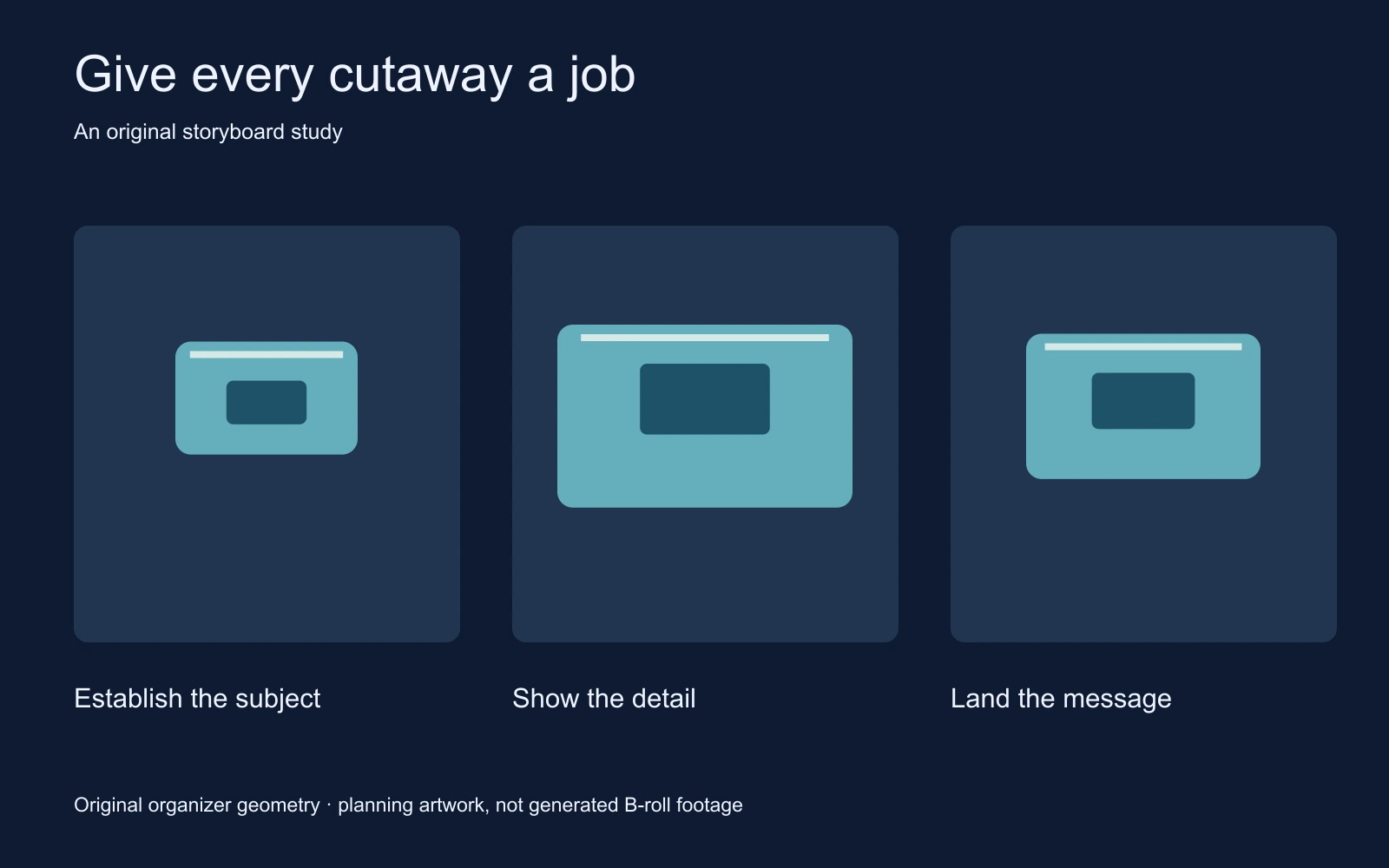
Establish the subject
Show the setting and the object the viewer should recognize. Use an approved reference when product identity matters.
Make a detail readable
Choose one feature or action. A close view should explain something the wider shot could not show clearly.
Review the whole take
Check appearance, motion and the relationship to the narration. Trim and assemble accepted clips in your editor.
Choose the footage your message needs
For original scenes, describe one subject, one action and one camera intention. For real products and places, start from approved sources and compare the complete result with them. A generated clip can illustrate an idea; it does not document a customer, factory or event that was never filmed.
The free planner gives you a starting shot list. The studio is a separate step where you choose the workflow, supported controls and current quote. Generated takes still need selection and editing against the actual voiceover.
Questions about AI B-roll
Can I create AI B-roll in Clout
Use Clout Image and Video Studio to select an available generation workflow, prepare source visuals and generate separate clips. Review supported settings and the current credit quote before submitting a job.
Is the B-roll shot planner free
Yes. The local planner prepares template briefs without an account or generation charge. Video generation separately requires account access and workspace credits.
Does the planner analyze my script with AI
No. Each non-empty line becomes one beat, with wide, close and medium framing assigned in a repeating template. Review and edit the briefs for your story.
Does my script leave the browser
The local planner does not upload your text or make AI calls. Copy the briefs manually into a studio workflow only when you choose to generate.
Does Clout automatically edit the clips together
This page does not establish automatic timeline assembly. Review the generated takes and assemble accepted clips in your chosen editor.